
When your iPhone 16 Pro won't download a photo or video someone sent you, it can leave you out of the loop. This is usually a problem with MMS, the system that handles multimedia messages between different phones. The fix is often simpler than you might think.
Let's get those pictures and videos downloading again.
Start With a Quick Restart
Before diving into settings, give your iPhone 16 Pro a fresh start. A force restart can clear out temporary software glitches that might be blocking the download. On your phone, quickly press and release the Volume Up button, then quickly press and release the Volume Down button. Finally, press and hold the Side button until you see the Apple logo appear.
Once it boots back up, try tapping the download button in the message again. I've seen this simple step resolve the issue more times than I can count.
Check Your Cellular Data Connection
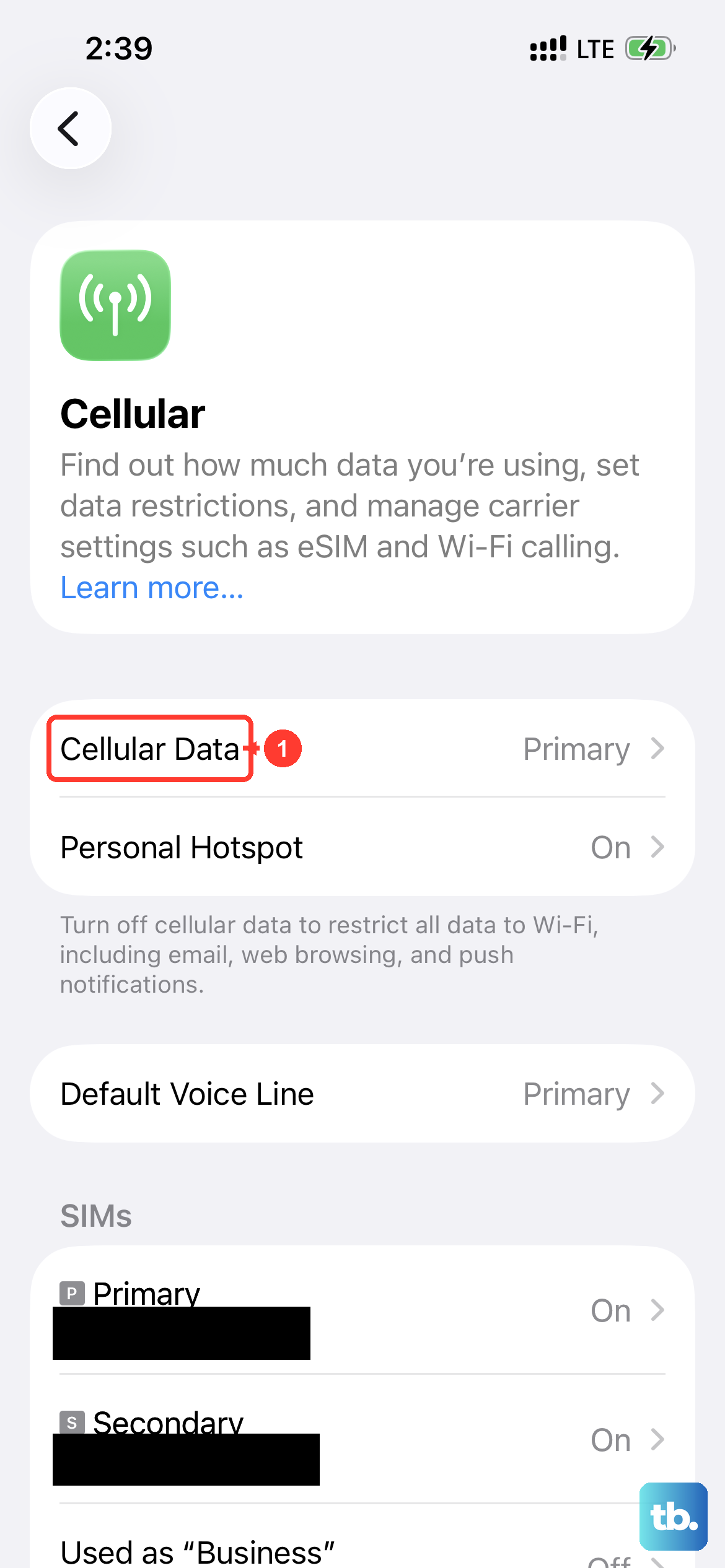
MMS messages don't download over Wi-Fi on an iPhone. They require an active cellular data connection. Swipe down from the top-right corner to open Control Center and make sure the cellular data icon is blue.
If you have a weak signal, try moving to a different location. Sometimes, just toggling Airplane Mode on for 10 seconds and then off again can force your iPhone 16 Pro to reconnect to the cellular network more cleanly.
Verify Your MMS Settings
Your iPhone needs to be configured to allow MMS downloads. Head to Settings > Apps > Messages. First, ensure the "MMS Messaging" toggle is switched on.
Right below that, also check that "Send as SMS" is enabled. This setting helps as a fallback. If a message can't send as iMessage, it will try to send as an SMS or MMS, which keeps the conversation flowing.
Update Your Carrier Settings
Carrier updates are small files that help your iPhone 16 Pro work optimally with your mobile network. These can fix MMS issues. To check for one, go to Settings > General > About.
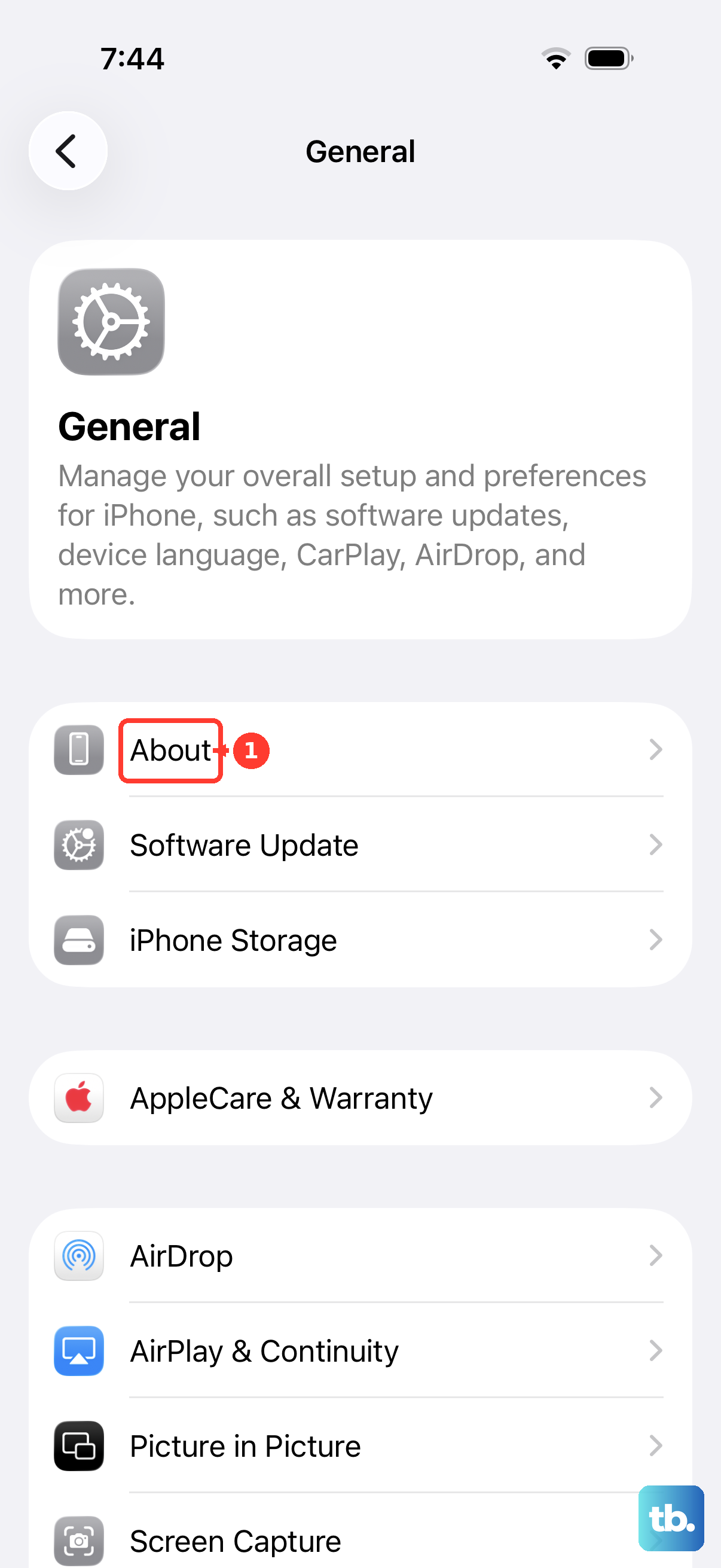
If an update is available, a prompt will appear on this screen. Installing it only takes a moment and doesn't affect your personal data. It's a good habit to check this after any major iOS update as well.
Review Your Message Thread
If a specific message won't download, the problem could be with the message itself. Try deleting the entire conversation thread from the person who sent it. Open the Messages app, swipe left on the conversation, and tap "Delete."
Ask the sender to resend the photo or video. This gives the system a fresh attempt to download the file. For group messages, you might need to leave the group and be re-added if the issue is persistent there.
Reset Your Network Settings
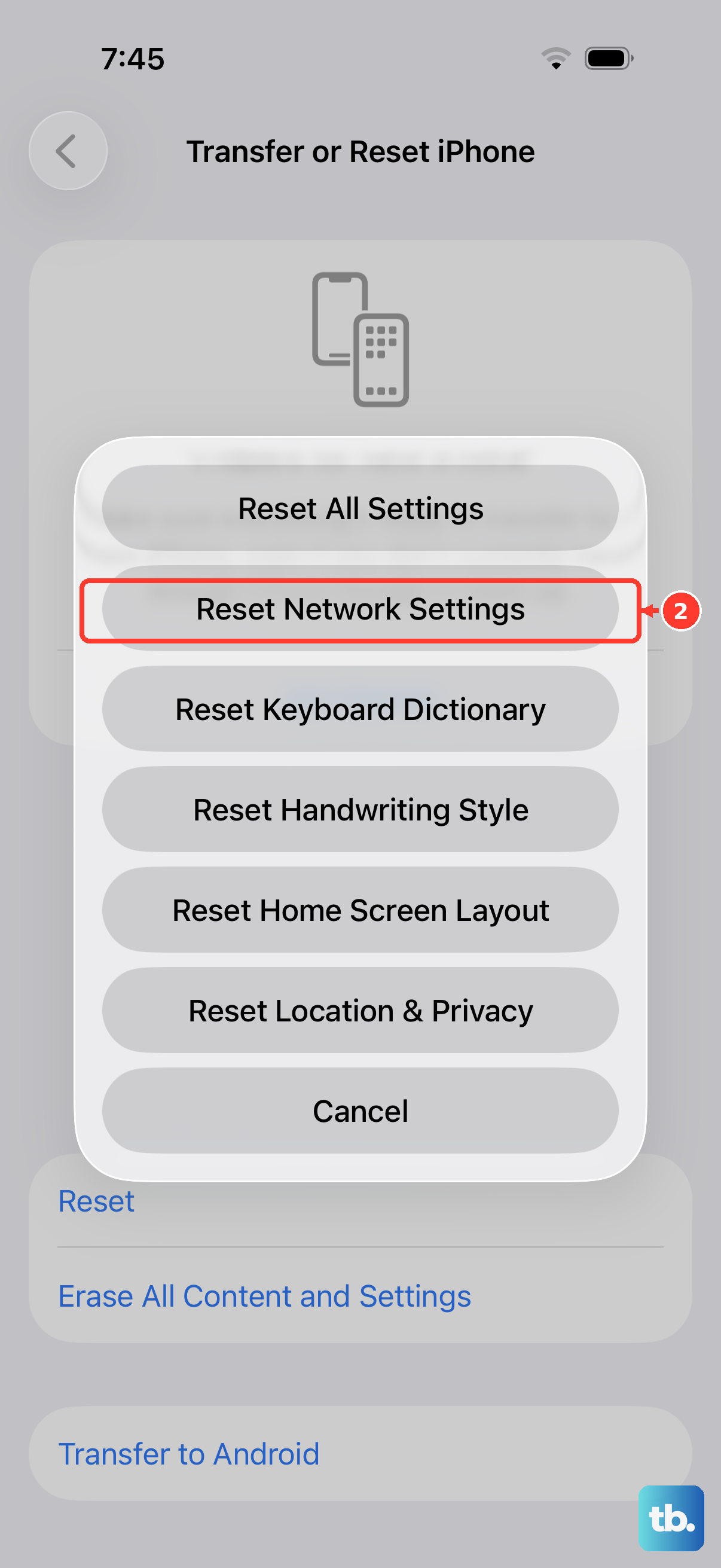
This is a more thorough step that clears all your saved network information. It will erase your Wi-Fi passwords, Bluetooth pairings, and cellular network preferences, so you'll need to reconnect to Wi-Fi networks afterward.
To do this, go to Settings > General > Transfer or Reset iPhone. Tap "Reset" at the bottom, then choose "Reset Network Settings." Enter your passcode when prompted. After your iPhone 16 Pro restarts, test the MMS download again.
Check for a Software Update
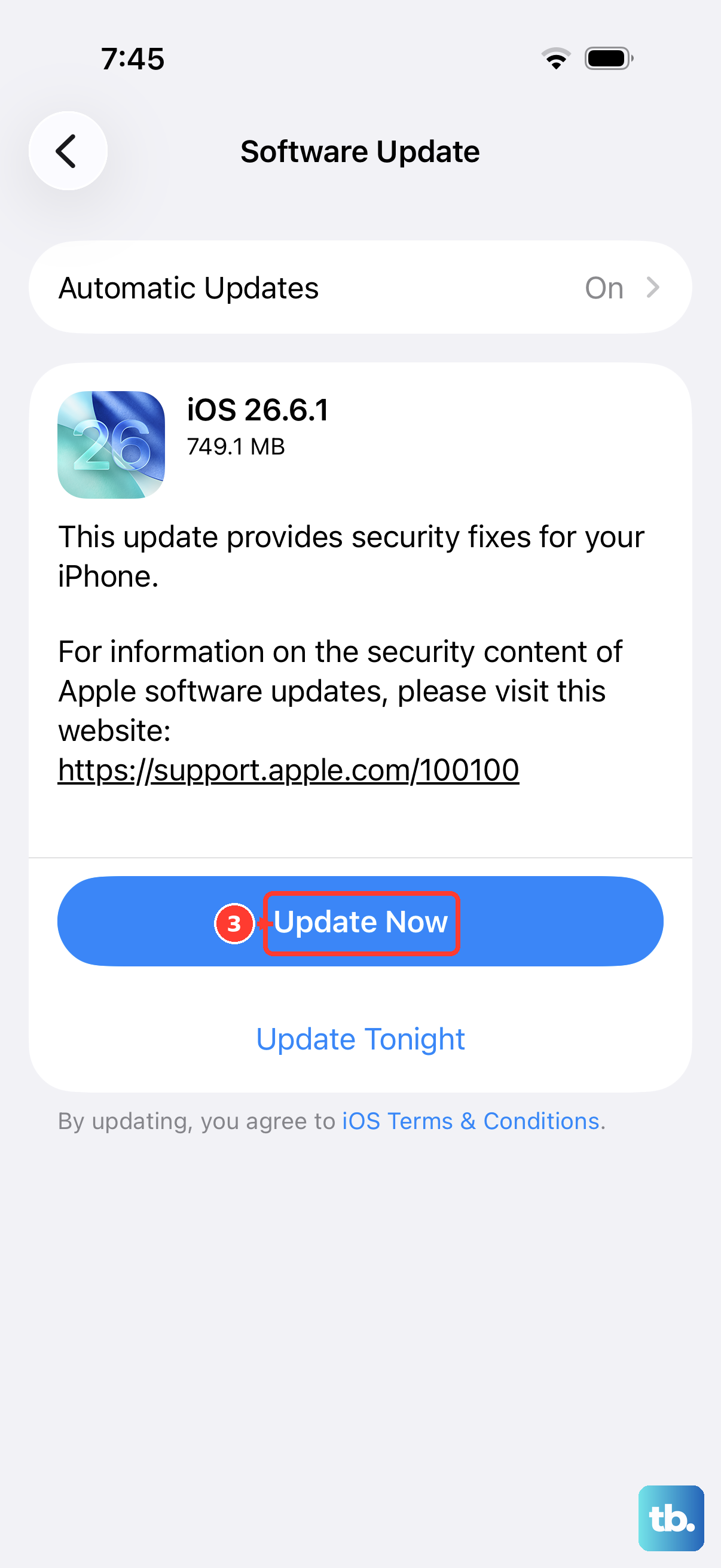
Running the latest version of iOS 26 is crucial. Apple frequently releases updates that patch bugs affecting connectivity and messaging. Open Settings > General > Software Update.
If an update is available, tap "Download and Install." I'd recommend doing this while connected to Wi-Fi and a power source, like a certified 30W USB-C charger or a MagSafe puck, to ensure it completes smoothly.
Disable iMessage Temporarily
This helps determine if the issue is related to how iMessage is handing off the MMS. Go to Settings > Apps > Messages and toggle "iMessage" off. Wait a minute, then toggle it back on.
Your phone will need to reactivate iMessage, which can sometimes clear up a stuck state. After it activates, have your friend send the media again.
Contact Your Mobile Carrier
If you've tried everything here, the problem might be on your carrier's end. They can check if MMS services are enabled on your account and confirm your APN (Access Point Name) settings are correct for your iPhone 16 Pro.
You can usually find the correct APN settings on your carrier's support website. They can also tell you if there's a known service outage in your area that's affecting multimedia messages.