
When your iPad Air M3's Personal Hotspot stops working, it can't share its cellular data connection with your other devices. The hotspot might not show up, refuse connections, or drop devices randomly. Here are the fixes that actually work for iPadOS 18 on the M3 model.
Quick Toggle and Restart Combo
The fastest fix is to turn Personal Hotspot off and back on. Go to Settings > Personal Hotspot and switch it off. Wait ten seconds, then toggle it back on. Make sure Allow Others to Join is enabled.
If that doesn't help, restart the iPad. Press and quickly release Volume Up, then Volume Down, then press and hold the Top button until the Apple logo appears. This is the standard force restart for the iPad Air M3 and clears temporary glitches in hotspot and networking services.
Check That Cellular Data Is Actually Working
Personal Hotspot only works on the cellular model of the iPad Air M3. Go to Settings > Cellular Data and verify it's turned on. If you're in a weak signal area, the hotspot may fail or drop connections constantly. Try moving to a different spot or going near a window.
Some carrier plans cap tethering or exclude it entirely. Check your plan details in Settings > Cellular Data > Carrier Services to confirm hotspot is included. If you see a message about hotspot not being available, you'll need to contact your carrier.
Make Sure Both Devices Are Compatible
Not every device connects well with iPadOS 18 hotspots. Older laptops, smart TVs, or gaming consoles sometimes have trouble with Apple's hotspot implementation. If a specific device refuses to connect, try a different one first. That tells you whether the issue is with the iPad or the other gadget.
On the connecting device, go to its Wi-Fi settings and forget the hotspot network if it's saved, then search for it fresh and re-enter the password. Corrupted saved profiles are a surprisingly common cause of failed connections.
Reset Network Settings
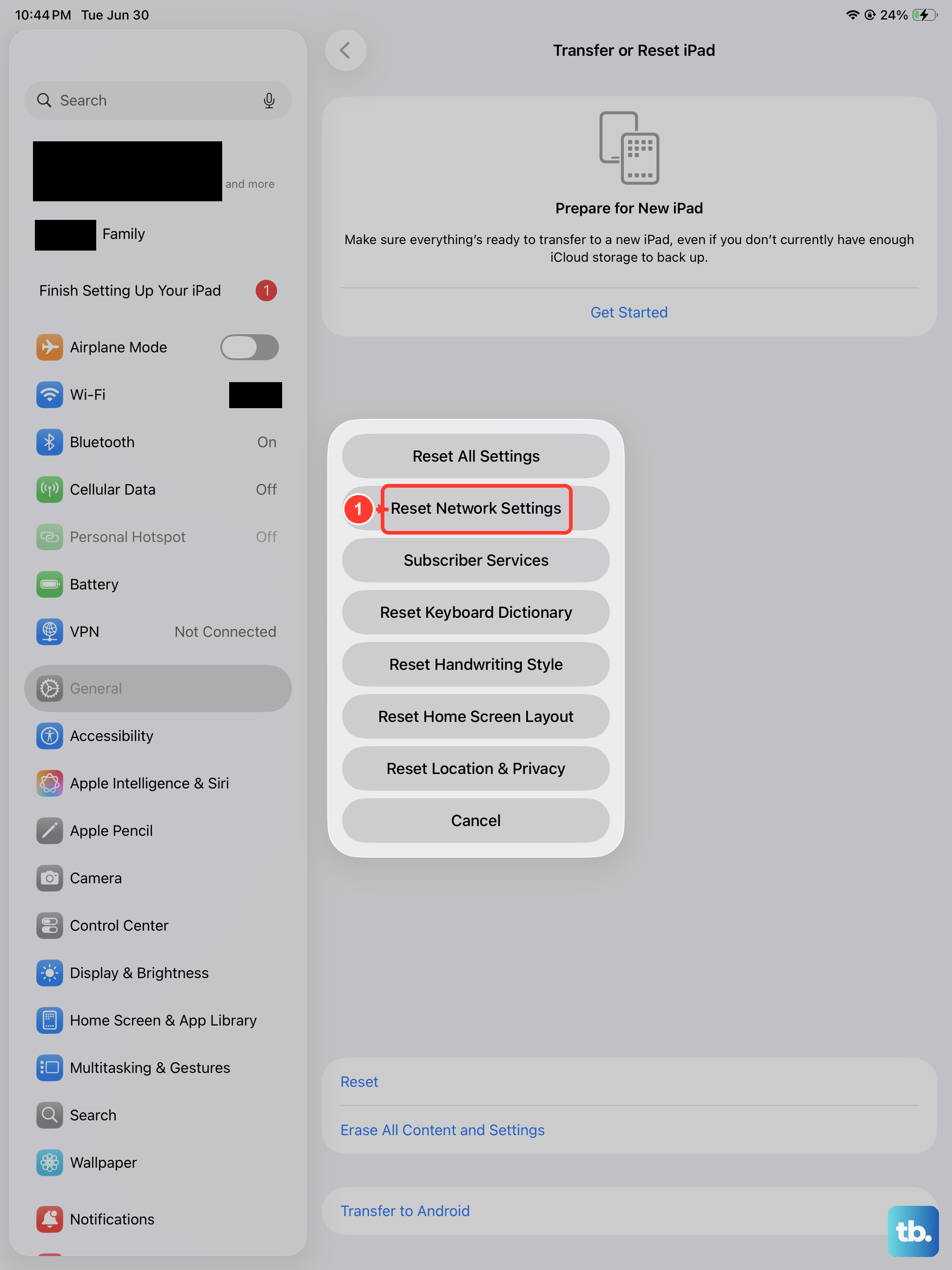
If the hotspot is still acting up, a network settings reset often fixes it. Go to Settings > General > Transfer or Reset iPad > Reset > Reset Network Settings. This wipes saved Wi-Fi passwords, VPN configs, and Bluetooth pairings, then rebuilds network components from scratch.
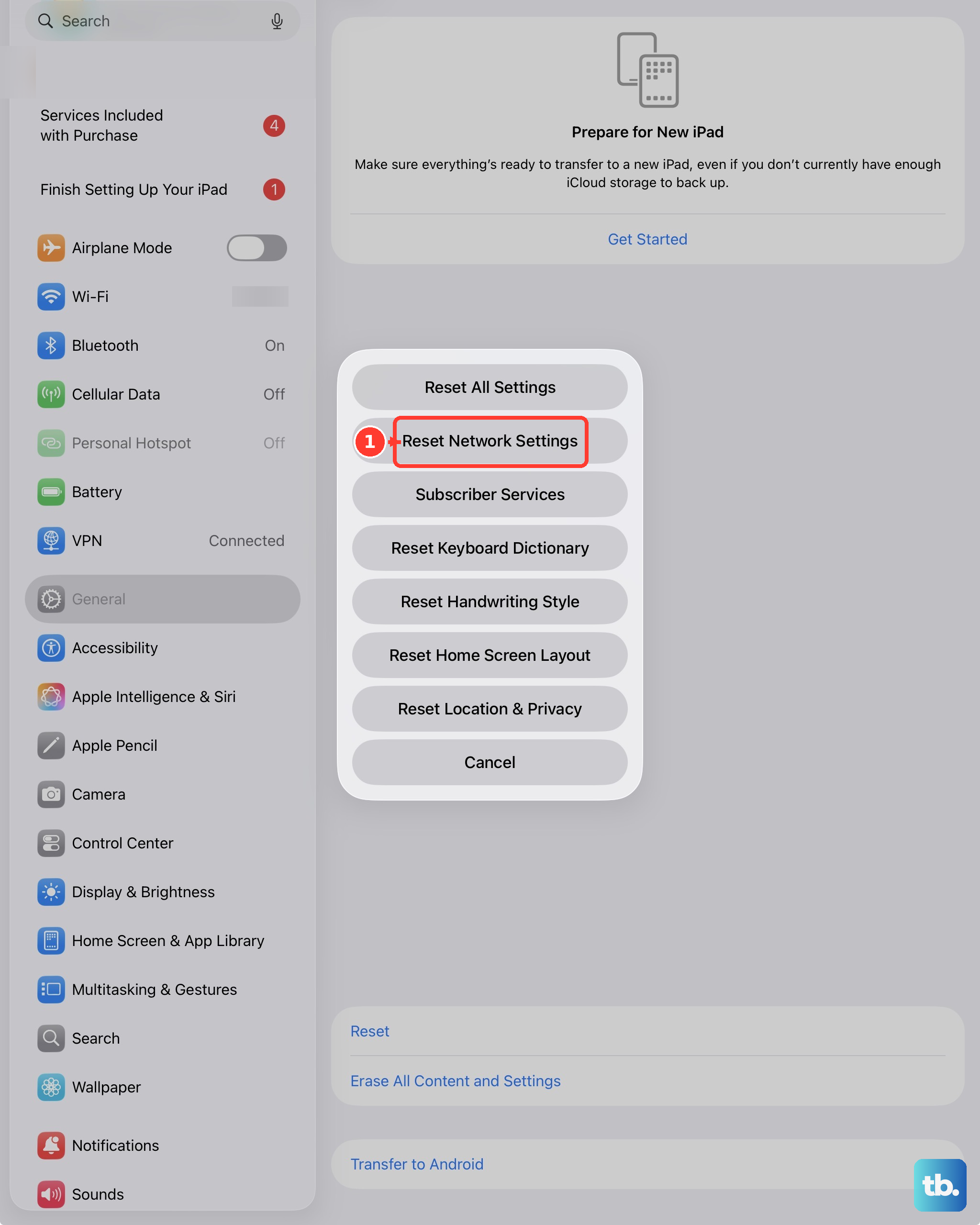
You'll need to rejoin Wi-Fi networks afterward, but this clears deep issues that toggle fixes can't reach. It's a full reset of the networking stack on iPadOS 18.
Update Carrier Settings
Carriers push small settings updates that can enable or fix hotspot functionality. Head to Settings > General > About. If a carrier settings update is available, a pop-up appears immediately. Tap Update and let it install, it takes less than a minute and requires no restart.
iPadOS software updates also carry hotspot fixes. Check Settings > General > Software Update and install anything available. Apple has patched multiple hotspot-related bugs in past iPadOS releases, including some specific to M-series iPads.
Change the Hotspot Password
A corrupted authentication cache can prevent new connections even when the password is correct. Change it in Settings > Personal Hotspot > Wi-Fi Password. Use something simple you can type on the other device, then reconnect everything with the new password.
This forces a fresh handshake between the iPad and each connecting device, bypassing any stale credentials stored on either side.
Try USB or Bluetooth Tethering Instead
When Wi-Fi hotspot won't cooperate, the iPad Air M3 supports USB and Bluetooth tethering as backup options. Connect the iPad to your computer with a USB-C cable, then go to Settings > Personal Hotspot and verify it's on. The computer should detect the iPad as a network interface automatically.
For Bluetooth tethering, pair the devices first in Settings > Bluetooth, then enable Personal Hotspot. Both methods bypass Wi-Fi hotspot entirely and often work when the wireless hotspot won't.
Avoid Third-Party Accessories That Interfere
Some USB-C hubs, adapters, and external displays can interfere with the iPad's networking stack, especially when connected while hotspot is active. If hotspot problems started after plugging in a new accessory, disconnect it and test hotspot again. The iPad Air M3 is sensitive to non-certified peripherals, and that includes accessories that mess with data connections.