
When your iPad Air (2026) stops listening to "Hey Siri," it can feel like you've lost a helpful assistant. The voice commands that should simplify tasks on your tablet suddenly get no response. Here's how to get Siri working again on your iPad.
I'd start by checking the most common culprit, which is usually a simple setting that got switched off. Head into your iPad's Settings app and tap on Siri & Search. Make sure both "Listen for 'Hey Siri'" and "Allow Siri When Locked" are toggled on. If either is off, Siri won't activate with your voice.
Check for iPadOS Features That Interfere
Certain accessibility features in iPadOS 26 are designed to listen for specific sounds, and they can accidentally block Siri. The main one to look for is Sound Recognition.
Go to Settings, then tap Accessibility. Scroll down and select Sound Recognition. If this feature is turned on, it will prevent "Hey Siri" from working. Toggle it off and test your voice command again.
Also, check if your iPad is in a Focus mode like Do Not Disturb or Work. While Siri should typically work, some users find that certain Focus filters can limit its responsiveness. Try disabling your active Focus mode temporarily from the Control Center to see if that's the issue.
Inspect Your Audio and Microphone
If Siri activates but you can't hear her, or if she seems to not hear you at all, your audio setup might be the problem. First, check that your iPad's volume is up and it's not muted. You can use the volume buttons on the side to adjust this.
Your iPad Air has multiple microphones. If they're blocked by a case, a screen protector that wasn't properly aligned, or even a bit of lint, Siri's ability to hear you will suffer. Gently inspect the microphone ports, usually found along the top and bottom edges. A soft brush or a quick blast of compressed air can clear any debris.
For cases where your iPad is often placed face down, there's a setting to override that. Go to Settings > Accessibility > Siri. Here, you can toggle on "Always Listen for 'Hey Siri'" so it works even when the screen is covered.
Retrain Siri to Your Voice
Background noise, changes in your voice, or just general software drift can make Siri less accurate. Retraining it is a straightforward fix that often helps.
Go back to Settings > Siri & Search. Turn off the "Listen for 'Hey Siri'" toggle. Wait a moment, then turn it back on. Your iPad will walk you through the setup process again, asking you to say a few phrases. Speak clearly and naturally, just like you normally would when giving a command.
This process gives Siri a fresh audio sample of your voice to work with, which can significantly improve recognition, especially if you've had the tablet since launch and never retrained it.
Restart and Update Your iPad
A simple restart clears out temporary glitches that can affect Siri and other system services. To force restart your iPad Air (2026), quickly press and release the Volume Up button, then quickly press and release the Volume Down button. Finally, press and hold the Top button until you see the Apple logo appear on the screen.
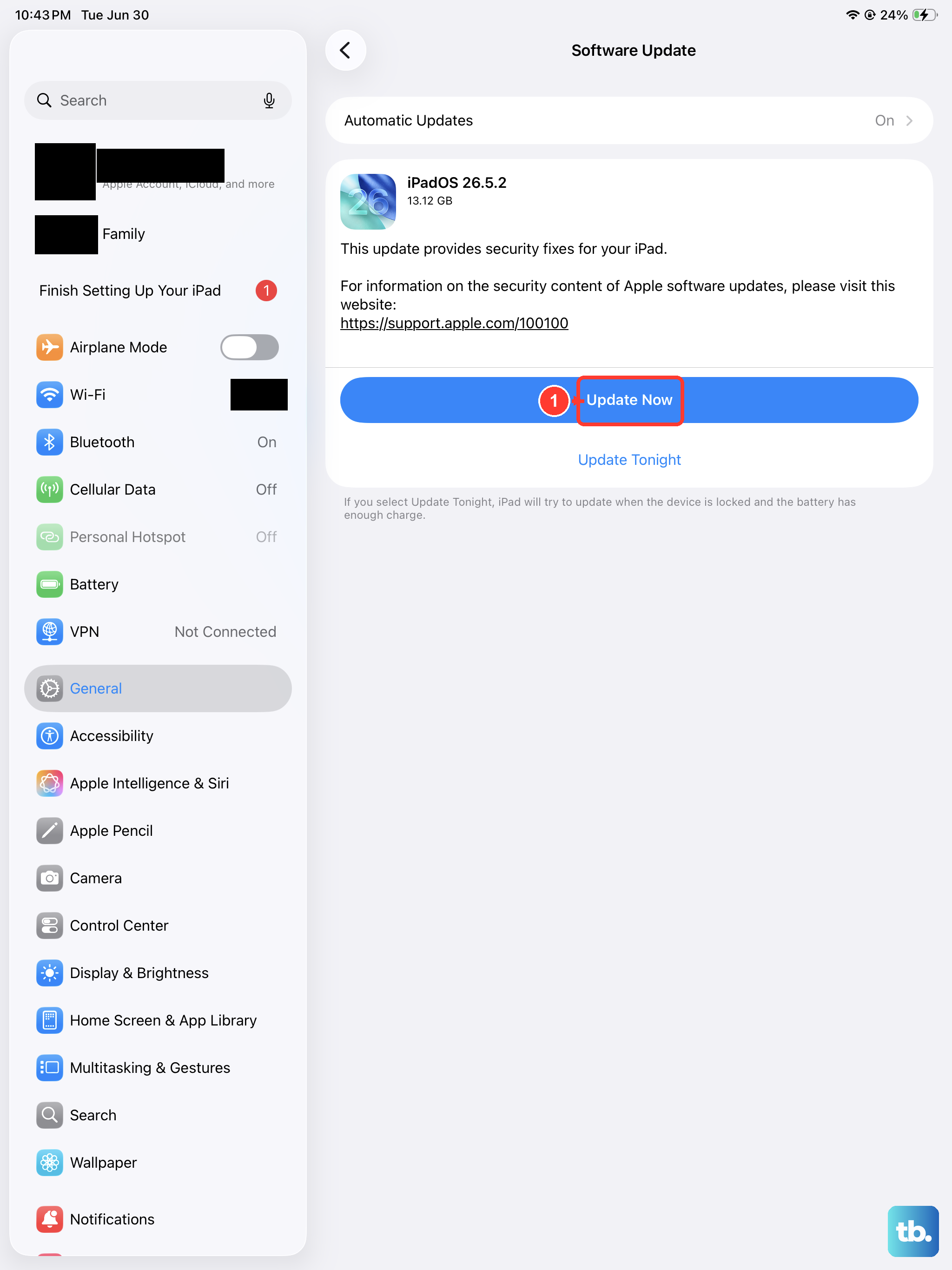
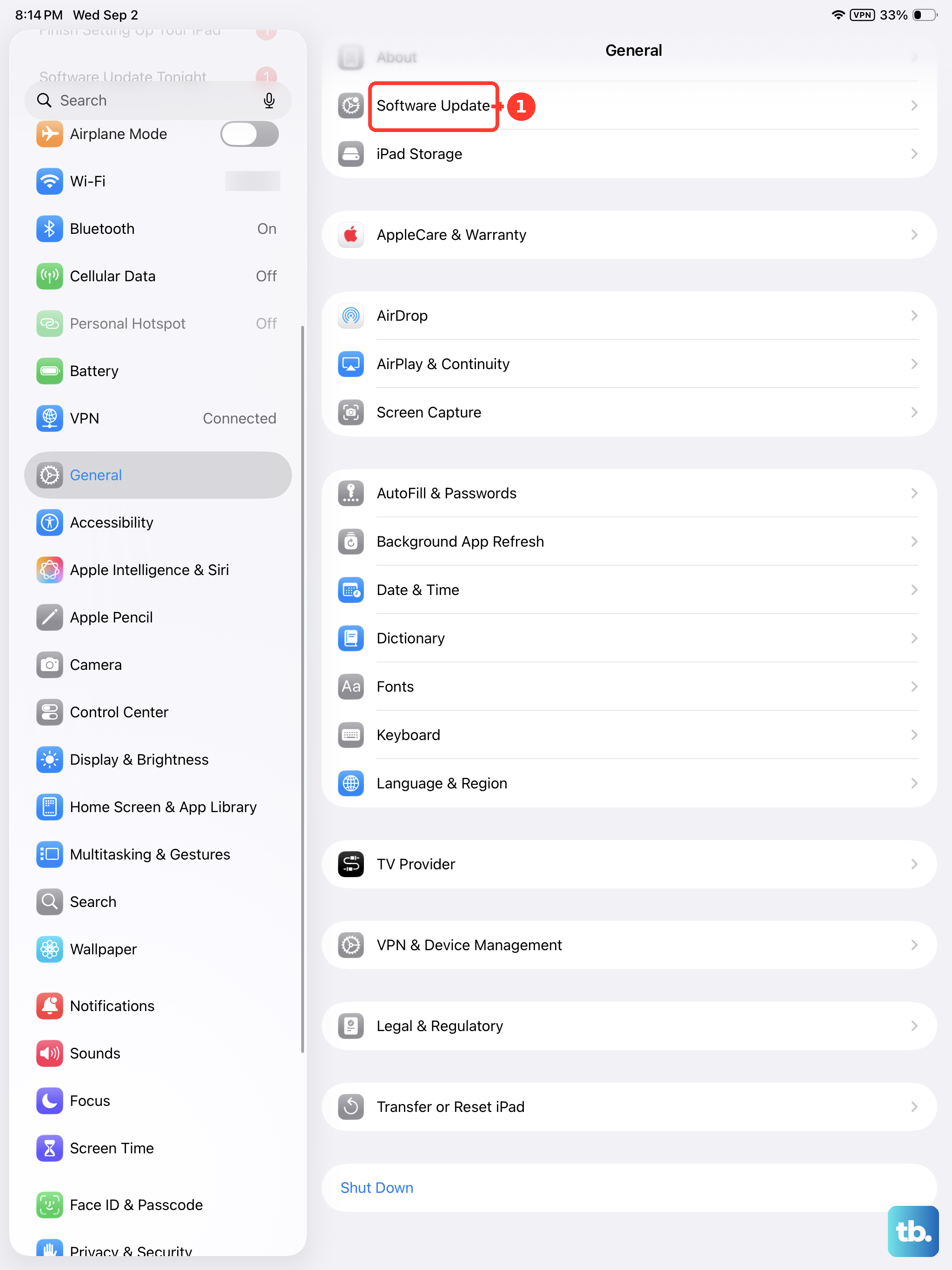
Keeping your iPadOS updated is crucial. Apple regularly releases updates that fix bugs, including ones related to voice recognition and assistant performance. To check, open Settings, tap General, and then select Software Update. If an update for iPadOS 26 is available, install it. It's a good habit to check for updates regularly, as you mentioned, for overall performance improvements.
Reset Your iPad's Settings
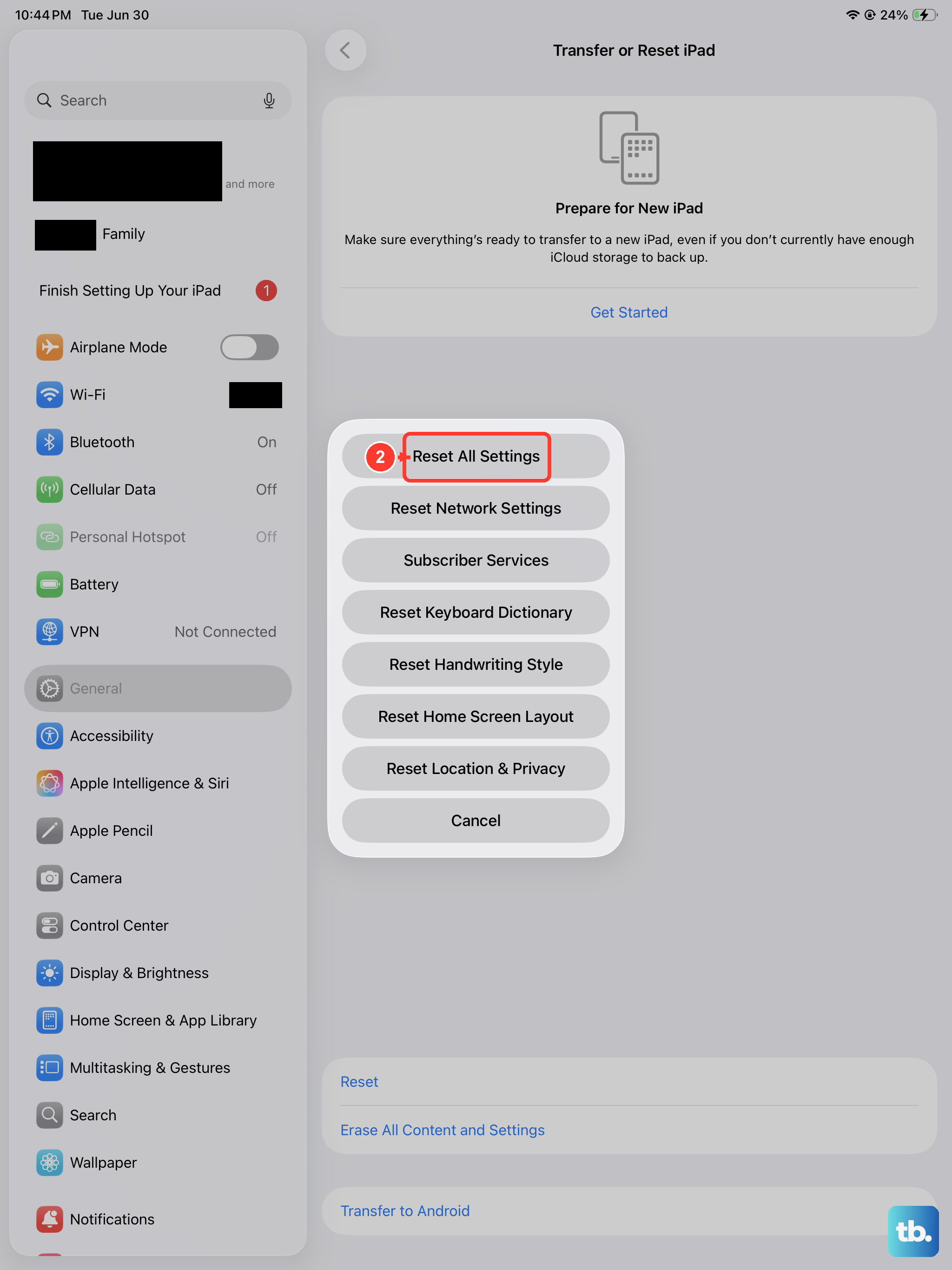
If you've tried everything else and Siri is still unresponsive, a settings reset can resolve deeper configuration conflicts. This won't delete your apps, photos, or personal data, but it will revert all system settings to their defaults.
Go to Settings > General > Transfer or Reset iPad. Tap on Reset, and then choose Reset All Settings. You'll need to enter your passcode to confirm. After the iPad restarts, you'll need to reconfigure things like Wi-Fi passwords and wallpaper, but it often clears up persistent software issues.
Since your iPad Air uses a USB-C port, ensure you're using a quality cable and a power adapter that supports USB Power Delivery for the fastest and most reliable charging, which keeps your device running optimally. While this model doesn't support wireless charging, a solid wired connection is best for maintaining battery health during these troubleshooting steps, which might require several restarts.