
Missing FaceTime calls or not getting alerts for incoming messages on your iPad Air can be really annoying. Since the iPad doesn't have a traditional cellular ringtone like a phone, the issue usually comes down to notification settings, software glitches, or sound being routed elsewhere. Let's get your alerts working again.
The most common fix is to check your Focus modes. Swipe down from the top-right corner to open Control Center and look for a highlighted moon, crescent, or other Focus icon. If you see one, tap it to turn that Focus off immediately. This single step resolves the issue for most people.
Check Your Notification Settings
Open the Settings app and go to Notifications. Here, you'll see a list of all your apps. Tap on the specific app that isn't alerting you, like FaceTime or Messages.
Make sure "Allow Notifications" is toggled on at the top. Then, check the alert style you've chosen. For critical alerts like calls, I'd recommend having "Lock Screen," "Notification Center," and "Banners" all enabled. Banners can be set to persistent so they don't disappear until you act on them.
Adjust the Volume and Mute Switch
Even with notifications enabled, the volume might be all the way down. Press the volume up button on the side of your iPad Air to increase it. You can also check in Settings > Sounds.
Look at the "Ringer and Alerts" slider. If your iPad has a physical mute switch on the top edge (following the design of some older models), make sure it's not engaged. When muted, you should see an orange indicator.
Disconnect Bluetooth Audio Devices
If your iPad Air is connected to AirPods, a Bluetooth speaker, or headphones, all sound, including call and message alerts, will be routed to that device. If the headphones are in a case or the speaker is off, you won't hear a thing.
Go to Settings > Bluetooth and toggle it off to test. Or, tap the info icon (i) next to the connected device and choose "Disconnect." This will force all audio back to the iPad's internal speakers.
Review Focus Mode Schedules and Filters
Sometimes a Focus isn't manually on but is scheduled to turn on automatically. Go to Settings > Focus. Tap on each Focus mode, like Do Not Disturb or Work, and look for "Turn On Automatically."
You might have a schedule based on time or location that you've forgotten about. Also, check the "Allowed Notifications" section within each Focus. If "Allow Calls From" is set to "No One" or "Favorites," calls from others will be silenced.
Change Your Alert Tone
A corrupted or buggy sound file can cause silent alerts. Try switching to a different tone to see if that's the issue. Go to Settings > Sounds.
For FaceTime calls, tap on "Ringtone." For text tones, tap on "Text Tone." Choose a new, standard tone from the list and have a friend send you a test message or call to check.
Check for Blocked Contacts
If you're not receiving calls or messages from one specific person, you may have accidentally blocked them. This sends their FaceTime calls straight to voicemail without any alert on your end.
You can check this in Settings > Apps > FaceTime > Blocked Contacts. For regular messages, go to Settings > Apps > Messages > Blocked Contacts. Swipe left on any name to unblock them.
Force Restart Your iPad Air
A simple restart can clear out temporary software bugs affecting sound and notifications. For the iPad Air (2026), press and quickly release the Volume Up button, then press and quickly release the Volume Down button. Immediately after, press and hold the Top button until you see the Apple logo appear on the screen.
Update iPadOS
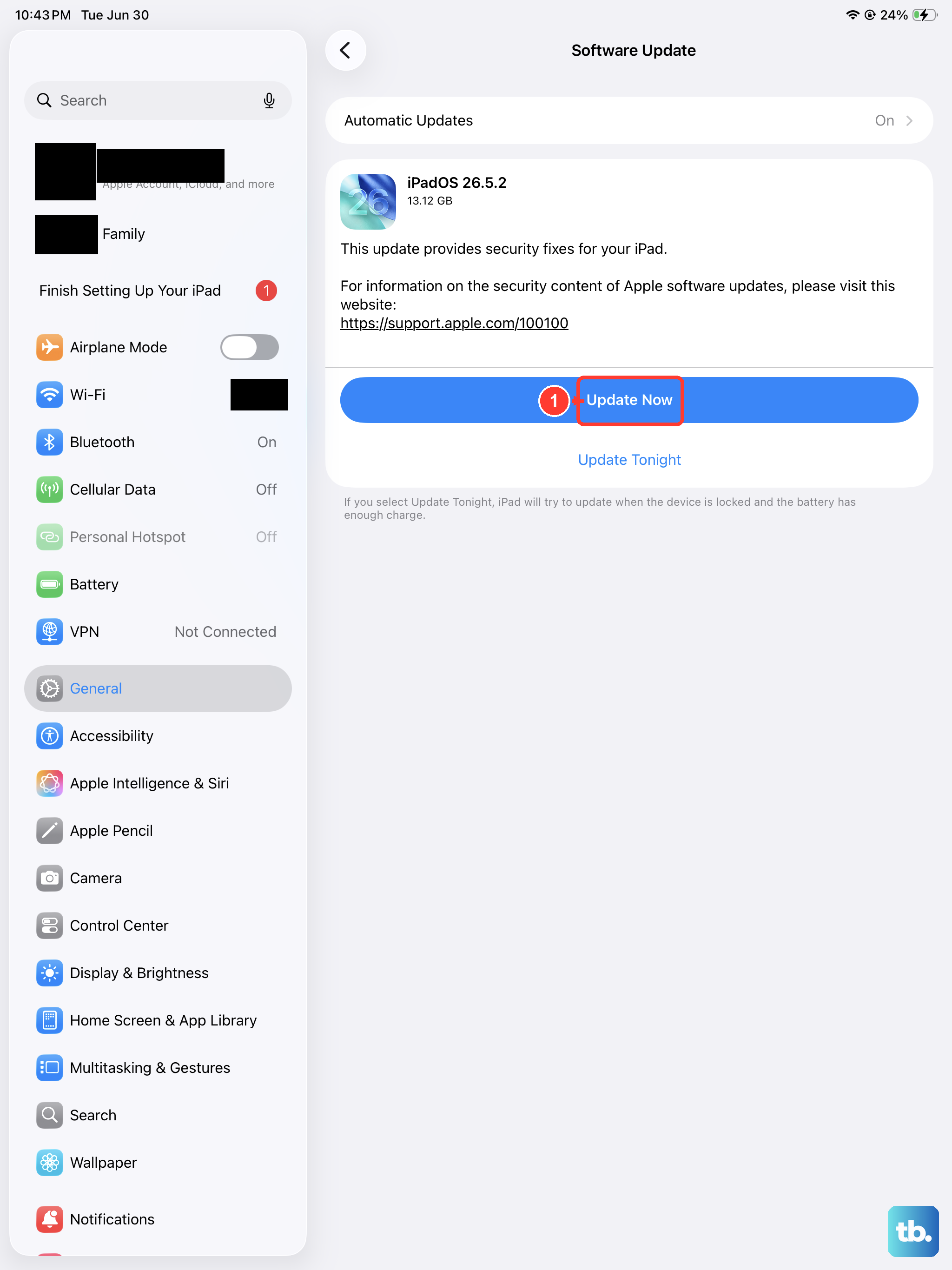
Apple regularly releases updates that fix bugs, including ones related to notifications and sound. Make sure your iPad Air is running the latest version of iPadOS.
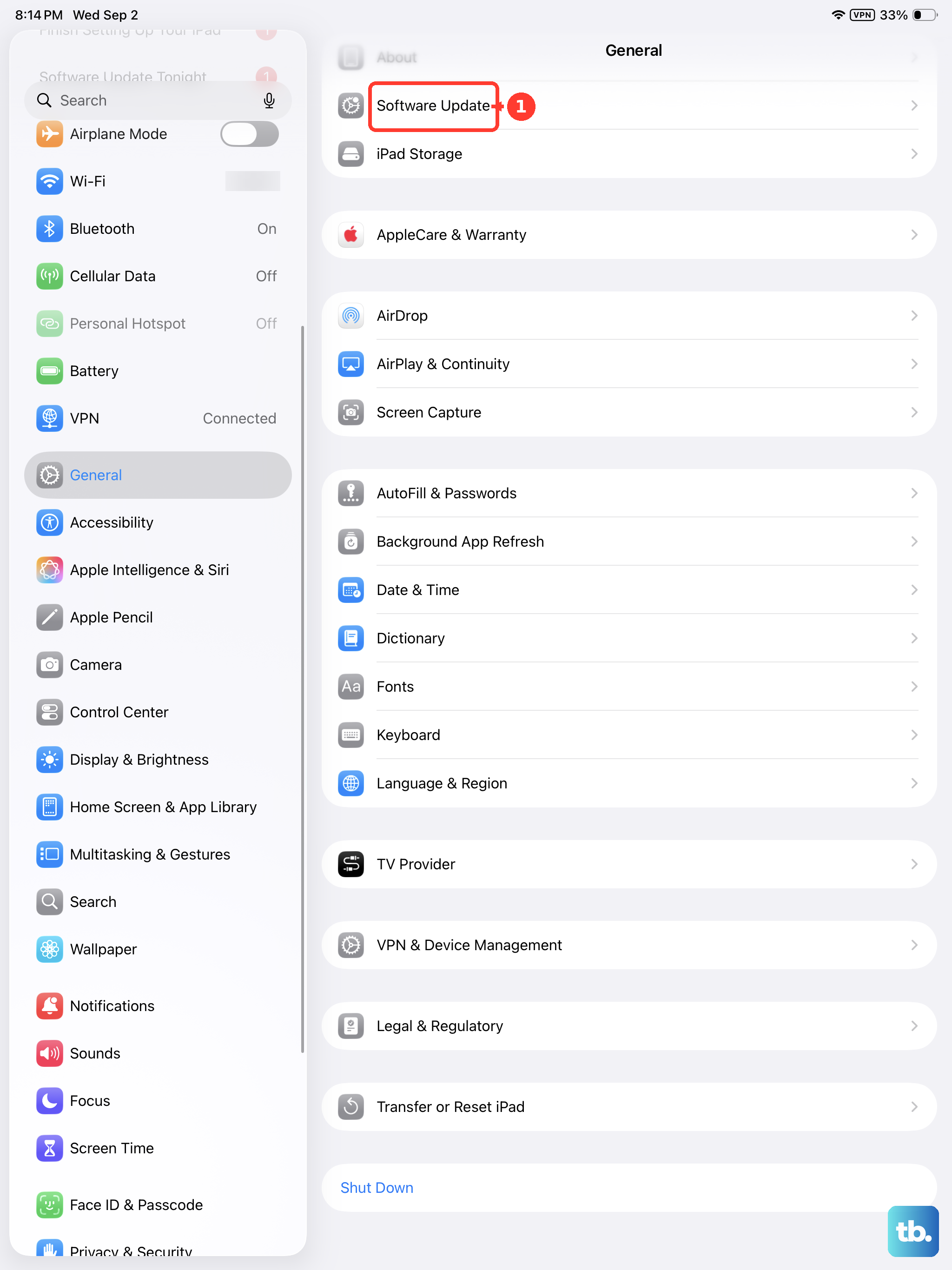
Connect to Wi-Fi, then go to Settings > General > Software Update. If an update is available, tap "Download and Install." It's a good habit to check this every few weeks.
Reset All Settings
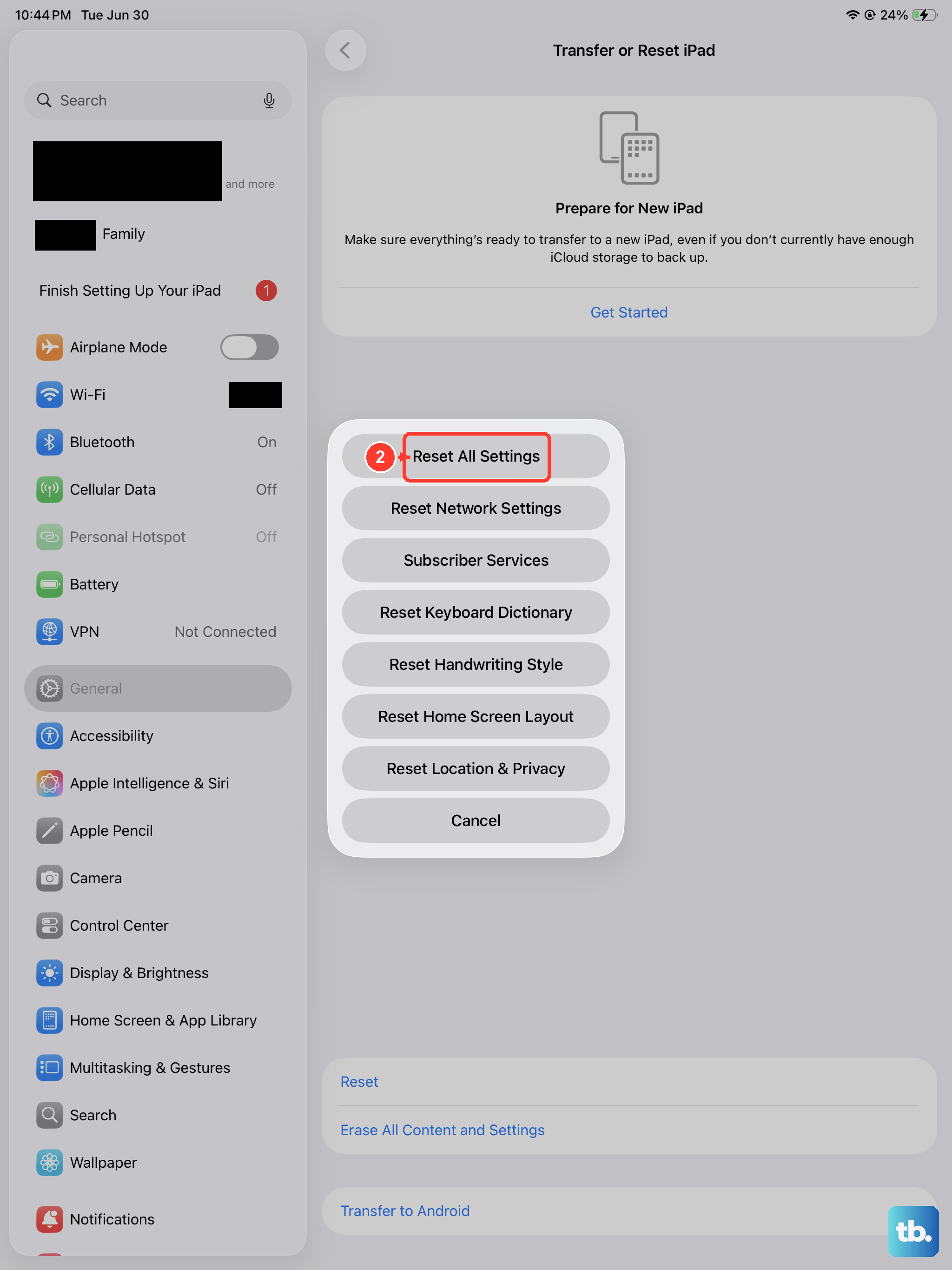
This is a more thorough step that resets every setting on your iPad, like network, privacy, and sound preferences, back to factory defaults without deleting any of your personal data or apps.
Go to Settings > General > Transfer or Reset iPad > Reset. Then, tap "Reset All Settings." You'll need to enter your passcode and confirm. Afterward, you'll have to reconnect to Wi-Fi and re-customize some preferences, but it often resolves persistent glitches.
Check App-Specific Permissions
If the problem is only with third-party apps like WhatsApp, Zoom, or Skype, the issue is likely within that app's own settings. First, make sure the app is updated from the App Store.
Then, go to Settings > [App Name] and ensure notifications are permitted. Also, open the app itself and look in its internal settings menu for call or notification preferences that might be disabled.