
If your iPad (11th gen) is plugged in but the battery percentage is barely moving, you're likely missing out on its fast charging capability. The right setup should get you from zero to a significant charge in under an hour, but a few common issues can slow it to a trickle.
Start with the Correct Charger
Your iPad's USB-C port supports fast charging, but it needs the right power source. You'll want a USB-C Power Delivery (PD) adapter rated for 20 watts or more. The small 5-watt or even 12-watt adapters from older iPads simply won't deliver enough power. I'd check the fine print on your adapter's casing to confirm its wattage.
Apple's own 20W USB-C adapter is a perfect match, but many third-party USB-C PD adapters from reputable brands will work just as well. The key is that PD specification, which allows your iPad to negotiate for the higher power it needs.
Your Cable Matters Too
For fast charging, you must use a USB-C to USB-C cable. An older USB-A to USB-C cable, even with a powerful adapter, is physically limited to much slower charging speeds. The cable that came with your iPad is designed for this, but any high-quality USB-C cable should do the job.
Cables can wear out over time, especially at the connectors. If yours looks frayed or the connection feels loose, it might be the culprit preventing a full-speed charge.
Check for Background Activity and Heat
Using your iPad intensively while it charges creates heat, and iPadOS will automatically slow down charging to protect the battery. Activities like gaming, video editing, or even having the screen at full brightness can cause this. For the absolute fastest charge, try to leave it idle.
If the back of the iPad feels noticeably warm to the touch, that's a sign charging has already been throttled. Moving it off a soft surface like a couch or bed and onto a cool, hard table can help it dissipate heat more effectively.
Give Your iPad a Quick Restart
Sometimes a minor software glitch can interfere with how the device manages power. A simple restart can clear this up. Press and quickly release the Volume Up button, then quickly press and release the Volume Down button. Finally, press and hold the Top button until you see the Apple logo appear on the screen.
Inspect and Clean the USB-C Port
Over time, pocket lint and dust can get packed into the charging port on your iPad. This prevents the cable from seating fully and can drastically reduce the power that gets through. Shine a light into the port and look for any debris.
To clean it, use a dry, soft-bristled brush or a wooden toothpick. Be very gentle to avoid damaging the delicate pins inside. Never use a metal object, as it could cause a short circuit.
Look at Your Battery Settings
iPadOS includes features to help preserve your battery's long-term health. Go to Settings > Battery > Battery Health. Here, you can check the status of Optimized Battery Charging.
This smart feature learns your routine and will slow charging past 80% if it thinks you won't need a full battery soon. If you need a complete charge immediately, you can temporarily turn this off. Just remember to re-enable it later for the best battery lifespan.
Make Sure iPadOS is Up to Date
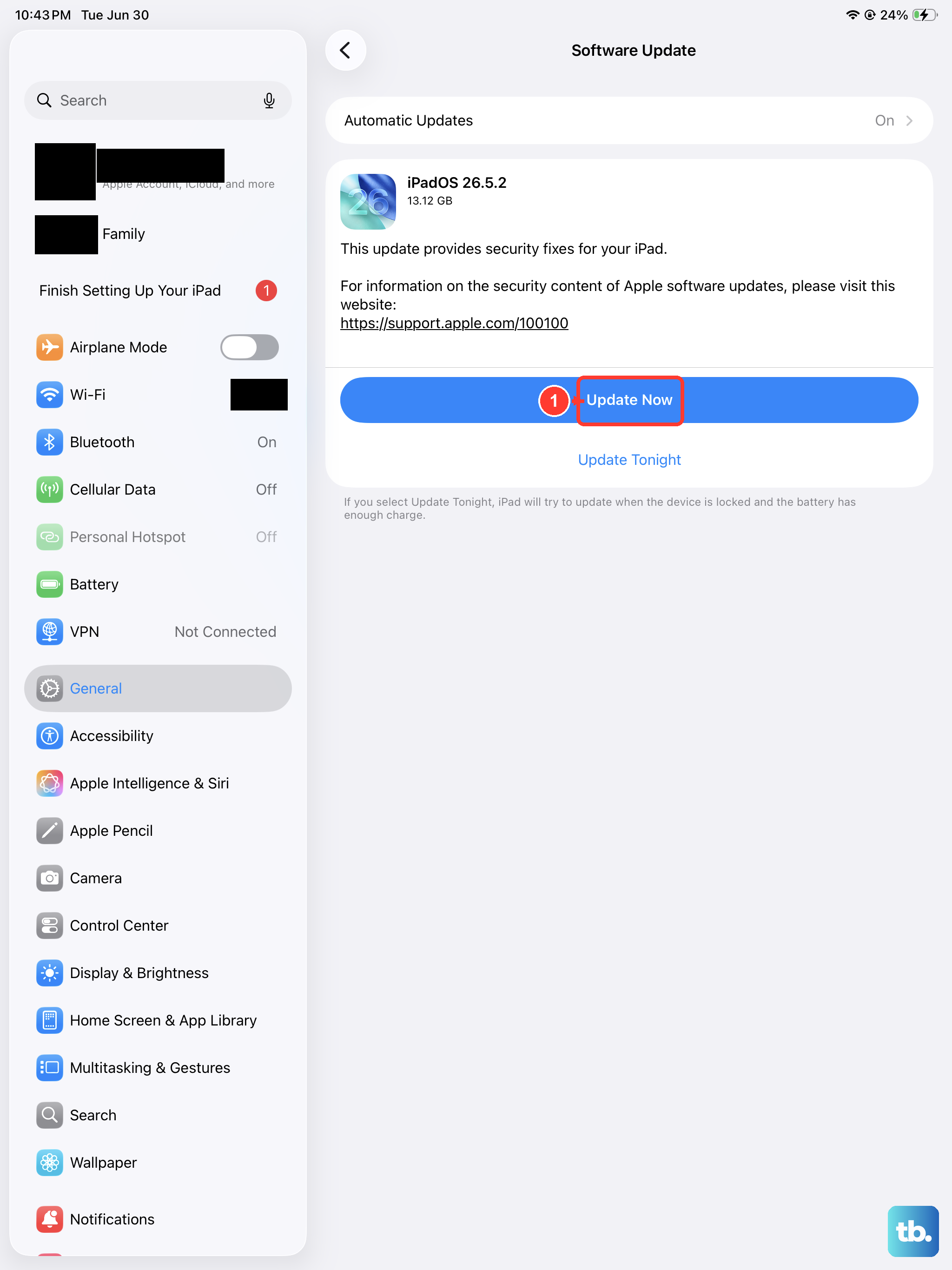
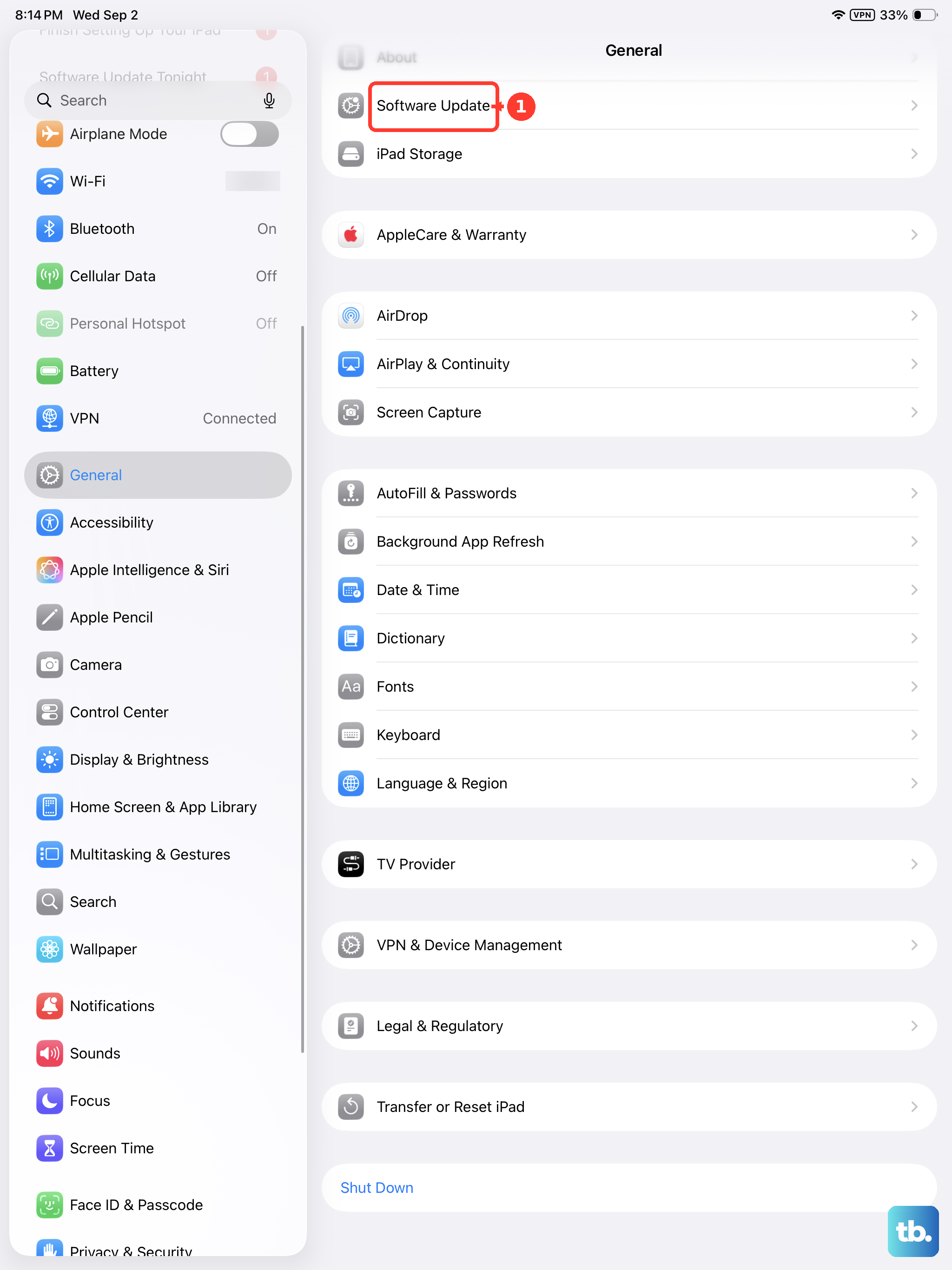
Head to Settings > General > Software Update. Apple releases updates that can include improvements to power management and charging efficiency. Installing the latest version of iPadOS ensures your device is running the most optimized software.
Test with Another Outlet and Setup
Before assuming the iPad is at fault, try a different wall outlet. Some power strips or older outlets may not provide consistent power. Then, if you can, test with a different 20W+ USB-C PD adapter and a known-good USB-C cable.
If fast charging works with the alternate setup, you've successfully isolated the problem to your original cable or charger. This process of elimination is often the fastest way to find the issue.