To disconnect your iPhone from your iPad, open Settings on the device you want to separate, tap [your name], then choose Sign Out; to stop only selected data sharing, open iCloud instead and disable those apps. Keep the shared Apple Account only if both devices are yours and you want some services to stay connected.
The short version
- Keep your Apple Account and turn off individual iCloud services for a partial split.
- Check Messages, text forwarding, FaceTime, and cellular calls separately.
- Turn off Handoff and automatic app downloads if tasks or apps keep appearing on both devices.
- Use separate Apple Accounts for different people, with Family Sharing for eligible purchases.
- Back up and erase a device before selling or giving it away.
| Method | What it does | Time | Use it when |
|---|---|---|---|
| Selective iCloud sync | Stops chosen data sharing | A few minutes for settings | You want to keep some services |
| Message controls | Stops texts on iPad | A few minutes | Messages arrive on both devices |
| Call controls | Stops shared ringing | Under a minute per setting | iPad receives unwanted calls |
| Handoff and AirDrop | Stops nearby sharing features | Under a minute per setting | Tasks or transfers follow you |
| App downloads | Stops automatic app installation | Under a minute | New apps appear on both |
| Sign out or change account | Separates account services | A few minutes, plus a possible one-hour security delay | You need broader separation |
| Remove an old device | Removes account access | A few minutes | You no longer use it |
| Erase for handover | Removes personal content | A few minutes to start | Someone else will own it |
Turn off selected iCloud services
On the iPad, open Settings, tap [your name], then iCloud. Tap See All beside Saved to iCloud and choose the app or feature you want to stop using with iCloud. Start with the iPad if the iPhone should keep syncing.
Turning off an app's iCloud connection stops its information from staying in sync through that service. Read any prompt about keeping or removing device copies before confirming.
Keep your photos before stopping sync
Open Settings > [your name] > iCloud > Photos on the device you want to disconnect. In the Photos storage settings, select Download and Keep Originals and allow the downloads to finish before disabling sync. If you see iPhone Storage, tap it to reach that option.
Make sure there is enough device storage, because optimized copies are not the full-resolution originals. After the originals finish downloading, turn off Sync this iPad or Sync this iPhone, then choose Download Photos & Videos if prompted to keep device copies.
After this change, new uploads, edits, and deletions stop syncing to that device. Use the device's sync switch for this job, rather than the account-wide Turn Off and Delete Photos option under iCloud storage. That account-wide option deletes photos from iCloud after 30 days.
Separate files Safari and passwords
For files, open Settings > [your name] > iCloud > Drive, which may be labeled iCloud Drive, and turn off Sync this iPad or Sync this iPhone. Copy any files you need before doing this, because turning off iCloud Drive removes access to its files on that device.
On iPad, open Files and choose iCloud Drive in the sidebar. Tap More > Select, select your files, then tap More > Copy Items. Go to On My iPad in Locations. Touch and hold the destination folder, then tap Paste.
For Safari, return to Settings > [your name] > iCloud > See All, or Show All on older software, and turn off Safari. This separates Safari's iCloud bookmarks, Reading List, Tab Groups, and open tabs. If a task still appears on the other device, check Handoff too.
For passwords, open Settings > [your name] > iCloud > Passwords and turn off Sync this iPad or Sync this iPhone. On iOS 17 or earlier, the option is Passwords and Keychain. Turning off Keychain keeps password information locally, so do not treat this as a way to remove saved passwords before handing over a device.
Stop messages from reaching your iPad
Start on the iPad in Settings > [your name] > iCloud. Open Messages, using See All if it is not visible, and turn off Use on this iPad. Apple also labels this service Messages in iCloud in its full app list.
On iOS or iPadOS 16 through 17.1, the older path is iCloud > Show All > Messages, with a switch named Sync this [device]. From version 17.2, Apple's documented path uses See All or Show All, then Messages in iCloud. Turn off the switch on the device that should stop syncing.
Next, on the iPhone, open Settings > Apps > Messages > Text Message Forwarding and turn off the iPad. This controls SMS, MMS, and RCS forwarding separately when you are not using Messages in iCloud. Forwarding stays on for devices using Messages in iCloud, which is why you must check both places.
For iMessage itself, open Settings > Apps > Messages on the iPad and turn off iMessage. If you want to keep iMessage for selected addresses, leave it on and open Send & Receive to deselect the shared number or addresses. On older software with Messages directly in Settings, use Settings > Messages > Send & Receive.
Stop phone calls and FaceTime on iPad
On the iPhone, open Settings > Apps > Phone > Calls on Other Devices. Turn off the iPad in the device list, or turn off Allow Calls on Other Devices to stop relaying cellular calls to all your other devices. Choose the iPad switch if you still want another device to receive calls.
FaceTime has its own control on the iPad under Settings > Apps > FaceTime. Turn off FaceTime to stop making and receiving FaceTime calls there. Alternatively, deselect unwanted contact methods under You can be reached by FaceTime at if you want to keep FaceTime for another address.
Disable Handoff and nearby AirDrop sharing
Open Settings > General > AirPlay & Continuity and turn off Handoff on the device you want to separate. Some older menus call this page AirPlay & Handoff. Handoff is on by default, and Universal Clipboard requires it, so turning it off also stops copying on one device and pasting on the other through that feature.
For AirDrop, open Settings > General > AirDrop and choose Receiving Off. AirDrop handles nearby file transfers rather than your continuing iCloud sync, so use the iCloud controls for shared photos or documents. Choose Contacts Only or Everyone for 10 Minutes when you want to receive a transfer again.
Stop automatic app downloads
On the device that should stop receiving new apps, open Settings > Apps > App Store and turn off App Downloads. This setting installs apps purchased on your other devices. App Updates controls updates to installed apps, so you can leave updates enabled while stopping downloads from your other device.
If you also want manual app updates, turn off App Updates on the same page. To delete an unwanted app from the iPad, touch and hold it, then choose Remove App > Delete App > Delete. Deleting the app removes its local data, but does not delete data it stored in iCloud.
Sign out or use a different Apple Account
Sign out when selective switches do not give you the separation you need. Before you proceed, make a backup and check that recent iCloud changes have synced to another device or iCloud.com. Signing out also stops iCloud syncing and iCloud backups on that device, so plan how you will keep its information afterward.
Sign out on your device
Open Settings on the device you want to separate, tap [your name], scroll down, and tap Sign Out. On iOS 26 or iPadOS 26 and later, choose Sign Out But Don't Erase if you are keeping the device for yourself. Follow the prompts about retained data and authentication through to completion.
On iPhone, signing out can require a one-hour security delay if Stolen Device Protection is enabled and you are away from familiar locations. If Require Security Delay is set to Always, that delay can apply even at home. Follow the Face ID or Touch ID authentication prompts.
On iOS 18 or iPadOS 18 and earlier, the same account page leads to Sign Out, followed by your Apple Account password and Turn Off. Read the prompts about keeping copies before finishing.
On iOS 10.2 or earlier, open Settings > iCloud > Sign Out, tap Sign Out again, then Delete from My [device], and enter your Apple ID password. Also sign out of the store under Settings > iTunes & App Store > Apple ID > Sign Out.
The current Sign Out But Don't Erase choice keeps most local data, including photos, contacts, and apps. It is intended for keeping your own device, rather than handing its contents to someone else. For a sale or gift, use the erase method below.
Give each person their own account
If the devices belong to different people, sign out of the shared account on the other person's device and have them sign in with their own Apple Account. On iPad, open Settings > Apple Account > Sign in Manually and enter that person's credentials. Avoid using the nearby sign-in option with your own iPhone when your goal is separate accounts.
Retained device data can merge into the next account's iCloud data when someone signs in. If you do not want that, use Go back on the merge prompt and follow the option to remove the previous owner's data. For shared purchases and subscriptions, set up Family Sharing on iPhone once each person has their own account.
Remove an old device from your account
For a device you no longer use, open Settings > [your name] on your remaining iPhone or iPad and scroll to the device list. Tap the old device, choose Remove from Account, and read and confirm the message. This removes account access rather than acting as an individual iCloud app switch.
Without an Apple device, sign in at account.apple.com, select Devices, choose the old device, and use Remove from Account. If it remains signed in, it may reappear when it reconnects; sign out on the device to remove it permanently. For a missing iPhone, use Find My iPhone on a computer to locate or lock it. Keep a lost or stolen device in Find My to retain Activation Lock.
Erase a device before selling or giving it away
Back up the device before removing your personal information. Avoid manually deleting synced photos, contacts, or documents as a cleanup method while signed in, because those deletions can remove content from iCloud and your other connected devices. Erasing the device through Settings removes its content without deleting your content from iCloud.
Open Settings > General > Transfer or Reset [Device] > Erase All Content and Settings, then tap Continue. Follow the prompts for your passcode, Apple Account password, backup, and eSIM choice if applicable. For a sale or gift, choose the option to erase the eSIM profile as well as the device's data.
On iOS or iPadOS 14 or earlier, use Settings > General > Reset > Erase All Content and Settings instead. Wait until the device reaches the Hello screen before handing it over. Erasing this way turns off Find My and Activation Lock.
Turn off Find My without erasing
On iPhone, if Stolen Device Protection is enabled, turn it off first in Settings. Tap Face ID & Passcode or Touch ID & Passcode, enter your device passcode, then tap Stolen Device Protection and turn it off. Follow the authentication prompts. Turning it off can require a one-hour security delay away from familiar locations, or wherever the Always setting applies.
Once Stolen Device Protection is off, open Settings > [your name] > Find My > Find My iPhone, turn it off, and enter your Apple Account password. On iPad, use Find My iPad in that same path. Tap Turn Off to finish.
Remove a device you already handed over
If you already sold or gave away the device, open iCloud.com/find, select it, and choose Erase This Device. An offline device erases when it next connects; wait for erasure before choosing Remove This Device. Use Apple's device removal instructions for the sold-device flow, because removing an offline device alone does not wipe its content.
Handle older menus and blocked settings
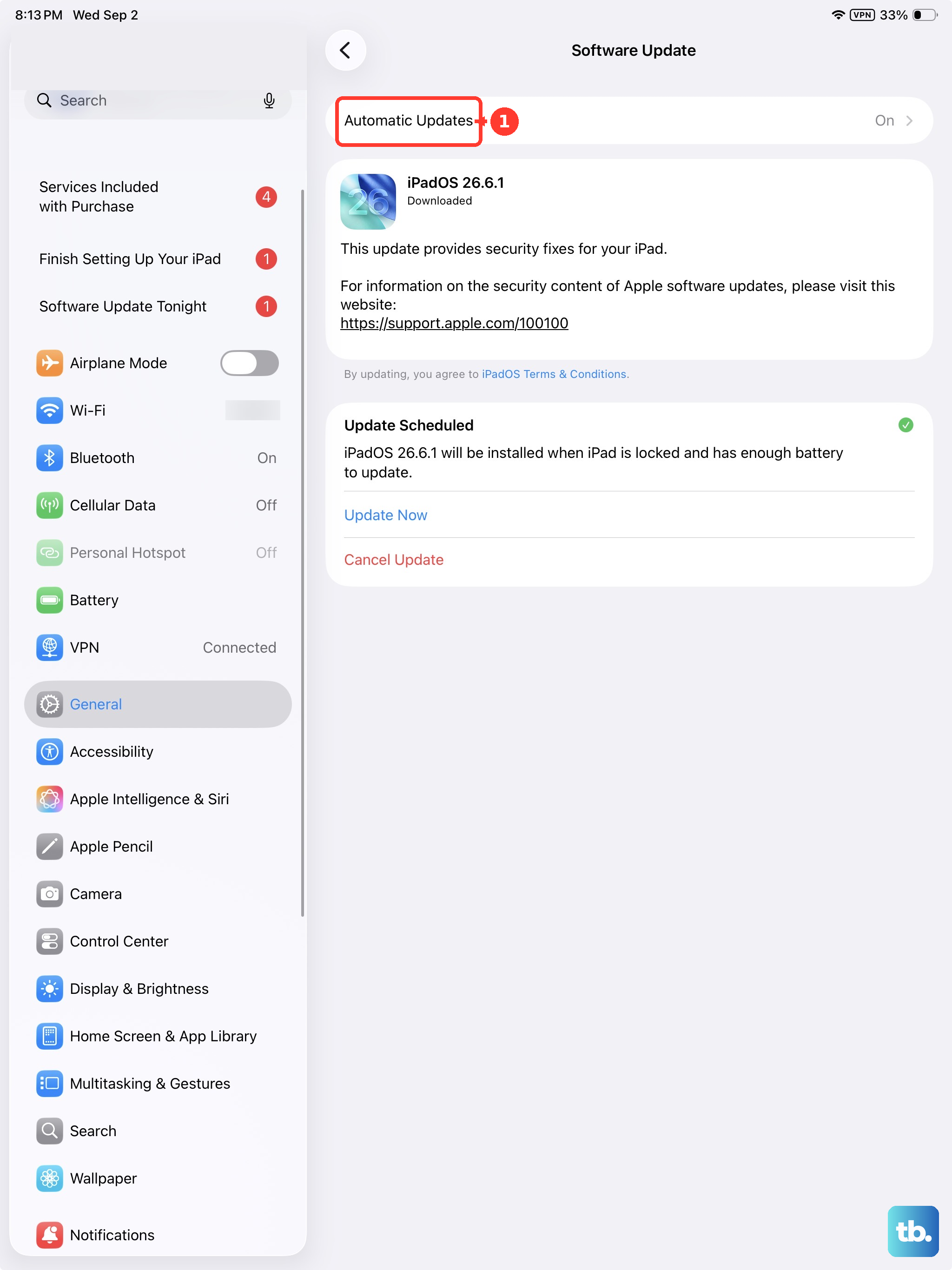
If the menus do not match, check your iPad under Settings > General > Software Update to see its installed version and available updates. You can check for updates on iPad before returning to the relevant setting. Automatic Updates on this screen manages system software updates, separately from the App Store download controls.
If your account name is unavailable, open Settings > Screen Time > Content & Privacy Restrictions. If All Restrictions is on, scroll to Privacy Restrictions, then check Allow Changes to Settings > Accounts > Allow. Older layouts place Accounts under Allow Changes To. Enter the Screen Time passcode if requested, or ask the parent or guardian who manages the device.
A work or school administrator can restrict account changes and sharing features such as iCloud, Handoff, and AirDrop. Contact that organization if its managed device blocks a setting you need to change. Your administrator controls those restrictions, so changing personal sync switches may not be enough.
To unlock a Screen Time sign-out restriction, open Settings > Screen Time > Manage Screen Time > Change Screen Time Passcode > Turn Off Screen Time Passcode. On an older layout without Manage Screen Time, open Change Screen Time Passcode directly from Screen Time. Enter the Screen Time passcode, then return to the account page.
For a child's account in Family Sharing, ask the family organizer or parent or guardian to manage the child's Screen Time passcode from their own device. Changes to that passcode must be made there. They can also enter the Screen Time passcode to allow changes to the child's device settings.
Frequently Asked Questions
Will unsyncing my iPhone from my iPad delete everything?
Turning off selected sync settings does not mean erasing the whole device. Sign Out But Don't Erase keeps most local data, while Erase All Content and Settings removes your device's content.
Can I keep the same Apple Account but stop only photos from syncing?
Yes, open Settings > [your name] > iCloud > Photos and download your originals before turning off Sync this iPhone or Sync this iPad. Choose Download and Keep Originals in the Photos storage settings and let the downloads finish first.
Why are my iPhone texts still showing on my iPad after turning off iCloud?
Text forwarding and iMessage have separate controls. Turn off the iPad in the iPhone's Text Message Forwarding settings, check Messages in iCloud on the iPad, and disable iMessage there if you want no iMessages either.
Is removing a device from my Apple Account the same as turning off iCloud sync?
No, removal is intended for a device you no longer use and removes its account access. For a device you still use, turn off selected iCloud services or sign out on that device instead.
Does turning off Handoff stop my photos from syncing?
No, Handoff controls continuing tasks between devices and is required for Universal Clipboard. Use the Photos sync switch in iCloud settings to stop the shared photo library updating on that device.