Firefox can leave profile data behind even after the app is removed. Use the right uninstall path for your device, then remove bookmarks, history, passwords, cookies, and settings only when you want Firefox gone completely. Start with your platform below and use the cleanup steps only for a full reset.
Uninstall Firefox from Windows Settings
This removes Firefox from Windows 10 or Windows 11.
Close Firefox.
Open Start.
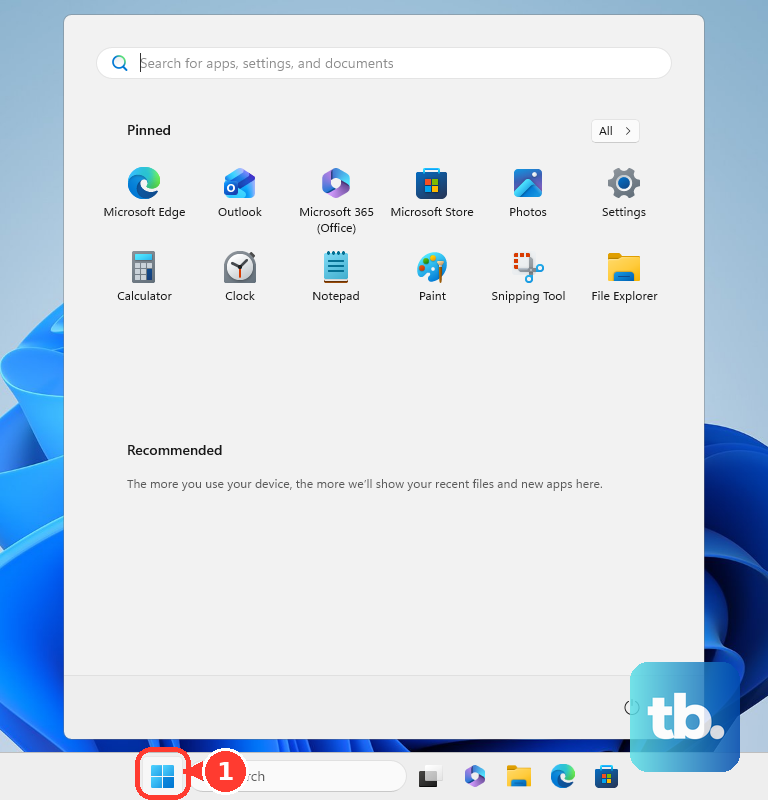
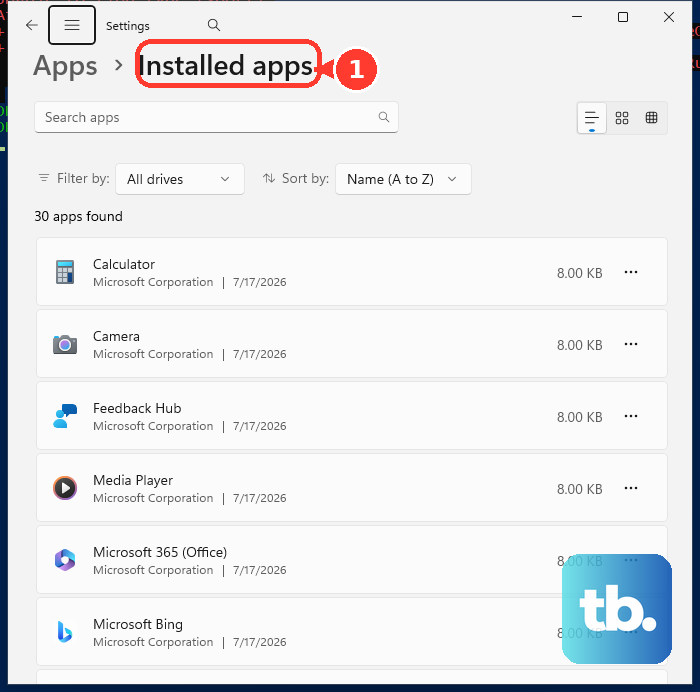
On Windows 11, go to Settings, then Apps, then Installed apps.
On Windows 10, go to Settings, then Apps, then Apps & features.
Find Mozilla Firefox.
On Windows 11, select More, then choose Uninstall. On Windows 10, select Mozilla Firefox, then choose Uninstall.
In the Mozilla Firefox Uninstall Wizard, select Next.
Select Uninstall.
Select Finish.
Use the Start menu on Windows
This is the faster Windows path when Firefox appears in your app list.
- 1.Select Start, then open All apps.
- 2.Find Mozilla Firefox in the list.
- 3.Right-click or press and hold Mozilla Firefox.
- 4.Select Uninstall.
- 5.Follow the on-screen directions to finish removing Firefox.
Remove Firefox through Control Panel
Control Panel still handles traditional Firefox desktop installs on Windows 10 and Windows 11.
Use search on the taskbar, enter Control Panel, and open it. Select Programs, then Programs and Features.
Right-click or press and hold Mozilla Firefox, then choose Uninstall or Uninstall/Change. Follow the directions on the screen to complete the removal.
Run the Firefox uninstaller directly
When Settings or Control Panel does not start the remover, launch Mozilla's uninstaller from the Firefox program folder.
Close Firefox, then run C:\Program Files\Mozilla Firefox\uninstall\helper.exe. For 32-bit Firefox on 64-bit Windows, run C:\Program Files (x86)\Mozilla Firefox\uninstall\helper.exe.
In the Mozilla Firefox Uninstall Wizard, choose Next, then Uninstall, then Finish.
If this method fails, use the Windows Package Manager command below or remove Firefox from the same Windows account that installed it.
Remove leftover Firefox files on Windows
This finishes a Windows cleanup when the uninstaller leaves program files behind.
After the uninstaller runs, open the location shown in the Uninstall Mozilla Firefox window.
Delete the Firefox program folder.
Use C:\Program Files\Mozilla Firefox or C:\Program Files (x86)\Mozilla Firefox when that is the folder shown.
To delete Firefox bookmarks, history, passwords, cookies, and settings, press Windows logo key + R.
Type %APPDATA%\Mozilla\.
Press Enter.
Delete the Firefox folder.
Uninstall Firefox on a Mac
This applies when Firefox is installed as a macOS app in Applications. Firefox for Mac is removed in Finder.
Open the Firefox menu in the menu bar and select Quit Firefox.
Open Finder, then open Applications from the sidebar or choose Go, then Applications.
Select Firefox, then choose File, then Move to Trash. Enter an administrator user name and password if macOS asks.
Choose Finder, then Empty Trash to permanently delete the app.
For a full Firefox data cleanup, click the Finder icon in the Dock, choose Go, hold Option or Alt, select Library, open Application Support, and delete the Firefox folder.
Delete Firefox on iPhone or iPad
On iPhone or iPad, Firefox deletes like other third-party apps.
Touch and hold the Firefox app, then tap Remove App. Tap Delete App, then tap Delete to confirm.
You can also delete it from App Library by touching and holding Firefox, tapping Delete App, and tapping Delete.
If Delete App is missing, check Screen Time or parental control settings and set Deleting Apps to Allow, then try deleting Firefox again.
Uninstall Firefox on Android
Use Android settings or Google Play, depending on how you manage apps on your phone.
- 1.Open your device's Settings menu, then select Applications, Apps, or Application manager.
- 2.Tap Firefox Browser for Android, then tap Uninstall.
- 3.To use Google Play instead, open Google Play Store and tap the Profile icon.
- 4.Go to Manage apps & devices, then Manage.
- 5.Select Firefox Browser for Android or Firefox, then tap Uninstall.
On Android 15 and up, Archive is different from uninstalling. It frees space while keeping the Firefox icon and personal data, so use Uninstall when you want Firefox removed.
Fix Linux uninstall problems
The most common cause is using a removal method that does not match how Firefox was installed.
For a distribution package, use the same package manager that installed Firefox. On Fedora, RHEL, Rocky, Alma, and other DNF-based systems, run sudo dnf remove firefox; on openSUSE or SUSE, run sudo zypper remove MozillaFirefox or sudo zypper remove firefox, using the installed package name.
For Snap installs, run sudo snap remove firefox. To remove it without generating a retained snapshot, run sudo snap remove firefox --purge.
For Flatpak installs, run flatpak uninstall org.mozilla.firefox. To remove the Flatpak app data in ~/.var/app/org.mozilla.firefox, run flatpak uninstall --delete-data org.mozilla.firefox and confirm with y.
For a Mozilla tarball installed in your account, close Firefox and remove the firefox folder in your home directory, such as ~/firefox. For a system tarball install, remove the Firefox folder placed in /opt, the symlink at /usr/local/bin/firefox, and the desktop file in /usr/local/share/applications if you added one.
Uninstalling Firefox on Linux does not remove regular profile data unless you are using Snap on Ubuntu. To remove profile data for non-Snap and non-Flatpak installs, open your home folder, show hidden files, open .mozilla, and delete the firefox folder.
Frequently Asked Questions
Does uninstalling Firefox delete my bookmarks and passwords?
Not always. Firefox profile data is separate on Windows, macOS, and many Linux installs, so delete the Firefox data folder only when you want bookmarks, history, passwords, cookies, and settings removed too.
Can I reinstall Firefox later?
Yes. Use Mozilla's official Firefox download page to get Firefox, Firefox Beta, Firefox Developer Edition, Firefox Nightly, Firefox Extended Support Release, or mobile builds for your platform and language.
Can I uninstall Firefox with WinGet?
Yes. Open Windows Terminal, PowerShell, or Command Prompt and run winget uninstall --id Mozilla.Firefox or winget uninstall Firefox. If Windows Package Manager shows more than one result, filter to the exact Firefox package.
What if Firefox is on a work or school device?
Firefox may be managed through Microsoft Intune or another device-management system. If uninstall is blocked or Firefox returns after removal, contact your IT administrator.