A MacBook screen can go black, dim for no reason, turn yellow, flicker, or show nothing on an external monitor. Most of these problems come from a setting, a cable, or a stuck startup rather than broken hardware. Start with the quick checks below and work down until your display behaves again.
Start With a Black or Blank Screen
A completely dark screen often points to a power or startup hiccup, not a dead panel.
- 1.Check the charging cable, adapter, and wall outlet, then try another compatible cable or adapter.
- 2.Disconnect accessories, including hubs and drives, and try starting the Mac again.
- 3.If the Mac responds, choose Apple menu > Restart.
- 4.If it doesn't respond, hold the power button for up to 10 seconds, release it, then turn the Mac on. On Touch ID models, physically press the Touch ID button. A forced shutdown can lose unsaved work.
- 5.On Apple silicon models, connect power and restart normally. Apple resets the SMC automatically on these Macs, so no key combination is needed.
When the Screen Is Too Dim or Keeps Changing Brightness
Open Apple menu > System Settings > Displays and adjust Brightness. The brightness keys, the Touch Bar's Control Strip, and the Brightness slider in Control Center work too, and if the keys act as function keys, hold Fn while pressing them.
Brightness that shifts on its own often traces back to Automatically adjust brightness in Displays settings. If it drops the moment you unplug, open System Settings > Battery > Options and review Slightly dim the display on battery.
A screen that switches off after a while is controlled in System Settings > Lock Screen. Adjust Turn display off on battery when inactive and Turn display off on power adapter when inactive.
On a MacBook Pro with a Liquid Retina XDR display, a reference mode can restrict brightness, so pick Apple XDR Display (P3-1600 nits) from Preset. If a brightness warning appears, quit demanding apps, hide HDR content, and cool the room. Then choose Apple menu > Sleep, wait 5 to 10 minutes, and wake the Mac.
Colors Look Yellow, Gray, Inverted or Zoomed
A warm, yellow tint usually comes from Night Shift or True Tone. Go to System Settings > Displays > Night Shift and turn it off to compare, or review its schedule. Switching True Tone off in Displays settings shows quickly whether it explains the shift.
Grayscale, inverted colors, odd tints or heavy contrast point to accessibility settings. Open System Settings > Accessibility > Display and check Invert colors, Increase contrast, Reduce transparency, and Color filters. If the screen is magnified, Zoom may be on, and you can toggle it with Option-Command-8 when keyboard zoom is enabled. If everything simply looks larger, set resolution back to Default in Displays settings.
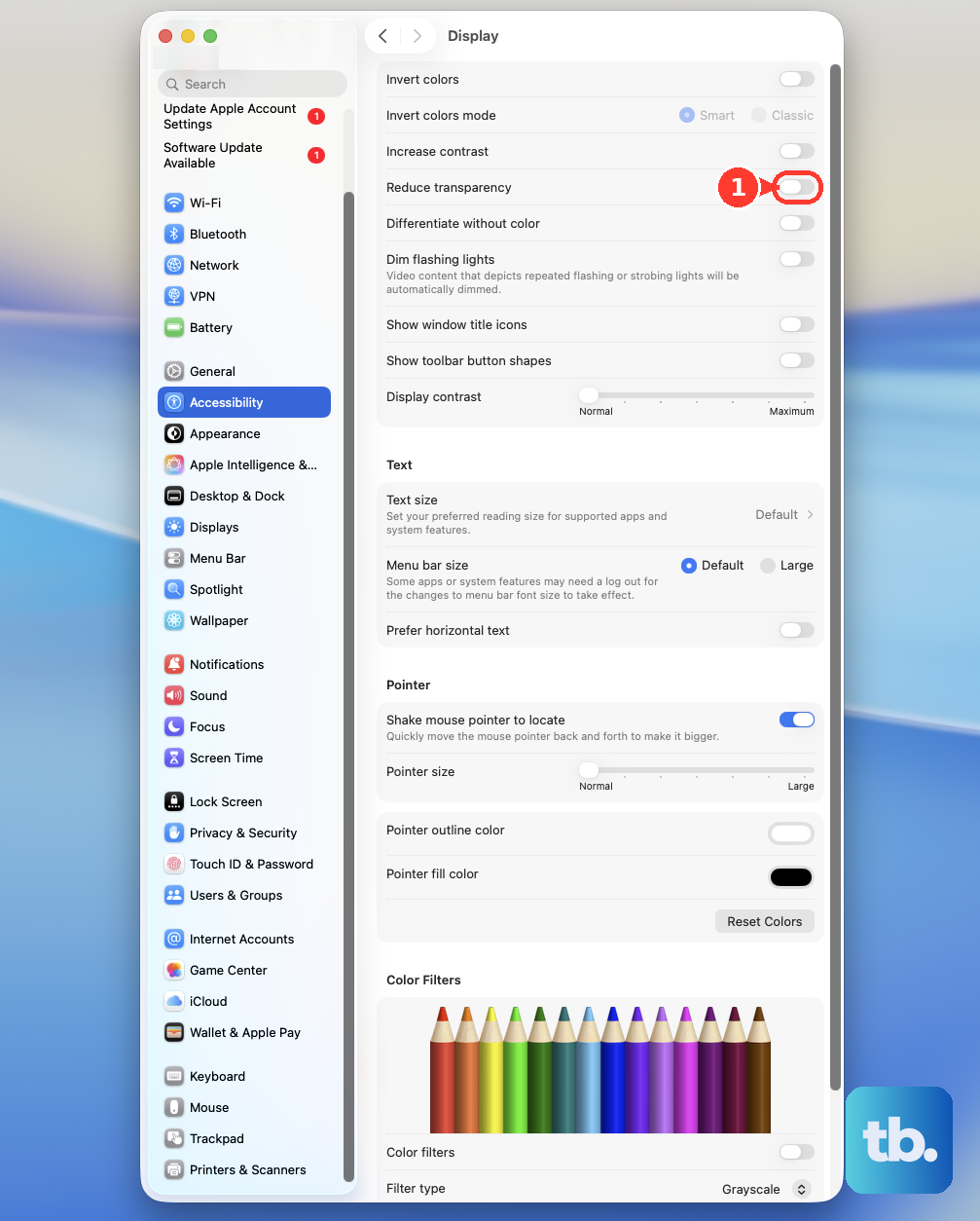
If the screen is fully black while VoiceOver keeps talking, Screen Curtain is likely on. Press VO-Shift-Fn-F11 again, or triple-tap the trackpad with three fingers.
If none of that helps, review Color profile in Displays settings and pick the right profile for that display. 14-inch and 16-inch MacBook Pro models from 2021 onward use reference modes under Preset instead, so on those, choose Preset > Calibrate Display and select Reset All to restore factory calibration.
Get an External Monitor Showing Up
The most common cause of a MacBook monitor problem is a loose connection or a hub that can't pass video.
Reseat the power and video cables. Disconnect the display from both the Mac and the outlet, then reconnect it directly to the Mac instead of through a dock.
Make sure your cable and adapter support the resolution and refresh rate you want. USB-C adapters must support DisplayPort Alt Mode or Thunderbolt.
Next, force detection. Open System Settings > Displays, hold Option, and click Detect Displays. Closing the lid briefly and reopening it can also trigger detection.
On Apple silicon laptops, unlock the Mac and click Allow when the accessory prompt appears. Reconnect anything you denied earlier, and review Privacy & Security > Accessories. On a work-managed Mac, your administrator may control that setting.
Display count, resolution and refresh rate vary by chip and model. On MacBook Neo, use the left USB 3 port and a mode no higher than 4K at 60Hz. Monitors on a DisplayLink dock need DisplayLink Manager from Synaptics, with its screen-recording permission turned on through the setup wizard.
Fix Resolution, Flicker and Arrangement
Open System Settings > Displays and choose Default for resolution.
If a resolution change blacks out the screen, wait 15 seconds, then press Esc.
For flicker on an external monitor, select it, open Refresh rate, and test a supported fixed rate instead of a variable one.
On a 14-inch or 16-inch Apple silicon MacBook Pro, pick ProMotion under Refresh Rate.
For misplaced windows or the wrong main screen, use Arrange and Use as in the same panel.
For a sideways or cropped picture, adjust Rotation, or Underscan on certain older TVs.
Tip: on a third-party monitor, use its own buttons for brightness or sharpness, and check its maker's support page for firmware updates.
Rule Out Apps and Startup Software
This catches glitches caused by an app, utility or login item rather than the screen itself.
If only one app looks wrong, force quit it from Apple menu > Force Quit.
Update that app before reopening it.
For Firefox flicker, clear Use recommended performance settings, turn off Use hardware acceleration when available, and reopen Firefox.
Remove any third-party display utility with its uninstaller or in-app removal option. If it has neither, select it in Applications and choose File > Move to Trash. Then restart and retest.
Start in Safe Mode. On Apple silicon, shut down, hold power until startup options appear, select the startup disk, hold Shift, and click Continue in Safe Mode. On Intel, hold Shift right after turning on until the login window appears.
If Safe Mode fixes it, restart normally. If the problem comes back, open System Settings > General > Login Items & Extensions, remove the Open at Login items, restart, and add them back one at a time, restarting after each.
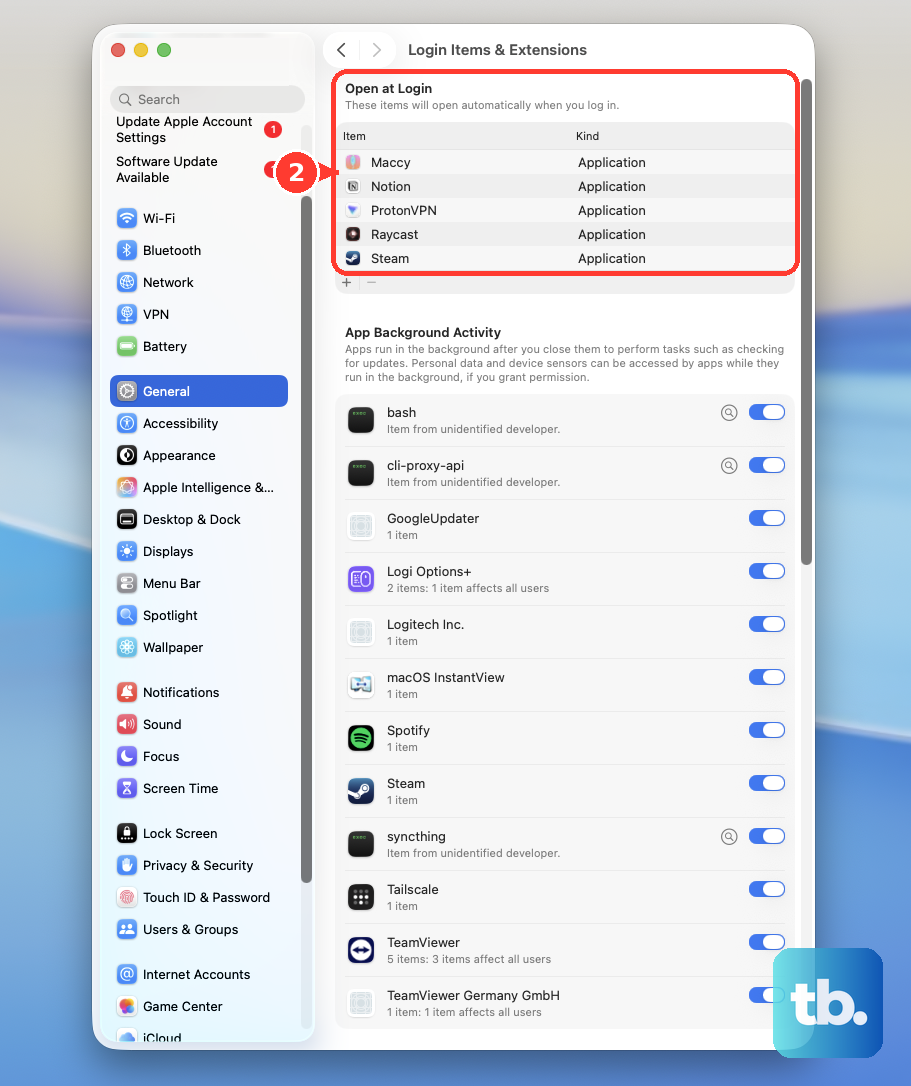
Create a test account in System Settings > Users & Groups and see whether the problem follows you.
Check the Hardware and Run Diagnostics
Remove cases, covers and screen protectors, then look for cracks or liquid damage. Spots may be dirt, so shut down and wipe the panel with a soft, lint-free cloth slightly dampened with water, never spraying it directly. If a spot stays after cleaning, it may be debris inside the display or a pixel anomaly, and Apple recommends taking the Mac in for a closer examination.
Connect a known-working external monitor. If it looks fine while the built-in screen doesn't, or the fault changes as you move the lid, you've narrowed things down.
Shut down and run Apple Diagnostics. On Apple silicon, hold power until Options appears, release, then hold Command-D. On Intel, hold D at startup. If your Apple silicon Mac runs a non-beta release of macOS Tahoe 26 or later, can start up in macOS, and has an internet connection, it can also run the Display Anomalies test.
Older guides often tell you to reset the SMC or NVRAM with key combinations. Those apply only to Intel Macs. On Apple silicon, the SMC resets automatically when you restart, and Apple says the NVRAM reset steps don't apply and aren't needed.
If diagnostics report a problem or the screen stays faulty, arrange service with Apple and share any reference codes.
Recover a Mac That Stays Blank at Startup
Start macOS Recovery. On Apple silicon, hold power until startup options appear, then choose Options > Continue. On Intel, hold Command-R at startup.
Open Disk Utility, choose View > Show All Devices, and run First Aid starting from the last volume and working upward.
If that fails, select Reinstall macOS and choose Macintosh HD if offered. This normally keeps your apps and data.
As a last step for an Apple silicon or T2 Mac that still won't start, another Mac on macOS 14 or later can use Revive Mac to repair its firmware without erasing data. Connect them with a USB-C cable that supports data and charging, not a Thunderbolt 3 cable, plugged into the affected Mac's DFU port.
Back up whenever you can before any of these, and keep the lid open until installation finishes.
Frequently Asked Questions
Do I need to reset the SMC or NVRAM on an Apple silicon MacBook?
No. Apple says those steps don't apply to Apple silicon. Connect power and restart normally instead.
Why does my Mac only show HDR video when plugged in?
Optimize video streaming while on battery can limit HDR. Connect power, or turn it off in System Settings > Battery > Options.
My HDMI TV shows an HDCP error after sleep. What now?
Quit the app playing the protected video, then open it again.
Why does my M3 MacBook turn off the second monitor when I open the lid?
On base M3 MacBook Air (macOS Sonoma 14.3 or later) and M3 MacBook Pro (macOS Sonoma 14.6 or later), two external displays only work with the lid closed. Connect an external keyboard and mouse or trackpad, connect power, connect the first monitor, close the lid, then connect the second.