You need the Wi-Fi password your Windows 10 PC already uses, but the sticker or setup card is gone. Windows has a built-in way to reveal the current network key, plus command-line options for saved profiles and router-based fallbacks when the PC screen is not enough. Use these methods only for your own networks and devices you are allowed to manage.
Show the current Wi-Fi password
This fixes the connected Windows 10 network password when that network uses a stored shared key: WEP, a WPA/WPA2 pre-shared key, or a WPA3 passphrase. A work or school network that signs you in with 802.1X credentials or a certificate stores no shared key, so it may show no Network security key to reveal.
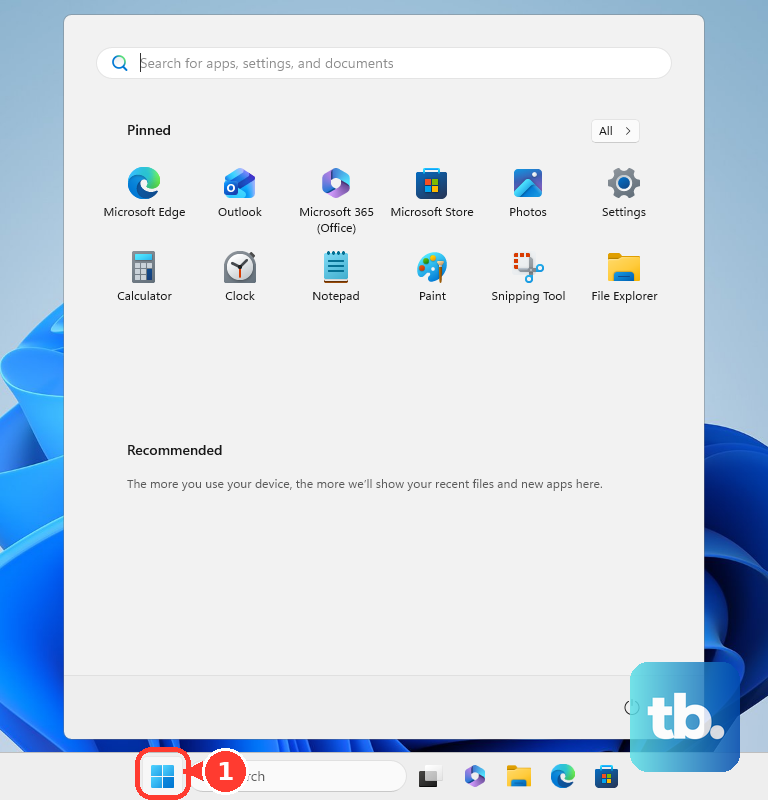
Open Start, then select Settings.
Select Network & Internet.
Stay on Status, then select Network and Sharing Center.
Next to Connections, select your Wi-Fi network name.
In Wi-Fi Status, select Wireless Properties.
Open the Security tab.
Select the Show characters check box.
Read the password in Network security key.
Fix a missing password box
The most common cause is that the Windows 10 Control Panel path shows the key for the Wi-Fi network your PC is connected to now.
Connect the PC to that network first.
Repeat the Network and Sharing Center path.
Use an account with permission to view the saved Network security key.
For a saved network that is not your current connection, use Command Prompt.
Use Command Prompt for saved networks
Use netsh when the Wi-Fi profile is saved on the PC.
- 1.Open Start, type cmd, right-click Command Prompt, and choose Run as administrator.
- 2.Run netsh wlan show profiles.
- 3.Copy the exact profile name for the network.
- 4.Run netsh wlan show profile name="YOURSSID" key=clear, replacing YOURSSID with that profile name.
- 5.Under Security settings, read Key Content.
Run netsh from PowerShell
Windows PowerShell and Terminal run the same netsh command, so use the shell you already have open.
Open Start, then open Windows PowerShell or Terminal as administrator.
Run netsh wlan show profiles.
Run netsh wlan show profile name="YOURSSID" key=clear, replacing YOURSSID with the saved profile name.
Read Key Content under Security settings.
If this method fails, use Network and Sharing Center for the current connection or check the router settings.
Export the Wi-Fi profile
Use this when you need a local copy of a saved Wi-Fi profile and you are signed in as a local administrator. Windows exports the profile to XML and includes the security key in plain text for a local administrator. That applies to a profile that stores a pre-shared key. An enterprise 802.1X profile holds no keyMaterial, so there is no key in the exported file.
Create a folder such as C:\WiFi.
Open Command Prompt as administrator.
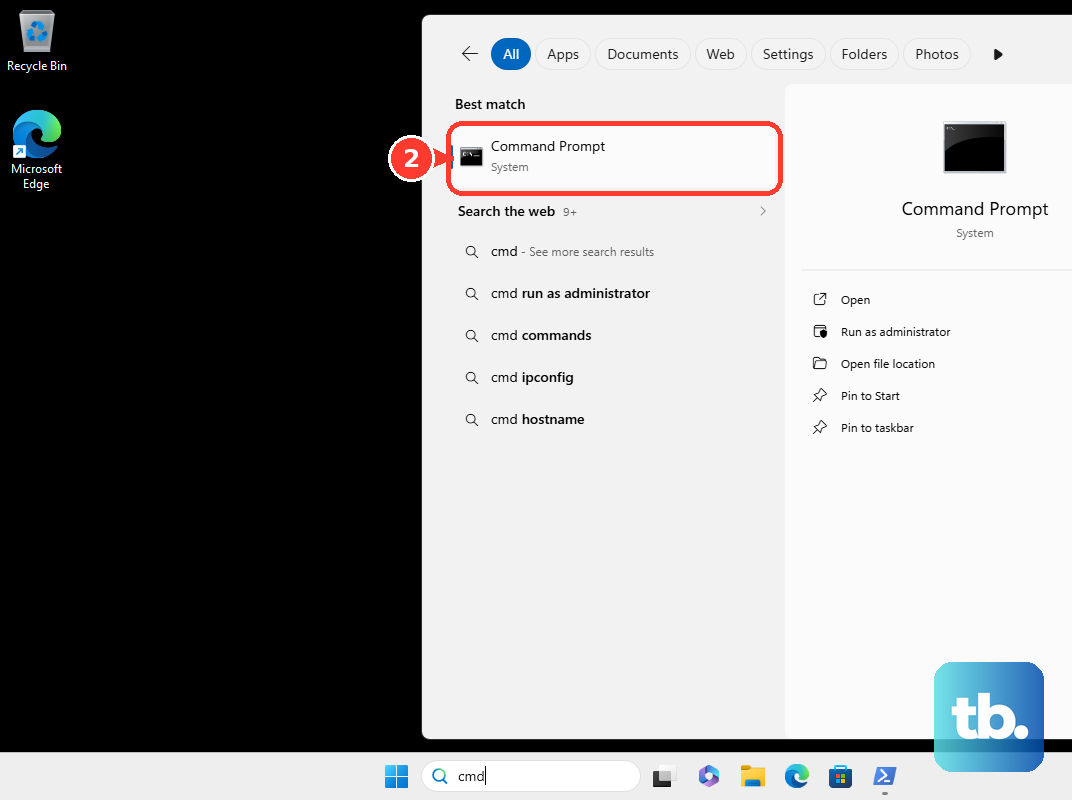
Run netsh wlan show profiles.
Run netsh wlan export profile name="ProfileName" key=clear folder=C:\WiFi, replacing ProfileName with the saved Wi-Fi profile name.
Open the exported Wi-Fi XML file and look for keyMaterial.
Check the router settings
When Windows does not show the saved key, the router gives you the next place to look. While connected to the router, sign in to the router admin console in a web browser, or open the router maker's smartphone app.
Look for Wi-Fi or Security. The wireless password or passphrase usually appears on the same screen as the encryption settings, though screens and labels differ by router manufacturer. Some systems keep it elsewhere: Google Nest Wifi holds it in the Google Home app under Wifi, then Network settings. Check your router maker's current instructions if that screen does not show it.
Check the physical router or ISP gateway label for the default network name, SSID, password, or security key. That works only when the Wi-Fi name and password have not been changed.
View the Mobile hotspot password
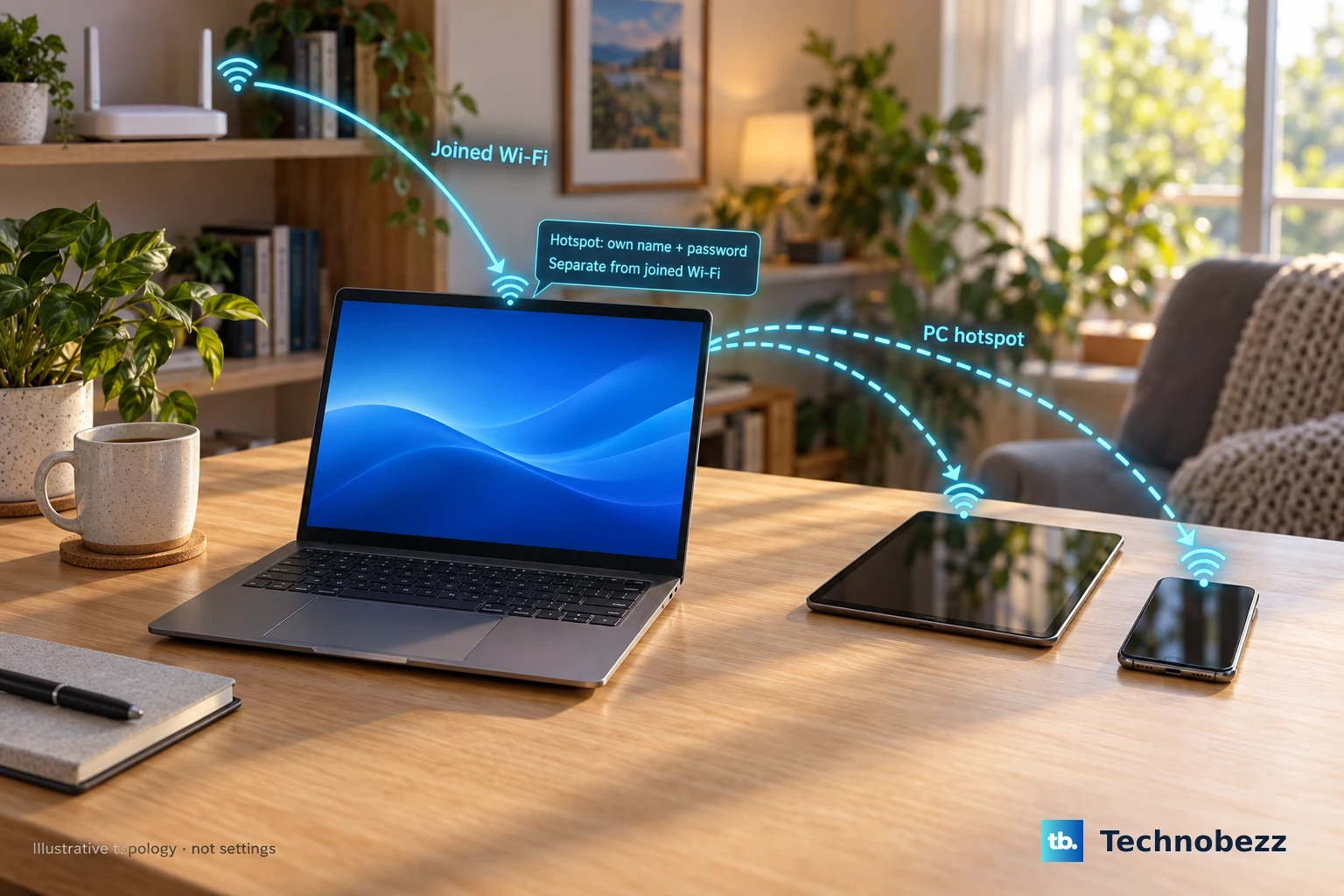
This shows the password for the hotspot your PC broadcasts, not the password of the Wi-Fi network your PC joined.
- 1.Open Start, then select Settings.
- 2.Select Network & Internet.
- 3.Select Mobile hotspot.
- 4.Select Edit to view or enter the network name and password.
- 5.Select Save, then turn on Share my Internet connection with other devices.
Skip old Wi-Fi password tricks
The most common cause of confusion is old Windows advice that still appears online after the feature or storage behavior changed.
Skip instructions that tell you to open WLAN profile XML files directly under C:\ProgramData\Microsoft\Wlansvc\Profiles\Interfaces\{guid}. On current Windows, those files confirm that a saved profile exists, but they do not reliably show the plain Wi-Fi password because keyMaterial is encrypted when protected is TRUE.
Skip Wi-Fi Sense contact sharing too. Microsoft removed Wi-Fi Sense credential sharing, so it no longer shows or shares a Wi-Fi password on Windows 10.
Handle work or school devices
If the PC belongs to your employer, school, or another organization, the network belongs to that organization too. Use the access method your organization provides or contact the person who manages the device.
Administrators have supported ways to export and import Wi-Fi profiles for managed Windows devices, including profiles that use pre-shared keys.
If this method fails on a managed device, ask the administrator for the correct Wi-Fi access method instead of using third-party recovery tools.
Frequently Asked Questions
Can Windows 10 show the password for any saved Wi-Fi network?
Windows 10 shows the current connected network through Network and Sharing Center. For other saved profiles that store a pre-shared key, use the netsh command and read Key Content. An enterprise profile that authenticates with 802.1X credentials or a certificate holds no Key Content to display.
Why do I need to run Command Prompt as administrator?
Administrator rights are required when Windows reveals or exports saved Wi-Fi keys in plain text.
Is the Mobile hotspot password the same as my home Wi-Fi password?
No. Mobile hotspot shows the password for the network your Windows 10 PC broadcasts to other devices, not the password of the Wi-Fi network it joined.
Can I use a third-party Wi-Fi password tool?
Use built-in Windows methods first. Third-party recovery tools exist, but password-recovery utilities may trigger antivirus alerts.