Need the Wi-Fi password from a Windows 11 PC that already connects to the network? Windows can show it directly in Settings, and for the current network it can display a QR code for another device to scan.
Start with the built-in Network & internet screens. If that PC never saved the network, use the router label, router app, or router web page instead.
Show the password for your current Wi-Fi network
Open Settings, go to Network & internet, then open Properties for your connected Wi-Fi network. Next to Wi-Fi network password, select Show.
Windows displays the password on the page. It also shows a QR code that another phone, tablet, or computer can scan to join the same Wi-Fi network without typing the password.
This is the fastest path when your Windows 11 PC is already connected. Use it before moving to Control Panel or command-line methods.
Find a saved Wi-Fi password when you are not connected
This method applies when the network is already saved on your Windows 11 PC, but you are not connected to it right now. Use it for a home, office, or family network your laptop joined before.
Open Settings, choose Network & internet, then select Wi-Fi.
Open Manage known networks and choose the Wi-Fi network you want.
Next to Wi-Fi network password, select Show. Windows shows the saved password for that known network.
Open the password screen from Quick Settings
Use the taskbar shortcut when you are already connected and want the network details faster.
- 1.Select the Network, Sound, or Battery icons on the taskbar.
- 2.On the Wi-Fi quick setting, select Manage Wi-Fi connections.
- 3.Find your connected network.
- 4.Select Properties or Info.
- 5.Select Show Wi-Fi network password.
Use Control Panel for the connected network
Control Panel still works for a Wi-Fi network your PC is currently connected to. Right-click Network on the taskbar, then open Network and Internet settings.
Go to Advanced network settings, then choose More network adapter options. Select the connected Wi-Fi network and open View status of this connection.
Open Wireless Properties, choose Security, then select Show characters. The password appears in Network security key.
If this path does not show the password, use Settings, Network & internet, and Properties for the current network, or use Manage known networks for a saved network.
Reveal a saved Wi-Fi password with Command Prompt
This fixes the case where you know the saved Wi-Fi profile name and want the password from a command window.
Search for Command Prompt and open it.
Run netsh wlan show profile name="Wi-Fi name" key=clear, replacing Wi-Fi name with the exact network name.
Read Key Content under Security settings. That is the saved Wi-Fi password for that profile.
You can run the same netsh command from Windows Terminal or PowerShell, because the command itself is netsh.
Scan a Wi-Fi QR code instead of typing the password
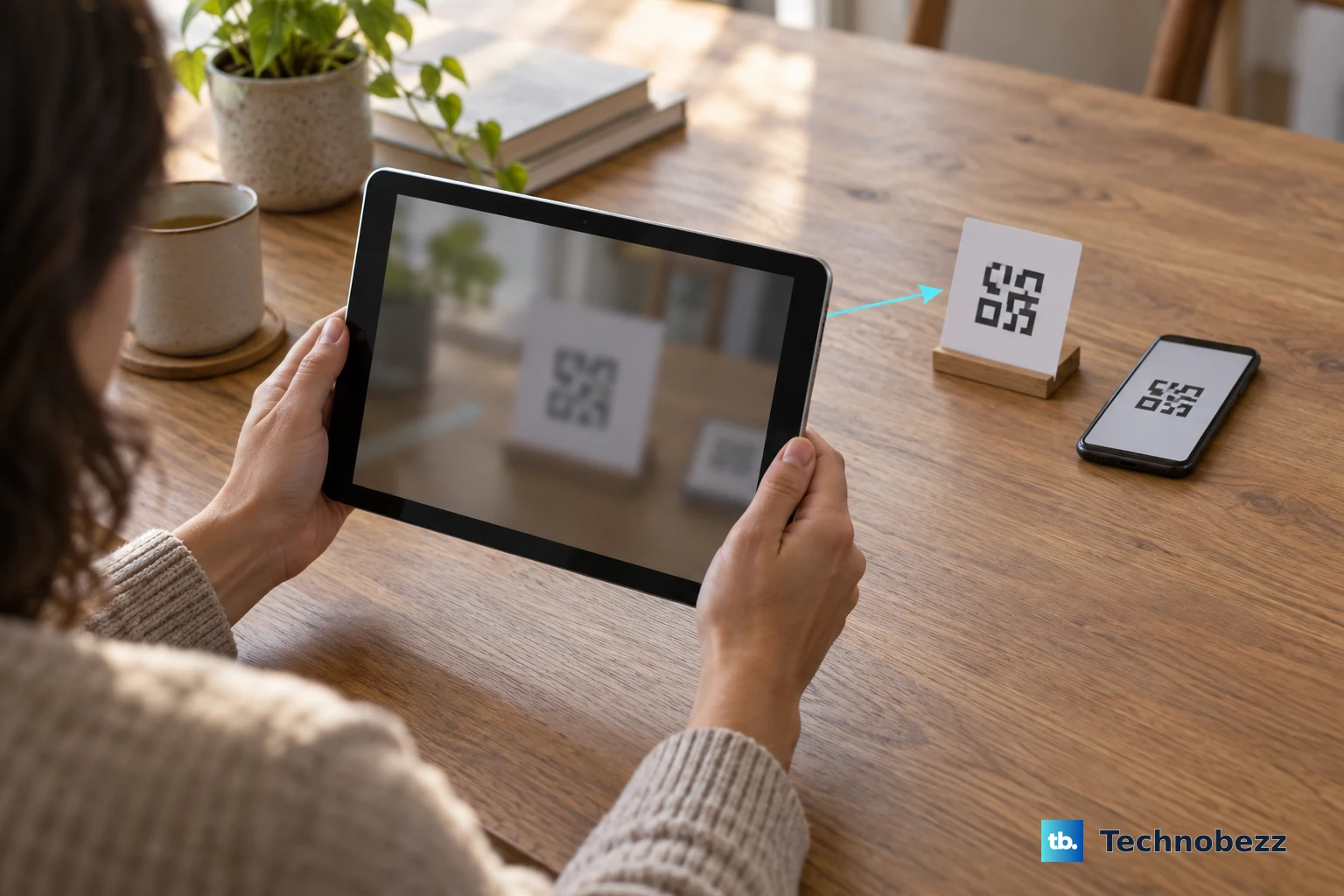
When another trusted device, router app, or Windows 11 PC shows a Wi-Fi QR code, your Windows 11 device can use it to connect. Open Camera, select the barcode mode icon, and point the camera at the Wi-Fi QR code.
Select the link that appears. In Settings, confirm that you want to add and connect to the Wi-Fi network.
This does not reveal a password saved on your PC. It is a faster way to join the network when the password is shared as a QR code.
Check the router or router app when Windows does not have it
The most common cause is simple: the Windows 11 PC has never saved that Wi-Fi network, so Windows cannot show its password.
Look on the bottom or back label of the router for the default network name, also called SSID, and the Wi-Fi password or network key. Use the label only when the Wi-Fi password was never changed, or after a factory reset restores the default settings.
For TP-Link routers, connect to the router by Wi-Fi or Ethernet, open a browser, go to tplinkwifi.net or 192.168.0.1, sign in, then open Wireless and Wireless Settings or Basic and Wireless. Some older TP-Link models place the network name under Basic Settings and the password under Wireless Security.
For NETGEAR routers, connect to the router network, open www.routerlogin.net, sign in, then open Wireless from the BASIC Home page or Dashboard. The password is shown in Password (Network Key).
Mesh and ISP apps can show it too. In the Deco app, open More, then Wi-Fi Settings; in the Nighthawk app, open WiFi Settings and tap the Wi-Fi network; in the eero app, open Settings, then Wifi name & password; in Google Home, open Home, Wifi, then Network settings; in the GFiber App, open Network, then Show Password.
Find the password for your Windows mobile hotspot
Use this only when you want the password broadcast by your Windows PC's own mobile hotspot. It is not the same as the password for the router or Wi-Fi network your PC uses for internet access.
Open Settings, go to Network & internet, then select Mobile hotspot.
Expand Properties to read the hotspot password.
To change it, select Edit, enter a new network name, password, and network band, then select Save. Other devices can enter the password or scan the QR code shown for the hotspot.
You can also open quick settings on the taskbar, find Mobile hotspot, right-click or long-press it, then select Go to Settings.
Handle work laptops and older advice
Work, school, and other managed devices can use administrator-created Wi-Fi profiles. In that setup, your organization may manage the network and its preshared key instead of exposing a normal consumer password workflow.
Older Windows guides often point to Settings, Network & Internet, Status, and Network and Sharing Center. On current Windows 11, use Settings, Network & internet, and either Properties or Manage known networks instead.
Some older NETGEAR instructions mention the Genie app. NETGEAR now says the Genie app will no longer be updated, and recommends the Nighthawk app instead. If your router is not supported by the Nighthawk app, NETGEAR says you can still use Genie app features.
If none of these options works and you own the router, use your router maker's reset process as a last resort. A factory reset restores the default label password on many routers, but it also erases custom settings and requires you to set up the router again.
Frequently Asked Questions
Can Windows 11 show a Wi-Fi password for a network I never joined?
No. Windows can show passwords for the current network or saved known networks on that PC. If the network was never saved, check the router label, router app, or router web page.
Where does Windows 11 show the Wi-Fi QR code?
For the current network, go to Settings > Network & internet > Properties and select Show next to Wi-Fi network password. Windows displays both the password and a QR code.
Is the mobile hotspot password the same as my home Wi-Fi password?
No. The Mobile hotspot page shows the password for the hotspot broadcast by your Windows PC, not the upstream router's Wi-Fi password.
What should I do if I forgot both the Wi-Fi password and router admin password?
If you own the router, a factory reset is the last resort. It restores the default label credentials on many routers, but it also erases custom router settings.