Printer settings in Windows 11 sit behind a few different buttons, so changing paper, color, or the default printer can feel harder than it should. Start in the Settings app for normal printer management, then use app print menus or manufacturer tools when a print job or printer model needs them. These steps take you from the main settings page to queues, sharing, drivers, and printer-specific controls.
1. Open the main printer settings page
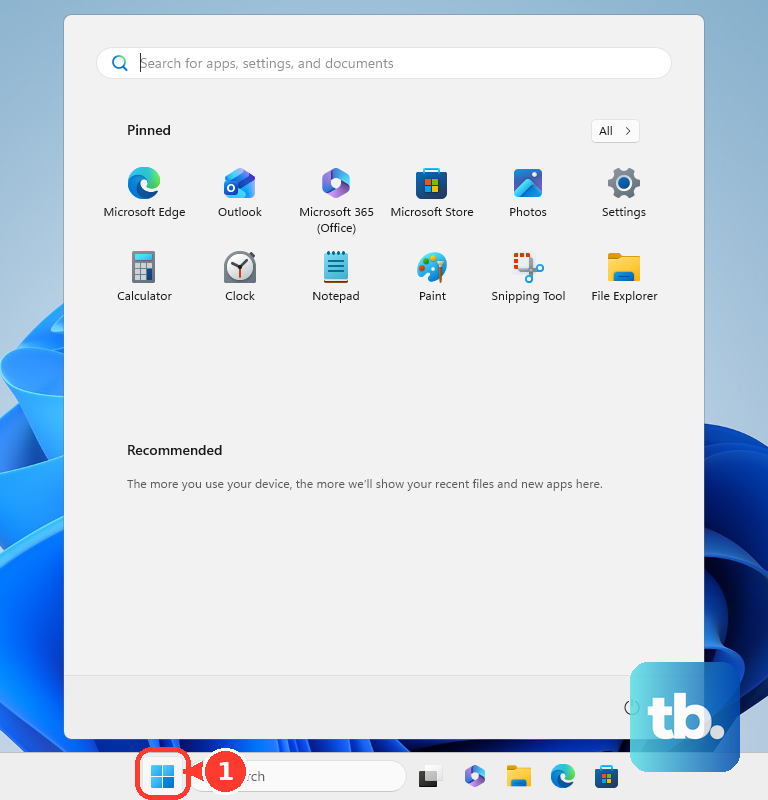
- 1.Select Start.
- 2.Open Settings.
- 3.Select Bluetooth & devices.
- 4.Select Printers & scanners.
- 5.Choose your printer to open its management page.
2. Change print quality paper and color preferences
This fixes blurry, faded, streaked, too-light prints, and jobs using the wrong paper type. Open Start > Settings > Bluetooth & devices > Printers & scanners.
Select your printer, then select Printing preferences. Change the printer-specific options you need, such as Print quality, Resolution, Paper type, Economy, Draft, or Toner saver. After that, select Apply.
3. Pick the default printer Windows uses
For a fixed default printer, open Start > Settings > Bluetooth & devices > Printers & scanners. Turn Let Windows manage my default printer off under Printer preferences. Select the printer you want, then choose Set as default.
To let Windows choose automatically, use the same Printers & scanners page and turn Let Windows manage my default printer on. Check this setting when print jobs keep going to the wrong printer.
4. Open the print queue and cancel stuck jobs
This fixes documents that sit in line, block newer jobs, or keep trying to print after you no longer need them. Open Start > Settings > Bluetooth & devices > Printers & scanners.
Select the printer, then select Open print queue. Right-click the stuck print job and select Cancel. Use the Printers drop-down menu in the Print Queue window to switch to another printer queue.
5. Add remove or reinstall a printer
To add a printer, go to Start > Settings > Bluetooth & devices > Printers & scanners. Select Add a printer & scanner, then choose Add device next to the printer Windows finds.
When the printer is not found automatically, select Add a new device manually next to The printer that I want isn’t listed. In the Add Printer window choose the option that fits, including Add a local printer or network printer with manual settings.
To remove one, return to Printers & scanners. Select the printer, then choose Remove.
6. Open printer settings from the app you are printing from
In Microsoft Edge, open the page or document. Select Settings and more > Print, or press Ctrl+P. Choose your print settings, then select Print.
For the Windows system dialog in Edge, select Print using system dialog, or press Ctrl+Shift+P. Select the printer and choose Preferences. Adjust Layout or Paper/Quality, then select OK and Print.
In Google Chrome, open the page, image, or file. Select File > Print, or press Ctrl+P. Choose the destination and preferred print settings, then select Print.
In Microsoft 365 desktop apps, select File > Print, or press Ctrl+P. Use the Settings area to change available print options.
In Word, open File > Print. Select Printer Properties under Printer. Then choose printer-specific options such as color, grayscale, or black and white.
In Firefox, select the menu button. Open Help > More Troubleshooting Information. Go to the Printing section, then select Clear saved print settings when Firefox saved print settings are causing printing problems.
App print screens control the current print job; Printing preferences in Windows controls the printer’s default behavior.
7. Share a printer or connect to one on a private network
Open Start > Settings > Network & internet > Advanced network settings > Advanced sharing settings. Expand Private networks. Turn Network discovery on, then turn File and printer sharing on.
To share a local printer, open Start > Settings > Bluetooth & devices > Printers & scanners. Select the printer, then choose Printer properties. Open the Sharing tab and select Change Sharing Options.
Choose Share this printer. Edit Share name when needed, then select OK.
To connect from another PC, open Printers & scanners. Select Add device next to Add a printer & scanner, then select Add Device next to the shared printer.
When the shared printer is not displayed, select Add a new device manually. Then choose Select a shared printer by name.
8. Fix missing printers driver problems and broken printing
This fixes printers that do not appear, fail to install cleanly, or stop working because of driver or connection problems. Open the Get Help app and run Microsoft’s automated printer troubleshooter.
Use Windows Update to get printer driver updates. When Windows Update does not find a driver, go to the printer manufacturer’s official website. Find the support or download page for your exact model. Download the latest printer software or driver.
Follow the installer instructions. For supported HP printers, install the HP app. Add or select the printer, then use it to set up, print, scan, and manage supported device functions.
For supported Brother printers, open Brother Utilities. Choose your model, then use Tools > Machine Settings to open Web Based Management and change supported machine settings.
For supported network printers, type the printer’s IP address or DNS/NetBIOS name into a standard web browser. Sign in when required, then change supported printer configuration settings.
On printers with a built-in display or buttons, use the printer’s own control panel to open its settings and change supported device settings directly.
Skip old driver discs, Control Panel printer shortcuts, and the Add Printer Driver Wizard for normal setup. Microsoft’s current consumer path is Settings > Bluetooth & devices > Printers & scanners, with Windows Update or the manufacturer’s current installer handling drivers.
On work or school PCs, administrators control printer restrictions through policy. Use the Windows printer settings that are available on the device, then contact IT when adding, removing, sharing, or changing a printer is blocked.
Frequently Asked Questions
Where are printer settings in Windows 11?
Open Start > Settings > Bluetooth & devices > Printers & scanners, then select your printer to open its management page.
How do I change the default printer in Windows?
Go to Start > Settings > Bluetooth & devices > Printers & scanners. Turn Let Windows manage my default printer off, select the printer you want, then choose Set as default.
Can Windows choose my default printer automatically?
Yes. Open Start > Settings > Bluetooth & devices > Printers & scanners, then turn Let Windows manage my default printer on under Printer preferences.
How do I cancel a print job that is stuck?
Open Printers & scanners, select the printer, choose Open print queue, right-click the stuck job, then select Cancel.
How do I open printer properties from Word?
In Word, select File > Print, choose Printer Properties under Printer, then select printer-specific options such as color, grayscale, or black and white.