WiFi settings get annoying fast when your phone, laptop, or tablet will not connect, keeps picking the wrong network, or asks for the same password again. The fastest fix is usually not buried deep in advanced menus. Start with the device in your hand, reconnect cleanly, then move to the repair steps that match the problem.
1. Start with the fastest WiFi settings shortcut
This fixes the basic problem: WiFi is off, the wrong network is selected, or the device needs the password again.
On iPhone or iPad, open Settings, tap Wi-Fi, turn on Wi-Fi, tap your network name, then enter the password or accept the terms shown.
On Android 12 and later, open Settings, tap Network & internet, tap Internet, choose a listed network, then enter the password. Google notes some of these steps work only on Android 12 and up, so on older versions or other manufacturer interfaces look for Wi-Fi in your device Settings app instead.
On Samsung Galaxy, swipe down from the top, tap Settings, tap Connections, tap Wi-Fi, turn on Wi-Fi, then select a network.
On Windows 11, select the Network, Sound, or Battery icon on the taskbar, choose Manage Wi-Fi connections, select your network, select Connect, enter the password, then select Next.
On Mac, choose the Apple menu, open System Settings, then click Wi-Fi in the sidebar.
On Chromebook, select the time at the bottom right, select Settings, choose Wi-Fi under Network, pick a network, then select Connect.
2. Use quick panels when you only need to reconnect
On iPhone or iPad, open Control Center and tap the Wi-Fi button to disconnect from the current network temporarily. Tap the Wi-Fi button again to reconnect, or use Settings > Wi-Fi to turn WiFi fully off.
On Android 12 and later, swipe down from the top of the screen, tap Internet, then choose a network from the panel. Older versions and some manufacturer skins show a Wi-Fi tile in this panel instead.
On Samsung Galaxy with One UI 7 or newer, swipe down from the top right to open Quick panel. Tap the Wi-Fi tile to toggle WiFi, or tap the Wi-Fi name under the tile to open its settings, then tap Details if the full settings page does not open.
On Samsung Galaxy with One UI 6.1.1 or lower, swipe down with two fingers for the expanded Quick panel, then use the Wi-Fi tile.
On Mac, click the Wi-Fi status menu in the menu bar to turn WiFi on or off, choose a network, or open Other Networks.
On Mac, click Control Center, move the pointer over Wi-Fi, then click the arrow to see WiFi choices.
3. Find hidden WiFi menus with search
On iPhone, open Settings, tap the search field, type Wi-Fi, then select the matching WiFi setting.
On Chromebook, press Alt + Shift + s, or select the time at the bottom right and choose Settings. Type Wi-Fi in the search bar and select the matching option.
On Windows 11, open Settings, select Network & internet, then select Wi-Fi.
On Apple Watch, open Settings, tap Wi-Fi, tap a network name, enter the password when asked, then tap Join.
Use search when a device update moves the WiFi menu behind a new layout.
4. Forget the network and connect again
On iPhone or iPad, open Settings, tap Wi-Fi, tap Edit, tap the More Info button next to the network, then choose the forget or remove action shown.
On Android, open Settings, tap Network & internet, tap Internet, touch and hold the saved network, then tap Forget.
On Windows 11, open Settings, select Network & internet, select Wi-Fi, select Manage known networks, choose the network, then select Forget.
On Mac, choose the Apple menu, open System Settings, click Wi-Fi, click Details, click Forget This Network, then join the network again.
On Chromebook, sign in, select the time, open Settings, select Network, choose Wi-Fi, open Known networks, select More next to the network, then select Forget.
On Apple Watch, open Settings, tap Wi-Fi, tap the connected network name, tap Forget This Network, then tap Forget.
5. Reset the connection before changing advanced settings
On Android, swipe down from the top, touch and hold Internet, then tap Reset. This ends active phone or video calls using that connection.
On Android, open Settings, tap Network & internet or Connections, turn Wi-Fi off and mobile data on, then test. Switch back by turning mobile data off and Wi-Fi on.
On Android, open Settings, tap Network & internet or Connections, tap Airplane Mode, turn it on, wait 10 seconds, then turn it off.
On Windows 11, open Settings, select Network & Internet, select Airplane mode, turn it on, then turn it off. You can also select the Network, Volume, or Battery icon on the taskbar and select Airplane mode.
On Samsung Galaxy, swipe down with two fingers, tap the Power icon, tap Restart, then tap Restart again.
For a home router or modem-router, unplug it from power, confirm the lights go out, wait about 30 seconds, plug it back in, then wait for the lights to return before reconnecting.
Run these resets before deleting saved passwords or changing router settings.
6. Check passwords and saved WiFi details
On iPhone, use Passwords > Wi-Fi > network name > Password > Copy Password.
On Windows 11, use Settings > Network & internet > Properties, then select Show next to Wi-Fi network password.
For a saved Windows network, use Network & internet > Wi-Fi > Manage known networks > network name > Show.
On Android, use Settings > Network & internet > Internet > WiFi network > Share, authenticate when prompted, then show the QR code to the other device.
7. Fix networks that do not show up or will not sign in
This fixes missing networks, public WiFi sign-in pages, and driver problems that stop WiFi from appearing.
On Android, open Settings, tap Network & internet, tap Internet, tap Add network, enter the SSID and security details, then tap Save. For a hidden network, tap Advanced options and set Hidden Network to Yes before saving.
On Chromebook, select the time, open Settings, choose Wi-Fi under Network, then use Add connection > Add Wi-Fi... to enter the network manually.
On a Chromebook public or guest network, connect to the WiFi network, then open a website beginning with http:// rather than https:// to trigger the sign-in page.
On Chromebook, use Ctrl + Shift + n to open a private window when your administrator allows it, then try the WiFi sign-in page again.
On Windows 11 during setup, use another device to download the needed WiFi adapter driver from the manufacturer, unzip it, then copy the .inf driver file to the root of a USB flash drive rather than a subfolder. Plug the drive into the PC you are setting up, press Shift + F10 to open a Command Prompt from setup, run diskpart and then list volume to find the drive letter, and run pnputil /add-driver D:\*.inf with your own drive letter. If the adapter still does not appear, run pnputil /scan-devices.
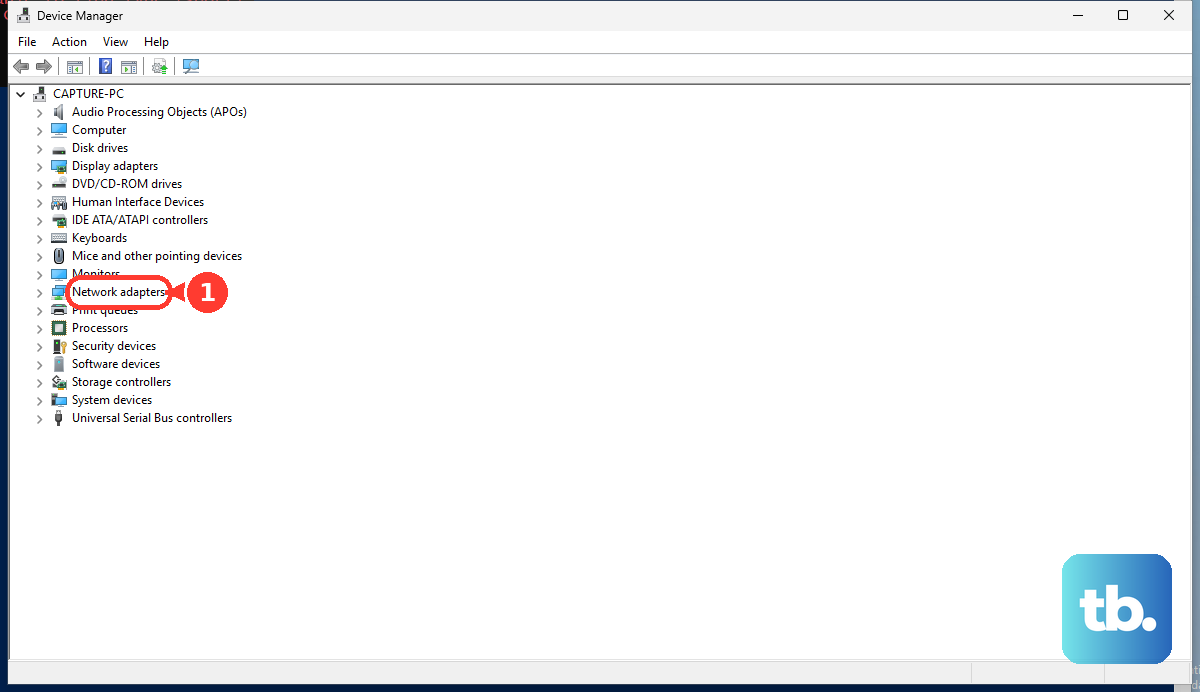
On Windows 11 after setup, open Device Manager, expand Network adapters, right-click the wireless network adapter, select Uninstall, then restart the PC so Windows can reinstall it.
8. Adjust advanced WiFi settings only for a clear reason
On Windows 11, open Network & internet settings, select Wi-Fi, choose the connected network, then pick Public network or Private network under Network profile type.
On Windows 11, open Settings, select Network & internet, select Wi-Fi, choose the connected network, then turn on Metered connection for a network with data limits. On Windows 10 the same toggle sits under Properties and is labeled Set as metered connection.
On Windows 11, use Settings > Network & internet > Wi-Fi to turn on Random hardware addresses for all networks, or use Manage known networks, choose one network, then turn on Random hardware addresses for that saved network.
On Android, open Settings, tap Network & internet, tap Internet, then tap your connected network or its Settings icon for network-specific options such as metered WiFi or randomized MAC.
On Android, open Settings, tap Network & internet, tap Private DNS to change Private DNS, or use Network preferences for options such as Turn on Wi-Fi automatically, Open network notification, Install certificates, and Wi-Fi Direct.
On Samsung Galaxy, open Settings, tap Connections, tap Wi-Fi, turn on Wi-Fi, tap More options, then choose Advanced settings, Wi-Fi Direct, or Intelligent Wi-Fi.
On Mac, choose the Apple menu, open System Settings, click Network, click Wi-Fi, click Details, make the needed TCP/IP, DNS, proxy, or service-status change, then click OK.
9. Open router WiFi settings when every device has the same issue
For TP-Link routers, connect to the router by WiFi or Ethernet, open tplinkwifi.net or 192.168.0.1 in Chrome, Firefox, or Edge, sign in, then look for Wireless > Wireless Settings or Basic > Wireless.
For TP-Link routers in the Tether app, connect your phone or tablet to the router WiFi, open Tether, log in, tap More, tap Wi-Fi Settings, select the network band, make the change, then tap Save or Done.
For TP-Link Deco mesh systems, open Deco, tap More, tap Wi-Fi Settings, edit the WiFi name or password, or open Security or Band under Advanced, then tap Save.
For eero, open the eero app, tap Settings, tap Wifi name & password, edit the network name or password, then tap Save.
For eero guest WiFi, open the eero app, tap Settings, tap Guest wifi network, turn on Enable guest network, edit the guest name or password, then tap Save.
When you manage your own router for Apple devices, use the router app or web interface to check security, network name, hidden-network behavior, MAC filtering, firmware updates, radio mode, bands, channel, channel width, DHCP, NAT, WMM, and related compatibility settings.
For a work or school device, WiFi settings can be delivered by device management instead of changed manually. Contact your organization when a managed iPhone, iPad, Mac, Windows PC, or Chromebook will not accept a WiFi change.
Skip WPS Push Button and WPS PIN on current Android devices. Google lists those WPS options only for older Android versions, so use the regular password, QR-code sharing, or manual network entry instead.
If you forgot a TP-Link router admin password, use the router factory reset process only as a last resort because it erases custom settings and requires setup again.
Frequently Asked Questions
Where are WiFi settings on my phone?
On iPhone, open Settings and tap Wi-Fi. On Android, open Settings, tap Network & internet, then tap Internet. On Samsung Galaxy, open Settings, tap Connections, then tap Wi-Fi.
Why does Control Center not fully turn off WiFi on iPhone?
Apple’s Control Center Wi-Fi button disconnects from the current network temporarily. To fully turn WiFi off, open Settings, tap Wi-Fi, and turn it off there.
What should I try first when WiFi settings look correct but the internet still fails?
Toggle WiFi or Airplane mode, reconnect to the network, then restart the router or modem-router by unplugging it for about 30 seconds and plugging it back in.
When should I forget a WiFi network?
Forget the network when your device keeps using old saved details or repeatedly fails after you enter the right password. Then reconnect and enter the password again.