TikTok shows auto-generated captions on many videos so you can follow along with the sound off or in a noisy room. They are helpful, but they can also cover faces, text, or the part of the screen you actually want to watch.
The good news is that captions are entirely under your control as a viewer. You can hide them on the video you are watching right now, or switch them off for every video so you get a clean view from then on.
This guide covers both options, plus what to do when the steps look different on your phone and how creators can manage captions on their own posts.
Two Kinds of Captions on TikTok
Before you start, it helps to know there are two different things people call captions. The first is the auto-generated subtitle text TikTok adds on its own, which it introduced in April 2021 to make videos more accessible. These are the captions you can turn off.
The second is the text a creator burns into the video themselves, such as on-screen titles, lyrics, or sticker text. That text is part of the video file, so it cannot be removed by a viewer.
If text stays on screen no matter what you do, it is almost certainly creator-added text rather than an auto-generated caption.
Hide Captions on a Single Video
This is the fastest option when one specific video has captions in the way and you do not want to change anything permanently. It only affects the video on screen.
The quickest method is to tap directly on the caption text. A small Hide Captions button appears, and tapping it removes the captions from that video right away.
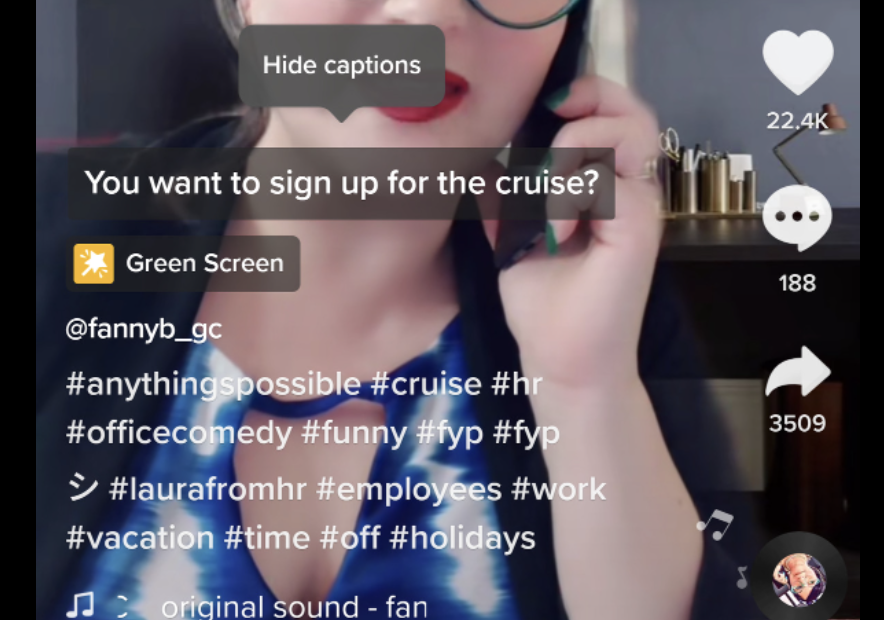
If tapping the text does not bring up that button, press and hold a clear area of the video instead. From the menu that appears, tap Captions and translations (it may simply read Captions), then switch Show captions off.
Turn Off Captions for Every Video
If you never want to see auto-generated captions, switch them off once in your settings and they stay off across the app. This is the better choice if captions distract you on most videos.
Open your Profile tab, then tap the menu icon in the top corner and follow this path.
Settings and privacy > Accessibility > Always show auto-generated captions
Switch that toggle off. The exact wording can vary slightly by app version, so look for any option that mentions auto-generated captions and turn it off. From then on, videos play without the auto subtitles unless you turn them back on.
What to Do When the Steps Look Different
TikTok updates its app often, and menu names, positions, and toggle labels change between versions, regions, and device languages. If a button is not where this guide says, the option usually still exists under a slightly different name nearby.
Update TikTok to the latest version first, since older builds may not include the caption toggle at all. After updating, fully close and reopen the app so the new settings load.
If you still cannot find the global toggle, use the single-video method above as a reliable fallback that works regardless of where the settings menu has moved.
Manage Captions on Your Own Videos
If you post on TikTok, you can control how auto-generated captions appear on your published videos. Open one of your videos, tap the three-dot menu, find the Captions option, and toggle it off to remove the auto captions from that post.
You can also correct mistakes instead of removing captions entirely. Editing the caption text fixes any words TikTok transcribed wrong, which keeps your video accessible while still reading accurately.
Keep in mind this is different from the written description under your video. The description and its hashtags are separate from the auto captions, and you can update them from the same three-dot menu using the edit post option.
Why You Might Hide Captions
Captions are valuable for accessibility and for watching with the sound off, so they are on by default for good reason. Still, there are times when turning them off improves the experience.
Auto captions can block faces, on-screen details, or the lower third of the frame where a lot of the action happens. Hiding them gives you the full picture and lets the visuals speak for themselves.
Some people also simply focus better without text moving on screen, especially during fast edits or videos they are watching purely for the visuals.
Frequently Asked Questions
How do I turn captions back on after hiding them?
For a single video, tap the caption area or long-press the video and switch Show captions back on. To restore them everywhere, return to Accessibility in Settings and privacy and turn the auto-generated captions toggle on again.
Why do captions still appear after I turned them off?
The text you are seeing is most likely added by the creator and built into the video, so it cannot be removed by a viewer. Auto-generated captions are the only ones you can switch off.
Does hiding captions affect other people watching the same video?
No. Caption settings apply only to your own account and device, so turning them off changes what you see and has no effect on anyone else.
Can I stop TikTok from ever adding auto captions to my videos?
TikTok does not offer a single setting that blocks auto captions on all of your future posts. You manage them per video by toggling captions off on each post after it is published.
I cannot find the captions option, what should I do?
Update TikTok to the latest version, then reopen the app, since older versions may not include the toggle. If the global setting is still missing, use the single-video method by tapping or long-pressing the video.
First published October 15, 2025. Last updated June 4, 2026.