When the volume button is not working on Apple TV remote, the remote may still move around Apple TV while your TV, receiver, or soundbar ignores every volume press. The fix is usually a quick remote restart, the right Volume Control setting, or a cleaner signal path to your audio gear. Start with the fastest checks, then move into the setup-specific fixes.
Restart the Apple TV remote first
Press and hold the TV or Control Center button and the Volume Down button at the same time for about 5 seconds.
Release both buttons when the Apple TV status light turns off and on again.
Wait 10 to 15 seconds for the Remote Disconnected notification.
Press any button after Remote Connected appears.
Try the volume buttons before changing anything else, because this restart clears many stuck remote connections.
Change the volume control setting
The most common cause is Apple TV sending volume commands through the wrong control method for your TV, receiver, or soundbar.
Open Settings on Apple TV.
Go to Remotes and Devices.
Choose Volume Control.
Select a different option, then test Volume Up and Volume Down again.
If Auto does not work, try TV via IR or another available option that matches your setup.
Use IR for optical soundbars
This fixes volume buttons when Apple TV audio runs through a soundbar or audio system connected with an optical cable.
Open Settings on Apple TV.
Go to Remotes and Devices.
Select Volume Control.
Choose TV via IR.
Point the remote toward the TV, receiver, or soundbar, then test the volume buttons.
Try another available IR setting if Apple TV shows one, because optical-cable setups do not support CEC volume control.
Clear the path for infrared control
Infrared volume control needs a clear path between the remote and the front of the TV, receiver, or soundbar. A blocked sensor can make the Apple TV remote feel broken even while navigation still works.
Move anything sitting in front of the TV, receiver, or soundbar, then point the remote directly at the device that controls volume. Test Volume Up and Volume Down.
This matters for TV via IR, Receiver via IR, and many Learn New Device setups. It does not apply when volume is working through compatible HDMI-CEC equipment.
Turn on HDMI CEC on your TV or receiver
The most common cause in HDMI-based setups is that HDMI-CEC is disabled on the TV, receiver, or the HDMI port Apple TV is using.
Check that your TV or receiver supports HDMI-CEC.
Confirm Apple TV is connected to an HDMI port that supports HDMI-CEC.
Open the TV or receiver menu, then turn on its HDMI-CEC setting. The name may appear as LG SimpLink, Philips EasyLink, Samsung Anynet+, Sharp Aquos Link, Sony BRAVIA Sync, or another Link or Sync setting.
Return to Apple TV and test the volume buttons again.
If needed, go to Settings, Remotes and Devices, Home Theater Control, and Volume Control, then choose Auto or HDMI.
Pair the Apple TV remote again
Point the remote at Apple TV from about three inches away.
Press and hold Back, or Menu on older remotes, and Volume Up for five seconds.
Place the remote on top of Apple TV if prompted.
If pairing fails, unplug Apple TV from power.
Wait six seconds.
Plug Apple TV back in, then repeat the pairing steps.
Once the remote reconnects, test volume before moving to software or battery checks.
Check battery and signal strength
A weak battery or poor Bluetooth signal can make the remote miss button presses, including volume presses. On Apple TV 4K, open Settings, go to Remotes and Devices, then choose Remote to view Battery Level.
Charge the remote for 30 minutes using the port on the bottom. Third-generation Siri Remote models use USB-C, while first- and second-generation models use Lightning.
On tvOS 18.0 or later, open Settings, Remotes and Devices, then Remote to check the remote signal strength indicator. If the signal is weak, move within 20 feet of Apple TV and clear anything blocking the path between the remote and the front of Apple TV, the television, the receiver, and the soundbar.
If this method fails, restart Apple TV itself or update tvOS next.
Restart Apple TV and update tvOS
Use this when the remote is paired and charged, but the volume buttons still behave inconsistently. A restart clears a stuck Apple TV session, and an update brings the box onto Apple’s current software path.
To restart from the remote, press and hold the TV button and the Back button until the Apple TV status light blinks rapidly. On older remotes, use Menu instead of Back.
You can also disconnect Apple TV from power, wait five seconds, then reconnect it. On Apple TV 4K, use Settings, System, then Restart.
To update, open Settings, go to System, then Software Updates and choose Update Software. If an update appears, select Download and Install.
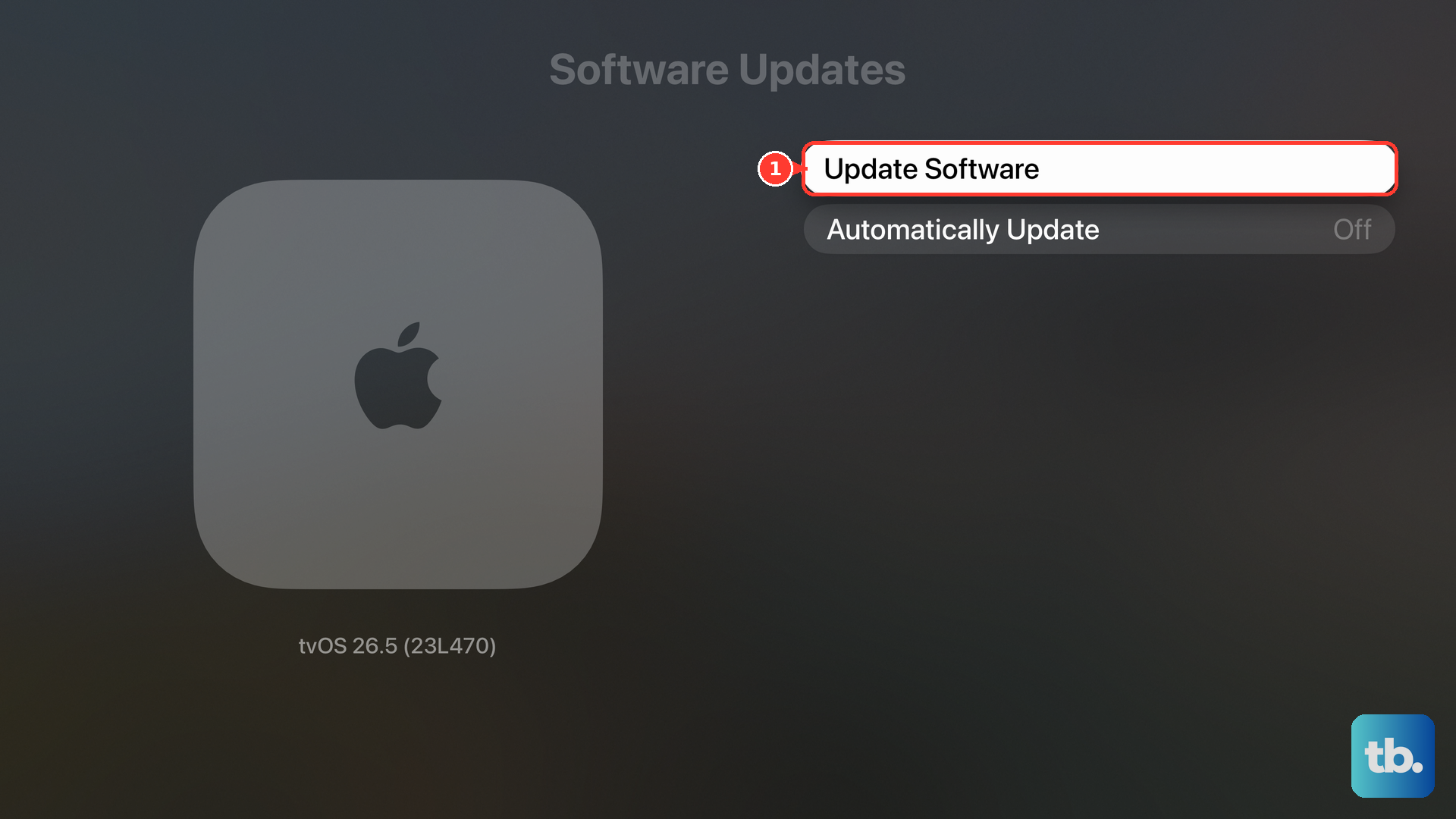
For future updates, go to Settings, System, then Software Updates and turn on Automatically Update.
Use a workaround or get service
If the Apple TV remote still will not control volume, use one of these supported options.
- 1.Teach Apple TV your TV, receiver, or soundbar by opening Settings, Remotes and Devices, Volume Control, then Learn New Device, and follow the onscreen instructions.
- 2.Open the Apple TV Remote in iPhone or iPad Control Center, choose your Apple TV or smart TV, enter the four-digit passcode if asked, then use the physical volume buttons on the iPhone or iPad in supported speaker or receiver setups.
- 3.Open the Apple Watch Remote app, choose your Apple TV, then turn the Digital Crown to adjust volume. To mute, tap More, then Mute & Unmute.
- 4.Use the remote that came with your TV, receiver, or audio system, because not every audio setup supports Apple TV remote volume buttons.
- 5.Set up a universal infrared remote by opening Settings, Remotes and Devices, then Learn Remote. Use the Apple TV 4K configuration code from the remote’s documentation if the remote requires one.
- 6.Contact Apple service if the Siri Remote, Apple TV Remote, or Apple TV hardware still fails. Apple offers Express Replacement with AppleCare, in-person service, and mail-in service, and the remote battery is serviced by Apple or an authorized service provider.
For organization-managed Apple TV devices, software updates may be controlled by a device management service, including update deferrals on supervised Apple TV devices. Contact the person who manages the device when you cannot install the current tvOS update yourself.
Frequently Asked Questions
Why does my Apple TV remote navigate but not control volume?
Navigation goes directly to Apple TV, while volume may be sent through HDMI-CEC or infrared to your TV, receiver, or soundbar. Change Volume Control and make sure the device receiving volume commands has a clear path or active HDMI-CEC support.
Which volume setting should I use on Apple TV 4K?
Start with Auto. Use HDMI only with TV or receiver gear that supports HDMI-CEC volume, and use TV via IR or Receiver via IR for infrared-controlled gear.
Can I replace the battery in an Apple TV remote?
No. Siri Remote and Apple TV Remote models use an internal rechargeable battery. Apple or an authorized service provider services the battery.
Can I use my iPhone as a volume workaround for Apple TV?
Yes, in supported setups. Open the Apple TV Remote in Control Center, select your Apple TV, and use the iPhone’s physical volume buttons when Apple TV is set up with supported speakers or receivers.