Your Verizon Fios Wi-Fi shows up but will not connect, drops in certain rooms, or leaves every device offline at once. The fix depends on whether the router, Verizon service, a saved password, signal quality, or one device is causing the failure. Start with the quick checks below, then move only to the deeper router and reset steps that match what you see.
1. Restart the router before changing anything else
A clean restart is Verizon's first broad fix for Fios Home Internet connection problems, and it clears many temporary router issues without touching your Wi-Fi name or password.
Unplug the router power cable. Wait one full minute, then plug the router back in. Wait for the router to finish starting up, then try the Wi-Fi again.
If you use the Verizon Home app, open it and go to the Home Screen. Under Quick actions, tap Restart router.
Some Verizon routers also have a button restart. On a current Verizon Router, press and hold the back Reset button for 3 to 5 seconds. Wait for the Internet light to become steady white.
On a Fios Router with a front Unified button, press and hold Unified for 10 seconds. After that, wait for the Internet light to become steady white.
2. Check Verizon status when every device is offline
If phones, computers, TVs, and consoles all fail at the same time, check the service side before editing router settings.
Go to Verizon's Check network status page. Choose where the issue is happening, then sign in if prompted to see account-specific network status.
The Verizon Home app can also show the status of Verizon network equipment on the Home screen, including the router, extender, or receiver. When Verizon shows a network or equipment issue, leave Wi-Fi settings alone and wait for that issue to clear or contact Verizon support.
3. Turn Wi-Fi back on and verify the password
When the router has internet but the wireless network is missing or rejecting devices, check the router-level Wi-Fi setting first. The My Verizon steps below apply to a Fios Quantum Gateway or Fios Advanced Wi-Fi Router; on a current Verizon Router, turn Wi-Fi off and on from the Verizon Home app or the router's Admin Page at myfiosgateway.com instead.
Sign in to My Verizon. Hover over Services, then select Internet. Under My Network, select the network name you want to manage.
Switch Enable Wi-Fi Access on. Select Save Changes.
If Enable Wi-Fi Access is already on, switch it off. Select Save Changes, then switch it back on. Select Save Changes again.
For a password mismatch, check the saved Wi-Fi password instead of guessing. In the My Verizon app, open Internet. Look under My Networks.
On the My Verizon website, sign in. Hover over Services, then select Internet. Read the password below each network name under My Network.
The router label shows the default Wi-Fi name and password if you never changed them or if a factory reset restored them.
4. Reconnect the device that fails by itself
On iPhone or iPad, open Settings. Tap Wi-Fi, then turn Wi-Fi on. Tap your Fios network name and enter the Wi-Fi password. Tap Join, and a blue checkmark confirms the connection.
On Android, open Apps. Go to Settings and choose Wi-Fi. Enable Wi-Fi, select your network, and enter the Wi-Fi password. Select Join.
On Windows, select the Network icon on the taskbar. Choose the Wi-Fi network, then select Connect. Type the network password and select Next.
On Mac, click the Wi-Fi status menu in the menu bar. Choose your Fios network. If it is not listed, click Other Networks. Click the network name, enter the password, and click Join.
On a game console, open Connection settings or Network settings. Choose Wi-Fi or Wireless, then scan. Select your Wi-Fi name and enter the password.
When only one device will not join Fios Wi-Fi, fix that device before changing the router for the whole house. For a console that stays in one place, plug an Ethernet cable from the console into a router LAN port for the fastest connection.
5. Improve weak signal and slow rooms
If Wi-Fi connects near the router but drops or slows in certain rooms, treat it as a coverage or interference problem.
Move the affected device closer to the router. Place the router centrally, high up, and with fewer walls or ceilings between the router and the devices using it.
Move the router or extender away from Bluetooth devices, refrigerators, cordless phones, microwave ovens, baby monitors, TVs, mirrors, nearby Wi-Fi networks, and other transmitting or interfering devices.
If several devices are streaming at the same time, stop the heavy streams and test again. Or connect bandwidth-heavy devices by Ethernet.
To measure the connection, open the Verizon Home app. Under Quick actions, tap Speed test. Tap Run speed test.
In My Verizon, sign in. Select Begin Speed Test to measure router speed, device speed, upload, and download.
6. Adjust router settings for stubborn devices
Use router settings when a smart home device, older computer, or Wi-Fi 6E device keeps failing after the basic connection steps.
Open a browser and enter myfiosgateway.com or 192.168.1.1. Sign in with username admin and the administrator password or Network Settings Password from the router label.
To change credentials on a current Verizon Router, click Wi-Fi. Select Primary Network. Update Wi-Fi Name and Wi-Fi Password. Select Apply Changes.
For older smart home devices that need 2.4 GHz or WPA2, enable or use IoT Wi-Fi in the Verizon Home app, My Verizon, or the router Admin WebGUI. Connect the device, or the phone running its companion app, to that IoT network. Finish the device's Wi-Fi setup prompts.
On a Verizon Router with Wi-Fi 6E, turn on Wi-Fi 6E for compatible devices only. If older WPA2 devices disconnect after that change, connect them to IoT Wi-Fi. If band steering is sending a device to the wrong band, manage SON in My Verizon, the Verizon Home app, or the router interface.
7. Remove device blocks and software conflicts
Parental controls can make one device look broken while the rest of the network works. In the Verizon Home app, open Parental Controls or Device groups. Remove paused access or schedules for the affected device.
On documented Fios Router paths in My Verizon, hover over Services. Select Internet. Use Devices & Parental Controls under Manage My Devices.
For work laptops or phones, disconnect the VPN. Test Wi-Fi again. If you cannot turn off the VPN or security software, contact your company IT department.
On Windows, run Windows Update. To check the adapter, open Device Manager. Expand Network adapters. Right-click or press and hold the wireless adapter.
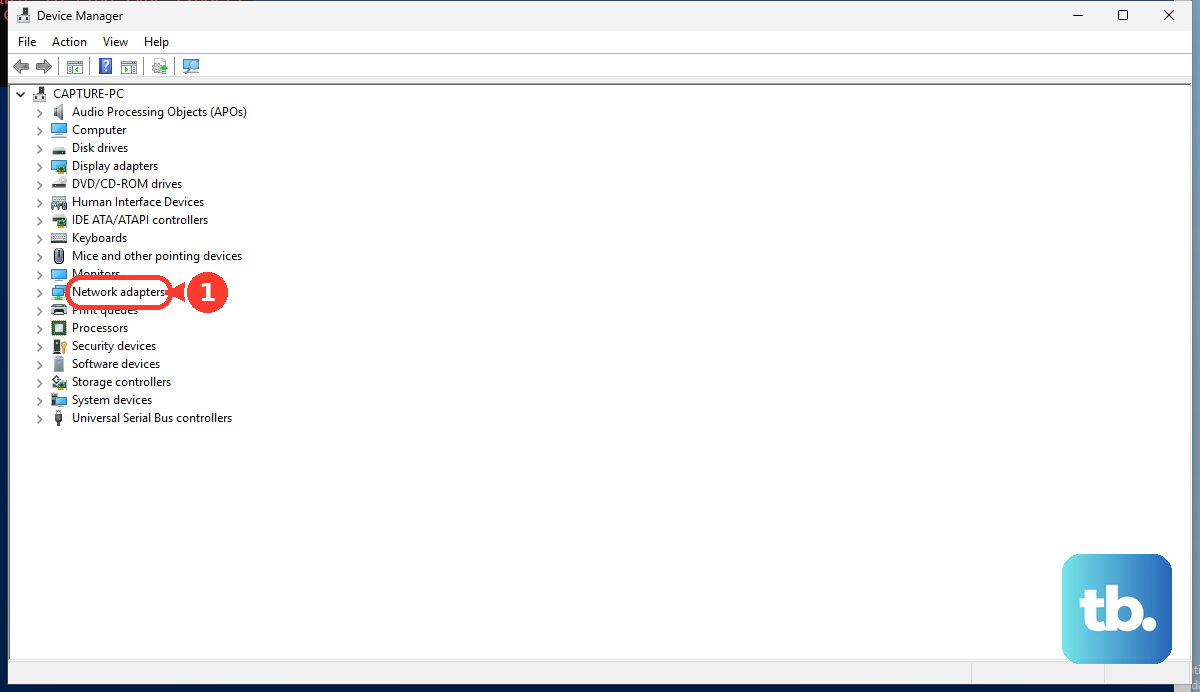
Select Properties. Use Enable device if the adapter is disabled. Use Update driver when the Fios network is not visible or will not connect. Select Search automatically for updated driver software.
Use Windows Network reset only after the simpler router and reconnect checks. Go to Start and open Settings. Select Network & internet, then open Advanced network settings. Choose Network reset.
Select Reset now. Select Yes, then wait for the PC to restart.
8. Reset the router only as the last fix
A factory reset deletes your custom Wi-Fi name, Wi-Fi password, and home network settings. Use it after restarts, outage checks, password checks, device reconnects, placement fixes, and software checks fail.
- 1.Keep the router powered on.
- 2.Locate the back Reset button.
- 3.Use a paperclip or similar object to press and hold Reset for 15 seconds.
- 4.Wait for the router to fully reset and power back on.
- 5.Reconnect devices using the default Wi-Fi credentials on the router label.
- 6.Reconfigure your Wi-Fi name, Wi-Fi password, and home network settings.
A router factory reset does not deactivate your Fios service.
Only when you set up new, moved, or replacement Fios equipment, sign in to My Verizon. Use the Fios self-install flow labeled Self-Install Now or Get started.
Call 1-800-VERIZON or 1.800.837.4966 when Verizon status points to a service issue, the router will not recover after a proper restart, or equipment replacement is needed.
For weak coverage in a larger home, eligible Whole-Home Wi-Fi customers can go to My Verizon. Select Account, then select Home. Select Internet and select Wi-Fi Health Check. Request a Fios Extender when an issue is found.
Frequently Asked Questions
Why is my Verizon Fios Wi-Fi connected but there is no internet?
Restart the router, then check Verizon network status. If every device is affected, focus on the router, Verizon equipment status, or a service-side issue before troubleshooting one phone or computer.
How do I find my Verizon Fios Wi-Fi password?
Open the My Verizon app, go to Internet, and check My Networks. You can also sign in to My Verizon on the web, go to Services and Internet, or use the default password on the router label if it has not been changed.
Should I hold the Reset button on my Fios router?
Hold Reset for 15 seconds only when you want a factory reset. It deletes custom Wi-Fi and home network settings. For a normal restart, unplug the router for one minute or use the supported short button restart for your router model.
What should I do when only one device will not connect to Fios Wi-Fi?
Reconnect that device to the Wi-Fi network, confirm the password, turn off VPN or security software for testing, and update or enable its Wi-Fi adapter before changing router settings for every device.