USB tethering should turn your Android phone into a wired internet connection for your computer, but one bad cable, disabled mobile data switch, or missing Windows driver can stop it cold. Start with the phone and cable, then move through the computer-side fixes only when the tethering switch works but the PC still has no internet.
Turn On USB Tethering After Connecting The Cable
This method applies when USB tethering is off, missing, or greyed out before the phone is connected. Google's USB tethering steps start by connecting the cable, and Samsung documents that the USB tethering menu is inaccessible on Galaxy phones when no USB cable is detected, so plug in first and then look for the switch.
Plug your Android phone into the computer with a USB cable.
Unlock the phone and keep the cable connected.
On many Android phones, swipe down from the top of the screen, touch and hold Hotspot, then turn on USB tethering.
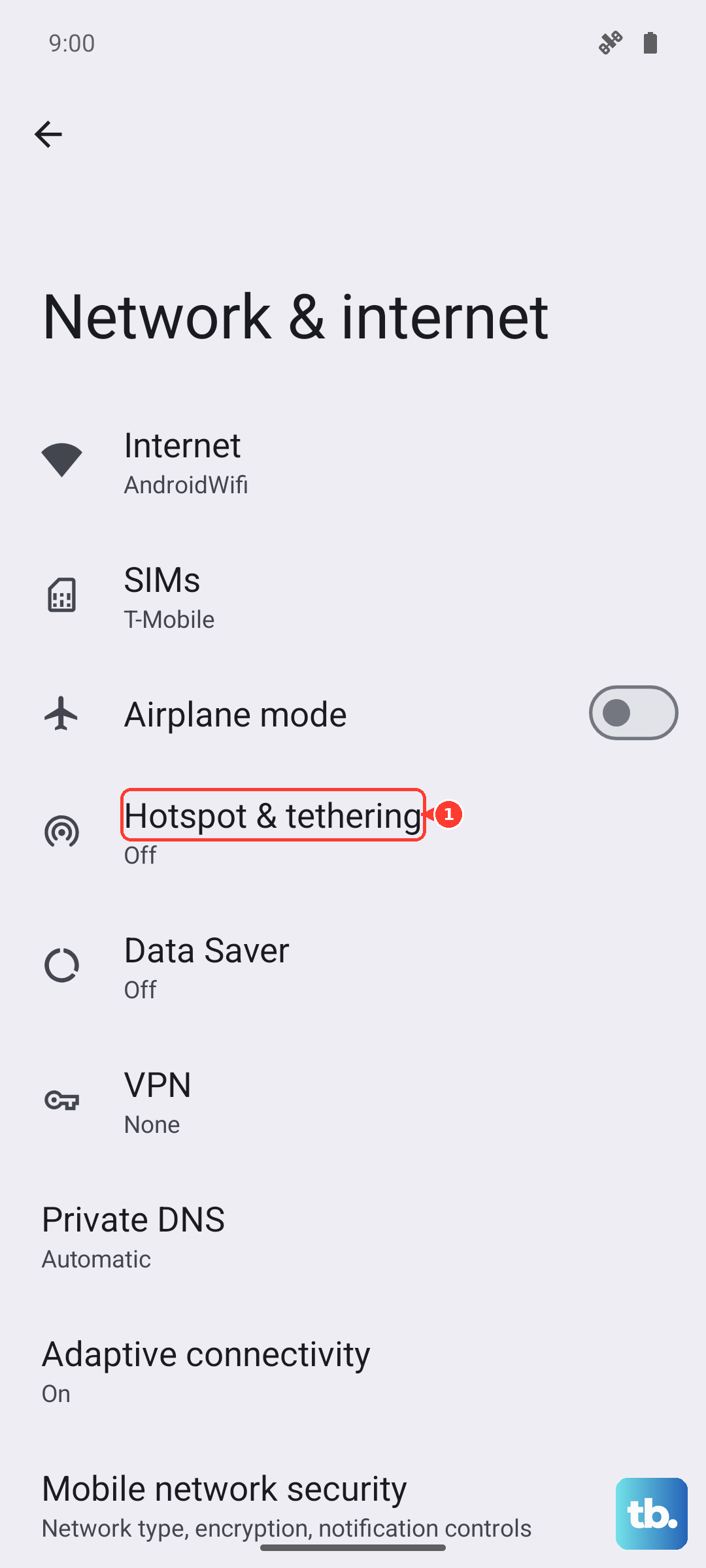
On Pixel, open Settings, tap Network & internet, tap Hotspot & tethering, then turn on USB tethering.
On Samsung Galaxy, swipe down from the top of the screen, tap the Settings icon, open Connections, tap Mobile Hotspot and Tethering, then turn on USB tethering.
If USB tethering stays greyed out, keep the phone connected and check the cable, port, and adapter next.
Use A Data Cable And Direct USB Connection
The cable matters. A charge-only cable can power the phone while leaving USB tethering unavailable, so use a data-capable USB cable such as Type-C to Type-C, Type-A to Type-C, or Type-A to Micro-USB.
Connect the phone directly to the computer. If the receiving device needs an adapter for its port, place the OTG adapter on the receiving device side.
On Samsung Galaxy devices, USB tethering is inaccessible when no USB cable is detected. It is also inaccessible when the OTG adapter is connected to the sharing device, so reconnect the cable after changing ports or adapters, then reopen Connections and Mobile Hotspot and Tethering.
On a Windows 11 USB-C PC, open Search, type usb, open USB settings, and turn on Connection notifications. On Windows 10, open Start, Settings, Devices, USB, and tick Notify me if there are issues connecting to USB devices. If Windows shows a USB-C error, use another USB port, connect directly to the PC, plug the PC into power, and disconnect unused USB devices.
Check Mobile Data Before Blaming Tethering
If the tethering switch turns on but the computer stays offline, confirm that the phone has mobile data.
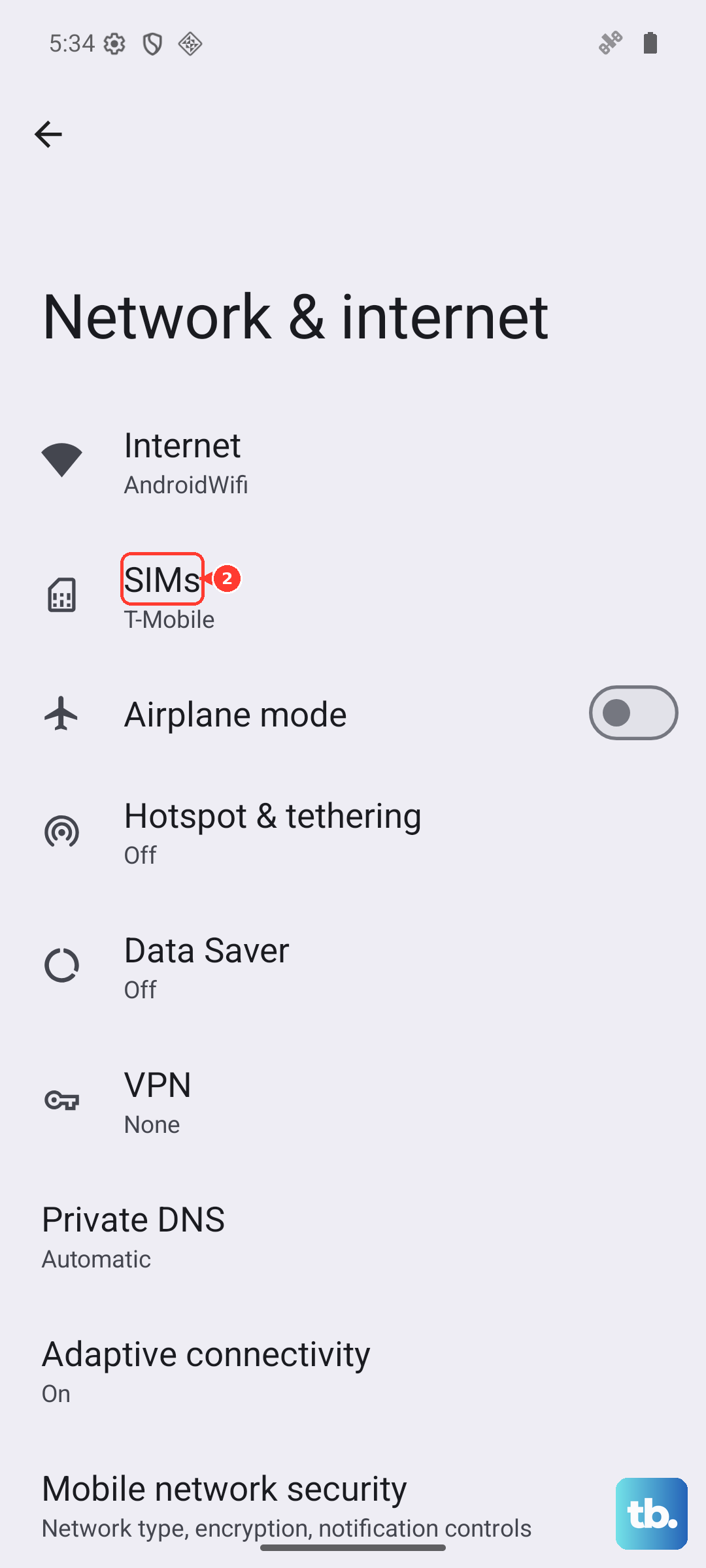
- 1.Open Settings, tap Network & Internet, open SIMs, and turn on Mobile data.
- 2.Tap your carrier name and turn on Use SIM.
- 3.Return to Network & Internet and turn off Airplane mode.
- 4.Open Internet, turn off Wi-Fi, and check the mobile signal indicator.
- 5.Move to a stronger signal area, reconnect the cable, and turn on USB tethering again.
Use Wi-Fi Hotspot On A Mac
The common cause on a Mac is simple: Android USB tethering is not available on Mac computers.
Use Wi-Fi hotspot instead. On Android, open Settings, tap Network & internet, choose Hotspot & tethering, tap Wi-Fi hotspot, and turn on Wi-Fi hotspot.
Connect the Mac from its Wi-Fi menu. Stop troubleshooting Android USB tethering on macOS and switch to Wi-Fi sharing.
Bluetooth tethering is another fallback for many Android phones. Pair the phone with the other device, set up the other device's network connection with Bluetooth, swipe down on the phone, touch and hold Hotspot, then turn on Bluetooth tethering. Pixel phones cannot tether with Android through Bluetooth on macOS Monterey and later.
Remove Carrier VPN And Data Saver Blocks
Carriers can limit tethering or require the correct data and hotspot plan. Check that your account is in good standing, your plan includes tethering or hotspot access, and mobile data works directly on the phone.
Inspect the SIM for damage if the phone recently lost service or changed carriers. On Samsung Galaxy, open Settings, tap Connections, open Mobile Networks, tap Access Point Names, tap More options, choose Reset to default, tap Reset, choose Select SIM Service, then tap OK.
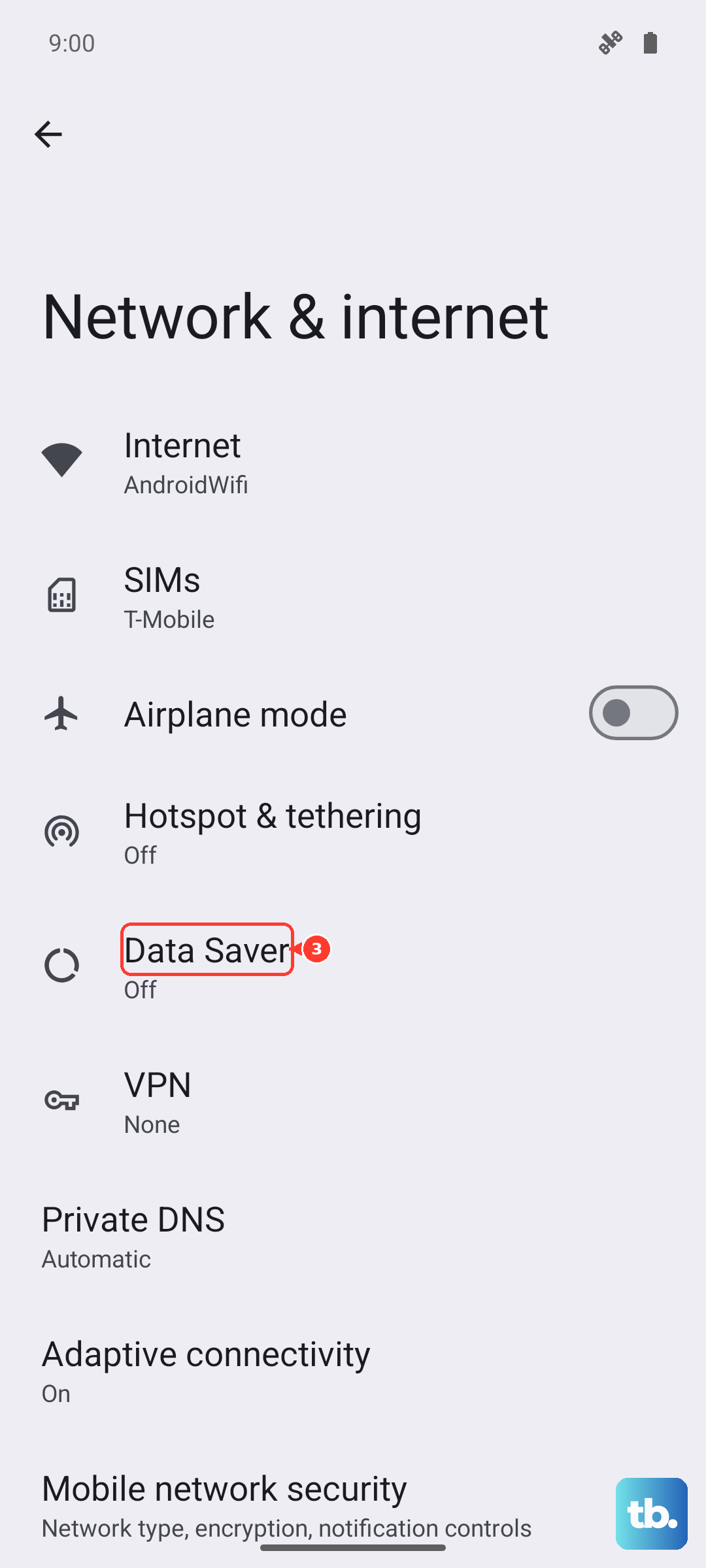
Temporarily disable your VPN, reconnect the USB cable, and test tethering again. On Pixel, open Settings, tap Network & internet, open Data Saver, and turn Data Saver off while you troubleshoot. Google documents this requirement for tethering by Wi-Fi, so it matters most when you fall back to a Wi-Fi hotspot.
If this method fails, restart the phone and install Android updates before changing Windows network settings.
Restart The Phone And Install Android Updates
This fixes temporary phone-side network and USB glitches.
On Pixel, power off the phone.
Wait 30 seconds.
Turn the phone back on.
On Samsung Galaxy, press and hold the Volume down button and the Side button (the Power button on older models) together until the power options appear, or swipe down with two fingers and tap the Power icon.
Choose Restart.
Choose Restart again.
After the phone restarts, reconnect the USB cable and turn on USB tethering.
To update Android, open Settings, tap System, open Software updates, and follow the on-screen instructions.
On Samsung Galaxy, swipe down from the top right with two fingers, tap the Settings icon, then open Software update or System updates.
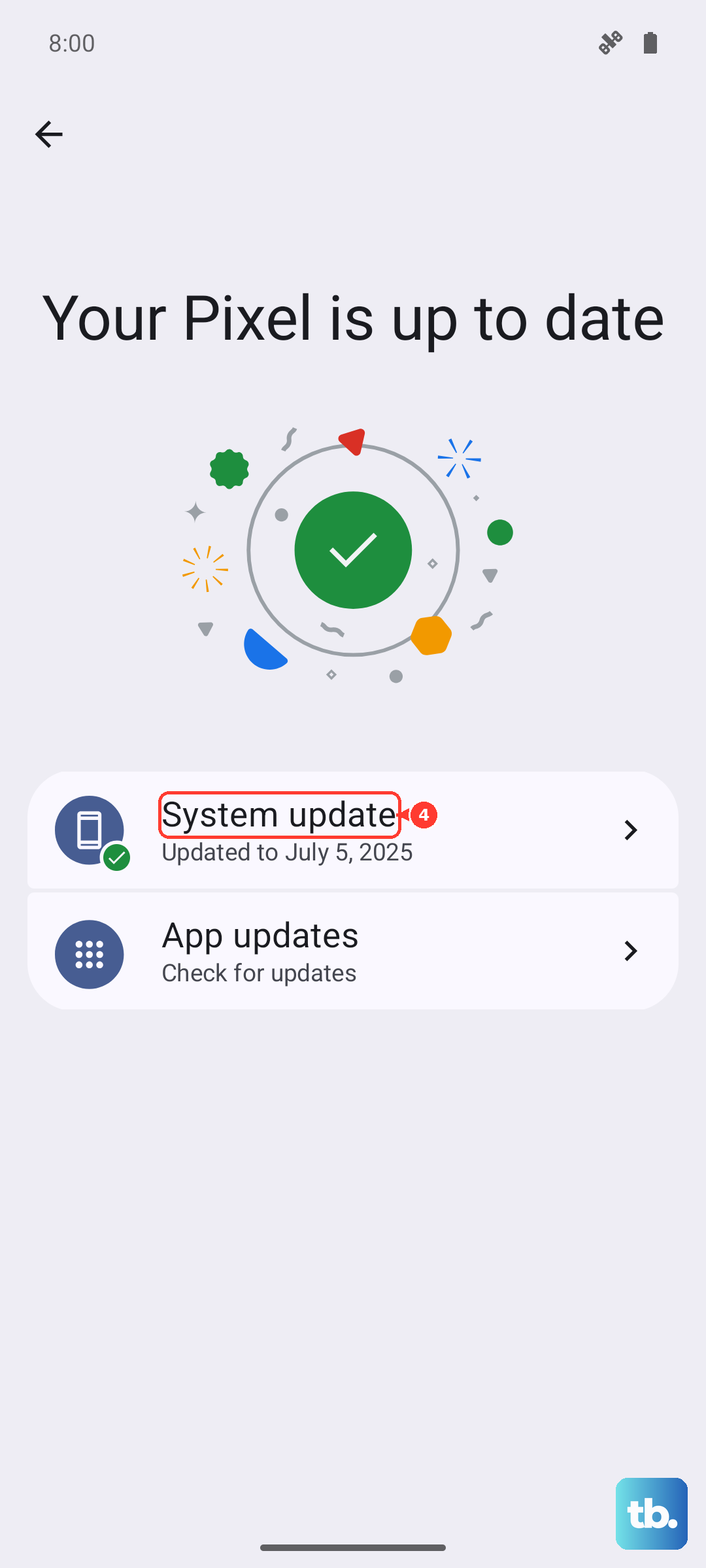
Choose Download and install, Check for system updates, or Check for software updates, then follow the prompts.
Repair Windows Driver And Network Problems
When the Android phone works but Windows does not create a usable tethered connection, repair the Windows side in this order.
On Windows 11, open Start, Settings, Windows Update, Advanced options, and Optional updates; select driver updates, choose Download and install, and restart Windows.
On Windows 10, open Start, Settings, Update & Security, Windows Update, Advanced options, then return to Windows Update and choose View optional updates.
Right-click Start, open Device Manager, expand Network adapters or Other devices, right-click the Android, RNDIS, NCM, or tethering device, choose Update driver, then choose Search automatically for updated driver software. From Windows 10 version 2004 onward that search only checks drivers already on the PC, so if it comes up empty, choose Search for updated drivers on Windows Update, then install any relevant Optional updates and Driver updates.
If automatic driver installation fails, download the driver from the device manufacturer's site, return to Device Manager, choose Update driver, Browse my computer for drivers, Browse..., select the driver folder, choose OK, then Next.
For Samsung Galaxy phones on Windows, Windows Update normally installs the driver the first time you plug the phone in. If it does not, work through Optional updates and Device Manager above, or search your model on Samsung's Manuals & Software download page, then reconnect the phone and retry USB tethering.
Samsung's separate Android USB Driver for Windows (v1.9.5.0) on the Samsung Developer site is documented for connecting a Galaxy device to a Windows development environment, so treat it as a developer tool rather than the standard tethering fix.
If the tethering adapter connects but internet still fails, open Command prompt as administrator, choose Yes, then run netsh winsock reset, netsh int ip reset, ipconfig /release, ipconfig /renew, and ipconfig /flushdns.
Use Network reset last.
On Windows 11, open Start, Settings, Network & internet, Advanced network settings, Network reset, Reset now, then Yes.
On Windows 10, open Start, Settings, Network & Internet, Status, then Network reset.
Reset Network Settings After Easier Fixes
Google documents a network reset for mobile connection problems, so use it when the phone's own data connection stays unreliable and USB tethering has nothing solid to share. On Pixel, open Settings, tap System, open Reset options, then choose Reset mobile network settings.
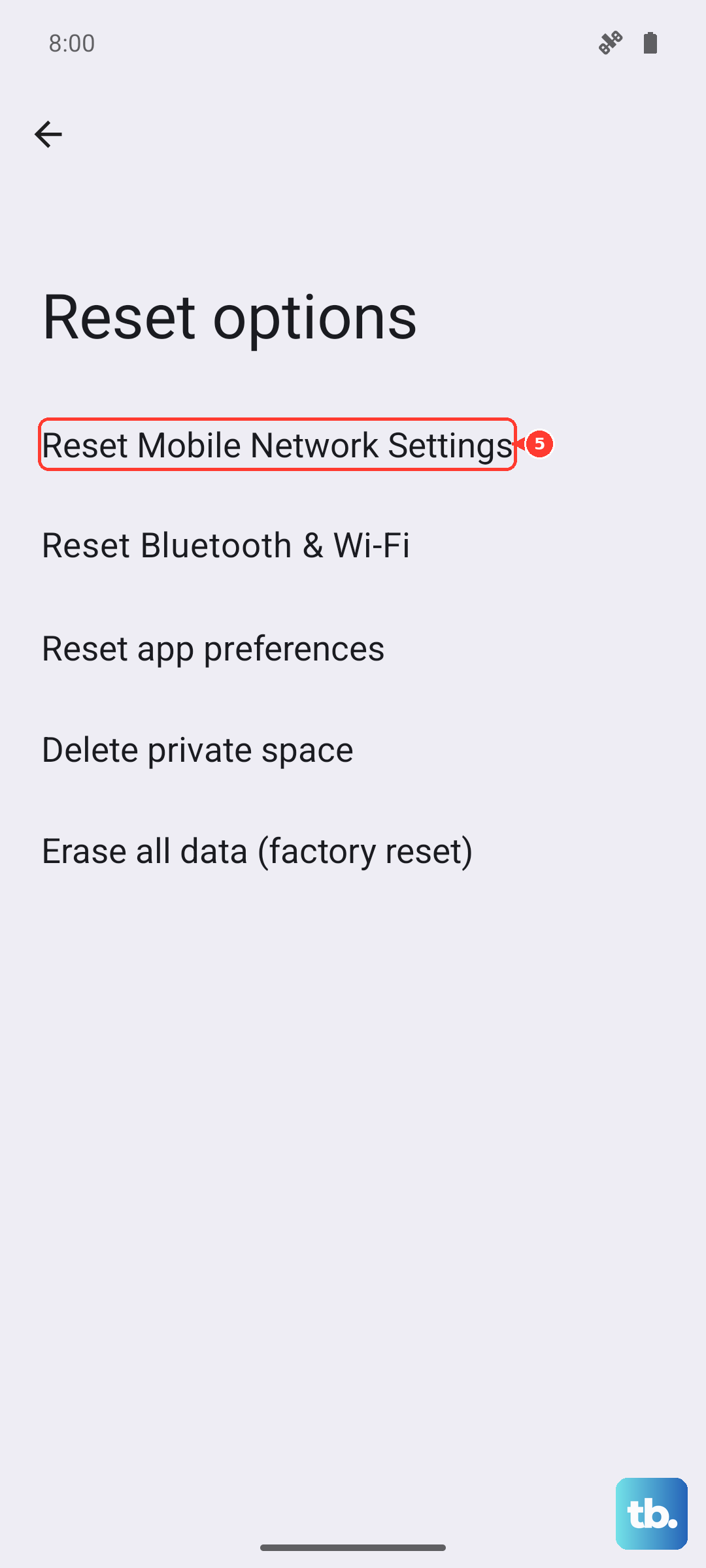
If Wi-Fi or Bluetooth tethering also fails on Pixel, open Settings, tap System, open Reset options, then choose Reset Bluetooth & Wi-Fi. This deletes saved Wi-Fi connections, so reconnect to Wi-Fi networks afterward.
On Samsung Galaxy, reset the APN to default after APN edits, a carrier change, or an eSIM change. Open Settings, tap Connections, open Mobile Networks, tap Access Point Names, tap More options, choose Reset to default, tap Reset, choose Select SIM Service, then tap OK.
If this method fails, test for a third-party app conflict or ask your carrier to confirm that tethering is enabled on your account.
Check Work Phone Restrictions And Old Advice
The most common cause on a managed phone is an organization policy that blocks tethering or hotspot access.
If this is a work, school, or organization-owned Android device, contact the administrator and ask whether tethering and hotspot access are allowed. Consumer settings can look correct while a management profile blocks the feature.
Older Samsung instructions mention Apps, Settings, More networks, Tethering and portable hotspot, and a USB tethering checkbox. Current Samsung Galaxy devices use Settings, Connections, Mobile Hotspot and Tethering, and the USB tethering switch.
Developer options such as Select USB Configuration and RNDIS are advanced debugging controls, not the primary consumer fix. Use the normal USB tethering controls, cable checks, carrier checks, updates, and Windows driver repairs before changing advanced USB settings.
Frequently Asked Questions
Why is USB tethering greyed out on my Android phone?
Your phone has not detected a usable USB data connection. Use a data-capable cable, connect directly to the computer, avoid placing an OTG adapter on the sharing phone, then reopen USB tethering.
Does Android USB tethering work on Mac?
No. Android USB tethering is not available on Mac computers. Use Wi-Fi hotspot instead. Bluetooth tethering is also blocked for Android on Pixel phones with macOS Monterey and later.
Why does USB tethering connect but the computer has no internet?
The phone may not have a working mobile connection, or the carrier, VPN, Data Saver, APN, SIM, or Windows network driver may be blocking the shared connection.
Should I reset network settings to fix USB tethering?
Use reset options after the cable, mobile data, carrier, update, and Windows driver checks. On Pixel, Reset Bluetooth & Wi-Fi deletes saved Wi-Fi connections.