A blank forecast, a frozen app, or yesterday’s weather on your widget leaves you without the update you need. Start with Apple’s service status and your connection, then tackle the fix that matches what’s going wrong. The menu paths below apply to iOS 26.
Check whether Apple Weather is down
Open Apple’s System Status page in Safari and find Weather. If Apple lists an incident, open its details and retry Weather after service is restored.
For a forecast while you wait, open the National Weather Service website in Safari. Enter your U.S. city and state or ZIP code in the local forecast search.
If Apple lists no Weather incident, or forecasts still fail after service returns, test your iPhone’s internet connection next.
Test your connection when forecasts won’t load
If Weather cannot retrieve data, check whether the connection problem affects just your iPhone or the whole network.
Open Settings and turn off Airplane Mode if it’s enabled. Then turn on Wi-Fi in Settings > Wi-Fi.
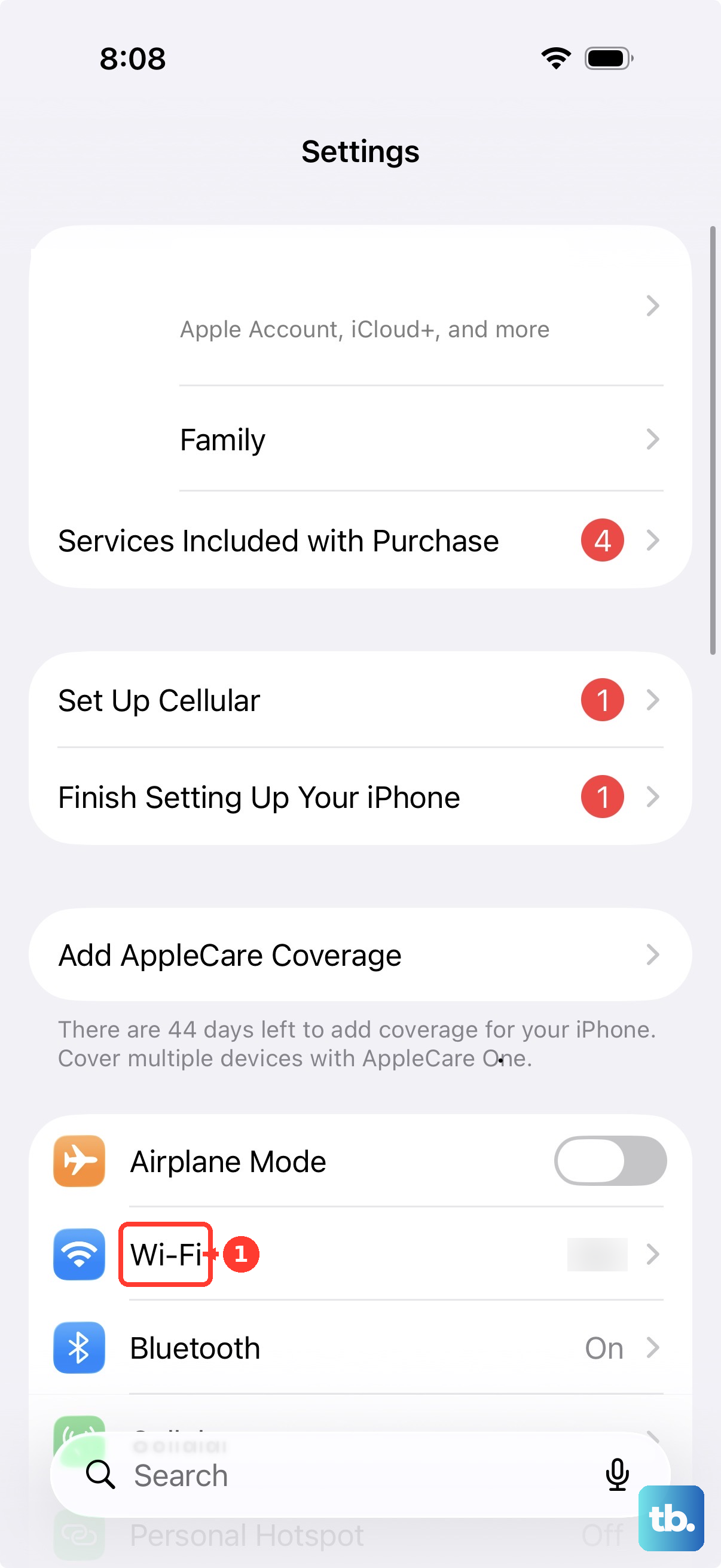
Select a working network. Try Weather on another Wi-Fi network. Test internet access on another device connected to the original network. If that device also cannot get online, restart your router and modem by disconnecting and reconnecting their power.
Contact your internet provider if the network still has no internet access. If Weather fails only on cellular, enable Cellular Data in Settings > Cellular.
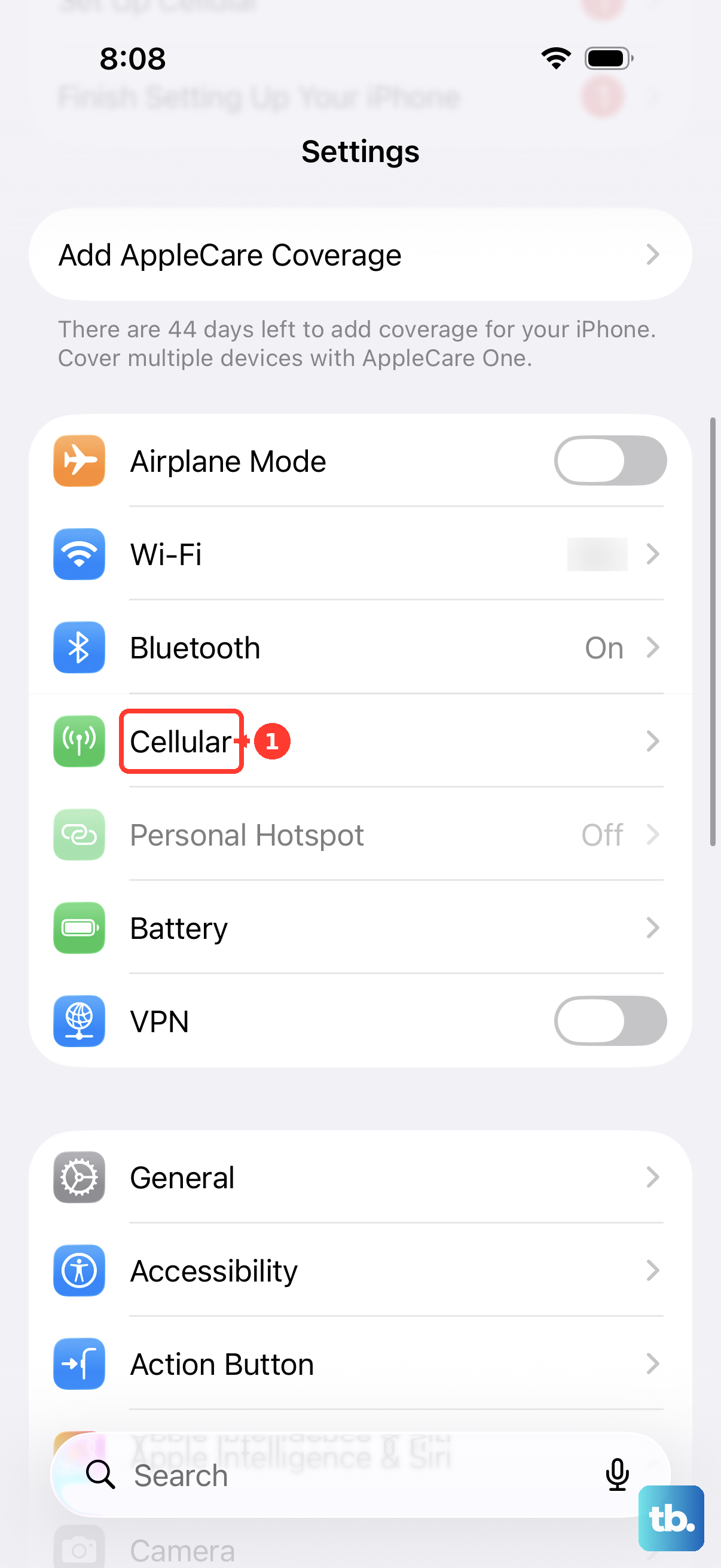
Find Weather in the app list on that screen and enable its cellular access. With multiple SIMs, check which line is selected for Cellular Data.
Close a frozen app and restart your iPhone
When Weather stops responding, work through this sequence.
- 1.On a Face ID iPhone, swipe up from the bottom and pause to open the app switcher. On an iPhone SE with a Home button, double-click it.
- 2.Find the Weather preview and swipe it upward to close it.
- 3.Reopen Weather and test it.
- 4.If it still fails, hold the side button and either volume button on a Face ID iPhone until the power-off slider appears. On an iPhone SE second or third generation, hold the side button. Drag the power-off slider.
- 5.Wait 30 seconds, then hold the side button until the Apple logo appears. Open Weather again.
Give Weather the correct location
Open Weather. Tap the Location List button. Select My Location or the saved city you want.
For forecasts based on your iPhone’s position, turn on Location Services in Settings > Privacy & Security > Location Services. Open Weather on that settings screen. Enable Precise Location.
Select Always for current-location weather notifications. The same location controls are available at Settings > Apps > Weather > Location.
To use a fixed location instead, open Weather. Tap Location List. Enter a city or neighborhood in the search field. Select the matching result.
Tap Add. Save a specific city to get its forecast without relying on automatic positioning.
Correct a Weather widget that shows the wrong city
The app and its widget can use different locations. If the forecast is correct inside Weather, start with the widget’s own location setting.
Touch and hold the Home Screen Weather widget. Tap Edit “Weather”, or Edit Stack for a widget inside a stack. Tap My Location. Search for or select the intended city.
Tap outside the widget to finish. If the widget still fails, test it again after removing and adding it. Touch and hold the widget.
Tap Remove Widget > Remove. Hold an empty area of the Home Screen. Tap Edit > Add Widget. Select Weather.
Choose a widget size. Tap Add Widget. Tap Done.
If Weather disappears inside a stack, touch and hold the stack. Choose Edit Stack.
Adjust Smart Rotate or Widget Suggestions. These controls affect which widgets appear in the stack. Tap Done.
Restore alerts and check regional availability
Weather features vary by location. Check Apple’s Weather feature availability page for the missing map, air-quality information, forecast, or alert. Next-hour precipitation forecasts and notifications are available in Australia, Ireland, Japan, the United Kingdom, and the United States.
For supported alerts, open Weather > Location List > More > Notifications. Allow notifications if prompted. Under Current Location, enable Severe Weather. Enable Next-Hour Precipitation where available.
Current-location notifications also require the Always location permission described above. Under Your Locations, select a saved location. Enable the supported alerts you want for that location. Tap Done.
Turn on Allow Notifications in Settings > Notifications > Weather. If alerts arrive late, remove Weather from Settings > Notifications > Scheduled Summary. For alerts blocked during a Focus, select the affected Focus in Settings > Focus. Open Apps or Choose Apps.
Add Weather under Allow Notifications From. If supported alerts or forecasts still fail after these changes, check for updates next.
Update before reinstalling Weather
Open App Store. Tap your profile icon. Open App Updates.
Install a Weather update if offered. If none appears, move on to updating iOS. Back up your iPhone before updating iOS.
Connect your iPhone to power. Connect it to Wi-Fi. Open Settings > General > Software Update. Tap Download and Install for the compatible public update offered to your iPhone.
Follow the onscreen instructions to finish the update. Test Weather again. If it still fails, touch and hold Weather. Deleting the app removes its related settings and data and can also remove Weather from a paired Apple Watch.
Choose Remove App > Delete App. Confirm deletion. Open App Store. Search for Weather by Apple.
Tap the Redownload button to reinstall it. Reinstalling also restores its Apple Watch companion app. Removing only the Home Screen icon does not delete and reinstall Weather.
Target a persistent connection or permission problem
These steps target unresolved network failures and location-permission problems.
On a work-managed iPhone, ask your administrator to review the connection problem before removing software or resetting network settings. If a connection problem persists and you use a VPN or security app, temporarily uninstall it. Apple’s connection test requires uninstalling the app.
Restart your iPhone. Test Weather again. Contact the VPN or security provider if removing its app resolves the connection problem.
For a continuing connection failure, select Settings > General > Transfer or Reset iPhone > Reset > Reset Network Settings. This removes saved Wi-Fi networks and passwords and resets cellular, VPN, and APN settings.
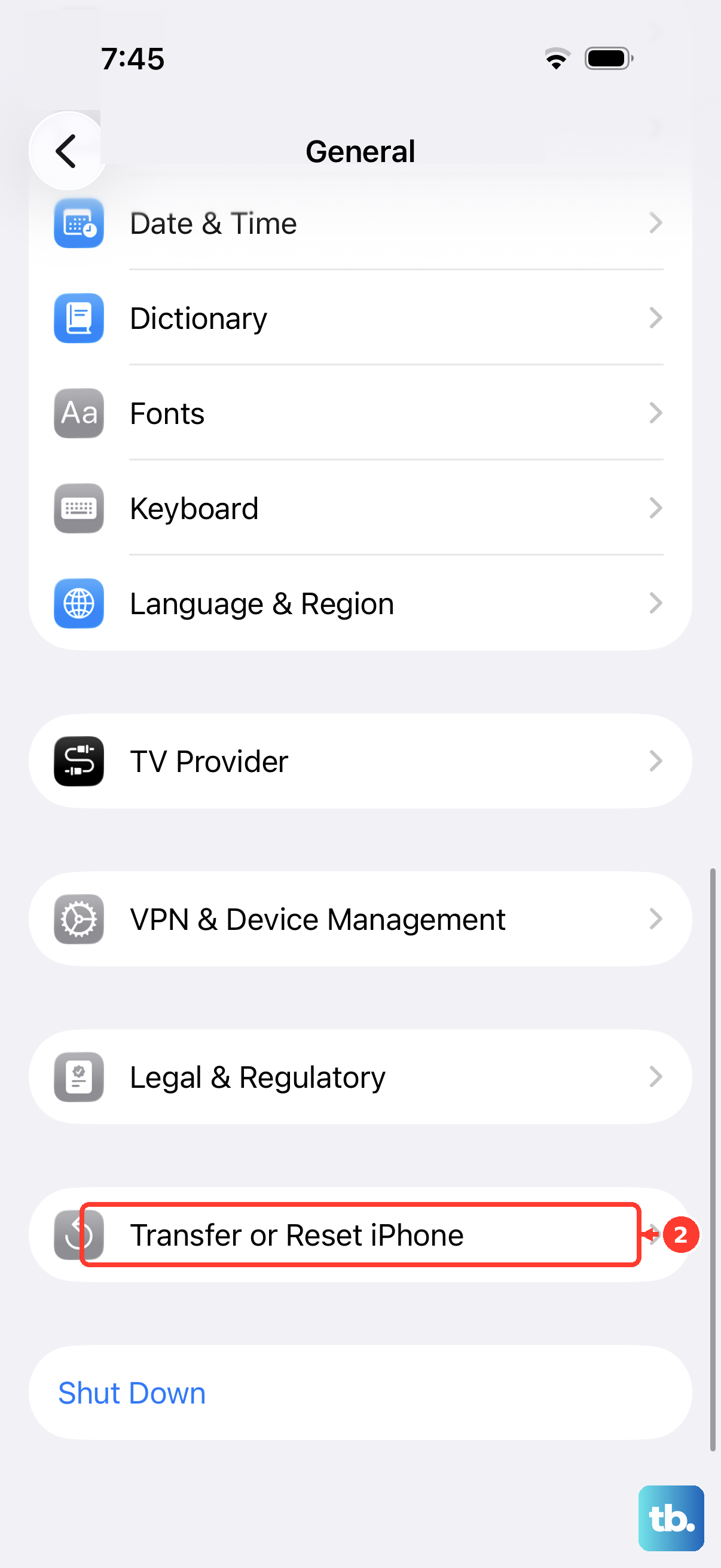
Reconnect to your network through Settings > Wi-Fi. If location access still fails after correcting Weather’s permissions, select Settings > General > Transfer or Reset iPhone > Reset > Reset Location & Privacy. Other apps will also need their location and privacy permissions authorized again.
Reopen Weather. Grant its required permissions again using Settings > Apps > Weather > Location.
Get help when the problem persists
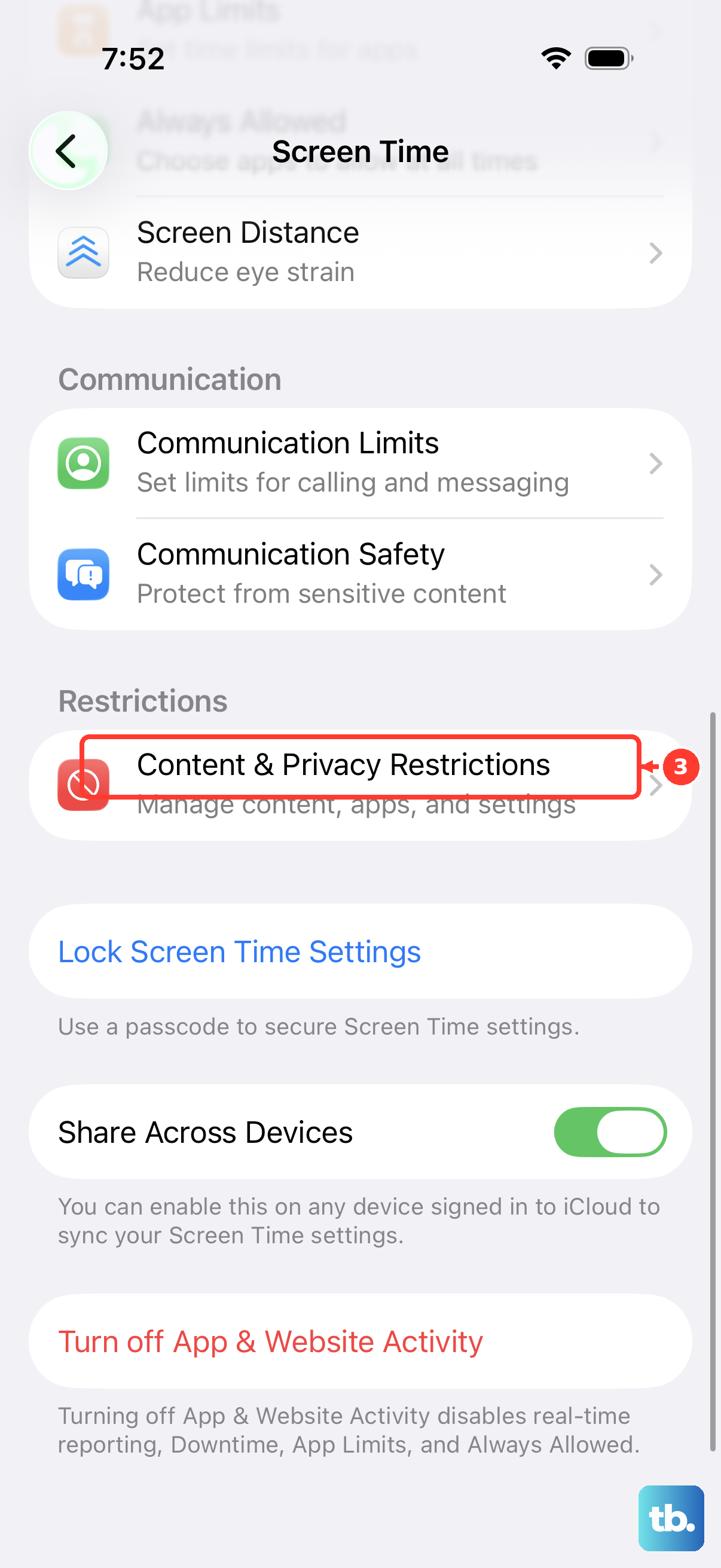
If Screen Time blocks permission changes or reinstallation, ask the parent or passcode holder to open Settings > Screen Time > Content & Privacy Restrictions, selecting the child’s name first when applicable. Have them review Location Services under Privacy, Cellular Data under Allow Changes To, and app-installation or deletion restrictions.
When forecasts load but local observations are inaccurate, open Weather > Location List > More > Report an Issue. Select the conditions that match what you observe and tap Submit. This sends a conditions report; it does not immediately repair the app.
For failures that continue after these recovery steps, work through Apple’s app-troubleshooting support page, then open Apple Support. Describe the problem to get the support options available in your country or region.
Frequently Asked Questions
Why does Weather show temperatures that seem completely wrong?
Check Weather > Location List > More > Units. Choose Fahrenheit, Celsius, or Use system setting. The adjacent menus control wind, precipitation, pressure, and distance units.
Why are my saved Weather cities different on my Apple devices?
Weather location lists synchronize across devices signed in to the same Apple Account. Check that each device uses the same account.
What should I do if the entire iPhone is frozen?
If normal shutdown is unavailable, quickly press and release the volume up button. Quickly press and release the volume down button. Hold the side button until the Apple logo appears. This force-restart sequence applies to all iOS 26-compatible iPhones.
Why does my Apple Watch show weather for the wrong city?
On your iPhone, open the Apple Watch app and go to Weather > Default City. Choose the intended city. This setting controls the location shown by weather complications.