You picked a Spotify playlist, but songs you never added keep interrupting it. Smart Shuffle mixes recommendations into playback, Autoplay keeps similar music going after the playlist ends, and queued tracks bring in other songs. Start with those three controls, then check your subscription and shared playback if the interruptions continue.
Turn off Smart Shuffle first
Open your playlist or expand Now Playing. The sparkle-marked Smart Shuffle icon identifies the mode that adds recommendations.
On Premium, use the Shuffle button to select ordinary Shuffle or turn shuffle off. Ordinary shuffle changes the playlist’s order without adding Smart Shuffle recommendations.
To remove Smart Shuffle from Premium mobile playback modes, open your profile picture > Settings and privacy > Playback.
Switch Include Smart Shuffle in play modes off.
In the Premium desktop app, open your profile picture > Settings > Playback.
Turn off Include Smart Shuffle in play modes.
Free mobile listeners cannot disable Smart Shuffle, so head to the subscription checks below if you use Free.
Stop extra songs after the playlist ends
If the unwanted music starts after your playlist finishes, turn off Autoplay. This stops the similar music that follows your selection; Smart Shuffle has its own control.
On a phone or tablet, open your profile picture > Settings and privacy > Playback and turn Autoplay off.
In the Windows or Mac app, open your profile picture > Settings, scroll to Autoplay, and switch it off. Spotify’s instructions apply without a stated Premium requirement.
Clear songs waiting in the queue
Turning off recommendations does not clear tracks already waiting to play. Check the queue next if songs outside your playlist are still interrupting it.
On Premium mobile, expand Now Playing. On a Premium tablet, open it through the album artwork in the side menu.
Tap the Play Queue icon.
Swipe left on an unwanted track to remove it.
To empty manually added tracks instead, select Clear.
On desktop or in the web player, click Play Queue beside the playback bar.
Open an unwanted track’s context menu.
Select Remove from queue.
To clear the queue instead, select Clear queue.
Confirm with Yes.
Check Free playback limits and missing Premium benefits
Your account tier determines whether you can disable Smart Shuffle on mobile.
For full playlist playback controls on Free mobile, open Spotify’s Premium page.
Select View all plans.
Choose an eligible music Premium plan.
Complete signup. Smart Shuffle stays active on Free mobile, and Audiobooks Access retains the Free music experience.
If you already pay for Premium but get Free behavior, log out and back in.
Check Edit login methods in your Spotify account to identify the account tied to your subscription.
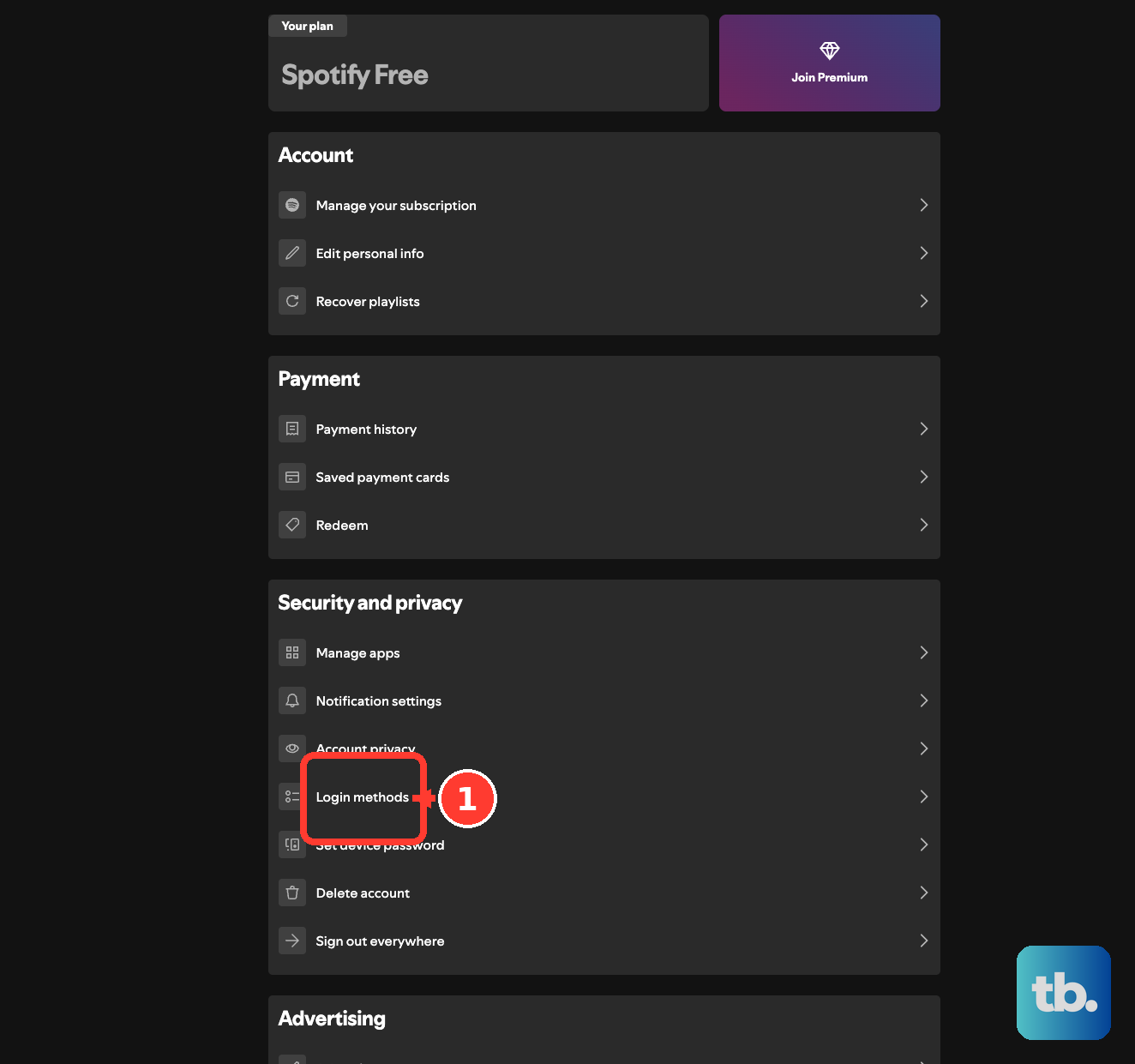
For partner billing, open Manage your subscription.
Inspect Payment.
Family or Duo members should ask the plan manager whether they were removed.
Request a new invitation if so.
Once Premium is active, disable Smart Shuffle using the controls above.
Disable Autoplay using the controls above, too. Paying for Premium does not automatically turn either feature off.
Take back control from another device or a Jam
Select the Connect device icon at the bottom of Spotify to see the playback device. Spotify Connect supports playback across phones, computers, speakers, and TVs.
Choose the device you intend to use.
Restart your intended playlist there.
To leave a Jam, open the current playback device controls.
Select Leave. If you are the host, leaving ends the Jam for everyone.
To remove guests as a Premium host on mobile, open the current playback device controls.
Select Remove all participants.
On desktop, open the Jam.
Select Remove beside a participant.
In the Connect picker, turn Let others Jam on this speaker off to prevent automatic speaker invitations. Turning off Let others change what’s playing alone still allows guests to add songs.
Remove remaining unwanted tracks through Play Queue using the controls above.
Check the queue again after leaving a Jam, in case songs guests added are still lined up.
Remove unwanted songs saved in the playlist
This removes saved playlist additions, including tracks added by collaborators.
On mobile or tablet, open a playlist you own or can edit.
Select Edit.
Use the remove control beside each unwanted track.
On desktop, open the unwanted track’s context menu.
Choose Remove from this Playlist.
To stop a collaborator from changing a playlist you own, select the profile pictures below the playlist name.
On mobile, open the person’s three-dot menu. On desktop, click the arrow down beside their name.
Select Remove as collaborator.
Remove their unwanted additions separately using the playlist removal controls above.
Secure your account if playback changes without your control
If music changes without your control, especially alongside other signs of unauthorized access, use Spotify’s Reset your password link.
Open the reset email in a private or incognito window.
Choose a unique password.
Secure the associated accounts you use to log in, too.
Open your Spotify account’s Sign out everywhere page.
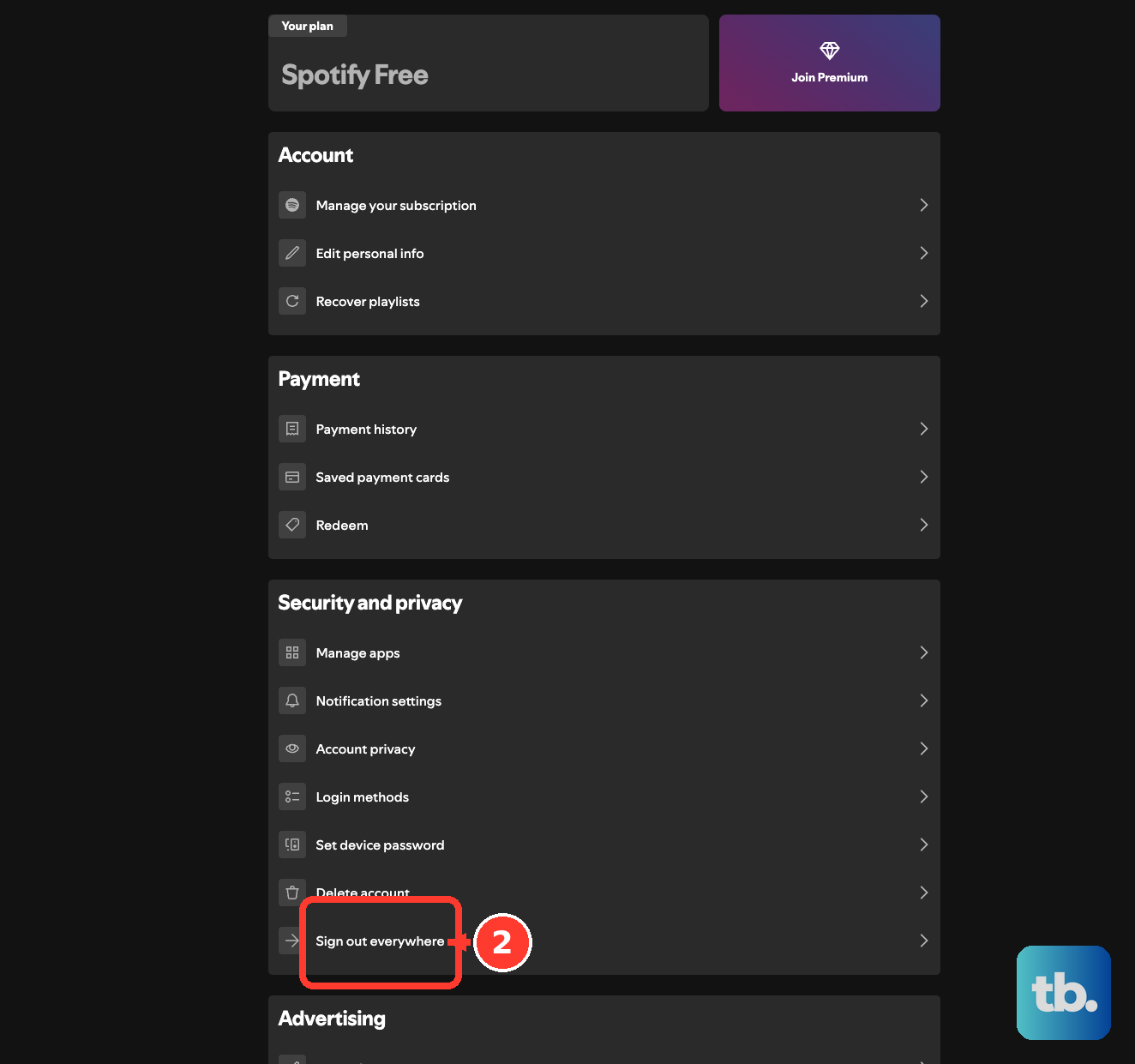
Select Sign out everywhere. This signs out mobile, tablet, desktop, and web sessions. Partner speakers, TVs, and consoles require separate access removal.
Open Manage apps in your Spotify account.
Select Remove Access for unwanted integrations, including partner devices.
Sign back in only on devices you intend to use.
If you still cannot regain account access, contact Spotify for account recovery help.
Fix an app that still plays the wrong tracks
Once playback modes, the queue, and account access are checked, troubleshoot a persistent app fault.
Then restart the intended playlist.
Test the same account and playlist on another device or the web player to check whether the problem is limited to one installation.
Clear the affected app’s cache. On iPhone or Android, open your profile picture > Settings and privacy > Data-saving and offline, then under Storage select Clear beside Clear cache.
On desktop, use your profile picture > Settings > Storage > Clear cache.
Install an available update. On iOS, open the App Store.
Tap your account picture.
Find Spotify.
Tap Update if offered.
On Android, search for Spotify in the Google Play Store.
Tap Update if offered.
On desktop, open your profile picture.
Select Update Spotify now when available.
If mobile playback still misbehaves, reinstall Spotify. On iOS, hold Spotify’s icon and choose Remove App > Delete App.
Then reinstall from the App Store.
On Android, open device Settings > Apps > Spotify > Uninstall.
Then reinstall from Google Play Store. Android wording varies by manufacturer. Downloaded music needs downloading again.
If the fault persists, open Spotify’s playback troubleshooting page.
Check @SpotifyStatus.
Check the Community’s Ongoing Issues board.
Report your device, app version, account tier, playlist, and whether the fault persists with Smart Shuffle and Autoplay disabled and the queue cleared.
Frequently Asked Questions
Can I make Spotify repeat only my playlist?
Yes, on an account and playback surface that supports Repeat. Disable Smart Shuffle and clear unwanted queued tracks first. Start your playlist, then activate playlist repeat with the Repeat button in Now Playing. Selecting Repeat twice chooses single-song repeat. Playlist repeat loops your selection; it does not disable recommendations.
Will downloading my playlist stop outside songs?
Premium lets you download a playlist and play it in Offline Mode on mobile, tablet, and desktop apps. Only downloaded content remains available, but other downloaded songs can still be queued. Offline Mode is unavailable in the web player, and you must reconnect at least every 30 days.
Why does my Google Nest play different songs when I request my playlist?
With Spotify Free, requesting a personal playlist on a Google Nest speaker or display plays a station inspired by it. With Premium linked, say “Hey Google, play [playlist name] playlist” to request the playlist itself.
Does hiding a song block it everywhere on Spotify?
No. Hiding a song skips it in that playlist; it remains playable elsewhere. Premium mobile and tablet accounts with the Snooze control can select the song’s three-dot menu > Hide in this playlist > Don’t suggest this song anywhere for 30 days. That suppresses the individual song, not all outside recommendations.