A Galaxy that empties before lunch is one of the most common complaints from Samsung owners, and most of the time the cause is software, not a dead battery. A rogue app, a recent update, or a display setting can quietly eat through a charge while you barely touch the phone.
The good news is that almost every battery drain problem can be traced and fixed from Settings, and you do not need to root your phone or install anything extra. This guide walks you through how to find what is draining your Galaxy, then gives you 15 fixes in order from easiest to most drastic.
Menu names below are written for current One UI on Android 14 and 15. On One UI 7 and newer the Battery menu sits on its own at Settings > Battery, while older One UI versions keep it under Settings > Battery and device care > Battery. The wording is nearly identical either way.
How to Find What Is Draining Your Battery
Before you change anything, see what is actually using the power. Guessing wastes time, and the worst offender is usually one specific app, not the phone as a whole.
Go to Settings > Battery and tap View details, or tap the battery graph. You will see a list of apps and system features ranked by how much battery each one used, along with your screen on time and screen off time.
Pay attention to anything draining power while the screen is off, since that points to background activity rather than normal use. If one app sits far above the rest, that is your target for the fixes below.
1 Restart Your Phone
A simple restart clears memory leaks, stuck processes, and minor glitches that can pin a battery into the ground. It is the fastest thing to try and it fixes drain more often than people expect.
Press and hold the side button (or the side and volume down buttons together), then tap Restart. Let the phone settle for a minute after it powers back on before you judge the result.
2 Update Your Apps and Software
Battery drain frequently follows a buggy app or a fresh One UI update, and the fix is usually another update. Samsung and app developers ship battery optimizations and bug patches regularly.
Check for system updates at Settings > Software update > Download and install. Update your apps in the Play Store by opening your profile icon and tapping Manage apps & device.
If drain started right after a major update, give the phone one to two days. The system re-learns your habits and re-indexes data in the background after an update, which is normal and settles on its own.
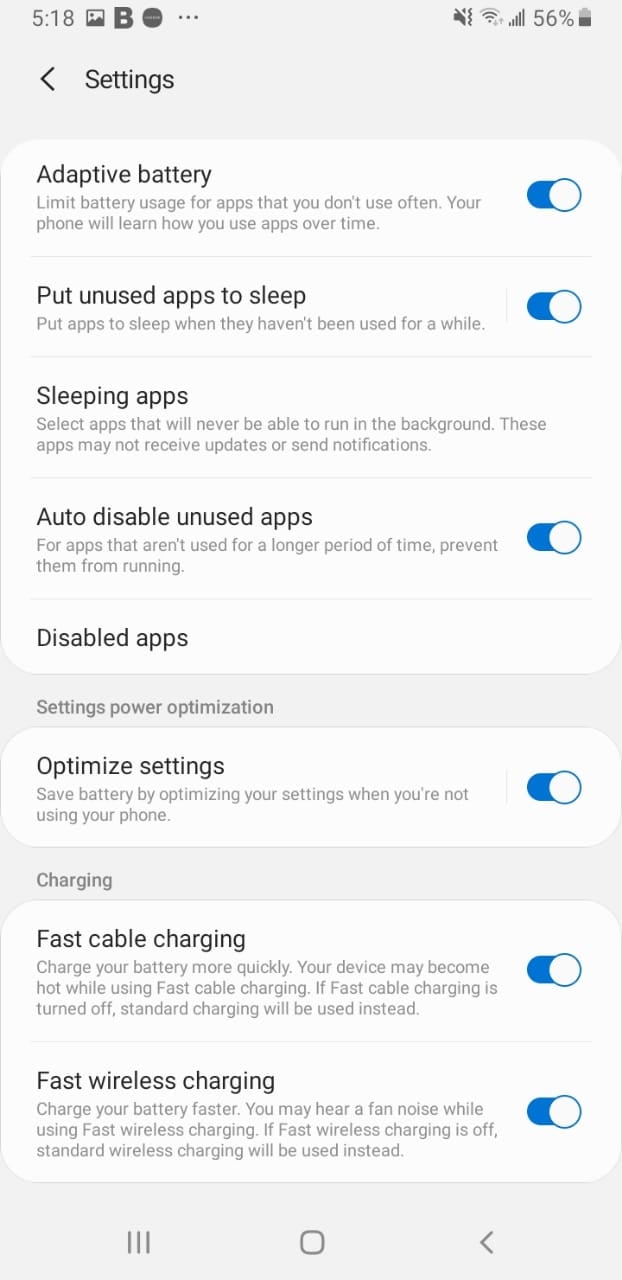
3 Find and Limit a Rogue App
Once the battery list points you to a heavy app, deal with that app directly instead of changing global settings. A single misbehaving app can outweigh every other tweak combined.
Update it first, then force stop it from Settings > Apps, select the app, and tap Force stop. If it keeps draining after that, clear its cache under Storage, or uninstall and reinstall it.
For apps you rarely use but want to keep, add them to Sleeping or Deep sleeping (covered in the next step) so they cannot run in the background at all.
4 Use Background Usage Limits
Background apps are the biggest hidden drain on most Galaxy phones. Samsung lets you restrict them without uninstalling anything, which is the single most effective change for many users.
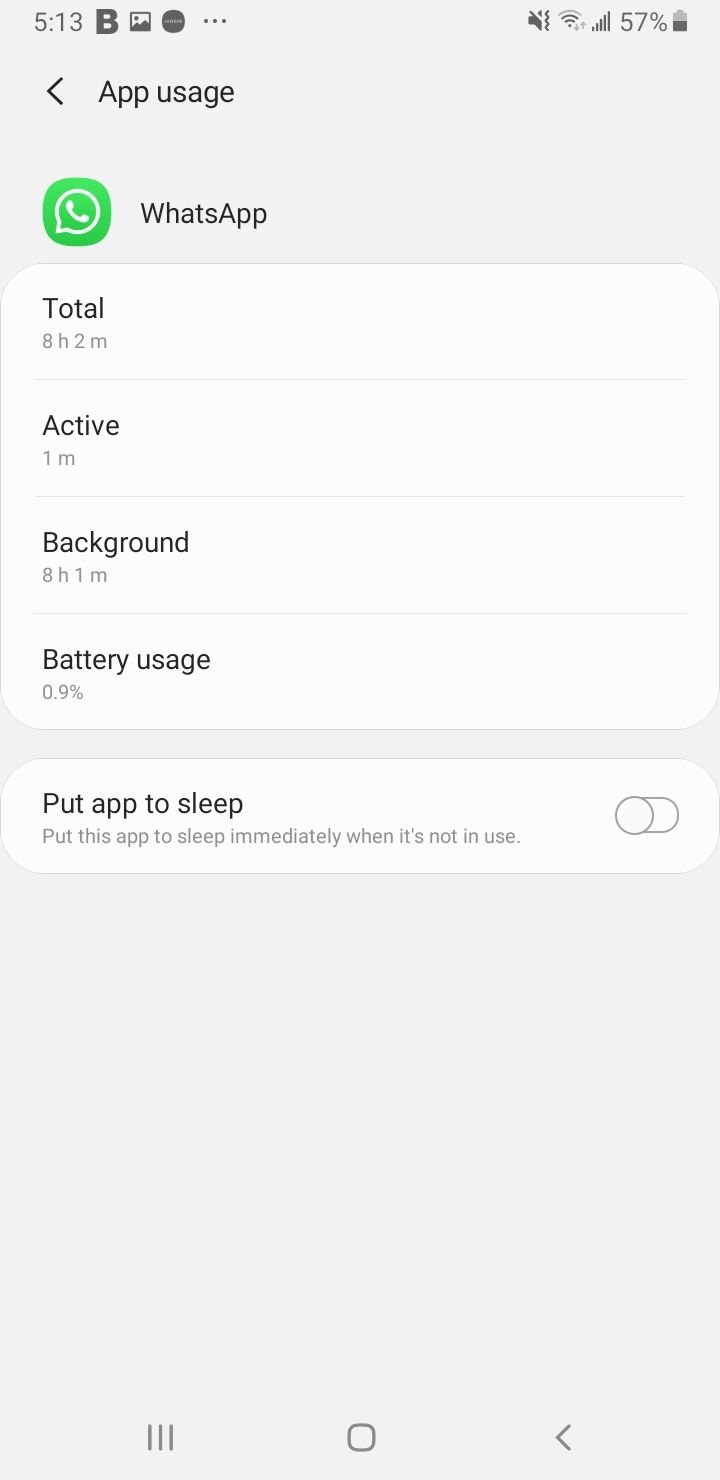
Go to Settings > Battery > Background usage limits. Turn on Put unused apps to sleep so the system handles rarely opened apps automatically.
For specific offenders, add them to Sleeping apps to limit background activity, or Deep sleeping apps so they only run when you open them. Leave messaging, email, and cloud backup apps out of these lists so you still get notifications and backups.
5 Turn On Adaptive Battery
Adaptive battery learns which apps you use and when, then limits power to the ones you rarely open. It works quietly in the background and is worth leaving on permanently.
Open Settings > Battery, tap the three-dot menu, then Settings, and turn on Adaptive battery. While you are there, enable Auto-disable unused apps so apps you never open stop running on their own.
6 Lower the Screen Refresh Rate
A high refresh rate makes scrolling look smooth but uses noticeably more power. Dropping from the adaptive or high setting to a standard 60 Hz is one of the most effective display fixes on newer Galaxy models.
Go to Settings > Display > Motion smoothness and choose Standard. If you prefer the smoother feel, leave it on Adaptive, since that mode already lowers the rate automatically for static screens.
7 Adjust Brightness and Screen Timeout
The display is the largest battery consumer on any phone, so taming it pays off more than almost anything else. Two quick changes make a real difference.
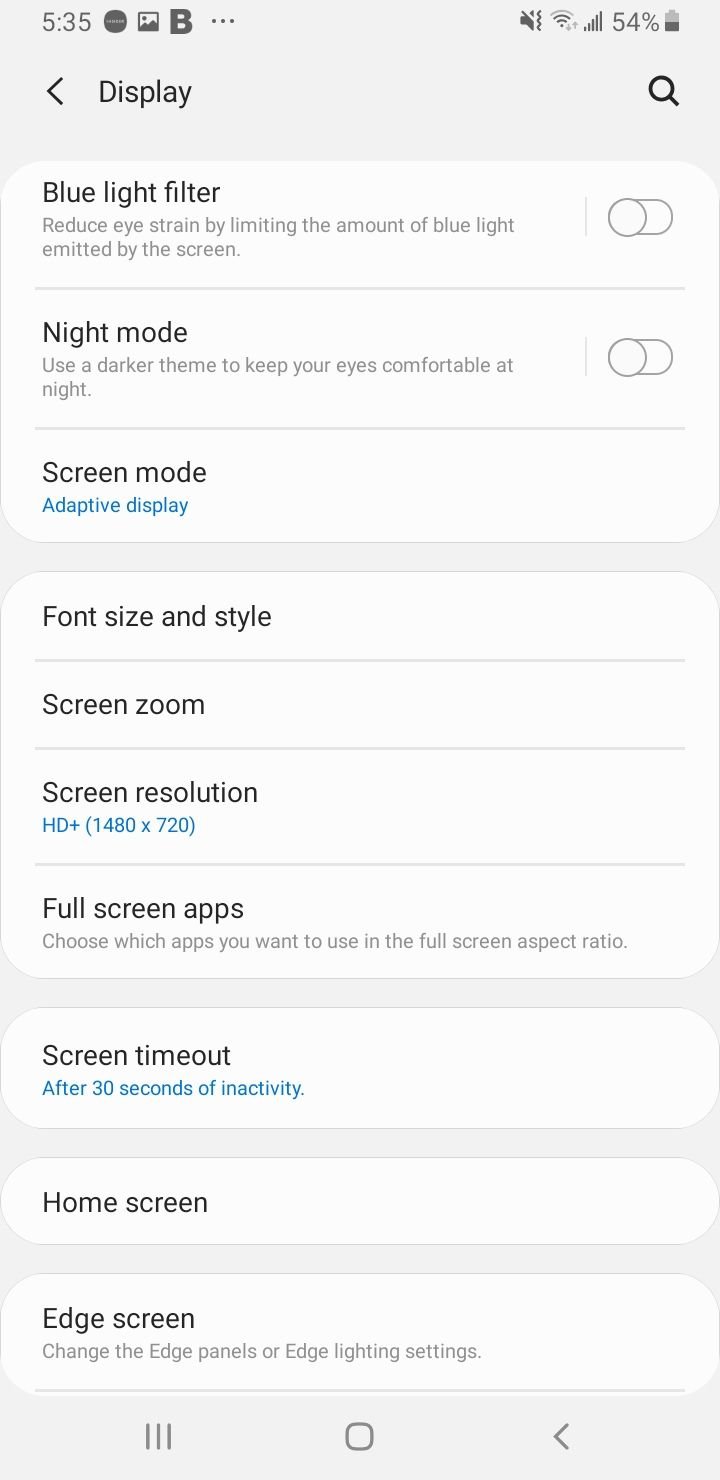
In Settings > Display, turn on Adaptive brightness or drag the slider down manually. Then set a shorter Screen timeout, ideally 15 or 30 seconds, so the screen does not stay lit after you stop looking at it.
8 Enable Dark Mode
Galaxy phones use AMOLED screens, where black pixels are switched off rather than lit. Dark mode therefore saves real power, especially with dark wallpapers and at low brightness.
Go to Settings > Display and select Dark. You can schedule it to switch on from sunset to sunrise if you only want it at night, but leaving it on all day saves the most.
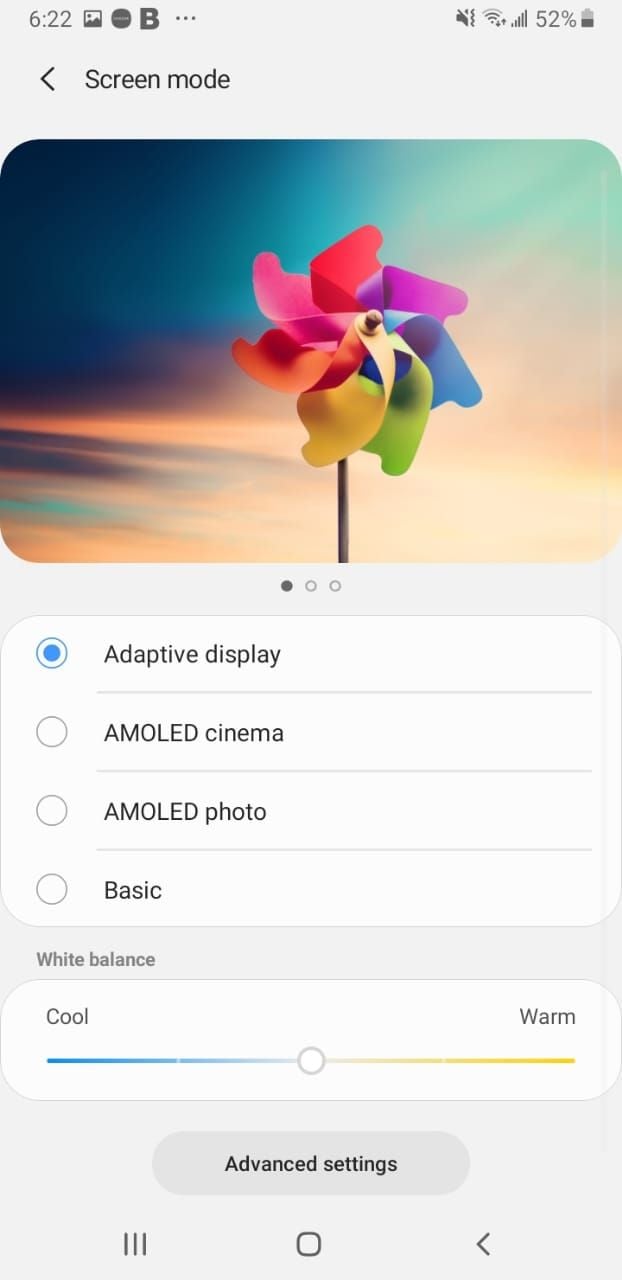
9 Turn Off Always On Display
Always On Display keeps the clock and notifications visible while the screen is off, and that constant glow draws power around the clock. Switching it off or limiting when it shows reclaims a meaningful chunk of standby battery.
Go to Settings > Lock screen and AOD and turn Always On Display off. If you want to keep it, tap When to show and set it to Tap to show so it only appears when you tap the screen.
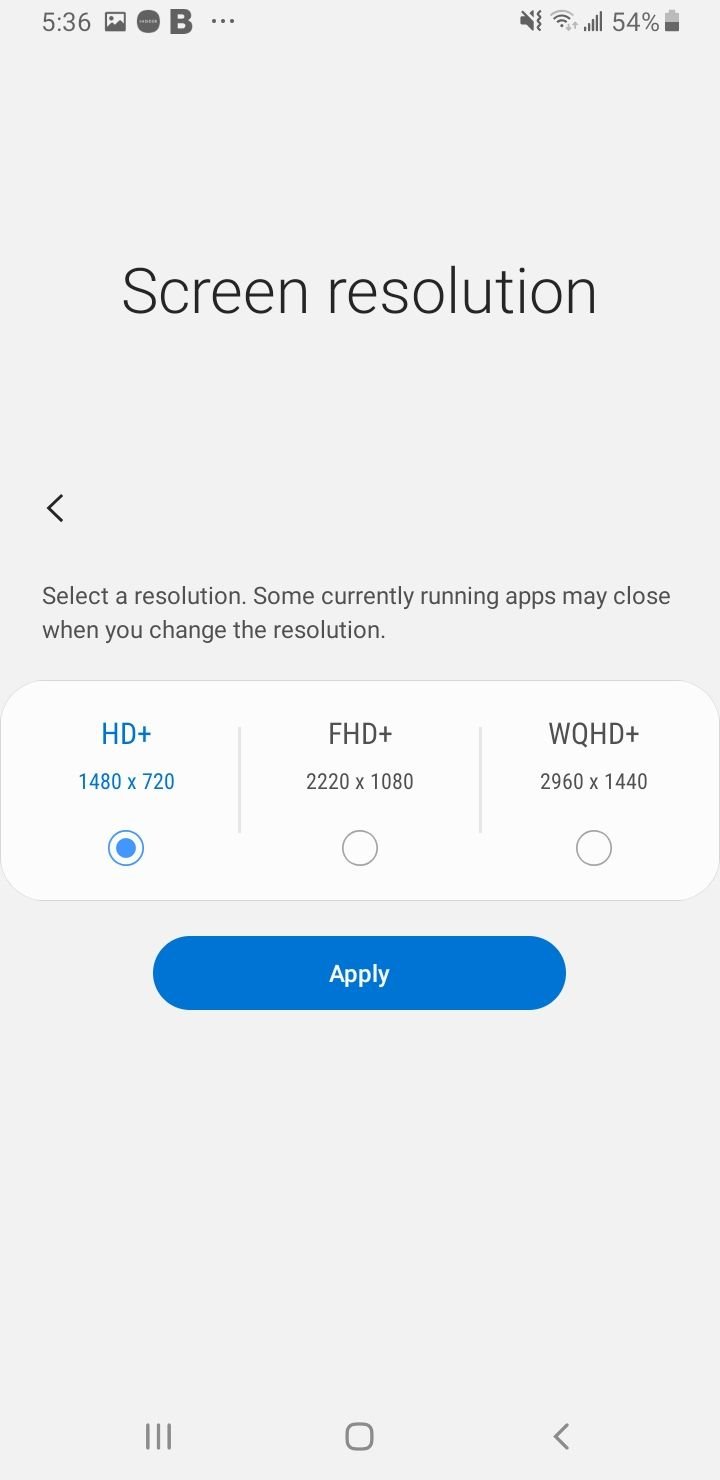
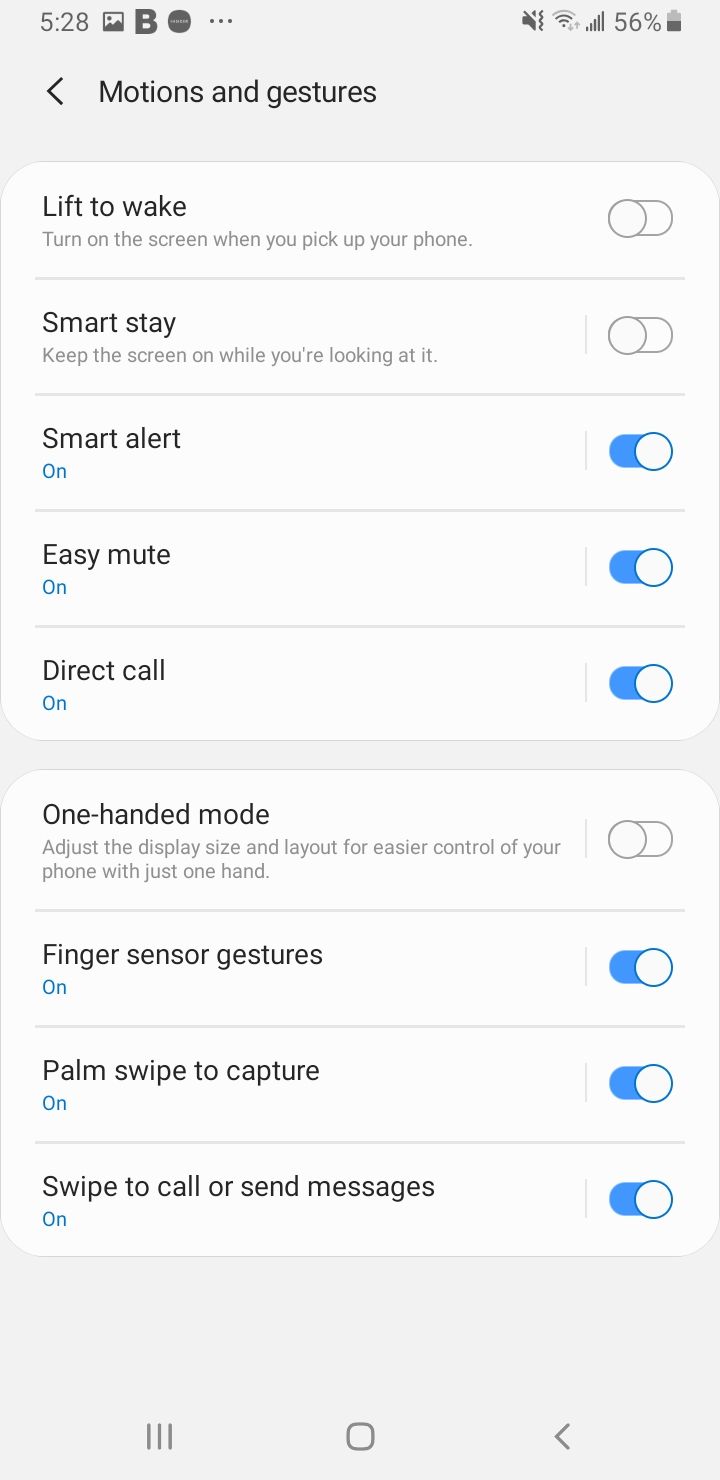
10 Reduce Wake Gestures and Motions
Features that light up the screen on their own, such as lift to wake, fire constantly in a pocket or bag and waste power on a screen no one is looking at.
Go to Settings > Advanced features > Motions and gestures and turn off Lift to wake and Double tap to turn on screen. Turning on Accidental touch protection in Display settings also stops the screen waking in a pocket.
11 Trim Connectivity and Sync
Radios and background sync run all day even when you are not using them. Cutting the ones you do not need at the moment removes a steady, low-level drain.
Swipe down the Quick panel and turn off Bluetooth, Wi-Fi, NFC, and Location when you are not using them. Disable auto-sync for accounts and apps you do not need updated in real time, and turn off push notifications for apps that do not matter.
Live wallpapers and animated widgets also keep the screen and processor busy, so plain wallpapers help if you are chasing every last bit of battery.
12 Use Power Saving Mode
When you need the charge to last and do not mind a slower phone, Power saving mode caps performance and shuts down the heaviest features in one tap.
Go to Settings > Battery > Power saving and turn it on. Within its options you can limit CPU speed, lower brightness, turn off 5G, set motion smoothness to standard, and turn off Always On Display.
Tap the three-dot menu and enable Adaptive power saving so the phone switches the mode on and off automatically based on how you use it.
13 Run a Quick Optimization
Samsung includes a one-tap tool that closes background tasks, frees memory, and scans for apps behaving badly. It is a fast way to clear a temporary slump without digging through menus.
Go to Settings > Battery and device care and tap Optimize now. The phone runs a quick sweep and reports anything it closed or flagged.
14 Test in Safe Mode
If you cannot pin down which app is to blame, Safe Mode tells you whether a third-party app is the cause. It boots the phone with only the apps that came preinstalled.
Press and hold the power button, then touch and hold Power off until Safe mode appears, and tap it. Use the phone normally for a while, and if the battery behaves, a downloaded app is the culprit. Restart to leave Safe Mode, then uninstall recently added apps one at a time.
15 Check Battery Health and Replace if Needed
Batteries wear out, and after enough charge cycles no setting will restore the runtime. On newer Galaxy models you can see the wear directly.
Go to Settings > Battery > Battery information to view the battery health percentage and cycle count, where supported. You can also run a check in the Samsung Members app under Diagnostics, then Battery status, which reports Normal, Weak, or Bad.
Health above 80 percent is considered fine. Below that, or if the diagnostic reports Bad, a battery replacement at an authorized Samsung service center is the real fix. Most Galaxy batteries hold up well for two to three years of normal use before they start to fade.
One more habit helps your battery last longer overall. Samsung lists the ideal operating range as 0 to 35 degrees Celsius (32 to 95 degrees Fahrenheit), so keep the phone out of hot cars and direct sun, since heat is what wears a battery out fastest.
Read more - How to Fix Android GPS Not Working Issue
Frequently Asked Questions
How long should a Samsung Galaxy battery last on a full charge
Most modern Galaxy phones comfortably last a full day of mixed use on one charge, and many reach into a second day with lighter use. If yours drops well below a day, work through the steps above starting with the battery usage list.
How many years does a Samsung Galaxy battery last
A Galaxy battery typically holds good performance for two to three years of normal use before noticeable fading. Heat and frequent fast charging speed up that wear, while the Battery protection feature slows it down.
Does fast charging damage the battery
Occasional fast charging is fine, but heavy daily fast charging adds heat, which is the main thing that ages a battery over time. To reduce wear, turn on Battery protection under Settings > Battery, which can cap charging at 80 percent or hold the level you set.
Why did my battery start draining after a One UI update
After a major update the phone re-indexes data and re-learns your usage in the background, which causes temporary extra drain for a day or two. If it does not settle, update your apps, then force stop or reinstall any app showing unusually high usage in the battery list.
How do I check my Galaxy battery health
On newer models, go to Settings > Battery > Battery information to see the health percentage and cycle count. You can also open the Samsung Members app, go to Diagnostics, and run the Battery status test, which returns Normal, Weak, or Bad.
Should I close background apps to save battery
Manually swiping apps closed rarely helps and can even use more power when they relaunch. Instead, let Adaptive battery and Background usage limits manage apps automatically, and add specific heavy apps to Sleeping or Deep sleeping.
First published October 16, 2025. Last updated June 4, 2026.