Your Peacock Apple TV bundle looks broken when the subscription is active but the wrong app, account, device, or billing path is in the way. Apple TV content plays in the Apple TV app, while Peacock content plays in the Peacock app or at peacocktv.com. Start with the app and account checks, then move into device, playback, and billing fixes.
1. Confirm where each service plays
This fixes the common mix-up where Peacock shows do not play inside the Apple TV app.
Confirm you are in the United States, where the Apple TV and Peacock bundle is available.
Open the Apple TV app for Apple TV content.
Open the Peacock app or go to peacocktv.com for Peacock content.
Do not expect the full Peacock catalog to play inside the Apple TV app. Only limited sample episodes appear across both platforms.
2. Resubscribe from an official path
On Apple TV 4K, open the Apple TV app, open the sidebar, choose Store, select Add Channels & Apps, choose the Apple TV and Peacock bundle, then follow the subscription prompts.
On iPhone, open the Apple TV app, go to Home, use the Channels & Apps row, choose the bundle, then complete the subscription flow.
On Mac, open the Apple TV app, choose Store in the sidebar, select Add Channels, choose the bundle, then follow the prompts.
On the web, open Apple’s official bundle page and select Bundle and Save.
If Peacock bills you directly, sign in on Peacock’s website and go to Account > Plans & Payment > Your Plan > Change Plan to review Apple TV and Peacock bundle options.
3. Use the right Peacock upgrade path
If you already pay Peacock directly, use Account > Plans & Payment > Your Plan > Change Plan on Peacock’s website instead of starting a fresh signup.
Peacock annual-plan subscribers get access to the bundle after the annual plan expires.
Apple One Family and Apple One Premier subscribers who want the Peacock Premium Plus discount need to start the bundle flow on an iOS device, because desktop signup is not supported for that discount.
4. Install Peacock on a supported Apple TV
Confirm your Apple TV is Apple TV HD 4th generation or newer with tvOS 18 or above.
From the Apple TV Home Screen, open App Store.
Search for Peacock or browse to it.
Select Get, Install, or Open.
In Peacock, select Sign In if you already have an account, or Pick a Plan if you still need one.
Skip Apple TV 3rd generation or earlier; it is not a current Peacock app fix.
5. Restart the apps and Apple TV
This fixes temporary app freezes, blank screens, and playback sessions that get stuck after signup.
Press the TV button twice quickly on the remote.
Move to Peacock or Apple TV.
Swipe up on the clickpad or touch surface to quit the app.
Open the app again from the Home Screen.
If playback still fails, hold the TV button and Back or Menu until the Apple TV status light blinks rapidly.
Disconnect Apple TV from power, wait at least 20 seconds, then reconnect it.
6. Update tvOS and refresh Peacock
On Apple TV, go to Settings > System > Software Updates > Update Software > Download and Install.
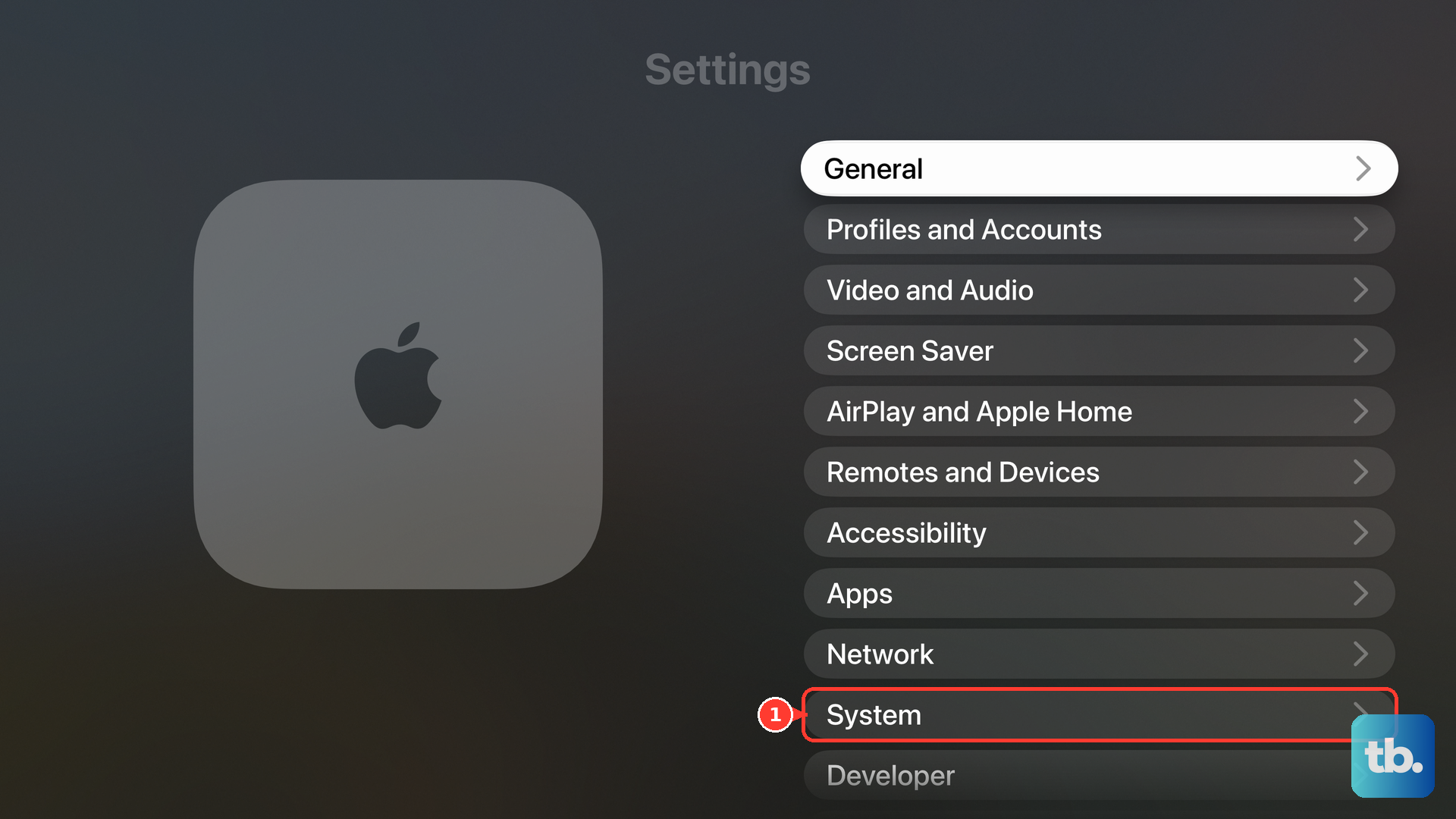
To keep updates automatic, use Settings > System > Software Updates > Automatically Update.
If Peacock still will not open or stream, highlight Peacock on the Home Screen, press and hold the clickpad or touch surface, choose Delete App, then reinstall Peacock from the App Store.
7. Fix the Peacock login tied to your bundle
If you are still signed in on any device, open Peacock and check Account to confirm the email address on the account.
If you are not signed in, search your email inboxes, spam, and junk folders for Peacock messages.
Use Peacock’s Account Finder when you cannot identify the account email.
Reset or set the password from Peacock by choosing Sign In, then Forgot Password? or I don’t know my password.
Open the emailed reset link within 3 hours. Peacock reset links are single-use and expire after that window.
8. Untangle Apple Account conflicts
For Sign in with Apple conflicts on iPhone or iPad, go to Settings > [your name] > Sign in with Apple, choose Peacock or the developer entry, then review the account settings or delete the connection.
For Hide My Email forwarding, use Settings > [your name] > iCloud > Hide My Email and check the forwarding address for the app or developer.
If a Peacock-billed bundle is linked to the wrong Apple Account, contact Apple Support to unlink it, then log out of Peacock and follow the onscreen instructions with the preferred Apple Account.
For a school or work Managed Apple Account with restricted Sign in with Apple settings, contact the system administrator.
9. Clean up billing before you reset
For Apple-billed subscriptions on iPhone, iPad, or Vision Pro, open Settings, tap [your name], choose Subscriptions, then cancel or change the duplicate plan.
On Mac, open App Store, click your name or Sign In, choose Account Settings, then manage the subscription under Subscriptions.
For Apple TV on the web, sign in at tv.apple.com, open the account settings, then use Subscriptions > Manage > Cancel Subscription.
For a Peacock direct-billed plan, use Account > Plans & Payment on Peacock’s website and update the plan or payment method there.
Do not buy the bundle through third-party device partner billing. Use the Apple TV app, Peacock app on iOS, iPadOS, or tvOS, tv.apple.com, or peacocktv.com.
Reset Apple TV only after the app, network, update, and billing checks fail by going to Settings > System > Reset and choosing Reset or Reset and Update.
Reset and Update requires an internet connection and returns Apple TV to factory settings while installing software updates.
Frequently Asked Questions
Why can’t I watch Peacock shows inside the Apple TV app?
The bundle does not move the full Peacock catalog into the Apple TV app. Use the Apple TV app for Apple TV content and the Peacock app or peacocktv.com for Peacock content.
Can I buy the Peacock and Apple TV bundle on Roku, Android TV, or another smart TV?
No. Apple’s launch notes say the bundle cannot be purchased on third-party device partners. Use the Apple TV app, Peacock app on Apple platforms, tv.apple.com, or peacocktv.com.
What Apple TV model do I need for Peacock?
Peacock lists Apple TV HD 4th generation or newer with tvOS 18 or above. Apple TV 3rd generation or earlier is not a current Peacock app fix.
Who should I contact when the wrong Apple Account is linked?
Contact Apple Support to unlink the Apple Account for a Peacock-billed bundle. Then log out of Peacock and follow the onscreen instructions with the Apple Account you want to use.