Microsoft apps on Android fail in a few familiar ways: Outlook stops syncing, Teams will not update, OneDrive crashes, or Authenticator prompts never arrive. Start with the fast fixes that reset Android and the app, then move into Play Store, sign-in, notification, and app-specific repairs. Use the official Microsoft and Google routes here.
Start with a restart and updates
Clear the basic Android and app update failures first.
- 1.Press the phone's Power button for about 30 seconds until the phone restarts; when Android shows a prompt, tap Restart > Restart.
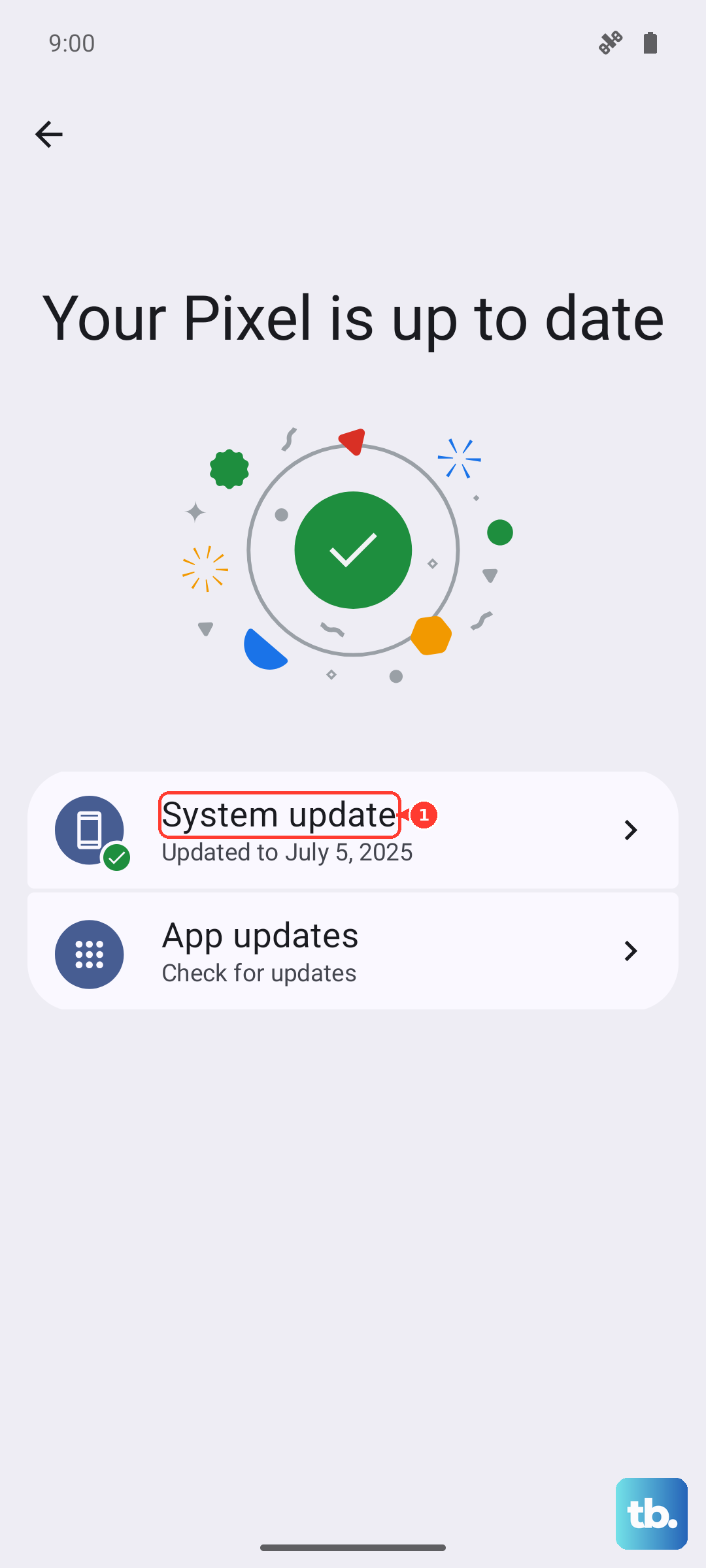
- 2.Open Settings > System > Advanced > System update and follow the on-screen steps; on some phones, use Settings > About phone or About tablet > Software update.
- 3.For Outlook, use that same System update screen to move the phone to Android 10.0 or higher when that update is available; Microsoft support for Outlook on Android 9.x and below ended starting the week of January 5, 2026.
- 4.Open Google Play Store, tap your profile icon, go to Manage apps & device > Updates available > See details, then tap Update next to the Microsoft app or tap Update all.
- 5.To keep one Microsoft app current, open Google Play Store > profile icon > Manage apps & device > Manage, tap the app to open its Details page, tap More, and turn on Enable auto update.
Force stop the problem app
The most common local cause after a crash, freeze, or blank screen is a stuck app process with cached app data behind it.
Open Settings > Apps, choose the Microsoft app, and tap Force stop.
Open the app again and check the screen that was failing.
When the same app still fails, open Settings > Apps > App info, choose the app, open Storage & cache, and tap Clear cache.
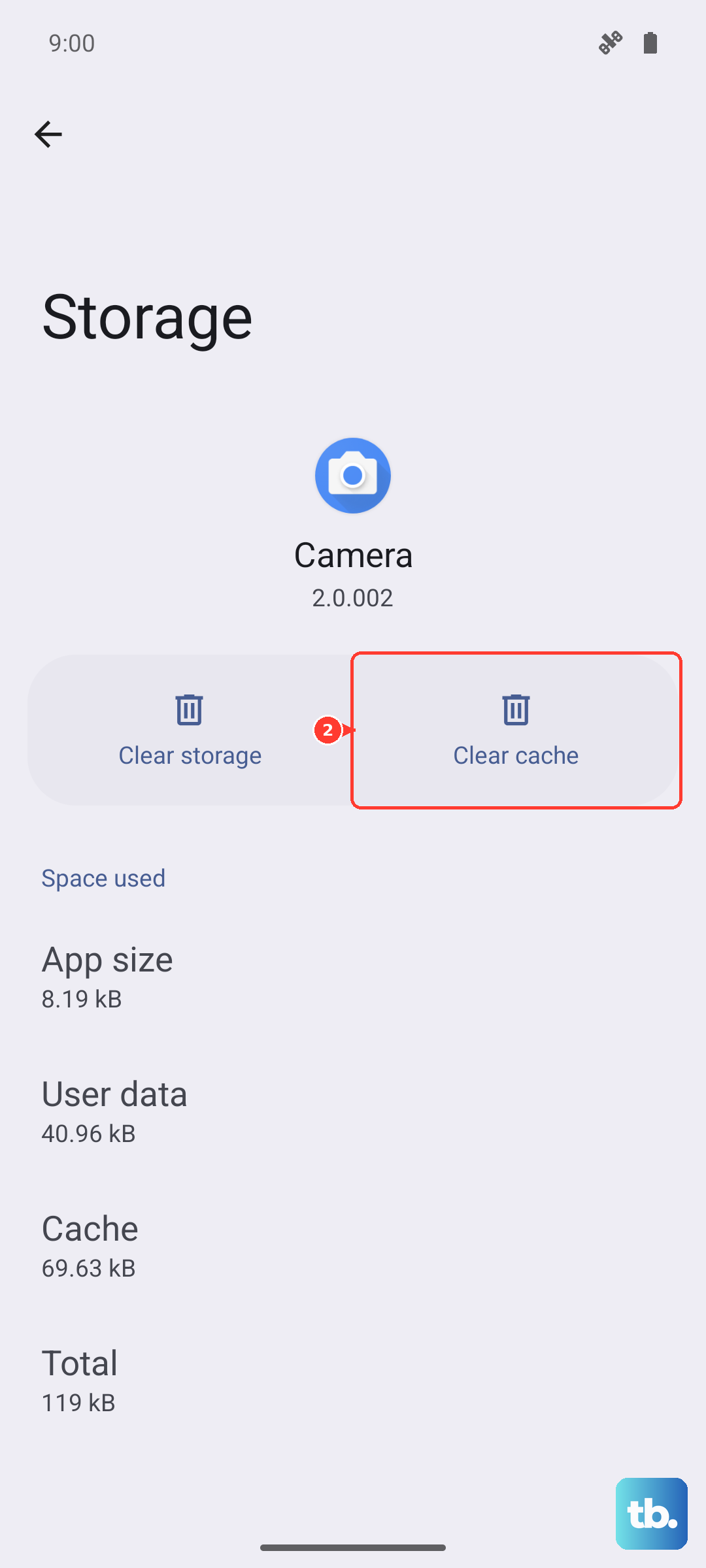
Use Clear storage or Clear data after Clear cache fails; this signs you out or resets local app state in affected apps.
For OneDrive sync failures, launch failures, or crashes, start Microsoft's Android reset order by opening Settings > Applications > Manage Applications > OneDrive and tapping Force Stop.
Tap Clear data.
Tap Clear cache.
Uninstall OneDrive.
Reinstall OneDrive from Google Play.
Reset Outlook when mail looks wrong
Use Outlook's own reset when the app opens but mail, calendar, or account data is incomplete or incorrect after a force close and reopen.
In Outlook, open Settings, select the affected email account, and tap Reset Account.
If this method fails, clear the device browser cache, remove Outlook, and reinstall Outlook from the official app store.
Reinstall from the official store
Use the official store route when an update did not finish cleanly, the app still will not open after clearing data, or the app is missing.
- 1.Touch and hold the affected Microsoft app and use Remove App > Delete App > Delete; Google notes that some Pixel essential apps cannot be removed.
- 2.Open Google Play Store > profile icon > Manage apps & device > Manage; if the app is not listed, tap This device at the top and choose Not installed, select the app, then tap Install or Enable.
- 3.For Word, Excel, PowerPoint, and OneNote, open Google Play, search for the Office app you want, and tap Install.
- 4.For Teams, use Microsoft's Teams download page or open Google Play Store > Microsoft Teams, then choose Install or Update.
- 5.For Microsoft 365 Copilot, open Google Play Store > Microsoft 365 Copilot > Install; on a supported Chromebook flow, use Google Play Store or Microsoft365.com.
Repair Google Play services
This applies when Microsoft apps will not download, update, reinstall, or clear a compatibility warning on a supported Android version. It also applies when sign-in, push, store, or app operation depends on Google Play services.
Press and hold Google Play Store, open App info > Storage & cache, and tap Clear Cache.
Tap Clear storage and confirm with Delete.
Run the Microsoft app download or update again from Google Play Store.
For Google Play services, open Settings, tap your profile picture, and go to All services > Privacy & Security > System services > Google Play services.
Tap Update or Install.
When Google Play services still needs a local reset, use Settings > Apps > Google Play services > Storage & cache > Clear cache.
For Outlook compatibility notices on a supported Android OS, open Settings > Apps or Applications, open More > Show system, choose Google Play Services, then open Storage > Clear Cache.
Open Manage Space > Clear All Data.
Open Google Play Store, wait five minutes, and run the Outlook update again.
Restore permissions and alerts
This fixes missing alerts, blocked camera or file access, and paused background behavior.
Open Settings > Apps, choose the Microsoft app, tap Permissions, select the needed permission, and choose Allow.
For the permission manager route, open Settings > Security and Privacy > Privacy > Permission manager, choose the permission type, choose the app, and choose Allow.
For an app you have not used recently, open Settings > Apps, choose the app, open Unused app settings, and turn Pause app activity if unused off.
For app alerts, open Settings > Notifications > App notifications, choose All apps, select the Microsoft app, and turn the app's Notifications switch on.
From a recent alert, swipe down, touch and hold the Microsoft app notification, tap Settings, and turn All notifications on or turn on the needed categories.
When alerts stay silent, open Settings > Modes > Do Not Disturb and turn Do Not Disturb off.
To allow one app through a mode, open Settings > Modes, select the mode, then use Notification filters > Apps to choose which apps can send notifications.
Fix Authenticator prompts that never arrive
Microsoft Authenticator prompts rely on network access, notifications, battery behavior, and the right account state.
Switch to the other network first: use Wi-Fi when the phone is on mobile data, or use mobile data when the phone is on Wi-Fi.
Turn Airplane mode off.
In Authenticator, open Settings and tap Turn off battery optimization for better sync performance.
Open Settings > Notification Settings and turn Show notifications on.
When notifications fail for one account, remove that account from Authenticator, add it again, and allow notifications when prompted.
For passwordless setup, enable a device PIN or biometric unlock in Android Settings, restart the phone, unlock with face or fingerprint, and retry setup in Authenticator.
If this method fails, open Authenticator > Settings > Device Registration and check that the work or school account is registered for passwordless and joined to work or school.
Check Phone Link connections
The most common cause with Phone Link is a mismatch between the Android phone, the Windows PC, the network, and the Microsoft account.
Make sure Phone Link on the PC and Link to Windows on Android use the same Microsoft account.
Turn Battery saver off on the PC and Android phone.
Open a browser on the phone and confirm Wi-Fi works.
On Android, open Settings > Apps or Apps & Notification > Link to Windows > Notifications, and turn Notifications on.
For connection failures, turn off battery optimization from Settings > Apps & notifications > App info > Link to Windows > Advanced > Battery > Manage Battery Usage > Battery optimization > Link to Windows > Don't optimize.
On select Samsung and Surface Duo devices, update the integrated app through Settings > Advanced features > Link to Windows > More > Link to Windows > Update, then tap Done and Back.
After an Android 10 update, restore feature access through Settings > App Info > See all apps > Link to Windows > Permissions, then choose Allow for the permissions needed by photos, messages, or other features.
Resolve account sign-in and managed device blocks
When sign-in or sync fails across Microsoft apps, resync Android time from Settings > System > Date & Time. Turn Automatic Time Zone and Automatic Date & Time off, briefly set the date or time incorrectly, then turn both automatic settings back on.
For Microsoft account errors, open Microsoft's Sign-in Helper, enter your email address or mobile phone number, and follow the detected fix. For a locked Microsoft account, sign in at account.microsoft.com, request a security code, enter the code, and create a new password when prompted. For Outlook.com blocks or app-and-browser outages, use the Outlook.com unblock page's Sign-in Helper or Microsoft's Service Health portal.
When Microsoft web sign-in fails in Edge, open menu ... > Settings > Privacy > Clear browsing data, select the data types, and tap Clear. In Chrome, use More > Delete browsing data, choose a duration, and tap Delete data.
For work or school managed apps, install or update Intune Company Portal when prompted, update the affected Microsoft app, then retry sign-in. For Failed app launch, Sign-in failed, or Unable to register the app, clear app data from Settings > Apps > the managed Microsoft app > Storage & cache > Clear data. Send the exact Android error to IT when policy still blocks the app.
Frequently Asked Questions
Should I sideload a Microsoft app APK to fix it?
No. Current Microsoft Android download guidance routes users to Google Play or the approved local Android Store route for 21Vianet cases.
Which store should Microsoft 365 Copilot use in 21Vianet environments?
Office 365 operated by 21Vianet uses the local Android Store. On supported Chromebook flows, use Google Play Store or Microsoft365.com.
What support option exists inside OneDrive for Android?
Open OneDrive and gently shake the device to contact Support or send feedback when the app still opens.
What does IT check when a managed Microsoft app is blocked?
Admins check Intune policy assignment, licensing, minimum app and OS versions, rooted-device blocks, device lock requirements, Google Play Protect or threat scan state, Play Integrity, and Company Portal version conditions.