Your Lenovo laptop mouse or touchpad can stop responding after a setting changes, a shortcut key gets pressed, or a driver goes sideways. Start with the fast checks first, then move into drivers, external mice, and Chromebook-specific fixes. The Windows steps below use Windows 11 first, with Windows 10 paths included only where Lenovo still documents them.
Turn the touchpad back on in Windows
Start with the main Windows touchpad switch.
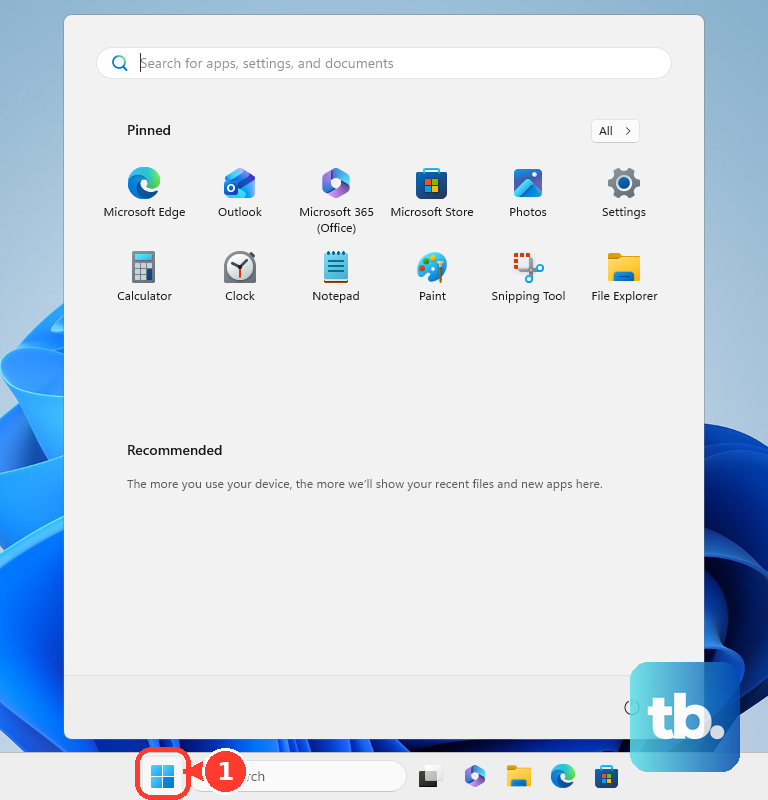
- 1.Open Start, then choose Settings.
- 2.Select Bluetooth & devices, then open Touchpad.
- 3.Set Touchpad to On.
- 4.Without a working pointer, press Windows logo key + I, type touchpad, choose Turn the touchpad on or off, press Tab until Touchpad is selected, then press Spacebar.
- 5.On Windows 10, use Start, Settings, Devices, then Touchpad.
Use the Lenovo touchpad shortcut key
Use this when the touchpad stopped right after a keyboard press or after someone else used the laptop. Many Lenovo models have a touchpad toggle key, and the exact key depends on the model.
Look across the top row for a key with a touchpad icon.
Press that key once. On some Lenovo laptops, the shortcut is F6, F8, Fn + F6, Fn + F8, or Fn + Delete.
Wait a few seconds and move a finger across the touchpad.
If the shortcut does nothing, install the latest Lenovo touchpad driver and try the same shortcut again.
Check settings that make the touchpad feel broken
Open Settings, choose Bluetooth & devices, then open Touchpad.
If the pointer works but scrolling does not, open Scroll and zoom and check the scrolling options there.
If the touchpad stops only when a USB mouse is connected, open Control Panel, then choose Mouse.
Switch to Device Settings or the touchpad brand tab.
Clear Disable when external USB pointing device plug in, then choose Apply and OK.
On ThinkPad models with UltraNav or ThinkPad settings, adjust the touchpad sensitivity slider and confirm with Apply or OK.
The exact tab names vary by the touchpad driver package.
Fix a USB or Bluetooth mouse
If the built-in touchpad works but a separate mouse does not, troubleshoot that mouse first.
- 1.Unplug the USB cable or wireless USB receiver, wait briefly, then plug it back in.
- 2.Try a different USB port on the Lenovo laptop.
- 3.If you use a USB hub, confirm that the hub has power, then remove the hub and connect the mouse directly to the laptop.
- 4.Check the cable for damage, replace or charge the batteries, and make sure dirt is not blocking the mouse sensor.
- 5.For a Bluetooth mouse, put the mouse in pairing mode first, then open Start, Settings, then Bluetooth & devices, make sure Bluetooth is On, remove the mouse if it is already listed, choose Add device, choose Bluetooth, select the mouse, then choose Done.
Refresh Lenovo mouse and touchpad drivers
This fixes missing touchpad packages, stale mouse drivers, and Lenovo pointing-device updates that Windows has not installed yet.
Open Lenovo Vantage, go to System Update, then choose Check for Updates.
Install the offered updates, then restart Windows when prompted.
You can also go to Lenovo Support, choose Detect Product, open Drivers and Software, then run Scan Now under Automatic Update.
For a manual install, use Lenovo Support for your exact PC model, open Drivers and Software, choose Manual Update, download the touchpad or mouse driver, run the Lenovo package, and restart.
Use Lenovo's official driver page instead of third-party driver sites.
Repair the touchpad in Device Manager
Right-click Start and open Device Manager.
Expand Human Interface Devices or Mice and other pointing devices.
Right-click the touchpad device and choose Update driver.
Select Search automatically for updated driver software, then close the window when Windows finishes.
If Windows offers Search for updated drivers on Windows update, select it and follow the Windows Update prompts.
If updating does not help, right-click the touchpad device again, choose Uninstall device, confirm with Uninstall, then restart Windows so it can reinstall the driver.
When the problem started after an update, open the touchpad driver's Properties, choose the Driver tab, then select Roll Back Driver.
If the touchpad is missing, open View, choose Show Hidden Devices, check for a grayed-out touchpad under Human Interface Devices, then use Action and Update driver.
If Roll Back Driver is gray, Windows does not have a previous touchpad driver available.
Test Safe Mode and managed laptop policies
Use Safe Mode after a recent app, driver, or Windows change because it separates a software conflict from a touchpad failure. On a work or school Lenovo laptop, device-install rules can also block mouse or touchpad drivers.
Enter Windows Safe Mode from Windows Startup Settings, then test the touchpad there.
If the touchpad works in Safe Mode, focus on software or driver updates rather than the touchpad switch.
For a managed laptop, ask your IT administrator whether device installation rules are blocking the mouse or touchpad driver.
Restore a Lenovo Chromebook touchpad
This fixes ChromeOS touchpads disabled through accessibility settings or stuck after a hardware restart issue.
Select the time at the bottom right, open Settings, choose Accessibility, then open Cursor and touchpad.
Next to Disable built-in touchpad, open the dropdown and select Never.
If the touchpad is disabled and you cannot navigate, press Shift five times to turn the touchpad back on.
To hard reset a Chromebook, turn it off, press and hold Refresh, tap Power, then release Refresh when the Chromebook starts.
On supported models, press and hold Back + Refresh + Power for at least 10 seconds.
For a Chromebook tablet form factor, hold Volume up + Power for at least 10 seconds, then release.
Google says a hard reset restarts hardware such as the keyboard and touchpad, and it might delete files in Downloads.
As a temporary workaround, open Settings, Accessibility, then Cursor and touchpad, turn on Mouse keys, and use Launcher + Alt + 4 to pause or resume it.
Skip unsupported tricks
Older Windows advice often points to the Keyboard troubleshooter, but recent Windows 11 versions may no longer include that option. Use Windows touchpad settings, Lenovo driver updates, and Device Manager instead.
Older Chromebook advice also mentions a Chrome flags debug shortcut using Search + Shift + P. The current ChromeOS path is Settings, Accessibility, Cursor and touchpad, plus pressing Shift five times when the built-in touchpad has been disabled.
If these replacement paths fail, return to Lenovo Vantage, Lenovo Support's product-specific driver page, or Device Manager and reinstall the touchpad, mouse, or Bluetooth driver that matches the problem.
Frequently Asked Questions
How do I turn on a Lenovo touchpad without a mouse?
Press Windows logo key + I, type touchpad, open Turn the touchpad on or off, use Tab to reach Touchpad, then press Spacebar.
Why does my Lenovo touchpad stop when I plug in a mouse?
A Synaptics, Elan, or precision touchpad setting can disable the touchpad when an external USB pointing device is connected. Clear that option in Mouse Properties or keep the touchpad enabled in Windows Touchpad settings.
Should I use a third-party site for Lenovo mouse drivers?
No. Use Lenovo Vantage, Lenovo Support automatic scan, or the official Lenovo Support driver page for your exact laptop model.
What should I do if only my Bluetooth mouse fails?
Turn Bluetooth on, remove and re-add the mouse, run the Bluetooth troubleshooter in Get Help, then update, reinstall, or roll back the Bluetooth adapter driver in Device Manager.