Gmail bulk delete breaks in several familiar ways: the full select-all link is missing, the app deletes only part of the inbox, deleted mail returns, or storage stays full afterward. The fastest fix is to use Gmail on a computer, select the full label or search result, delete the messages, and empty Trash when you need the space back sooner. Work through the fixes below in the order that matches what you see on screen.
Use Gmail web for the full bulk delete
This fixes the common mobile limit where Gmail selects a batch instead of every matching email.
Open Gmail on a computer in a supported desktop browser.
In the left sidebar, choose the area you want to clean, such as Inbox, Promotions, or All Mail.
Click the top-left Select checkbox.
Gmail shows a notification that all conversations on the page are selected. Click the link beside it. In a label view it reads Select all [number] conversations in [label], such as Select all 2,000 conversations in Inbox. In a search result it reads Select all conversations that match this search.
Click Delete.
Understand why the Gmail app deletes only some messages
On Android, iPhone, and iPad, Gmail bulk selection works in smaller chunks. After you touch and hold a message, the top-left Select all box selects up to 50 messages by default.
That limit makes bulk delete look broken when you expect thousands of emails to disappear at once. To keep going on mobile, scroll back to the top, tap Select all again, and delete the next batch.
For a large cleanup, use Gmail web instead. The desktop flow gives you the Select all conversations that match this search link, which is the current best Gmail surface for deleting more than 50 matching messages at once.
Target the right messages with Gmail search
Use search when Gmail bulk delete works, but the wrong group of emails is being selected.
- 1.In Gmail on a computer, click the search bar and enter a query such as from:sender, is:unread, category:promotions, has:attachment, or older_than:2y has:attachment.
- 2.Press Enter to load the matching conversations.
- 3.Click the top-left Select checkbox.
- 4.Click Select all conversations that match this search.
- 5.Click Delete.
Clear Trash when storage still looks full
Use this when Gmail deleted the messages, but your storage meter has not dropped. Deleted Gmail messages move to Trash first and are permanently removed after 30 days unless you remove them sooner.
On Gmail web, open the left sidebar and click More.
Open Trash.
To remove selected messages, check the messages you want and click Delete forever.
To clear everything in Trash, click Empty Trash now at the top.
After a large Gmail, Drive, or Photos cleanup, allow 48 to 72 hours for Google storage totals to update.
Repair frozen checkboxes and delete buttons
When the Select checkbox, Delete button, or select-all message does not load or respond, treat it as a Gmail web loading problem first. Check the Google Workspace Status Dashboard, then reopen Gmail in a supported browser.
Update your browser and try another browser. Turn off extensions or applications one by one, then test Gmail in incognito or private mode.
Clear the browser cache and cookies, reopen Gmail, and retry the bulk delete. Check your connection by restarting the device, toggling Wi-Fi or mobile data, restarting the router, or using another network.
If this method fails, try the same Gmail account on another device before assuming the messages themselves are protected or undeletable.
Stop deleted messages from coming back on mobile
Use this when the Gmail app shows stale inbox state, deleted messages reappear, or web changes do not show correctly on your phone or tablet. Start by pulling down from the top of the inbox to sync manually.
On Android, update Gmail from Google Play, restart the device, and test your internet in Chrome.
Open Gmail and go to Menu, Settings, choose the account, and under Data usage, make sure Sync Gmail is checked.
If Android still fails, open the Android Settings app, go to About phone, Google Account, Account sync, More, then Sync now.
As the final Android app-state reset, use Android Settings, Apps, See All Apps, Gmail, Storage & cache, Clear storage, then restart the device.
On iPhone or iPad, update Gmail from the App Store, restart the device, and test your internet in Safari.
Open iOS Settings, General, Background App Refresh, then turn on Background App Refresh for Gmail.
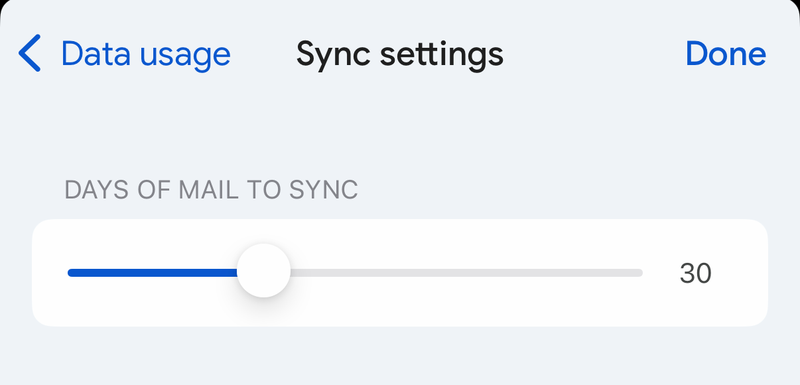
In Gmail, use Menu, Settings, Data usage, Sync settings to set the days of email to sync.
Change swipe from archive to delete
The most common swipe cause is Gmail removing the message from view instead of sending it to Trash.
On Android, open the Gmail app and go to Menu, Settings, General settings, Swipe actions.
Next to Right swipe or Left swipe, tap Change, then choose Delete.
On iPhone or iPad, open Gmail and go to Menu, Settings, Inbox customizations, Mail swipe actions.
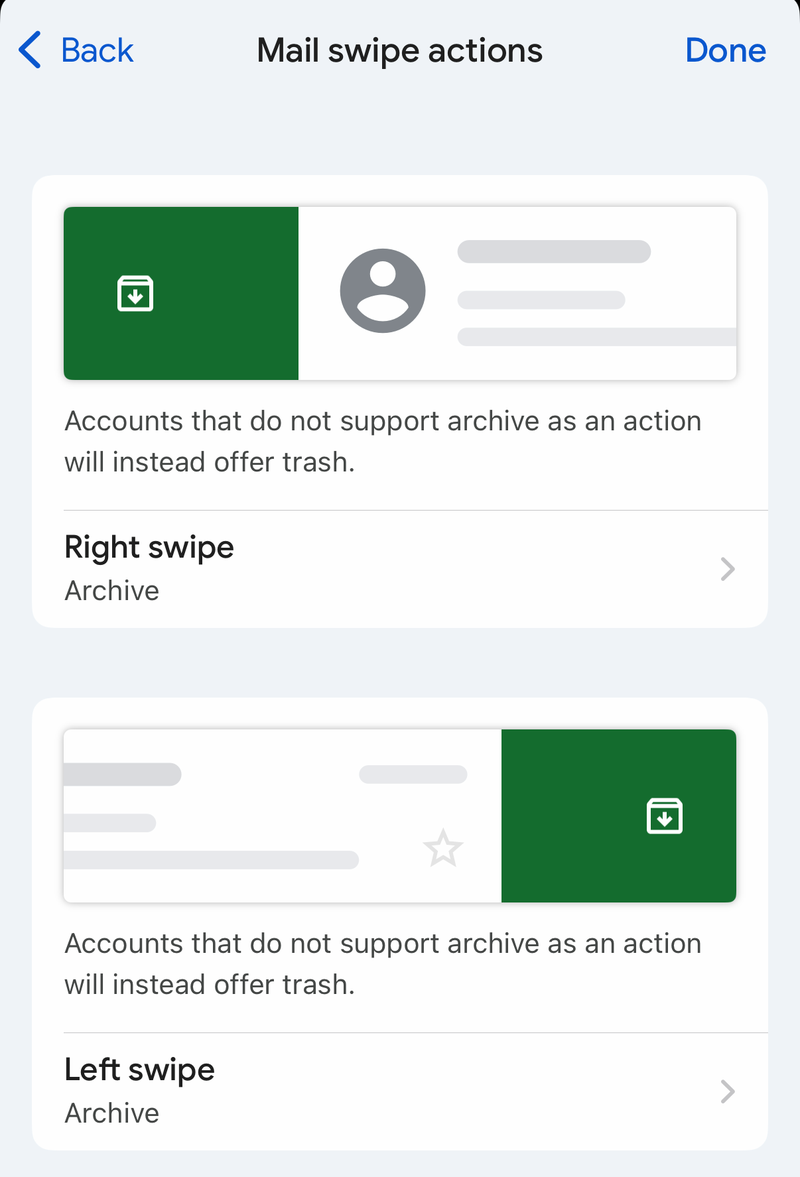
Choose Right swipe or Left swipe, then select Trash.
Check filters, shortcuts, and managed accounts
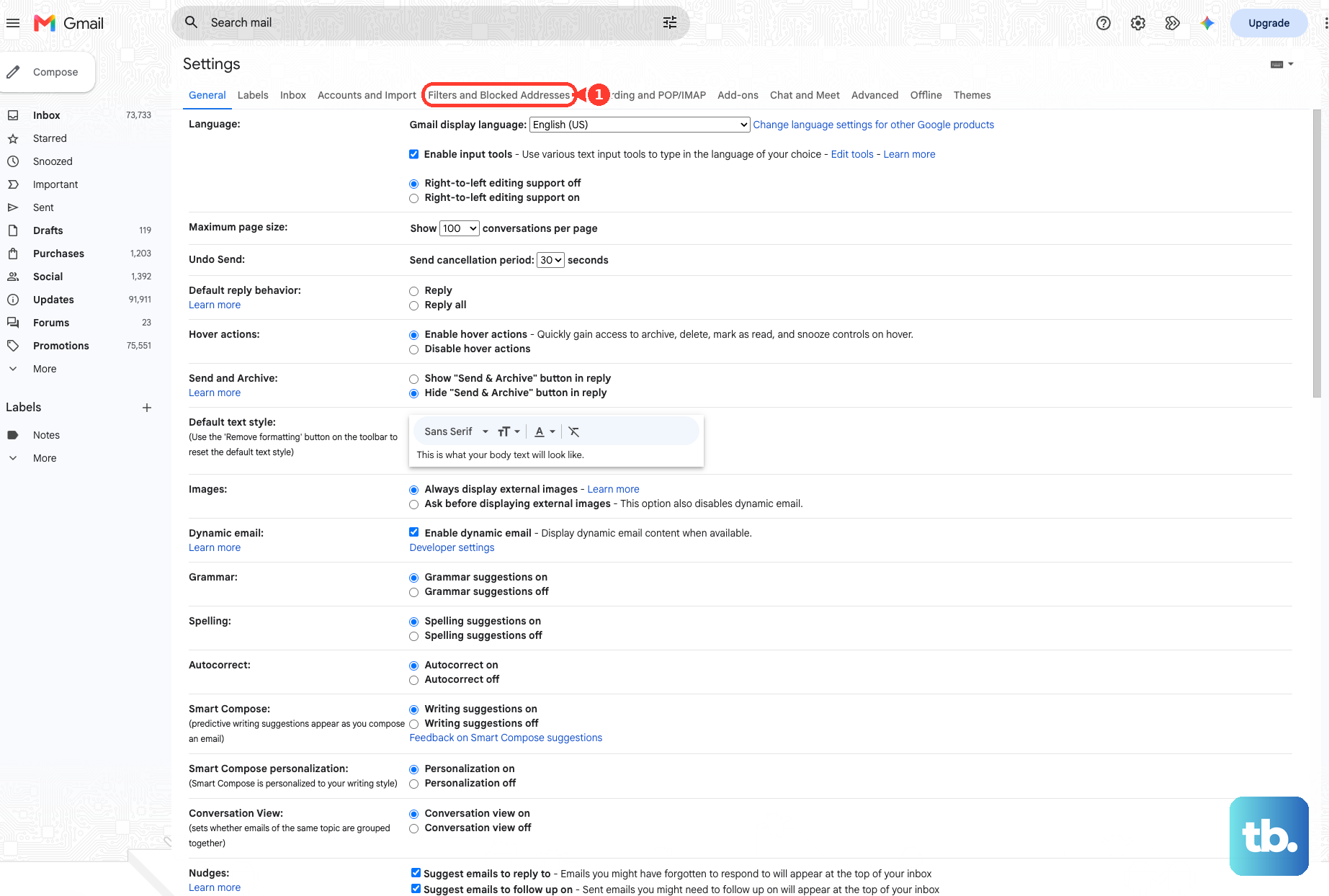
A Gmail filter creates inconsistent-looking deletion when it targets future messages only or catches replies only when those replies match the same criteria. On Gmail web, open Settings, See all settings, Filters and Blocked Addresses, then use Edit or Delete on the filter you want to change.
If you use keyboard shortcuts, press ? in Gmail web to view the current shortcuts. The official delete shortcut is #; older advice that mentions the Delete key or d is not the current verified Gmail delete method.
For work or school Gmail, your organization controls feature restrictions, retention rules, and holds. Deleting from Gmail does not immediately purge data that an organization preserves under Google Vault policy, so contact your administrator.
Frequently Asked Questions
Why does Gmail only delete 50 emails at a time?
That happens in the Gmail mobile app. Android, iPhone, and iPad bulk selection selects up to 50 messages by default, so use Gmail web on a computer for a full label or search cleanup.
Why did Gmail delete emails but storage did not change?
Deleted messages go to Trash first, and Google storage totals can take 48 to 72 hours to update after large deletes. Empty Trash if you need permanent removal sooner.
Can Gemini bulk delete Gmail messages for me?
No. On an eligible account, Gemini in Gmail can find emails and load Gmail search results, but Google documents no direct bulk-delete action for it. Gemini in Gmail also requires an eligible Google Workspace or Google AI plan, and Google notes that Google AI Pro and Google AI Ultra subscribers in the US may no longer see Ask Gemini in Gmail. Use Gmail’s native Select all and Delete controls after the results load.
Can I make Gmail delete future emails automatically?
Yes. In Gmail web, create a filter from the search options or from a selected message, choose Delete it, and create the filter. Google states filters affect new messages.