Command-Space should open Spotlight instantly on a Mac. When it does nothing, opens another app, or brings up Spotlight with bad results, the cause is a shortcut setting, conflict, launcher hotkey, keyboard mapping, or Spotlight index problem.
Start with the fast shortcut checks, then move through the fixes that match what you see on screen.
1. Confirm what Command-Space should open
Press Command-Space bar. Spotlight should show or hide.
Using a Windows PC keyboard with your Mac? Press the Windows logo key with Space. Apple maps the Windows logo key to Command.
Need Spotlight right now without the shortcut? Click Spotlight in the menu bar. If it is missing, open Apple menu > System Settings > Menu Bar, then select Spotlight.
On Mac keyboards with a search key, press the Search key or Spotlight key. Apple documents F4 as the Spotlight key on some keyboards.
2. Turn Spotlight’s shortcut back on
If the shortcut was disabled or changed, Command-Space has nothing to trigger. Open the Apple menu. Go to System Settings > Keyboard > Keyboard Shortcuts.
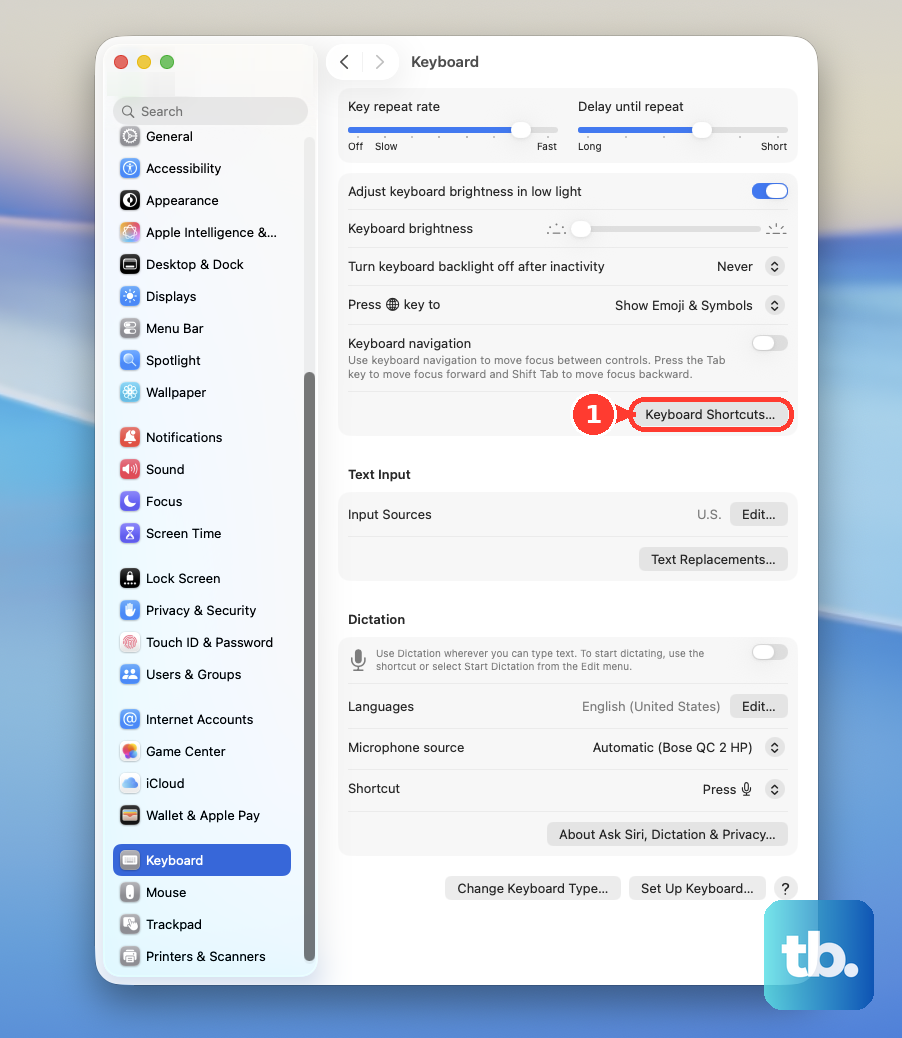
Select Spotlight. Turn on the checkbox next to the Spotlight shortcut. Double-click the current key combination.
Press Command-Space bar. Quit and reopen any app where the shortcut still does not respond.
3. Clear keyboard shortcut conflicts
Open Apple menu > System Settings > Keyboard > Keyboard Shortcuts. Select Spotlight, Mission Control, or another category listed in the sidebar. Look for a warning icon beside a shortcut.
Double-click the conflicting shortcut. Press a new key combination. When Command-Space opens the wrong feature, macOS has assigned the same shortcut to another action.
Check Input Sources too, especially if you use multiple keyboard layouts or languages. Open Input Sources, then disable or change any shortcut that conflicts with Spotlight. Apple currently documents Control-Space bar and Control-Option-Space bar for input-source switching, and older macOS behavior used Command-Space for input sources in some setups.
4. Move Siri away from Command-Space
Siri has its own keyboard shortcut setting, and it can take over the same keys you expect Spotlight to use. Open Apple menu > System Settings. Select Apple Intelligence & Siri or Siri.
Open Keyboard shortcut. Choose a shortcut other than Command-Space, or turn off the Siri shortcut. Press Command-Space bar again to test Spotlight.
The label depends on Mac model, region, language, and feature availability. Use whichever Siri label appears in System Settings.
5. Restore Command, Space, and keyboard response
Open Apple menu > System Settings > Keyboard > Keyboard Shortcuts > Modifier Keys. Set Command Key to Command. Set Option Key to Option. Set Control Key to Control.
Test Command-Space. If the Mac is reading your keys incorrectly, the Spotlight shortcut cannot work. Now check the accessibility settings that change keyboard behavior: open Apple menu > System Settings > Accessibility > Keyboard and turn off Slow Keys, then open Apple menu > System Settings > Accessibility > Pointer Control and turn off Mouse Keys.
Use Keyboard Viewer when you need proof that macOS sees both keys. Go to Apple menu > System Settings > Keyboard > Text Input > Edit, turn on Show Input menu in menu bar, open the Input menu, choose Show Keyboard Viewer, then press Command and Space. The on-screen keys should react.
6. Reassign launcher and keyboard utility hotkeys
Launcher apps, macro tools, keyboard managers, menu-bar utilities, and remappers can capture Command-Space before Spotlight gets it.
Raycast - Open Raycast Settings > General > Raycast Hotkey, then assign Command-Space to Raycast or choose a different shortcut. To audit command hotkeys, open Raycast Settings > Shortcuts, filter by Hotkey Set, then edit or remove conflicts.
Alfred - Open Alfred Preferences > General > Alfred Hotkey, then type the shortcut you want. If Alfred rejects Command-Space, change the conflicting macOS or app shortcut first.
Karabiner-Elements - Open Karabiner-Elements > Simple Modifications and remove mappings affecting Command or Space. Then open Complex Modifications and disable enabled rules that mention command, spacebar, or app-specific key changes.
To stop a conflicting app from opening at login, go to Apple menu > System Settings > General > Login Items & Extensions.
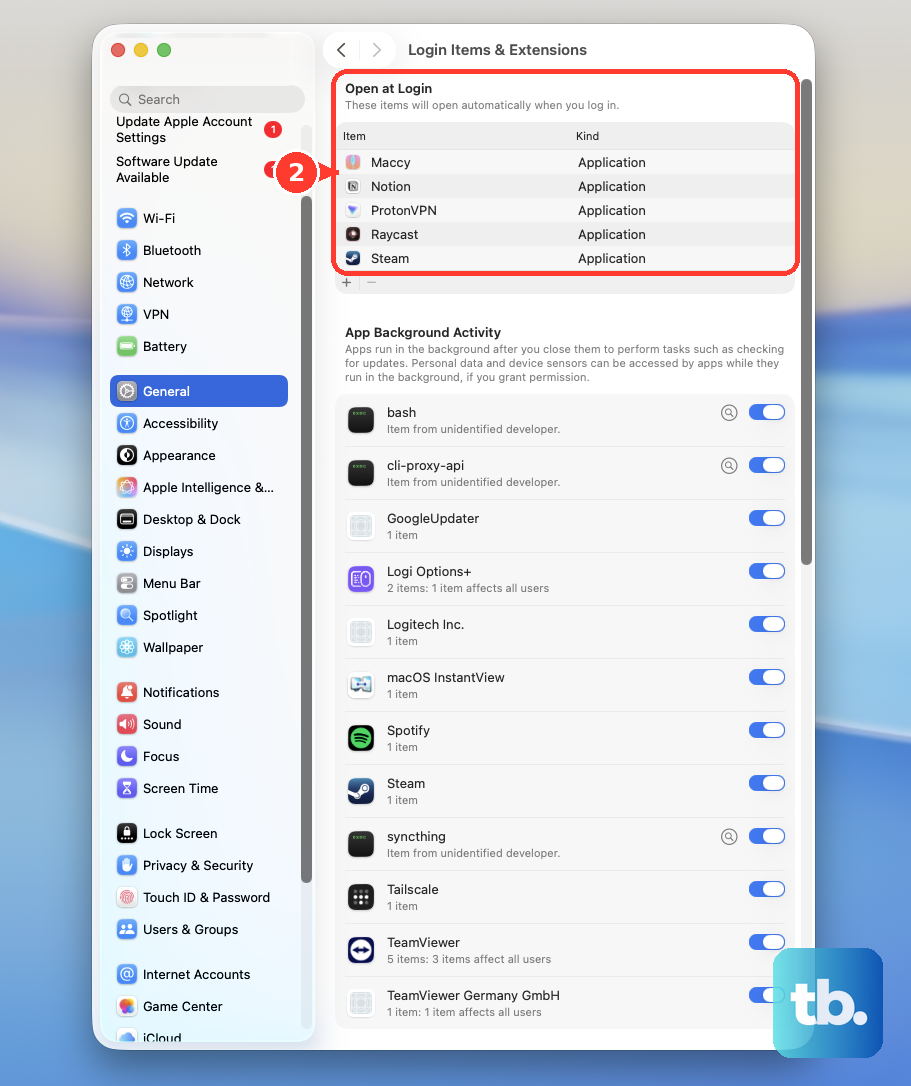
Under Open at Login, select the app and click Remove. Review Allow apps to run in the background and turn off apps you do not want running. When you no longer need the app, open Finder > Applications.
If the app has its own folder, open it and run Uninstall [App] or [App] Uninstaller. Otherwise, drag the app from Applications to the Trash.
7. Rebuild Spotlight when search results are wrong
Open Apple menu > System Settings > Spotlight or Siri & Spotlight. Open Search Privacy or Spotlight Privacy. Add the disk or folder using drag and drop or the add button +.
Wait a few seconds. Select the same disk or folder. Click the remove button -. Click Done.
Quit System Settings. If Command-Space opens Spotlight but apps, files, settings, or clipboard results are missing, fix Spotlight’s results and index. Spotlight reindexes afterward.
Next, open System Settings > Spotlight and turn on the categories you want below Results from Apps or Results from System. On macOS Tahoe 26 or later, you can also turn on Clipboard Search for clipboard history; earlier macOS versions do not have this category. If a folder or disk was excluded, open Search Privacy, select it, click -, then click Done.
8. Test Safe Mode, updates, and keyboard hardware
Safe mode tells you whether startup software is part of the problem. On Apple silicon, choose Apple menu > Shut Down. Press and hold the power button until Loading startup options appears, select a volume, press and hold Shift, then choose Continue in Safe Mode. Log in and test Command-Space.
On an Intel-based Mac, turn on or restart the Mac, then immediately press and hold Shift until the login window appears. Log in, look for Safe Boot in the menu bar, and test Command-Space. Update macOS from Apple menu > System Settings > General > Software Update.
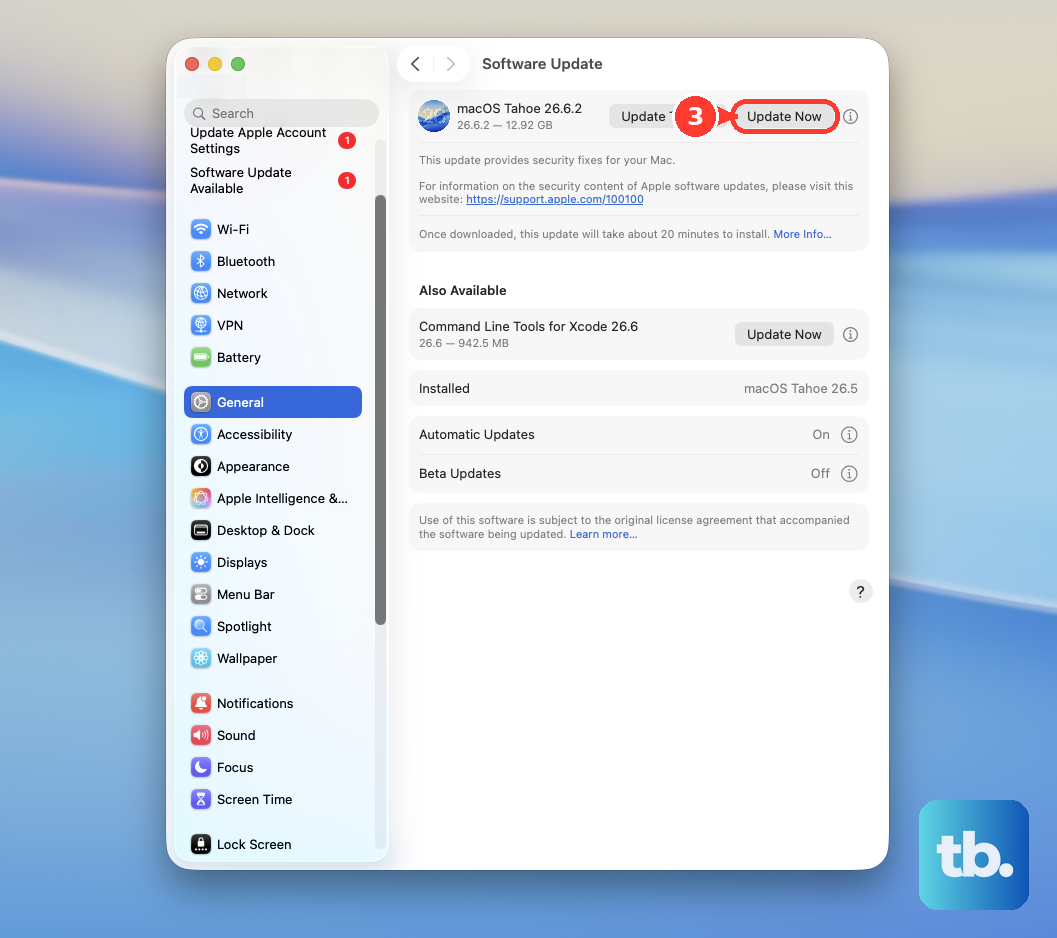
When an update is available, click Update, Upgrade, or Restart Now. Run Apple Diagnostics when Command, Space, or the built-in keyboard fails in other places too.
On Apple silicon, press and hold the power button until startup options appear, release at Options, then press and hold Command-D. On Intel, turn on the Mac and immediately press and hold D; use Option-D when D does not work. Follow the onscreen instructions.
For sticky or unresponsive MacBook keys, use Apple’s compressed-air method on MacBook 2015 and later or MacBook Pro 2016 and later. Hold the notebook at a 75-degree angle, spray the affected keys left to right, rotate to the right side and spray again, then rotate to the left side and spray again. If the keys remain unresponsive, get the Mac serviced.
On an organization-owned Mac, management settings can control keyboard tools, login items, background items, and privacy permissions. Check System Settings > Privacy & Security > Profiles or System Settings > General > Device Management. If the Mac is managed, ask your administrator to review enforced settings for launchers, keyboard utilities, and input monitoring.
Frequently Asked Questions
Why does Command-Space open Raycast or Alfred instead of Spotlight?
Raycast or Alfred is using Command-Space as a global hotkey. Change the launcher hotkey, or restore Spotlight in System Settings > Keyboard > Keyboard Shortcuts > Spotlight.
Why does Spotlight open but not find my files?
The shortcut is working. Rebuild the Spotlight index, turn the needed result categories back on, and remove the missing folder or disk from Search Privacy in System Settings > Spotlight.
Can a Windows keyboard break Command-Space on a Mac?
A Windows keyboard changes which physical key you press. Use the Windows logo key as Command, then check Modifier Keys in System Settings if the shortcut still fails.
Should I use Terminal commands to fix Command-Space?
Use Apple’s current System Settings paths first. Apple's current consumer documentation does not recommend Terminal-only fixes for Command-Space.