Your HP Pavilion Entertainment PC touchpad can stop responding after Windows turns it off, an external mouse changes the setting, a touchpad toggle gets hit, or a driver stops working correctly. Start with the switches you can change in seconds, then move into power, driver, diagnostics, and recovery fixes only if the touchpad still will not respond.
Use a USB mouse, touchscreen, or keyboard navigation while you work through these fixes.
Turn The Touchpad On In Windows
Use this when the pointer does not move at all but Windows still opens normally. This is the current Windows 11 path for an HP notebook touchpad that Windows recognizes.
Open Start > Settings > Bluetooth & devices > Touchpad.
Turn Touchpad on.
You can also select the Search icon on the taskbar, type touchpad settings, press Enter, and select the Touchpad button.
On Windows 10, the older path is Settings > Devices > Touchpad. Microsoft ended Windows 10 support on October 14, 2025, so use the Windows 11 path on supported PCs.
Keep It Working With A Mouse Connected
The most common cause for this exact symptom is Windows turning the touchpad off when it detects a USB or Bluetooth mouse.
Open Start > Settings > Bluetooth & devices > Touchpad.
Expand Touchpad.
Turn on Leave touchpad on when a mouse is connected.
The built-in touchpad stays available while the external mouse is connected.
Use The HP Touchpad Toggle
Check the laptop itself before digging into drivers.
- 1.Look for a touchpad icon key on the keyboard or a dedicated touchpad button on the palm rest.
- 2.Press that key or button once.
- 3.On supported HP touchpads, double-tap the upper-left corner of the touchpad or the TouchPad off indicator.
- 4.Move your finger across the touchpad and check whether the pointer responds.
- 5.If there is no icon, button, or upper-left indicator, continue with the Windows and driver fixes below.
Fix Missing Taps Scrolling And Gestures
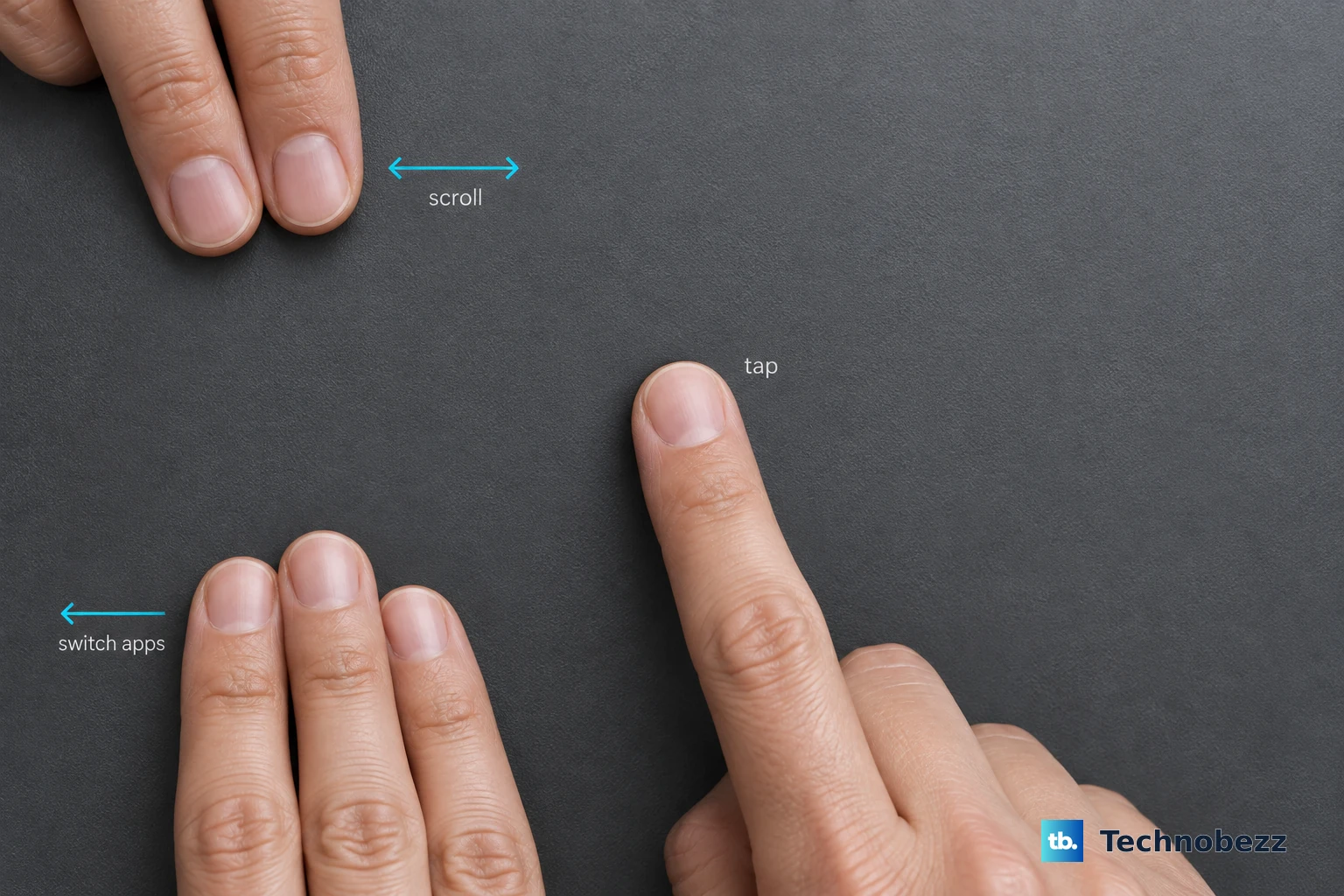
A touchpad that moves the pointer but ignores taps, scrolling, or multi-finger commands needs its gesture settings corrected.
Right-click Start and open Settings > Bluetooth & devices > Touchpad. Expand Taps, Scroll & zoom, Three-finger gestures, or Four-finger gestures for the behavior that stopped working.
Choose the actions you want from the drop-down menus and adjust Touchpad sensitivity if taps feel unreliable. Precision touchpad gestures appear only on HP models that support them.
Power Reset The Pavilion Notebook
Use this when the touchpad stopped responding after sleep, docking, static, or another firmware-level hang. A power reset clears that state before you move into Windows recovery.
Turn off the computer.
Disconnect the AC adapter.
Remove discs and memory cards, then disconnect nonessential external devices.
If your Pavilion has a removable battery, remove it.
Press and hold the Power button for about 15 seconds.
Reconnect power and start the computer again.
Install Driver And HP Updates
Microsoft recommends Windows Update for driver updates. Open Start > Settings > Windows Update > Advanced options > Optional updates, select a relevant touchpad or pointing-device driver if one is listed, choose Download and install, then restart through Start > Shut down or sign out > Restart.
Next, open HP Support Assistant and go to My Dashboard. Find the computer, then select Updates. Wait while HP Support Assistant analyzes the system, then choose Check for updates and messages. Select the driver, BIOS, chipset, or input-device updates listed for the exact PC, choose Download and install, then restart when prompted.
HP's Software and Driver Downloads page is the model-specific route. Identify the laptop by serial, product, or model, choose the detected operating system, download available touchpad, chipset, BIOS, or related input drivers for that exact model, install them, and restart. Install BIOS updates only from HP. If HP does not list the component driver you need, HP points you to the component manufacturer’s own download site, such as Intel, AMD, NVIDIA, or Realtek.
Older Pavilion Entertainment models can show only older Windows versions or no current Windows 11 drivers on HP's driver page.
Update Or Reinstall The Touchpad Device
Right-click Start and open Device Manager.
Expand Human Interface Devices or Mice and other pointing devices.
Right-click the touchpad device and choose Update driver.
Choose Search automatically for updated driver software.
Select Search for updated drivers on Windows update if Windows offers it.
If updating does not fix it, right-click the touchpad device again and choose Uninstall device.
Select Uninstall.
Restart from Start > Shut down or sign out > Restart.
Windows attempts to reinstall the touchpad driver after the restart.
If the problem began right after a driver update, open Properties > Driver > Roll Back Driver, choose a reason, select Yes, and restart when prompted.
Use rollback only when Windows shows the Roll Back Driver button.
Test The Hardware In HP Diagnostics
The most common cause left to rule out after settings and drivers is a physical touchpad problem.
Hold the Power button for at least five seconds to turn off the computer.
Turn on the computer and immediately press esc repeatedly, about once every second.
Press F2 to open HP PC Hardware Diagnostics UEFI.
Open Component Tests > Mouse/Touchpad.
Select the touchpad test, then select Run once.
Follow the on-screen instructions and use the result to decide whether the failure is in Windows or the touchpad hardware.
Use Windows Recovery Last
This fixes software-level touchpad trouble caused by a driver, app, or Windows change.
Open Control Panel > Recovery > Open System Restore.
Select Next.
Choose a restore point from before the touchpad problem started.
Select Scan for affected programs to see what Windows will change.
Select Next, then choose Finish.
From Windows RE, use Troubleshoot > Advanced options > System Restore.
Use reset only after System Restore fails or no restore point exists.
Back up your files first.
Open Settings > System > Recovery > Recovery options.
Select Reset PC.
Choose an option and follow the on-screen instructions.
From Windows RE, choose Troubleshoot > Reset this PC.
Frequently Asked Questions
Why does my HP Pavilion touchpad stop when I connect a mouse?
Windows is set to disable the touchpad when a USB or Bluetooth mouse is connected. Turn on Leave touchpad on when a mouse is connected under Start > Settings > Bluetooth & devices > Touchpad.
Can I use a temporary touchpad on a touchscreen HP laptop?
Yes. In Windows 11, go to Taskbar settings > Personalization > Taskbar > System tray icons, turn Virtual Touchpad on, then select the virtual touchpad icon in the system tray.
Should I use old Synaptics Device Settings fixes?
No. Older Synaptics guides point to Control Panel paths used by older driver packages. On current Windows, use Settings > Bluetooth & devices > Touchpad, Device Manager, Windows Update, or HP’s driver tools.
What if a work laptop keeps changing the touchpad setting?
Managed Windows precision touchpads can use organization or OEM defaults for touchpad behavior, including whether the touchpad stays on with a mouse. Use Settings for a personal PC; contact your organization’s support for a managed device.