Your phone is plugged in, but the battery percentage keeps falling. The explanation falls into three groups: the phone uses more power than the charger supplies, charging gets interrupted, or a charge limit pauses the top-up. Start with a screen-off test and a compatible charger, then follow the checks that match your phone.
Start by charging with the screen off
Stop gaming, recording video, streaming, and other demanding activity.
Leave the phone charging with its screen off. If the percentage now rises, power consumption during use was exceeding the available charging input; that result alone does not mean the battery needs replacing.
Give the phone a reliable power source
Connect a compatible charger directly to a wall outlet. For an iPhone, use a dedicated adapter instead of a car USB port or hub.
Disconnect other devices sharing your iPhone's multiport adapter.
For faster wired charging, Apple recommends a USB-C Power Delivery adapter with a USB-C cable for iPhone 15 and later, or a USB-C to Lightning cable for iPhone 14 and earlier. For Pixel, Google's compatibility baselines are a PPS adapter rated at least 30W or a USB PD adapter rated at least 15W; these do not represent every model's maximum charging requirements.
If you charge an iPhone from a computer, keep the computer turned on. Apple warns that a connected iPhone can lose charge when the computer is off.
If the percentage still falls, try another compatible cable and adapter, then work through the connection checks below.
Check the cable connection and charging port
These checks address charging interruptions from faulty accessories, loose connections, debris, or moisture.
Test the original cable and adapter together with another device.
Check the outlet by plugging in a lamp.
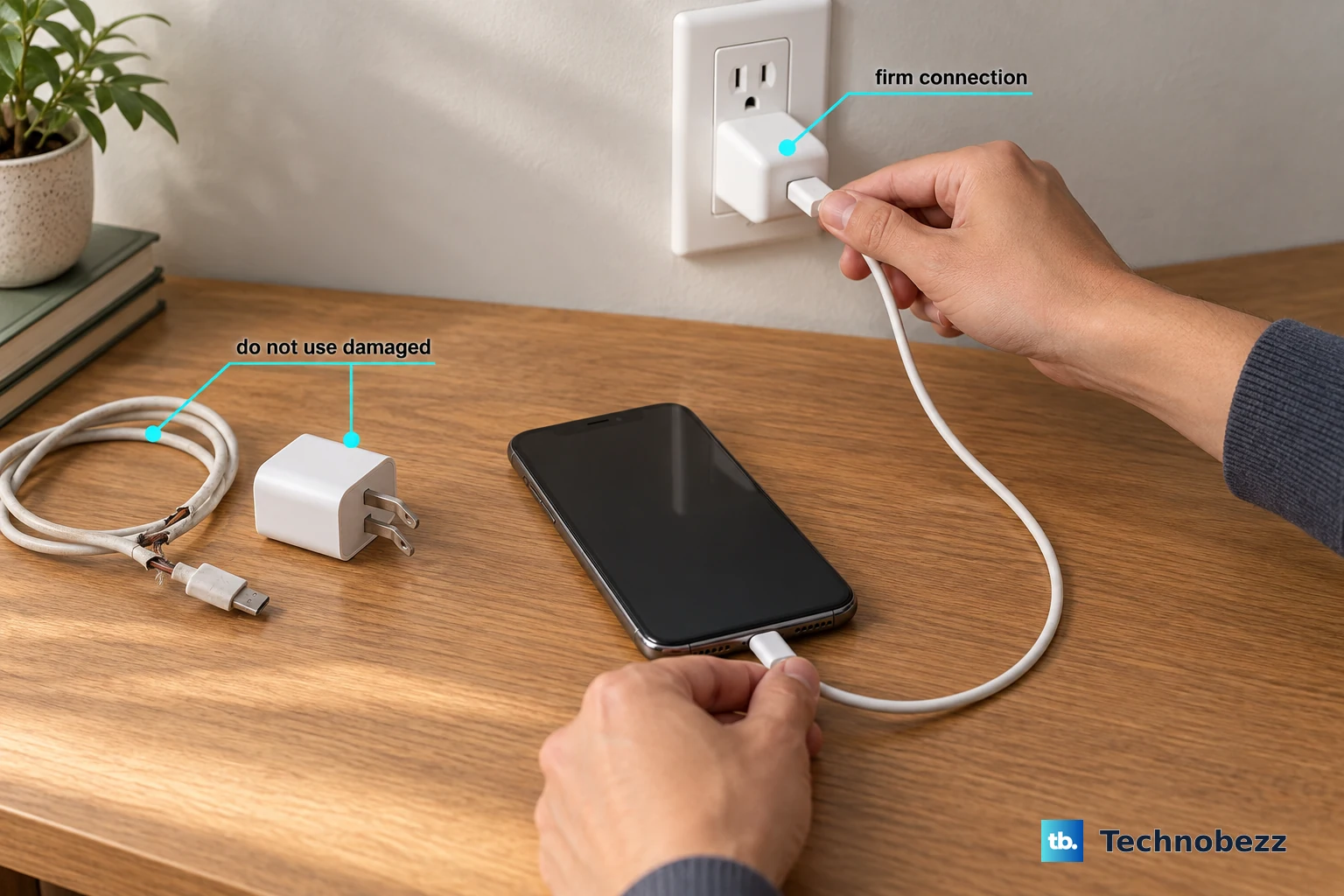
Reconnect the phone's charging cable securely.
Inspect the cable and adapter for damage.
Replace damaged accessories before another charging test.
On a Galaxy, power off the phone before checking its port.
Inspect the Galaxy's charging port with a flashlight.
Remove visible debris without using metal objects or liquids, as Samsung advises.
Arrange service for a damaged or loose connection.
On an iPhone, check the charging port for debris.
If the iPhone displays a liquid-detection alert, disconnect the cable.
Gently tap the iPhone against your hand with its connector facing downward.
Leave it somewhere dry with airflow. Complete drying can take 24 hours; do not use rice, heat, compressed air, or objects inside the connector.
Retry the iPhone connection after at least 30 minutes.
Once the connector is dry and a compatible cable and adapter are connected directly, allow 30 minutes of iPhone charging before escalating.
For a Galaxy moisture notification, gently shake out the moisture.
Wipe the Galaxy with a soft cloth.
Leave it to dry in a ventilated area with cool air.
Reconnect the Galaxy only after it dries.
Let a hot phone cool before trying again
Heat from demanding activity or hot surroundings reduces charging input and increases battery consumption.
Disconnect an excessively hot phone.
Stop using it.
Move it out of direct sunlight or an enclosed hot space.
Resume charging after it cools.
On Pixel 6a and later, open Settings > Battery > Battery diagnostics > Phone is very warm.
Follow the recommendations for the displayed temperature state.
On iPhone, open Settings > Battery to check for a temperature-related charging hold. This screen also identifies inadequate power through Slow Charger on iOS 18 and later or Incompatible Charger on iOS 26 and later.
Switch to a cable and disconnect power-sharing accessories
Replace the wireless pad with a compatible wired charger connected directly to the phone. Google recommends wired charging for the best Pixel charging performance; this test also isolates a wireless-pad problem.
For wireless charging on a Pixel, remove obstructive cases and metallic or magnetic attachments, using accessories compatible with your model. Center the phone over the charging coil. Leave it charging with the screen dark and airflow around it.
During iPhone wireless charging, disconnect wired headphones and other Lightning or USB-C accessories that reduce available charging power. Remove unnecessary pass-through adapters, which reserve power for their own ports.
On a Galaxy using Wireless PowerShare, separate the receiving device from the phone. Samsung notes that charging the phone while it shares power can lower its charging speed or stop it from charging properly, depending on the charger type.
Check charge limits and scheduled pauses
If the percentage stays near a configured limit, check that setting before treating the pause as a charging failure.
- 1.On iPhone 15 and later, open Settings > Battery > Charging to review the limit, which ranges from 80% to 100%. A small decline near the limit is part of normal charge-limit behavior; charging resumes after the level falls more than five percentage points. Raise the limit when you need more charge.
- 2.For an iPhone optimized-charging hold, press and hold its Lock Screen notification, then tap Charge Now. The same action overrides a Clean Energy Charging pause, a feature available in the United States on iOS 16.1 and later. These controls address scheduled pauses, not inadequate charger output.
- 3.On compatible Pixels, open Settings > Battery > Battery health > Charging optimization and turn off Use charging optimization when you need a full charge immediately. Adaptive Charging is supported on Pixel 4 and later; Limit to 80% is supported on Pixel 6a and later.
- 4.On a Galaxy with battery protection, open Settings > Battery > Battery protection. Change the selected mode or temporarily turn protection off to test charging beyond its configured limit.
Reduce the activity using up the incoming power
Reducing activity addresses drain that stops when you charge with the screen off.
On an iPhone running iOS 26 or later, open Settings > Battery > View All Battery Usage to inspect app activity and battery suggestions.
Enable Low Power Mode through Settings > Battery > Power Mode > Low Power Mode on iPhone 15 and later, or Settings > Battery > Low Power Mode on iPhone 14 and earlier. It reduces background work and switches off after charging reaches 80% or higher.
Open Settings > General > Background App Refresh on iPhone.
Disable refresh for unnecessary apps, or select Off to disable it across apps. This does not stop every kind of background activity.
On Pixel 6 and later, run Settings > Battery > Battery diagnostics > Battery draining too quickly.
To review a Pixel app, open Settings > Battery > Battery usage > View by apps.
Select the app you want to inspect.
Open Allow background usage.
Keep Optimized selected for ordinary use.
For a confirmed problematic Pixel app, open Settings > Apps > See all apps.
Select the affected app.
Tap Force stop.
Tap OK to test its effect. This option does not apply to Google Play services; Pixel's Battery Saver also switches off during charging, so it does not reduce consumption while plugged in.
On Galaxy, open Settings > Battery > Background usage limits.
Enable Put unused apps to sleep. Sleeping limits background tasks and introduces notification delays.
For a supported Galaxy that will not gain charge during gaming, open Gaming Hub > More options > Game Booster.
Disable Pause USB PD charging when gaming when your goal is to increase the battery charge. When enabled, this feature intentionally supplies the game instead of charging the battery.
Restart and address software problems
On Pixel 6 and later, hold Power and Volume Up, then tap Restart. For a Galaxy force restart, hold Side/Power and Volume Down together for about 10 seconds.
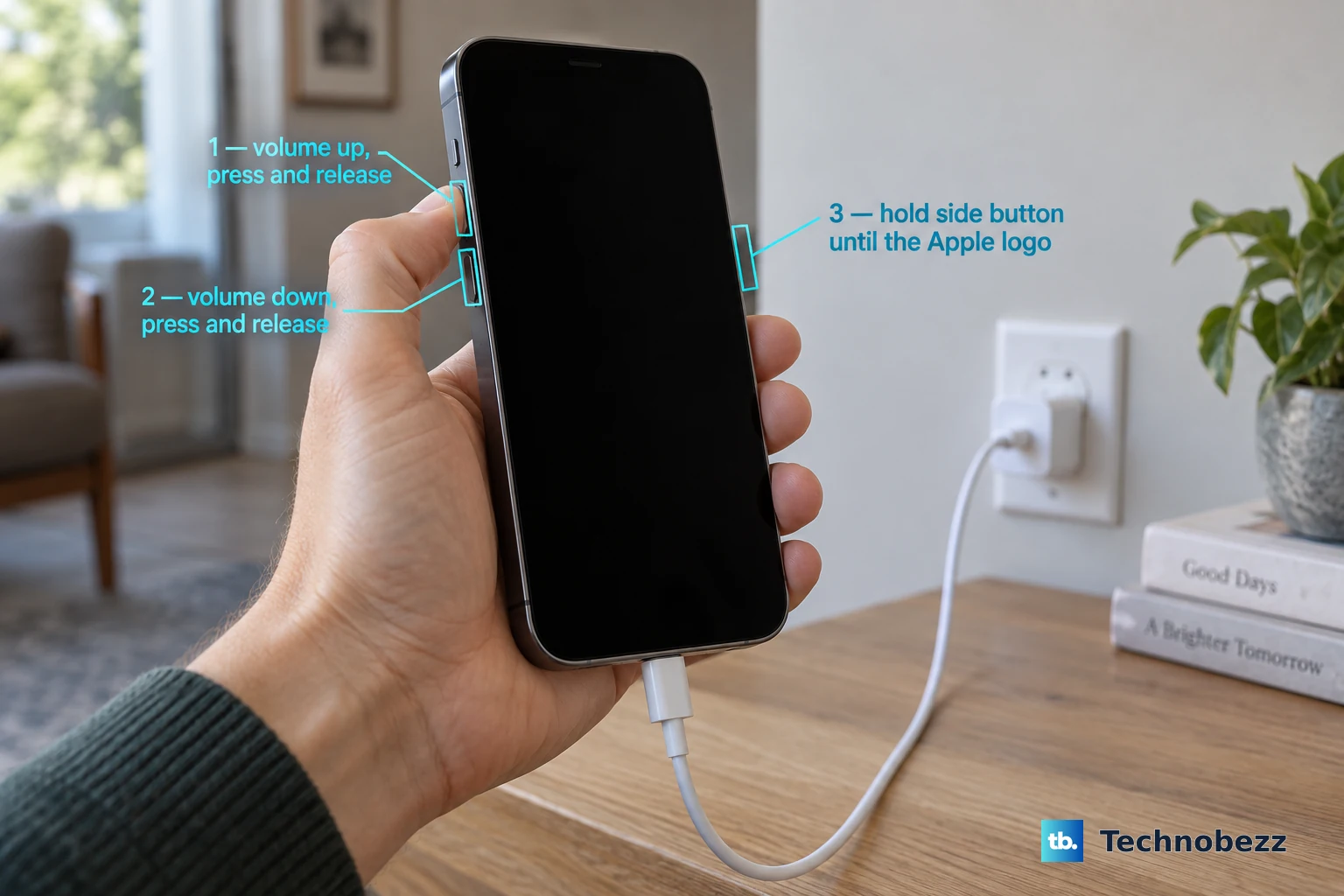
For an unresponsive iPhone 8 or later, or iPhone SE second generation or later, briefly press Volume Up, briefly press Volume Down, then hold the side button until the Apple logo appears. Reconnect the iPhone to retest charging.
Once power is reliable, back up your iPhone before installing an offered update through Settings > General > Software Update > Download and Install. On Pixel, open Settings > System, tap Software updates or System update (the label depends on the model), and follow the on-screen instructions. On Galaxy, use Settings > Software update > Download and install, or Check for updates where that carrier-dependent label appears.
If iPhone drain began immediately after an update, check Settings > Battery for Ongoing iOS Update or setup activity. When that activity is present, allow several days for temporary processing to finish before judging lasting battery performance. Continuing charging failure or excessive heat still needs attention.
Use battery diagnostics to decide when to seek service
If charging still fails with a compatible charger, a secure connection, and a cool, idle phone, run the manufacturer's battery checks.
- 1.On iPhone 15 and later, open Settings > Battery > Battery Health; on earlier models, open Settings > Battery > Battery Health & Charging. Follow the repair instructions if Service appears.
- 2.On Pixel 8a and later, open Settings > Battery > Battery health. Google recommends replacement when the status is Reduced. Earlier Pixel 6a through 8 Pro models do not display this same battery-health status.
- 3.On Galaxy, open Samsung Members > Discover > Diagnostics > Phone diagnostics. The alternate entry is Support > Get started under Phone diagnostics. Run Battery status, Cable charging, and Wireless charging where available; a Bad result or continuing charging failure warrants service-center inspection.
Frequently Asked Questions
Should I drain the battery completely to recalibrate it?
No. Google says repeated full-to-empty battery training is unnecessary. Focus on charging equipment, temperature, and excessive power use instead.
Should I keep closing every iPhone app to stop the drain?
No. Apple discourages routinely force-closing functioning apps. Close an app when it is unresponsive instead of making it a blanket battery-saving routine.
Can I charge my iPhone wirelessly while its charging port dries?
Yes, if your iPhone supports wireless charging. Dry its back and use a Qi-certified charger. Do not use the emergency liquid-detection override as a routine repair.
Should I factory-reset a Pixel that keeps losing charge?
A reset is a last software troubleshooting step and deletes your data. Back up your data and confirm your account credentials first; Google requires at least 70% charge. If you cannot establish reliable charging, get support instead of attempting the reset.