Your Chromebook’s pointer is stuck, the touchpad ignores your taps, or your mouse keeps disconnecting. Start with the section for your touchpad, USB mouse, or Bluetooth mouse, then tackle settings and software if it still will not respond. Save resets for last.
Bring an unresponsive touchpad back to life
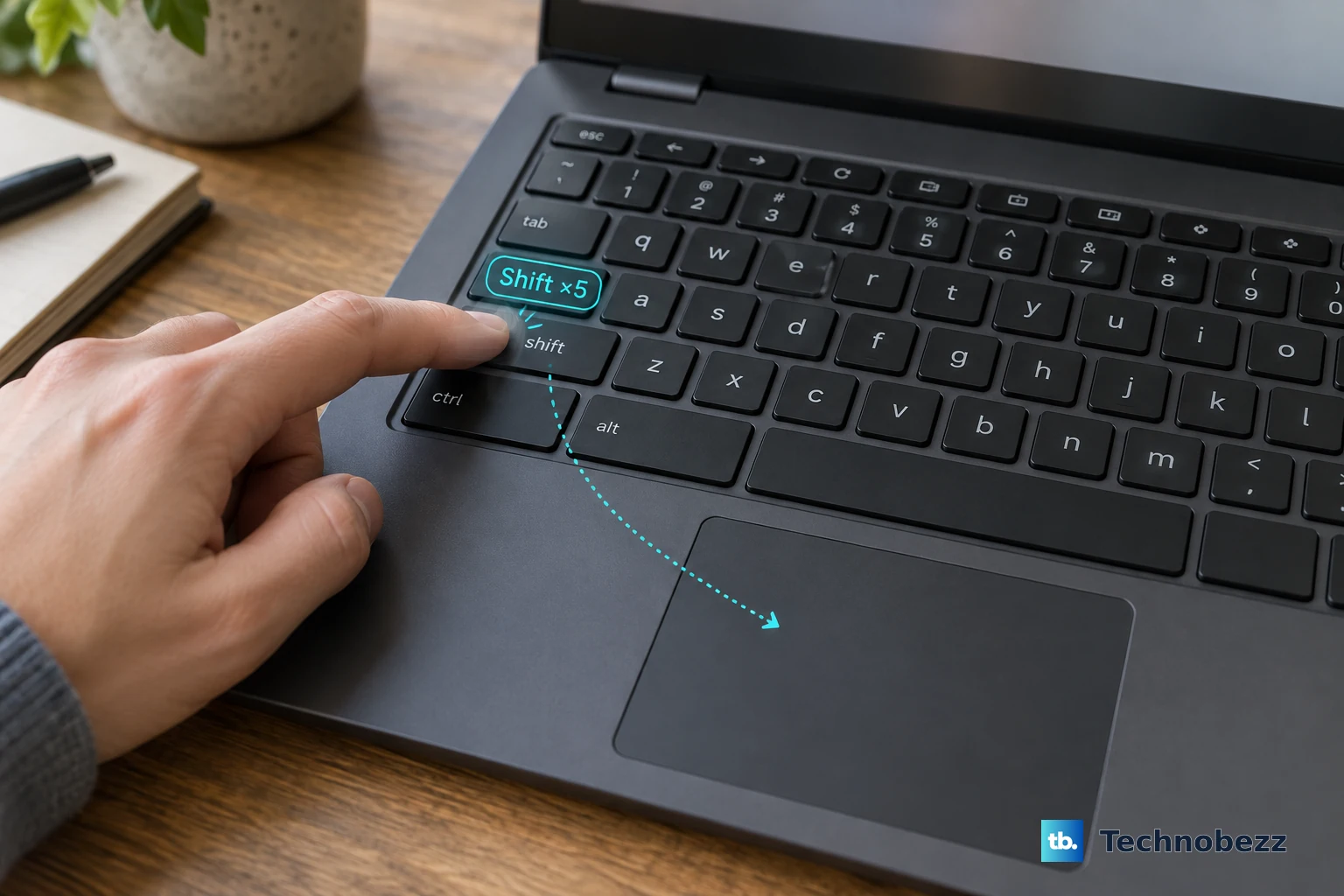
Start here if your built-in touchpad has stopped responding. The keyboard shortcut lets you re-enable a disabled touchpad without reaching Settings.
Press Shift five times to turn the touchpad back on.
Once you can navigate, select the time and open Settings > Accessibility > Cursor & touchpad.
Set Disable built-in touchpad to Never. The Always option keeps it disabled, while When a mouse is connected disables it whenever an external mouse is connected.
Remove dust and dirt from the touchpad.
Test the touchpad again.
If it still does not respond, press Esc several times.
Try moving the pointer again.
Next, drum your fingers across the touchpad for ten seconds.
Retest the touchpad. Google recommends both the finger-drumming step and pressing Esc for touchpad problems.
Check your external mouse’s power and USB connection
A loose USB connection or a depleted wireless-mouse battery is a basic cause to check first.
Turn on your wireless mouse.
Replace its disposable batteries or recharge it according to its manual. This applies to both Bluetooth mice and mice with USB receivers.
For a wired mouse or USB receiver, unplug it from the Chromebook.
Firmly reconnect it.
Try another USB port directly on the Chromebook, bypassing any hub or adapter.
Test the mouse on another computer. A mouse that fails there too needs attention beyond Chromebook settings.
If the mouse has a detachable cable, substitute another cable to isolate a cable fault.
For tracking, wheel, or button trouble, switch off or disconnect the mouse before cleaning.
Remove visible debris from the sensor, wheel, and button gaps according to your model’s cleaning instructions.
Let cleaned surfaces dry before reconnecting the mouse.
If the mouse still fails only on your Chromebook, select the time > Power off.
Disconnect nonessential USB devices, leaving the mouse being tested connected.
Turn the Chromebook back on.
Test the mouse again.
Reconnect the other USB devices individually, testing after each connection to identify a conflict.
Reconnect a Bluetooth mouse
Select the time > Bluetooth and turn Bluetooth off.
Turn Bluetooth back on.
Test your powered-on mouse.
If it remains disconnected, open Settings > Bluetooth.
Under Previously connected, select the arrow beside your mouse.
Select Connect.
If it still will not connect, select the mouse’s name in Settings > Bluetooth.
Select Forget.
Put the mouse into pairing mode using its manufacturer’s instructions.
Select the time > Bluetooth > + Pair new device.
Select your mouse and follow the pairing prompts.
For repeated disconnections, bring the mouse closer to the Chromebook.
Move it away from other wireless devices and appliances.
Tip: On a multi-device mouse, use its model-specific channel control to select the Chromebook’s connection; on a Logitech MX Anywhere 3, briefly press the bottom Easy-Switch button.
Restore clicks, dragging, and scrolling
If the pointer moves but taps do nothing, open the time > Settings > Device > Touchpad or Touchpad and mouse, whichever appears on your Chromebook.
Enable Tap to click to click by tapping. Enable Tap and drag to drag with the touchpad.
Adjust Touchpad speed or Touchpad acceleration if movement feels wrong. For an external mouse, adjust Mouse speed. Use Reverse to change the scrolling direction.
For external-mouse scrolling, open Settings > Device > Mouse. Under Mouse scrolling, enable Controlled scrolling. Adjust the scroll speed there.
Rule out a freeze or software problem
If the pointer stops responding during an app or page freeze, check the software too.
Close unused apps and windows.
Test the pointer again.
For a webpage that freezes, press Ctrl + Shift + R to refresh it.
Press Shift + Esc to open Task Manager and identify tasks using substantial resources.
Save your work before restarting.
Select the time > Power off.
Turn the Chromebook back on.
Retest the mouse or touchpad.
For a Chromebook still eligible for updates, connect to Wi-Fi.
Open the time > Settings > About ChromeOS > Check for updates.
Let any available update download.
Restart to finish installation.
For a USB mouse that still fails, select Sign out.
Select Browse as Guest. Skip this test if Guest browsing is unavailable.
Reconnect the USB mouse.
Test it in Guest mode. If it works there, focus on extensions, profile settings, or organizational policies.
Return to your account.
In Chrome, open More > Extensions > Manage extensions.
Turn extensions off individually, testing the mouse after each change.
Remove an identified culprit with Remove > Remove.
If these checks do not restore your mouse or touchpad, try a hardware reset next.
Try a Chromebook hardware reset
A hardware reset resets components including the touchpad; use this sequence for most Chromebooks.
- 1.Back up files in Downloads first, because a hardware reset carries a risk of deleting some of them.
- 2.Select the time > Power off to shut down.
- 3.Hold Refresh and tap Power.
- 4.Release Refresh when startup begins.
- 5.Test the touchpad or mouse again.
Use a settings reset before considering Powerwash
Use these options for persistent settings or software trouble after the earlier checks. Safety reset keeps local files and apps, while Powerwash erases local accounts, apps, settings, and files.
Open the time > Settings > System preferences.
Under Reset, select Safety reset. This resets settings, disables extensions, and deletes cookies and temporary site data. Skip this option if it is unavailable.
When it finishes, select Done.
Test your mouse or touchpad.
Review input settings and extensions before re-enabling them.
Consider Powerwash only for a personal Chromebook with persistent software or profile problems. A factory reset cannot repair damaged hardware.
Back up your local files before proceeding.
Select Sign out.
Press Ctrl + Alt + Shift + R.
Select Restart.
Select Powerwash > Continue.
Complete the setup prompts.
Test the mouse or touchpad before restoring optional software.
Get help for persistent hardware trouble
Contact the Chromebook manufacturer if cleaning, settings checks, a restart, and a hardware reset do not restore the built-in touchpad.
Ask the mouse manufacturer about repair or replacement if your external mouse also fails on another computer.
For a school or work Chromebook, contact your administrator when Bluetooth, Browse as Guest, extensions, or updates are restricted. Your administrator must also assist with a factory reset on a managed device.
Tip: If the pointer moves but clicking does not work, use ChromeOS automatic clicking as a temporary workaround while you arrange help.
Frequently Asked Questions
Do I need to download a mouse driver for my Chromebook?
Standard USB mice generally work without extra drivers. Accessories that require Windows or Mac drivers are not guaranteed to work with ChromeOS. Use the Chromebook’s built-in updater for ChromeOS updates.
Can I move the pointer with my Chromebook’s keyboard?
Yes. Open the time > Settings > Accessibility > Cursor and touchpad. Turn on Mouse keys, then enable Use primary keys for the built-in keyboard. With the right-side layout, 7, 8, 9, U, O, J, K, and L move the pointer, and I clicks. Press Launcher + Alt + 4 to pause or resume Mouse keys. This provides temporary navigation while you troubleshoot.
Is the hardware-reset shortcut different on a Chromebook tablet?
Yes. Hold Volume Up + Power for at least ten seconds, then release. Some Chromebook models have specific hardware-reset procedures, so follow the instructions for your exact model.
How can I click if my pointer still moves but the button does not work?
Press Alt + Shift + S, then open Settings > Accessibility > Mouse and touchpad. Enable Automatically click when the mouse cursor stops. Adjust Delay before click. This feature requires working pointer movement; the accessibility section’s name varies across ChromeOS interfaces.