Your ASUS router has two passwords that do different jobs. The admin password opens the router settings page, while the WiFi password connects your phones, laptops, and TVs to the network.
Start with the admin login if you need to change router settings, update the login password, or reset access after getting locked out. Here are the current ASUS methods that actually apply.
Find the ASUS router default password
Look at the sticker on the back or bottom of your ASUS router and find the default router username and password printed on the label. Use admin and admin only on ASUS models where the label or model default uses those credentials.
Open the ASUS router login page and enter the label credentials, or enter admin and admin for models that use that default. Use the current custom login if someone already changed the router username or password. Keep the router admin password separate from your WiFi password, because changing one does not change the other.
Open the ASUS router settings page
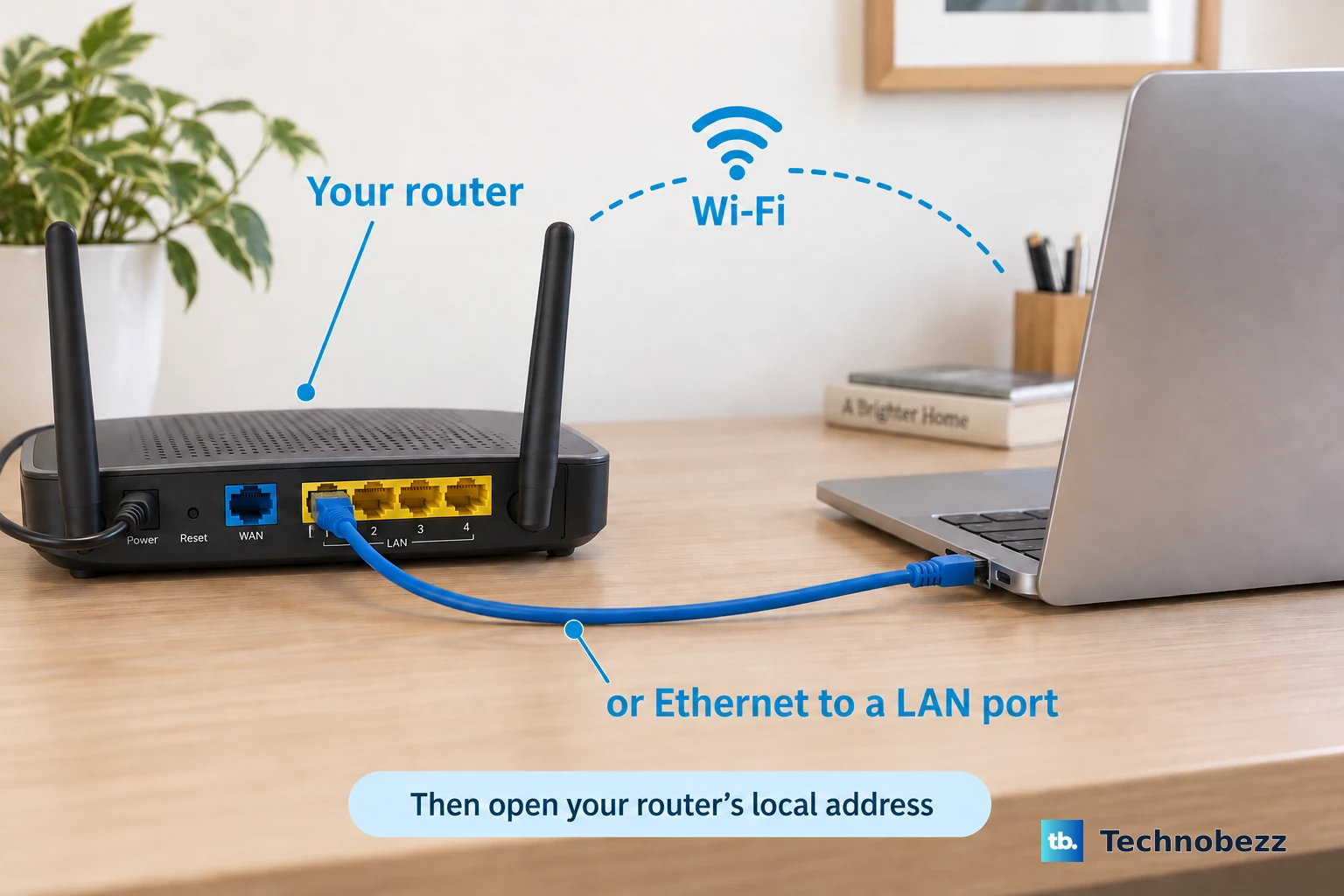
Connect your phone or computer to the ASUS router by WiFi or Ethernet. The normal ASUS router login page opens from the router's local network.
Open a browser and enter http://www.asusrouter.com or your router's LAN IP address. On the login page, enter the router username and password.
For HTTPS local access, enter https://www.asusrouter.com:8443. If the browser warning appears, choose Advanced, then Proceed to www.asusrouter.com(unsafe), and sign in. If the HTTPS port was changed earlier, enter the current port instead of 8443.
Change the ASUS admin password in the Web GUI
Use this when you can still sign in to the router settings page. It changes the router admin login, not the WiFi password your devices use.
Connect to the ASUS router by wired connection or WiFi, then open http://www.asusrouter.com or the router LAN IP address in a browser. Enter your current router username and password, go to Administration, and open the System tab.
Under Change login password, click Change. Enter the current login password, then enter the new router login password. Click OK, click OK again, and sign in with the new password. If the page rejects the current password, reset the router and create a new admin password during setup.
Use the ASUS Router App instead
This fixes the same router admin login from your phone when the app can access your router. Open the ASUS Router App or ASUS ExpertWiFi App, then tap Settings. Next, tap System Settings and Router Login Configuration.
Tap EDIT and enter the current router login password. Enter the new login name and password, then tap APPLY. Keep the router firmware and app version up to date before changing the router login in the app.
Set a new password during setup
Connect to the router by WiFi or Ethernet, then open http://www.asusrouter.com or the router LAN IP address. When Quick Internet Setup opens, click Create A New Network and complete the Internet settings.
Set the WiFi network name and WiFi password. At the router login step, create the router login username and password. Click Next to finish setup. Store the new router login somewhere private, because a forgotten admin password requires a reset and setup from scratch.
Reset the router when the admin password is forgotten
This fixes a forgotten router admin password by erasing the router and letting you set it up again. Find the physical RESET button on the router, then press and hold RESET for 5 to 10 seconds. Release the button when the power LED starts to flash.
Wait until the LED lights turn on again. Open the Web GUI and set up the router again with a new admin password. A factory reset deletes current settings, including Internet settings, the wireless SSID, and the WiFi password.
Change the WiFi password only when that is what you mean
Use this section only when you want to change the password devices use to join your wireless network. This does not change the router admin password that opens the ASUS settings page.
In the ASUS Router App or ASUS ExpertWiFi App, go to Settings > Network > Main network profile. Tap Network Name (SSID) and the password field, change them, then tap Apply.
In the Web GUI on firmware 3.0.0.6.102_35404 or later, sign in and go to Network > Main network profile. Click Network Name (SSID) and the password field, change them, then click Apply.
On firmware earlier than 3.0.0.6.102_35404, the WiFi controls appear under Wireless > General in the Web GUI or under Settings > WiFi > Wireless Settings > Network Settings in the app. Check the firmware version on your router first, then use the path that matches it.
Frequently Asked Questions
Is the ASUS router default password always admin?
No. Some ASUS models use admin/admin, and other models show the default username and password on the router label.
What happens if I forgot the ASUS router admin password?
Reset the router and set it up again. A factory reset deletes current Internet settings, WiFi name, and WiFi password.
Is the router admin password the same as the WiFi password?
No. The admin password opens the router settings page. The WiFi password connects devices to your wireless network.
Can I change the ASUS router password from my phone?
Yes. Use the ASUS Router App or ASUS ExpertWiFi App, then open Settings, System Settings, Router Login Configuration, and EDIT.