Factory resetting your Samsung Galaxy S25 Edge wipes everything clean and takes it back to the day you unboxed it. It's the right move when your phone is acting up in ways you can't fix any other way, or when you're about to hand it off to someone else. Here's how to do it right on this specific model.
Back Everything Up Before You Wipe
Once you factory reset, there's no getting that data back. Head to Settings > Accounts and backup > Back up data to use Samsung Cloud, or go through Google Drive in the same menu. You can also connect the S25 Edge to a computer and use Smart Switch for a full local backup.
Make sure your photos, contacts, and anything else you care about are synced somewhere off the phone. Double-check that your Google Photos backup is current before proceeding.
Remove Your Accounts to Avoid Lockout
Samsung's Factory Reset Protection can lock you out of the phone if your accounts are still on it after a reset. Go to Settings > Accounts and backup > Manage accounts, tap your Samsung account, then hit Remove account. Do the same for your Google account. This step takes two minutes and saves you a headache later.
Reset Through Settings (Phone Working Normally)
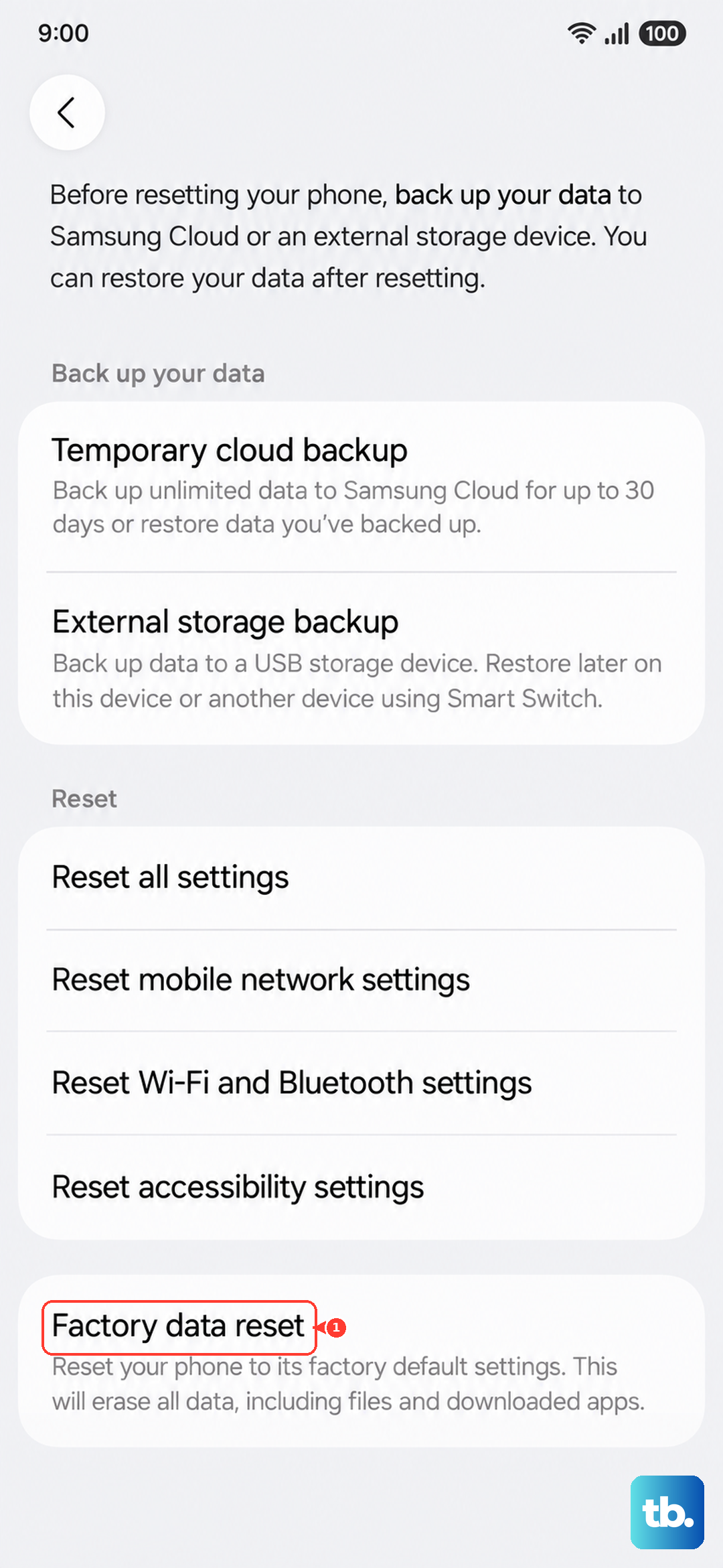
If your S25 Edge is running fine and you just want a clean slate, this is the easiest route. Open Settings > General management > Reset > Factory data reset. You'll see a list of everything that gets erased. Scroll down, tap Reset, then confirm with Delete all. Enter your PIN or password when it asks, and the phone handles the rest.
Reset Using the Buttons (Phone Won't Boot)
If your S25 Edge is frozen or stuck in a boot loop, you can still factory reset through recovery mode. Start by turning the phone off completely. Press and hold Volume Up + Side (Power) buttons together until the Samsung logo appears and the recovery menu loads.
Use the Volume buttons to scroll down to Wipe data/factory reset, then press the Side button to select it. Confirm by choosing Factory data reset. Once it finishes, select Reboot system now and the phone will restart fresh.
Force Restart If the Phone Is Frozen
Sometimes the S25 Edge locks up and won't respond to screen taps or regular power-off attempts. If that happens, press and hold Volume Down and Side (Power) together for about ten seconds. Keep holding until you see the Samsung logo, then let go. This isn't a factory reset, it's just a hard reboot that gets the phone working again so you can try the reset methods above.
Use the Targeted Resets When a Full Wipe Is Overkill
Not every problem needs a full factory reset. Go to Settings > General management > Reset and you'll find options to reset just your network settings, accessibility settings, or app preferences. These leave your photos, messages, and installed apps alone while fixing Wi-Fi or Bluetooth glitches. Try these first if your issue is minor.
When a Factory Reset Actually Makes Sense
A full wipe is worth it when your S25 Edge has persistent lag, apps crashing constantly, battery draining fast for no clear reason, or weird behavior after a system update. It's also the right call before you sell or trade in the phone. For general sluggishness, try clearing the cache partition from recovery mode (select Wipe cache partition instead of factory reset) first. It's less disruptive and often helps.