Your Windows 11 laptop's Wi-Fi is off, and getting it back depends on whether the radio, Airplane mode, or the adapter is stopping it. Start with the taskbar switch or Settings to turn it on and connect. If the switch is missing or won't respond, work through the hardware checks and recovery steps below.
Turn on Wi-Fi from the taskbar
Click the taskbar's Network, Sound, or Battery area to open Quick Settings. Click the Wi-Fi tile to turn it on.
To join a network, click the arrow beside Wi-Fi, labeled Manage Wi-Fi connections. Select your network and click Connect. Enter its password and select Next.
Prefer the keyboard? Press Windows+A to open Quick Settings, navigate to Wi-Fi with Tab or the arrow keys, and press Enter to turn it on.
Enable Wi-Fi through Settings
Press Windows+I to open Settings. Select Network & internet, then set Wi-Fi to On.
For the taskbar shortcut, right-click the Network or Wi-Fi icon, then select Network and internet settings. Open Wi-Fi and set its toggle to On. Both routes reach the same Wi-Fi controls, so use whichever is easier to open.
Switch off Airplane mode
This restores Wi-Fi when Airplane mode has switched the radio off. Press Windows+A to open Quick Settings, then switch Airplane mode off. Set Wi-Fi to On if it remains off, since Windows remembers individual wireless-radio states.
Check the laptop's wireless switch or key
Use this method if your laptop has a physical wireless switch or a keyboard function for wireless connectivity. Windows cannot override a physical switch set to off.
Move the physical wireless switch to its on position, using your model's manual to identify its location and indicator.
On ASUS models with an airplane-symbol key, activate that key with Fn if the laptop's hotkey mode requires it. The key assignment varies by model.
On Lenovo models whose manual assigns wireless control to F7, activate that function using the documented Fn or hotkey configuration.
On ThinkPad models whose manual assigns wireless control to F8, activate that function using the documented Fn or hotkey configuration. Neither assignment applies to every Lenovo laptop.
After using a wireless or Airplane-mode key, switch Airplane mode off in Quick Settings if it is on. Set Wi-Fi to On.
Re-enable a disabled network adapter
The Wi-Fi radio switch and the adapter's enabled state are separate controls. If the installed adapter is disabled, open Settings > Network & internet > Advanced network settings.
Select Enable beside Wi-Fi to enable the adapter. Return to Network & internet and set Wi-Fi to On if necessary. Then open Quick Settings > Manage Wi-Fi connections, select your network, and click Connect.
Enable the wireless device in Device Manager
Windows can detect a wireless device even when it is disabled. Open Device Manager and expand Network adapters. Right-click your wireless adapter, then select Enable device, supplying administrator credentials if Windows requests them.
If enabling the device does not restore Wi-Fi, or the wireless adapter is missing, try the troubleshooter and driver-recovery steps below.
Restore a missing or unresponsive Wi-Fi control
These fixes address missing Wi-Fi controls and Wi-Fi that will not turn on or work. Open Microsoft's Wi-Fi troubleshooting page, then select Run the troubleshooter in Get Help. Follow its diagnostics and proposed fixes.
To restart the service responsible for wireless configuration, press Windows+R, enter services.msc, and press Enter. Right-click WLAN AutoConfig, then select Restart, supplying administrator credentials if Windows requests them.
For driver updates, open Settings > Windows Update. This route requires a working internet connection, such as Ethernet when Wi-Fi is unavailable. Select Check for updates.
For optional drivers, open Advanced options > Optional updates. Select the relevant wireless driver, then click Download and install. Restart the laptop afterward.
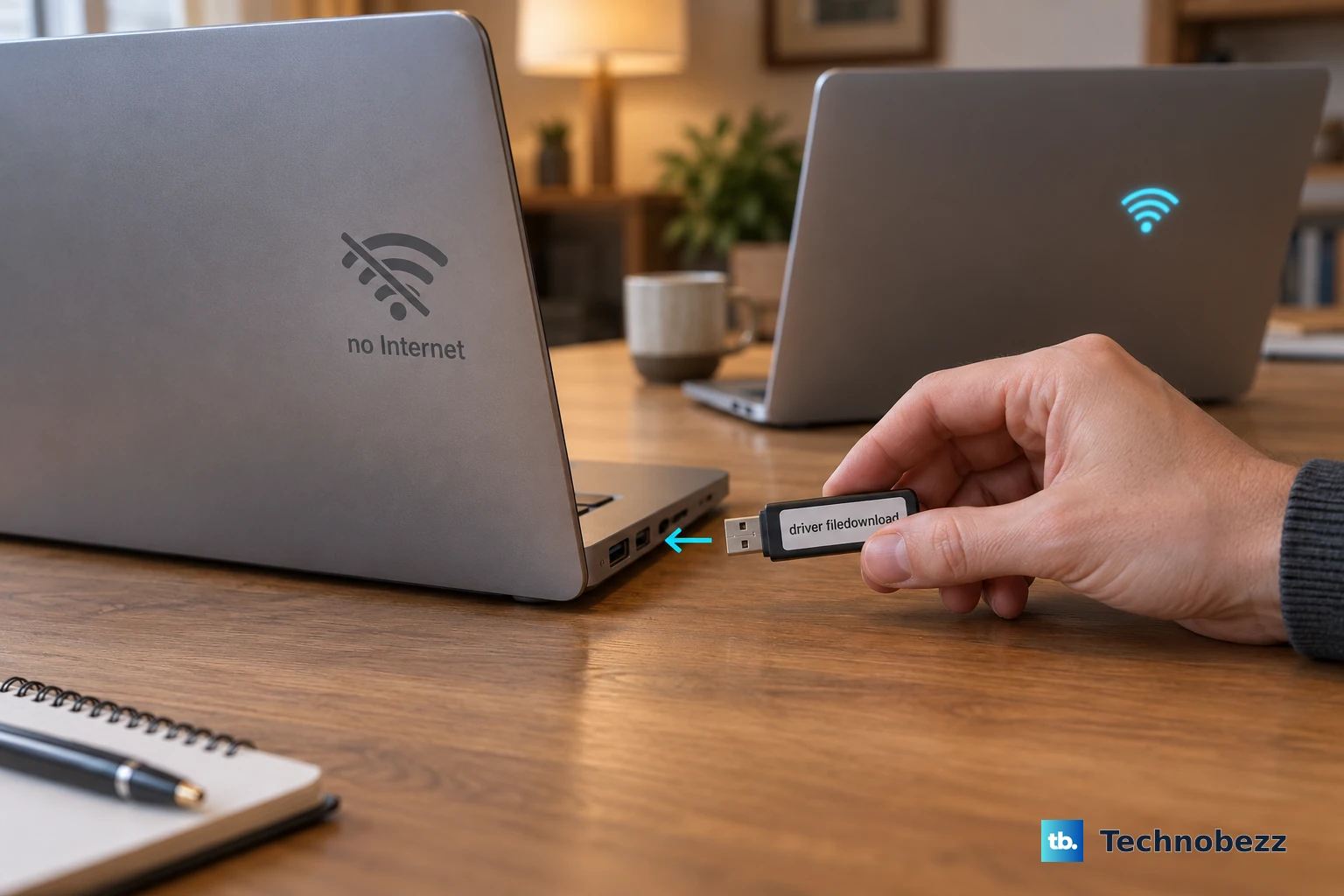
If the laptop has no internet connection, download a matching wireless driver from its manufacturer's download page using another device. Match the driver to your laptop, adapter, Windows version, and architecture.
For a downloaded driver, open Device Manager > Network adapters. Right-click the wireless adapter and select Update driver. Select Browse my computer for drivers.
Click Browse..., choose the extracted vendor-driver folder, and select OK. Select Next.
Use network reset as a last resort
Once the earlier recovery steps have failed, open Settings > Network & internet > Advanced network settings. Select Network reset, then click Reset now. Select Yes to confirm.
Allow Windows to restart. After the reset, reconfigure any VPN or other networking software that needs its settings restored.
Frequently Asked Questions
Does turning on Wi-Fi mean my laptop has internet access?
No. An enabled Wi-Fi control confirms that the wireless radio is on; it does not guarantee internet access, even after you join a network.
Can I connect to Wi-Fi before signing in to Windows 11?
Yes. Select Network on the Windows sign-in screen and use the available wireless-network controls to connect. Organizations can restrict these controls on managed devices.
How do I connect when my network is hidden?
With Wi-Fi enabled, open Settings > Network & internet > Wi-Fi > Manage known networks > Add network. Complete Network name, Security type, and Security key as applicable. Select Connect automatically and Connect even if this network is not broadcasting. Select Save.
What should I do if my work laptop won't let me enable Wi-Fi?
Contact your device administrator. Organization-managed Windows 11 devices can have policies that prohibit Wi-Fi or prevent manual network configuration. Your administrator can change the restriction or provide an approved network profile.