Converting YouTube videos to WAV format gives you high-quality audio files perfect for music production, podcast editing, or any project where sound quality matters. WAV files preserve the original audio without compression, making them ideal for professional use.
Why Choose WAV Format
WAV files offer uncompressed audio quality that maintains the full sound spectrum from the original source.
This makes them perfect for music production and mastering.
They also work well for audio editing and remixing.
Professional podcast workflows can benefit from WAV files.
Archiving high-quality audio is another strong use.
Unlike compressed formats like MP3, WAV files don't lose any audio data during conversion, ensuring you get the best possible sound quality from YouTube videos.
How to Convert YouTube to WAV
Online Converters (Quick and Easy)
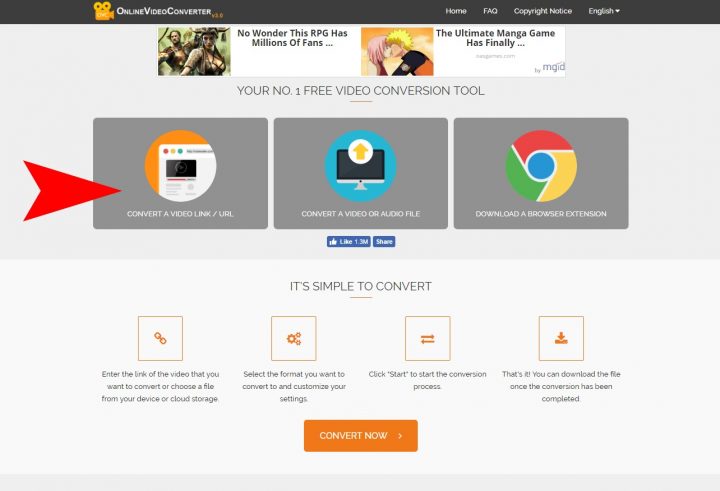
For occasional conversions, online tools are your best bet. They're free, work on any device with a web browser, and require no software installation.
Popular Online Options:
Y2Down offers studio-quality WAV conversion with 320kbps MP3 and lossless WAV formats.
4kdownload provides CD-quality audio output at 1411 kbps bitrate.
YTConverter has a simple interface for quick conversions.
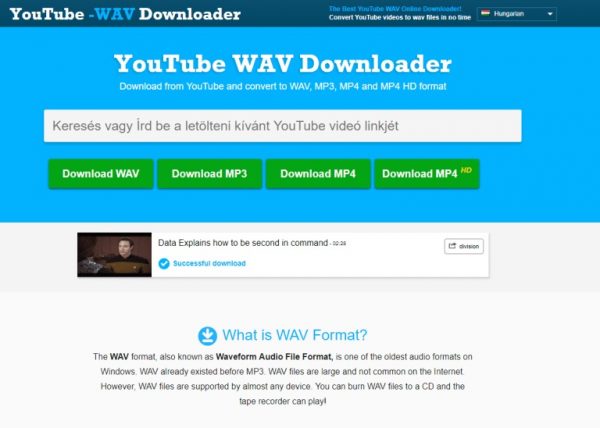
YouTubetoWAV.com offers dedicated WAV conversion with no registration required.
Step-by-Step Conversion Process
- 1.Copy the YouTube URL - Go to YouTube and copy the link of the video you want to convert
- 2.Paste into converter - Visit your chosen online converter and paste the URL
- 3.Select WAV format - Choose WAV from the available audio format options
- 4.Download your file - Click convert and download the WAV file to your device
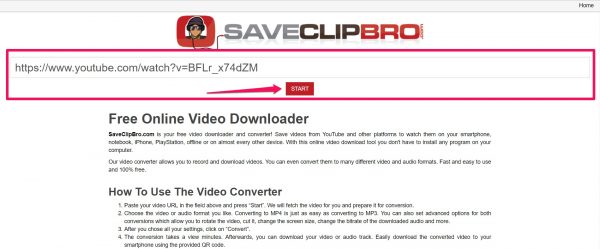
Most conversions take less than 30 seconds, and you'll have a high-quality WAV file ready to use.
Quality Considerations
When converting YouTube videos to WAV, keep these factors in mind.
Source quality matters, because higher resolution videos (480p and above) typically contain better audio.
Check audio before converting by listening to the video first to ensure the audio quality meets your needs.
File size is worth planning for, since WAV files are larger than MP3s, so plan your storage accordingly.
You can check a YouTube video's audio quality by right-clicking and selecting "Stats for Nerds" to see the codec information.
Desktop Software Options
If you convert YouTube videos frequently, desktop software might be more convenient. Programs like Audacity (free) or paid options like NoteBurner offer batch conversion of multiple videos.
They also offer playlist downloading.
Advanced audio settings are available.
Better organization features are included too.
Important Legal Notes
Always respect copyright when converting YouTube content. Only convert videos you have permission to use, such as your own uploaded content.
Creative Commons licensed videos are another option.
Content with explicit permission from the copyright holder can be converted.
Videos for personal use under fair use guidelines may also apply.
Most online converters work best with publicly available, non-copyright-restricted content.
Getting the Best Results
For optimal WAV quality, choose videos uploaded in high resolution.
Use converters that preserve original audio quality.
Consider the 1411 kbps bitrate for CD-quality sound.
Store your WAV files on external drives or cloud storage due to their larger size.
Whether you're a musician sampling sounds, a podcaster needing clean audio, or just want high-quality music files, converting YouTube to WAV gives you professional-grade audio ready for any project.