An Apple TV app has frozen, and you just want to close it. Quickly press the TV/Control Center button twice, center the app in the App Switcher, and swipe up. Here's how to do that with either Siri Remote design, use your iPhone or iPad, and get past a clickpad that won't swipe.
Close an app with the silver remote
On Apple TV 4K with a silver second- or third-generation Siri Remote or Apple TV Remote, start here.
Quickly press the TV/Control Center button twice to open the App Switcher.
Swipe horizontally on the clickpad until the app you want to close is centered.
Swipe upward on the clickpad to force quit the app.
Repeat those swipes for each additional app you want to close.
Press Back to leave the App Switcher.
Use the Touch surface on the original black remote
This closes a stuck app on Apple TV HD or Apple TV 4K with the first-generation Siri Remote or Apple TV Remote.
Quickly press the TV/Control Center button twice.
Swipe left or right on the Touch surface until your app is centered.
Swipe upward on the Touch surface to close it.
Press Menu to exit the App Switcher.
Enable touch if the clickpad won't swipe
A silver remote set to Click Only needs touch input enabled before you can use the closing gesture. Changing this setting enables swiping; it doesn't close the app itself.
Open Settings > Remotes and Devices > Clickpad.
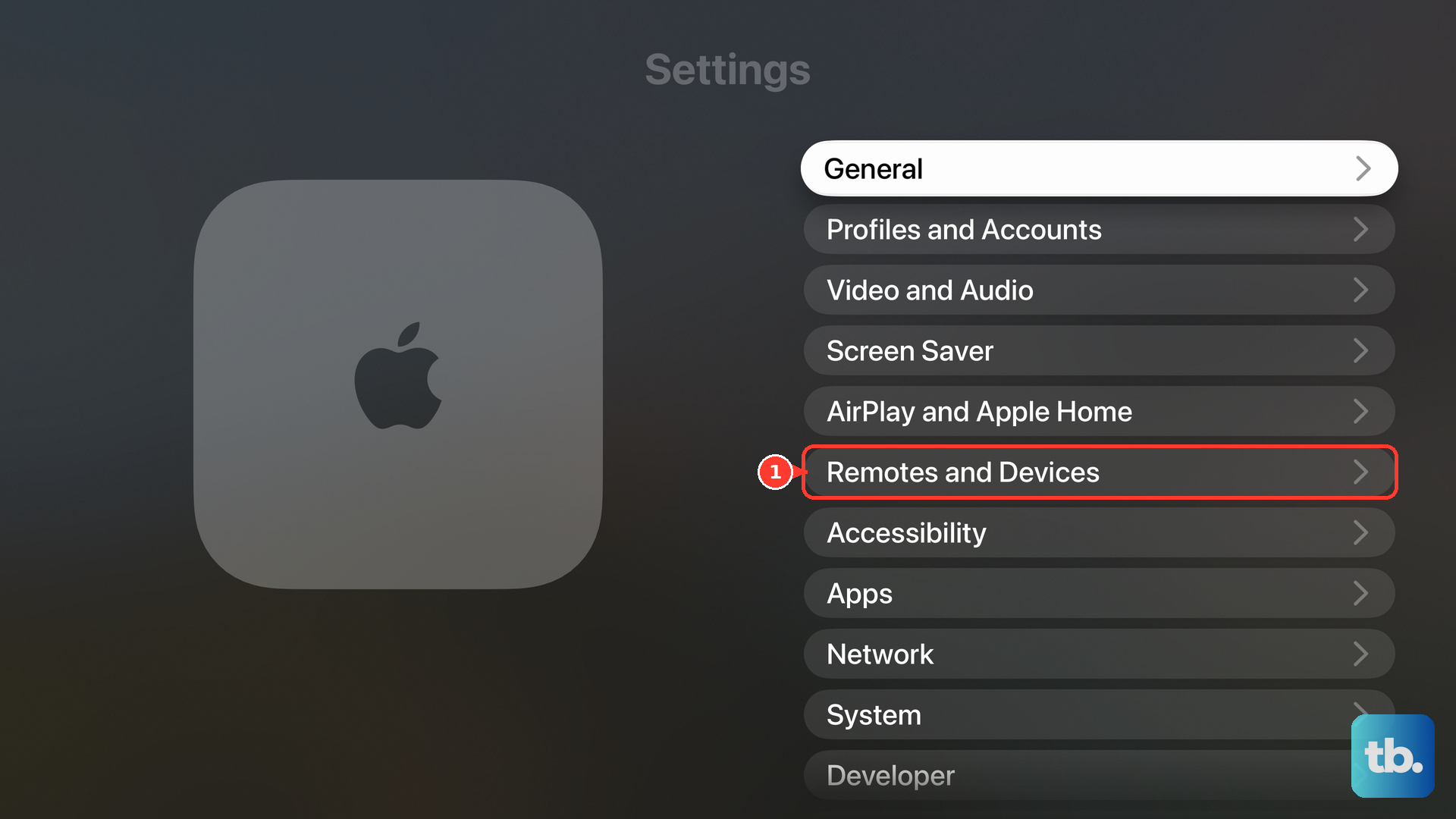
Select Click and Touch.
Quickly press the TV/Control Center button twice to return to the App Switcher.
Swipe horizontally to center the app.
Swipe upward to close it.
If the app still won't close or Apple TV stops responding, try the restart options below.
Control Apple TV with your iPhone or iPad
Apple's iPhone and iPad remote opens the App Switcher when you tap the TV button twice, and swipes in its touch area move between apps. Apple documents the upward closing swipe for the physical remote's clickpad or Touch surface rather than for the iPhone or iPad touch area, so if the app stays open after the last step below, close it with your physical remote.
- 1.Connect your iPhone or iPad and Apple TV HD or Apple TV 4K to the same Wi-Fi network.
- 2.Open Control Center > Apple TV Remote. If it's missing, add it through Control Center > Add Controls > Add a Control > Remote.
- 3.Select your Apple TV and enter the four-digit passcode if requested.
- 4.Tap the TV button twice to open the App Switcher.
- 5.Swipe horizontally in the touch area until the app is centered.
- 6.Swipe upward to close the app.
Return Home when you're finished with an app
If you simply want to leave an app, returning to the Home Screen is enough. Apple presents force quitting as a fix for an app that isn't working properly.
On the silver remote, hold Back to return to the Home Screen.
On the original black remote, hold Menu instead.
Neither action force quits the app. For a single-press shortcut on Apple TV 4K, open Settings > Remotes and Devices > TV Button.
Select Home Screen.
Press the TV button once whenever you want to return Home.
Restart Apple TV when an app stays stuck
A restart handles an unresponsive app or Apple TV 4K by restarting the whole device.
Open Settings > System > Restart.
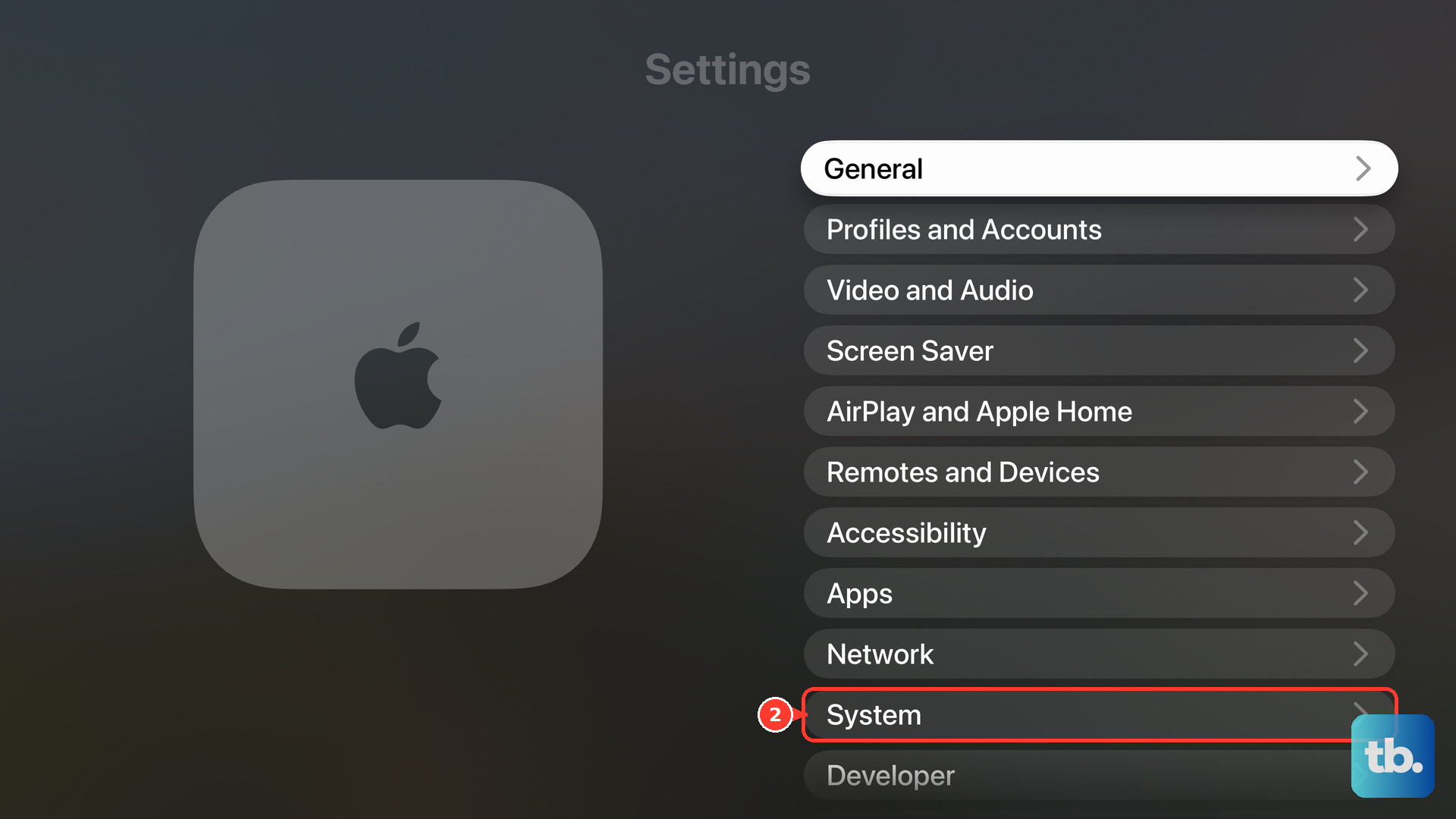
If you can't operate the menus with a silver remote, hold TV and Back together until the Apple TV status light flashes rapidly.
With the original black remote, hold TV and Menu together until the status light flashes rapidly instead.
If neither restart option works, unplug Apple TV from its power outlet.
Wait five seconds.
Reconnect the power to restart the device.
Frequently Asked Questions
Does closing an app delete its data?
No. Force quitting leaves the app installed. Delete removes an app and its data, while Offload removes the app but preserves its data.
Does this work with the original aluminum Apple Remote?
The original aluminum Apple Remote does not use this procedure. These remote-button steps require a Siri Remote or Apple TV Remote with a TV/Control Center button and a clickpad or Touch surface.
Do I need tvOS 27 to close apps?
No. Apple also documents this workflow for tvOS 26. tvOS 27 supports Apple TV 4K from the second generation onward; Apple TV HD and first-generation Apple TV 4K are not compatible with tvOS 27.
Can I open Apple TV Remote outside Control Center?
Yes. On iOS 27 and iPadOS 27, Apple TV Remote also opens from the Home Screen or App Library. Apple's standalone iPhone and iPad app requires version 27 or later.