Want to clear Facebook’s cache but can’t find the right button? The steps depend on where you use Facebook: Android has a direct cache control, while iPhone and iPad require deleting and reinstalling the app for a full local reset. Here’s what to tap on your device, including the separate controls for Facebook’s built-in browser and web browsers.
Clear Facebook’s app cache on Android
This removes Facebook’s temporary app files without clearing all its local storage.
Open your phone’s Settings.
Tap Apps.
On a Google Pixel, select See All Apps.
Choose Facebook, or Facebook Lite if that’s the app you use.
Open Storage & cache.
Tap Clear cache.
On a Samsung Galaxy phone or tablet, start in Settings. Android labels vary by manufacturer and software version.
Tap Apps.
Select Facebook, or Facebook Lite if applicable.
Open Storage.
Tap Clear cache.
On iPhone or iPad, delete and reinstall Facebook
Touch and hold the Facebook app icon.
Tap Remove App.
Select Delete App. Deleting removes the app and its related data; expect to sign in again afterward.
Tap Delete to confirm.
Reinstall Facebook from the App Store, choosing the listing published by Meta Platforms, Inc.
For a full local reset, use deletion: Offload App retains documents and data, and Remove from Home Screen leaves the app installed.
Clear data from Facebook’s built-in browser
Facebook stores data separately for website links you open inside its Android, iPhone, and iPad apps. Open a website link inside the app to reach that browser.
Tap Options > Go to Settings.
Tap Clear beside Your Browsing Data. This clears the embedded browser’s data, not the entire Facebook app cache.
Use Chrome’s cache controls for Facebook on the web
If you access Facebook through Chrome, clear Chrome’s cache. This removes cached files across the browser, including Facebook resources, and leaves the native Facebook app’s cache untouched.
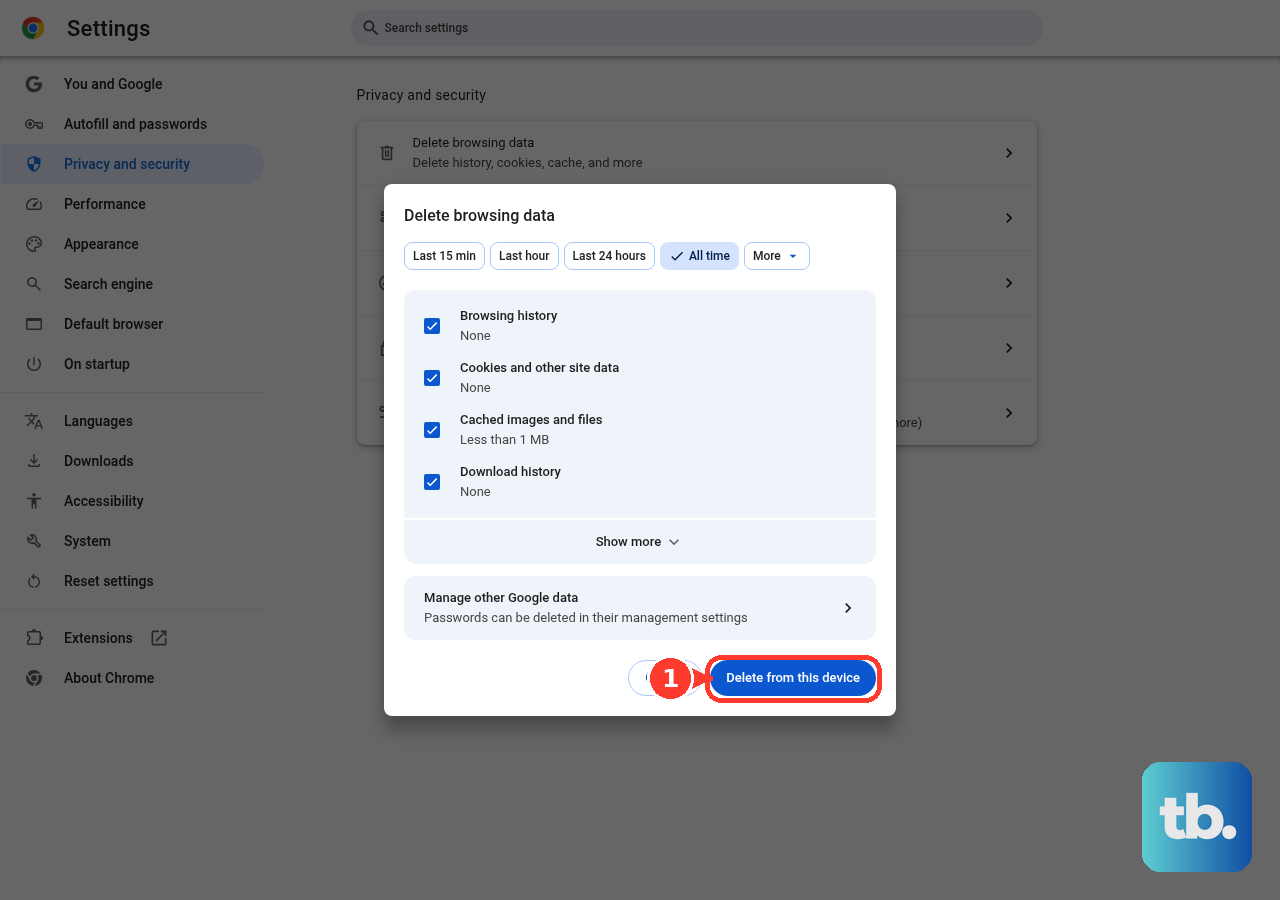
On a computer, open More > Delete browsing data.
Set the time range to All time.
Select Cached images and files.
Deselect the other categories you want to keep.
Click Delete data.
On Android, open Chrome’s More > Delete browsing data > More options.
Set the time range to All time.
Select Cached images and files.
Deselect any categories you don’t want to delete.
Tap Delete data.
On iPhone or iPad, open Chrome’s More > Delete Browsing Data.
Set Time Range to cover the period you want to clear.
Open Browsing Data.
Select Cached Images and Files.
Deselect the other categories you want to retain.
Tap Confirm.
Tap Delete Browsing Data to finish.
Remove Facebook’s website data in Safari
This clears Safari’s website cookies and cache, leaving Facebook’s app cache untouched.
On iPhone, open Settings > Apps > Safari > Advanced > Website Data.
Tap Remove All Website Data. This affects all websites, including Facebook, while retaining your browsing history.
Confirm with Remove Now. Be ready to sign in again after removing cookies.
On a Mac, open Safari > Settings > Privacy > Manage Website Data.
Select Facebook’s website entries.
Click Remove.
Find the cache controls in Microsoft Edge
For Facebook in desktop Edge, open Settings and more > Settings > Privacy, search, and services > Clear browsing data > Choose what to clear.
Choose All time as the time range.
Keep only Cached images and files selected to retain other types of browsing data. This clears cached files across sites, including Facebook.
Click Clear now to finish.
Use Firefox to clear cached web files
For Facebook in desktop Firefox, clear the browser’s cache with these controls.
- 1.Open the menu and navigate to History > Clear Recent History….
- 2.Set When: to Everything.
- 3.Select Temporary cached files and pages, leaving categories you want to retain deselected.
- 4.Click Clear.
Frequently Asked Questions
Will clearing Facebook’s cache delete my account or posts?
No. Clearing local cache or app storage does not delete your Facebook account or posts stored on Facebook’s servers.
What is the difference between Clear cache and Clear storage on Android?
Clear cache removes temporary files. Clear storage removes all local app data, including cache and sign-in state. Samsung calls the broader reset Clear data; expect to sign in again after using it.
Can I clear only Facebook’s data in Firefox?
Yes. On desktop Firefox, open Facebook. Click the shield or padlock beside the address. Choose Clear cookies and site data. This removes Facebook’s cookies, site data, and temporary cached files and pages. Be ready to sign in again.
Why can’t I delete Facebook from my iPhone or iPad?
Screen Time and device management include restrictions that block app deletion. If deletion is restricted on your device, clearing Facebook’s in-app browser data does not replace a full app reset.