Your Android phone's gyroscope measures how the device rotates around its three axes, and it works alongside the accelerometer and magnetometer to track motion and orientation. When those readings drift, screen rotation feels sluggish, motion games aim slightly off, and augmented reality apps place objects in the wrong spot. Calibration resets the sensor so it reports accurate data again.
The steps below work across most Android phones, with specific paths for Samsung Galaxy devices. Where exact menus vary by brand and Android version, follow the closest match in your own settings.
Read also - How to Fix Android GPS Not Working Issue
What the Gyroscope Does
The gyroscope measures the rate of rotation around the X, Y, and Z axes, which is how your phone knows it is being turned or tilted in place. The accelerometer measures linear movement and the pull of gravity, while the magnetometer acts as a compass and senses direction relative to Earth's magnetic field.
Android blends all three sensors to produce a single, stable picture of orientation. Because of that, what feels like a gyroscope problem is sometimes a compass or accelerometer issue instead, so it helps to know which sensor is actually misbehaving before you start.
Signs Your Gyroscope Needs Calibration
The clearest symptom is drift, where the on-screen view keeps slowly moving even when the phone is sitting still. Auto-rotate that lags or sticks, a racing or shooter game where your aim wanders on its own, and AR apps that misplace objects are all common signs.
Before assuming the sensor is at fault, restart the phone and remove any thick or magnetic case. Magnets in cases and stands can throw off the compass and make the whole orientation system feel broken.
Built-in Settings Calibration
Stock Android does not include a standard manual gyroscope calibration button, and many recent phones calibrate the sensor automatically in the background. A few brands tuck a sensor or hardware test option into their own settings, so it is still worth a quick look before reaching for an app.
Open Settings and use the search bar at the top, then type calibrate, gyroscope, or sensor. If your phone surfaces a calibration or sensor tool, open it and follow the on-screen steps; if nothing appears, your device almost certainly relies on automatic calibration or a service menu instead.
When a tool does exist, place the phone flat and still on a level surface, start the calibration, and wait for it to finish. The process takes only a few seconds, and keeping the device motionless is the single most important factor for a clean result.
Samsung Galaxy Service Menu
Samsung Galaxy phones include a hidden service screen that can test and calibrate the gyroscope directly. Open the Phone app, then dial the code below to open the diagnostic menu.
> Phone app > dial *#0*# > Sensor
On the Sensor screen, scroll to Gyroscope Sensor. Place the phone flat on a stable surface, tap Calibrate, and wait for the Calibration Complete message. You can also run Gyro Selftest from the sensor test screen, which reports Pass or Fail so you can confirm the hardware is working.
This menu talks straight to the hardware, so it is the most reliable option on a Galaxy device. If the self-test fails repeatedly even after calibration, the sensor may be faulty rather than out of alignment.
Samsung Members Diagnostics
Samsung also offers testing through its official Samsung Members app, which is the route Samsung points users toward for hardware checks. It is preinstalled on most Galaxy phones and available on the Play Store.
Open the app, tap Diagnostics on the Discover tab, then choose Phone diagnostics. You can tap the Sensor test on its own or tap Test all to check more than two dozen functions at once.
> Samsung Members > Diagnostics > Phone diagnostics > Sensor
Follow the on-screen prompts and keep the phone flat and still while the sensor test runs. This approach avoids hidden codes entirely and is the easiest official method for less technical users.
Third-Party Calibration Apps
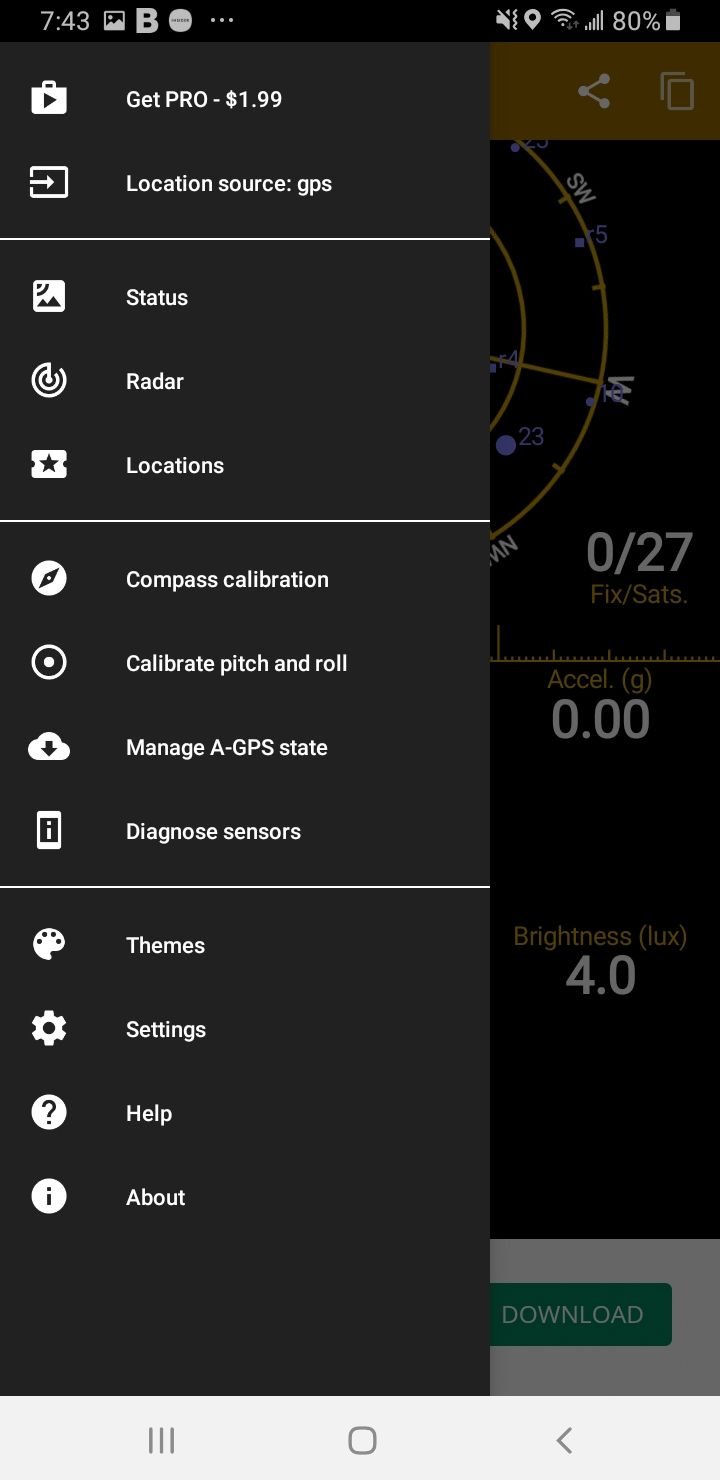
If your phone has no built-in tool, a sensor app from the Google Play Store can read and help reset the gyroscope. GPS Status & Toolbox is a long-standing option, and searching the store for gyroscope calibration or sensor test surfaces several alternatives.
Install an app with strong reviews, grant the permissions it requests, and look for a calibrate option, often labeled something like calibrate pitch and roll. Place the phone on a level surface and follow the prompts.
Keep in mind that an app can only nudge the values the system already exposes, so it cannot fully replace a true hardware calibration on phones that lock the sensor down.
Calibrate the Compass for Navigation Issues
If the real problem is your direction arrow spinning or pointing the wrong way in maps, that is the magnetometer, not the gyroscope, and it has its own quick fix. Open Google Maps with an internet connection and tap the blue location dot, then look for a calibration option.
When prompted, hold the phone and move it in a figure eight several times, rotating your wrist so the device tilts on all three axes. Do this for twenty to thirty seconds, away from metal desks, speakers, and other magnets for the best result.
This compass calibration is separate from gyroscope calibration, so run it whenever navigation feels off even if motion and rotation seem fine.
Tips for Accurate Calibration
Always calibrate on a completely flat, level surface and avoid touching or moving the phone while it works. A wobbly table or a hand-held device is the most common reason a calibration reads wrong.
Remove magnetic cases, pop sockets, and metal stands first, since they distort the readings. It also helps to recalibrate after a major software update and to restart the phone once before trying again if the first attempt does not stick.
If readings stay wrong after several careful attempts and a self-test keeps failing, the sensor itself may be damaged, and a service center is the next step.
Frequently Asked Questions
Does every Android phone have a gyroscope to calibrate?
No. Many budget phones ship with an accelerometer but no true gyroscope. If a sensor test app shows no gyroscope reading, your device likely does not have one, and rotation is handled by other sensors instead.
Why is there no calibration option in my Settings?
Most modern phones calibrate the gyroscope automatically and do not expose a manual control. If searching your settings for calibrate or sensor returns nothing, use the Samsung service menu, the Samsung Members app, or a third-party app depending on your brand.
How often should I calibrate my gyroscope?
Only when you notice a problem such as drift, sticky auto-rotate, or off aim in games. There is no benefit to calibrating on a schedule, though it is reasonable to recalibrate after a large software update changes sensor behavior.
Is the *#0*# code safe to use?
Yes, on Samsung Galaxy phones it opens a built-in hardware test screen meant for diagnostics. Stick to the Sensor and Gyroscope options, follow the prompts, and exit when you are done rather than changing unrelated settings.
My phone fails the gyro self-test, what now?
A repeated failure after careful calibration usually points to a hardware fault rather than a software glitch. Back up your data, try one more calibration after a restart, and if it still fails, contact your manufacturer or a repair center.
Will calibrating the gyroscope fix my GPS or compass?
Not directly. GPS and the direction arrow rely mainly on the magnetometer, so for those issues calibrate the compass in Google Maps with the figure eight motion instead of, or in addition to, the gyroscope.