
Your Google Pixel 9 Pro XL feels like it's ready to fry an egg. That heat isn't just uncomfortable, it can trigger performance slowdowns, dim the screen, and even shorten battery life. Here's what's causing it and how to cool things down.
Start with the simplest fix: close any games, camera apps, or video streams you're not actively using. Take off the case if you have one on. Move the phone out of direct sunlight or away from a heat source. More often than not, that's enough to let the Pixel 9 Pro XL's internal cooling kick back in.
Check What's Running in the Background
Android 14 does a decent job managing background tasks, but some apps still go rogue. Open Settings > Battery > Battery usage and look at what's been chewing through power over the last 24 hours. Anything with unusually high background activity is likely generating heat.
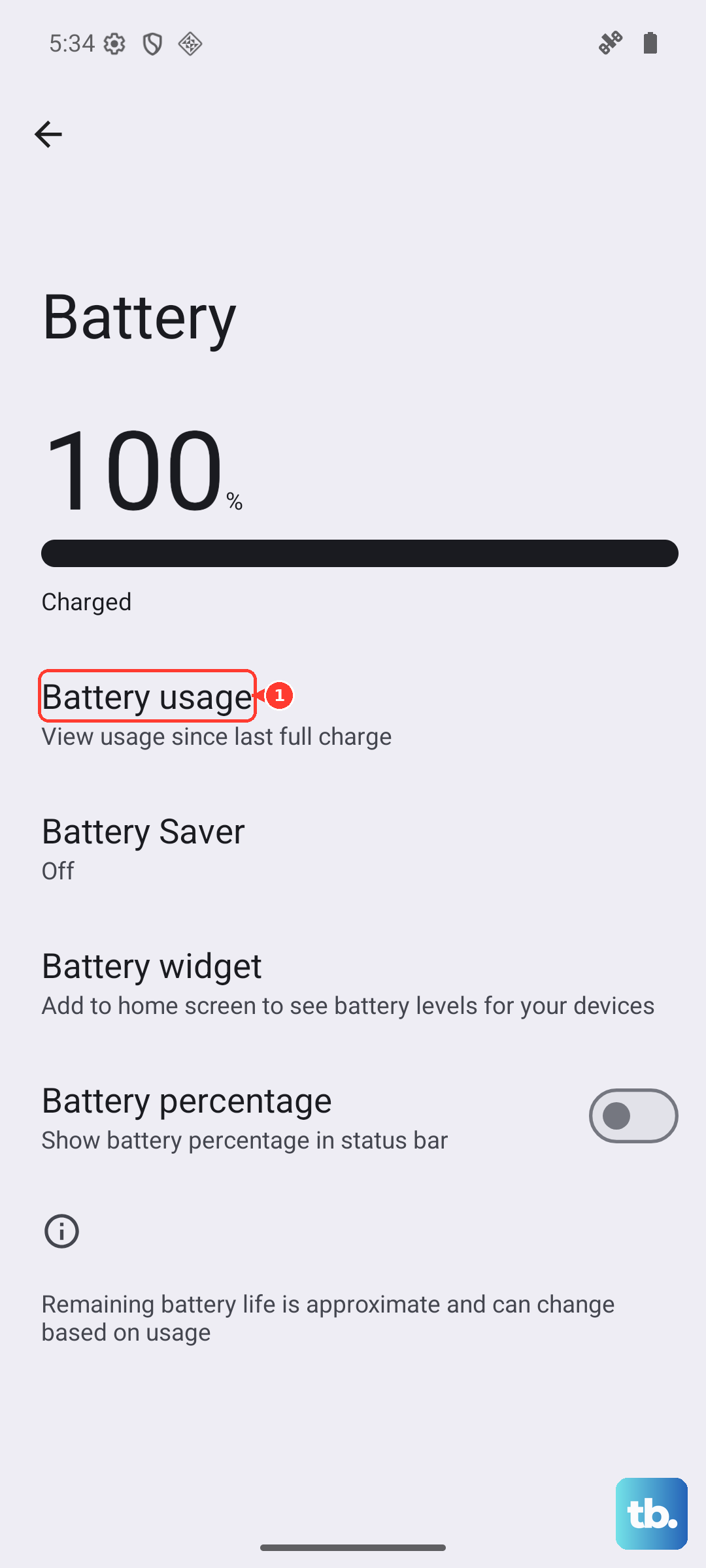
Tap that app and hit Restrict background activity. I've seen Google Maps, Facebook, and even some weather apps keep the processor awake longer than needed. Restricting them drops the temperature noticeably within a few minutes.
The Charger and Cable Matter More Than You Think
The Pixel 9 Pro XL can charge at up to 37W wired and 23W wireless, but those speeds are only possible with the right gear. A common issue on this model is that the original Google cable may stop working properly, causing the phone to heat up while charging slowly. Switching to a different high-quality USB-C cable, like the one from an iPad, can resolve both the heat and the slow charge.
Also, many third-party chargers simply can't deliver the full 37W. The phone compensates by drawing power inefficiently, which generates extra heat. If you're seeing the Check charging accessory notification, try a Google 45W USB-C charger or another reputable USB-C PD charger that supports the required voltage.
Is Smart Charging Interfering?
Google's smart charging features are designed to extend battery life by limiting charge speeds overnight. But sometimes they get confused and apply those limits during the day, making the phone work harder and run warmer. If you notice heat during charging, try disabling this temporarily.
Go to Settings > Battery > Charging optimization and switch from Adaptive charging to No optimization. Charge the phone back up to 100% and see if the heat drops. If it does, you can always re-enable adaptive charging later.
Force Restart to Clear Stuck Processes
When a background app or system process gets stuck on a loop, the processor runs at high speed without rest. A force restart clears everything without losing any data. Press and hold the Power button and Volume up button simultaneously until the restart menu appears, then tap Restart.
This is the method Google recommends for the Pixel 9 Pro XL, and it's different from older models. After the restart, check if the phone feels cooler within five minutes.
Keep the Phone Out of Hot Environments
Direct sunlight on a summer dashboard or using the phone while it sits on a car mount with the heater blowing can easily push internal temps past safe thresholds. The Pixel 9 Pro XL will warn you with a temperature notification and throttle itself to protect components. The fix is simple: shade or air conditioning.
Thick cases, especially silicone or rubber ones, trap heat. If you're noticing warmth during everyday use, try going caseless for a few hours and see if that helps. A thin fabric or TPU case breathes better than a heavy armor-style case.
Monitor and Tweak for the Long Term
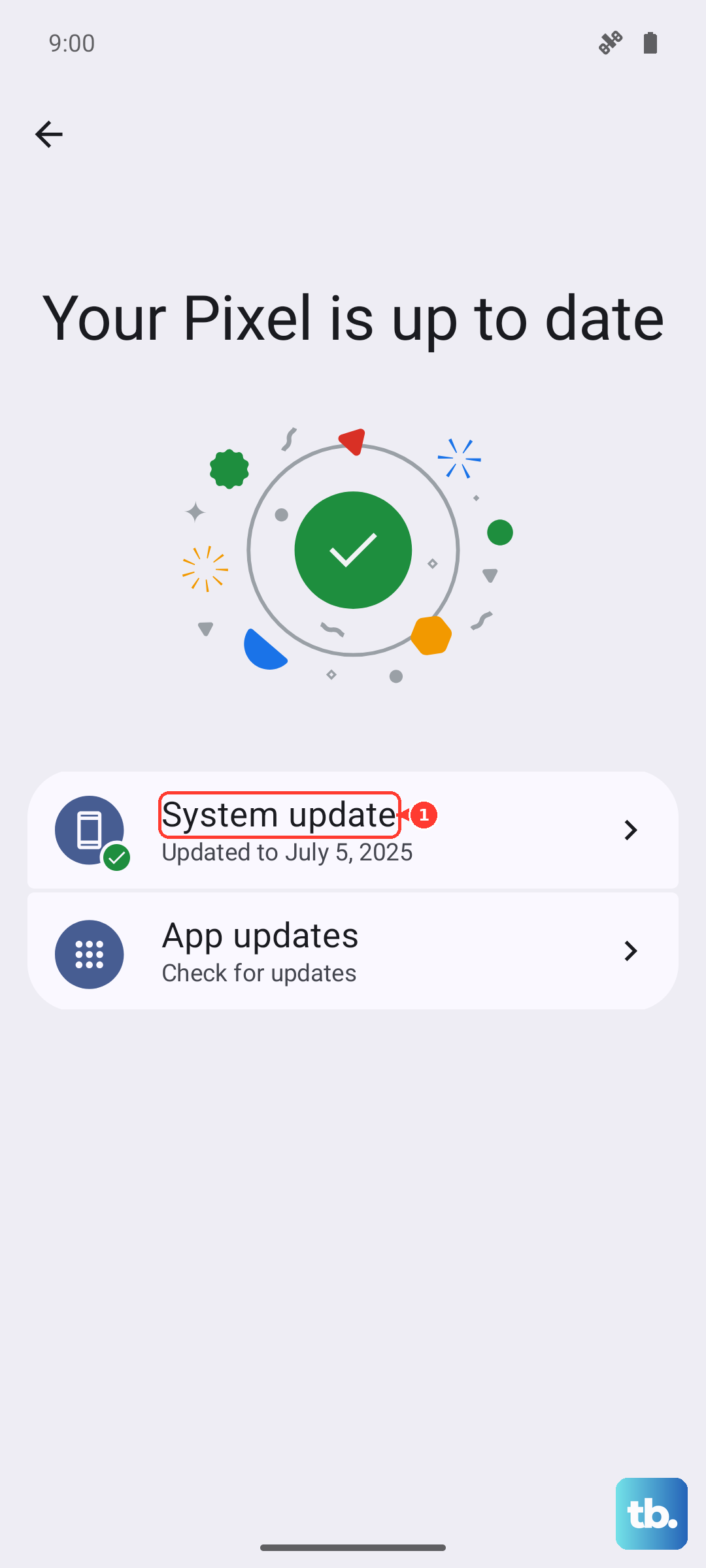
Keep the phone's software up to date. Google frequently releases patches that improve thermal management on the Tensor G4 chip. Check Settings > System > System update to make sure you're on the latest build.
If the heat only shows up when you're playing demanding games or recording 4K video for extended periods, that's normal, the processor is working hard. But if it gets hot during simple tasks like browsing or text messages, there may be a problematic app or a bug. In that case, boot into safe mode (press and hold Power, then long-press Restart) to see if third-party apps are the cause. If the phone stays cool in safe mode, one of your apps is the culprit. Uninstall recently added apps until you find the one.
Heat that persists after all these steps could indicate a hardware issue, but for most Pixel 9 Pro XL owners, the fix is a matter of checking the charger, closing heavy apps, or giving the phone a quick restart.