
When your Google Pixel 9's autocorrect starts making bizarre suggestions or stops working entirely, it can turn simple texting into a chore. The issue often stems from the Gboard app's learning data getting corrupted, a language setting mismatch, or a temporary software glitch. Here are the most effective ways to fix it and get your typing back on track.
Restart Your Pixel 9
I'd start with this one. A quick restart clears out temporary system glitches that can interfere with Gboard's predictions. Just press and hold the power button, then tap 'Restart'. If the phone is unresponsive, you can force restart it by holding the power button for about 30 seconds until the Google logo appears.
Clear Gboard's Cache and Data
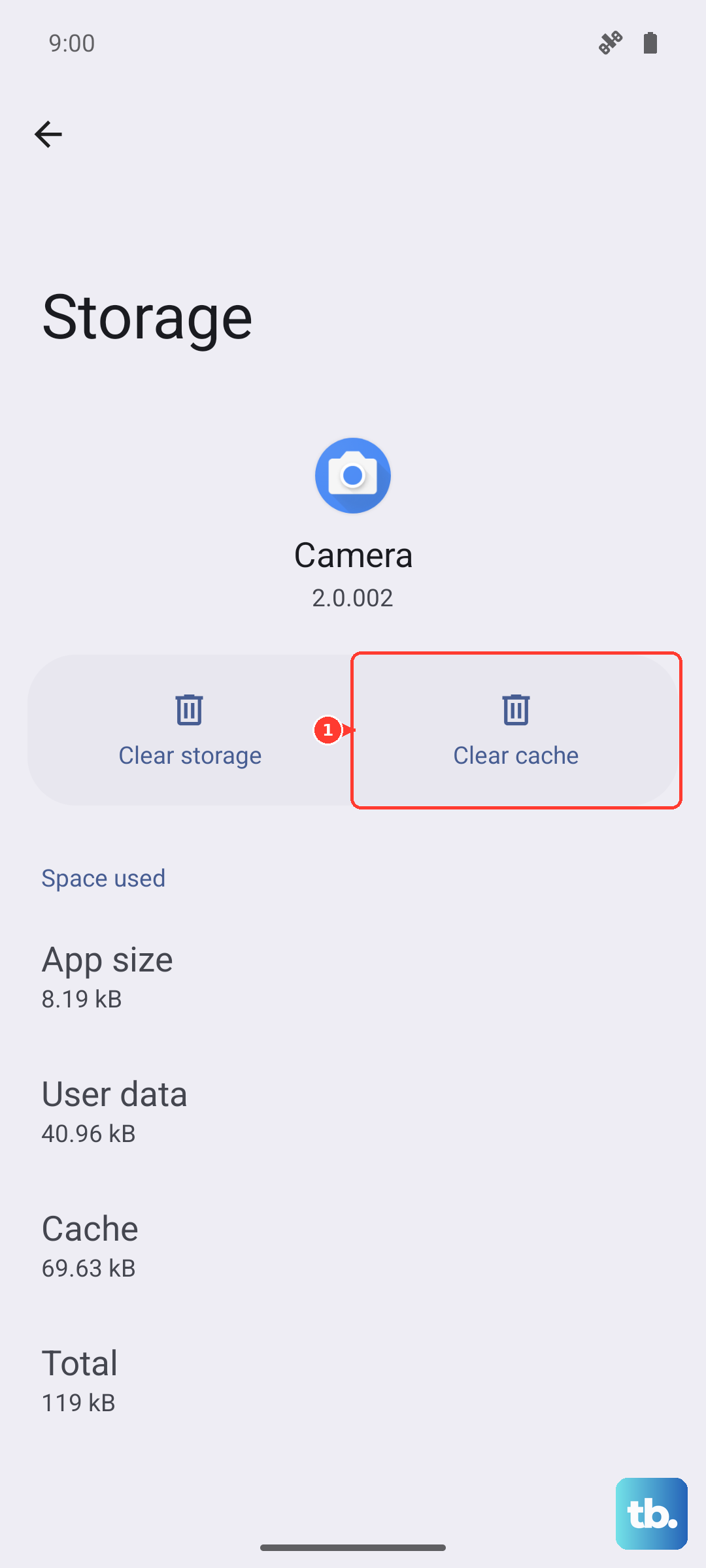
This is usually the most effective fix. Gboard stores temporary data (cache) and learned words (data) that can become corrupted. Clearing the cache is safe and won't delete your personal dictionary. Clearing the data will reset the app to its default state, so you'll lose any saved custom words or phrases.
Go to Settings > Apps > See all apps. Find and tap on Gboard. Then, tap Storage & cache. Tap 'Clear cache' first and test the keyboard. If the problem persists, come back and tap 'Clear storage' or 'Clear data'. Confirm the action, and Gboard will reset.
Check and Update Your Gboard Language
If your system language is set to English (UK) but Gboard is using English (US), the autocorrect will be working from a different rule set. Open any app that uses the keyboard and tap to bring it up. Long-press the comma key and tap the gear icon to open Gboard settings, or go through Settings > System > Languages & input > On-screen keyboard > Gboard.
Tap Languages and make sure the correct variant (like 'English (United States)') is downloaded and selected. You can also tap the three-dot menu here to check for language updates, which can improve prediction accuracy.
Review Your Gboard Settings
Sometimes a toggle gets switched off accidentally. Within Gboard settings, tap on Text correction. Here, ensure that Auto-correction is turned on. You can also adjust the correction strength from 'Modest' to 'Aggressive' if it's not catching enough errors.
While you're there, check that Show suggestion strip and Next-word suggestions are also enabled. These features work together with autocorrect to help you type faster.
Update the Gboard App
Google frequently updates Gboard with bug fixes and improved language models. Open the Google Play Store, tap your profile picture, and go to Manage apps & device. Under 'Updates available', look for Gboard. If it's listed, tap 'Update'.
You can also enable auto-update for Gboard to prevent future issues. In the Play Store, go to the Gboard app page, tap the three-dot menu, and ensure 'Enable auto-update' is checked.
Remove and Re-add Your Keyboard
This refreshes the keyboard's connection to the system. Go to Settings > System > Languages & input > On-screen keyboard. Here you'll see a list like 'Gboard', 'Manage keyboards'. Tap on 'Manage keyboards'.
Toggle Gboard off, then confirm any prompt. Open an app like Messages to see the default keyboard. Then, go back and toggle Gboard back on. You'll likely need to select it as your default keyboard again when you next try to type.
Check for System Updates
Since you're on a Pixel 9 with Android 15, system updates and Feature Drops can include fixes for core components like the keyboard. Go to Settings > System > System update and tap 'Check for update'.
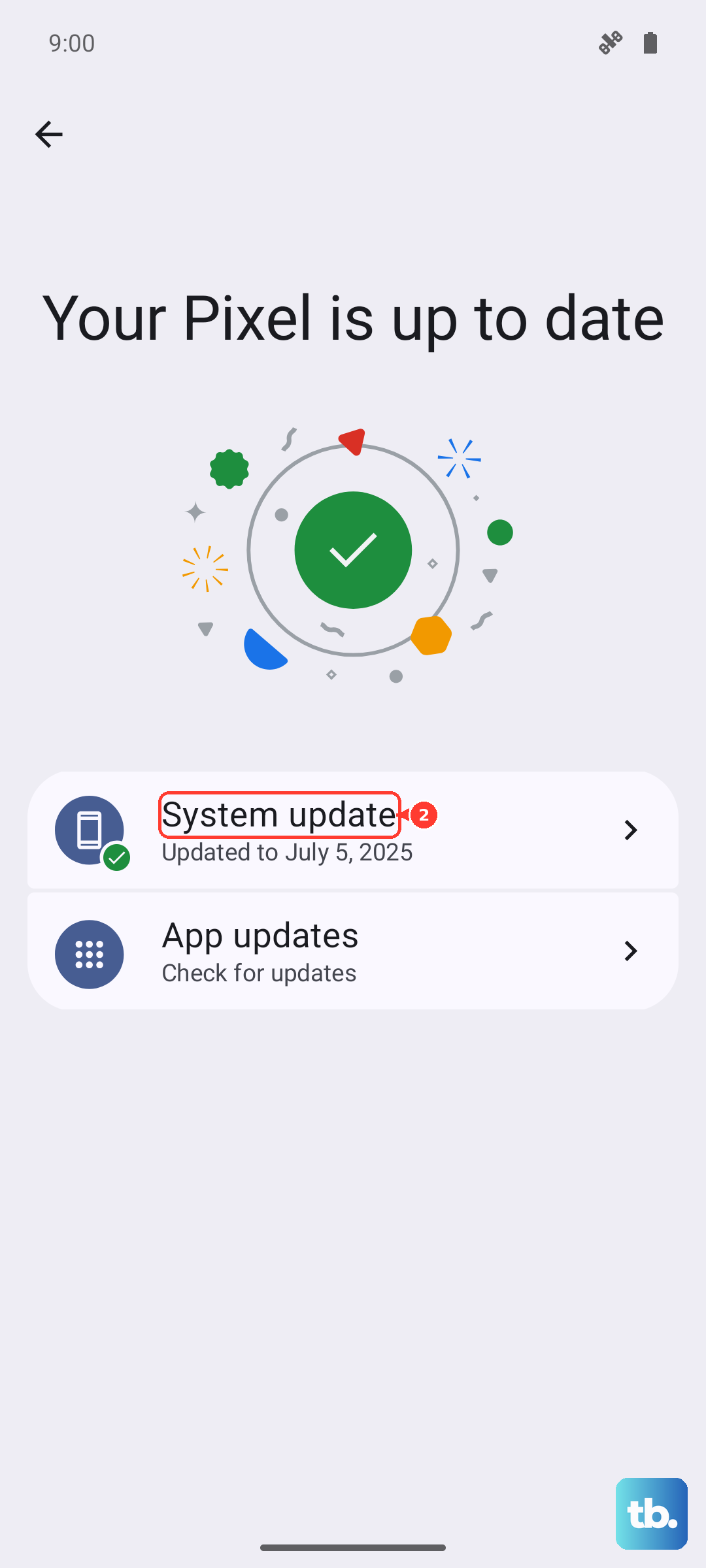
If an update is available, install it. I've seen Pixel Feature Drops occasionally introduce quirks that are resolved in subsequent smaller patches, so it's always worth checking.
Try a Different Keyboard Temporarily
If Gboard is still malfunctioning after all this, installing a different keyboard from the Play Store (like Microsoft SwiftKey) can help diagnose the problem. If the new keyboard works perfectly, it confirms the issue is isolated to Gboard's app or data on your device, which points back to a needed data reset or reinstall.
To fully reinstall Gboard, you'd need to uninstall its updates first via the app info page (Settings > Apps > Gboard), then update it again through the Play Store. This gives you a completely fresh version.