
When your Google Pixel 9's Bluetooth stops connecting to your headphones, car, or smartwatch, it can feel like you're suddenly cut off. The good news is that most of the time, this is a software hiccup that you can resolve yourself. I've found that starting with a few simple checks often gets things working again without much fuss.
First, make sure both your Pixel 9 and the device you're trying to connect to have enough battery. A low battery can sometimes prevent a stable connection. Pull down the quick settings shade from the top of your screen and look for the Bluetooth icon to confirm it's actually turned on. The icon should be blue when active.
Keep the devices within about 30 feet of each other without major obstructions. Double-check that the accessory you're pairing is in its correct pairing or discovery mode, which is often indicated by a flashing light. If you're trying to connect to a Pixel Watch or Pixel Buds, ensure the companion app is installed and updated.
Toggle Bluetooth Off and On
This is the digital equivalent of taking a deep breath. Swipe down from the top of your screen twice to open the full quick settings panel. Tap the Bluetooth icon to turn it off, wait about 10 seconds, and then tap it again to turn it back on. This refreshes the Bluetooth radio and can clear up a temporary glitch preventing connections.
Restart Your Pixel 9 and the Accessory
A simple restart fixes more problems than you might think. Press and hold the Power button on the side of your Pixel 9, then tap "Restart" on the screen. While your phone is rebooting, go ahead and power cycle the Bluetooth device you're having trouble with. Turn it off completely, wait a moment, and turn it back on. Once both are back up, try pairing them again.
Forget and Re-Pair the Device
If the connection is unstable or keeps dropping, it helps to start the pairing process from scratch. Open Settings > Connected devices > Previously connected devices. Tap the settings gear icon next to the problematic device and select Forget. This removes it from your phone's memory. Then, put the accessory back into pairing mode and select it from the "Available devices" list on your Pixel to pair it fresh.
Clear the Bluetooth System Cache
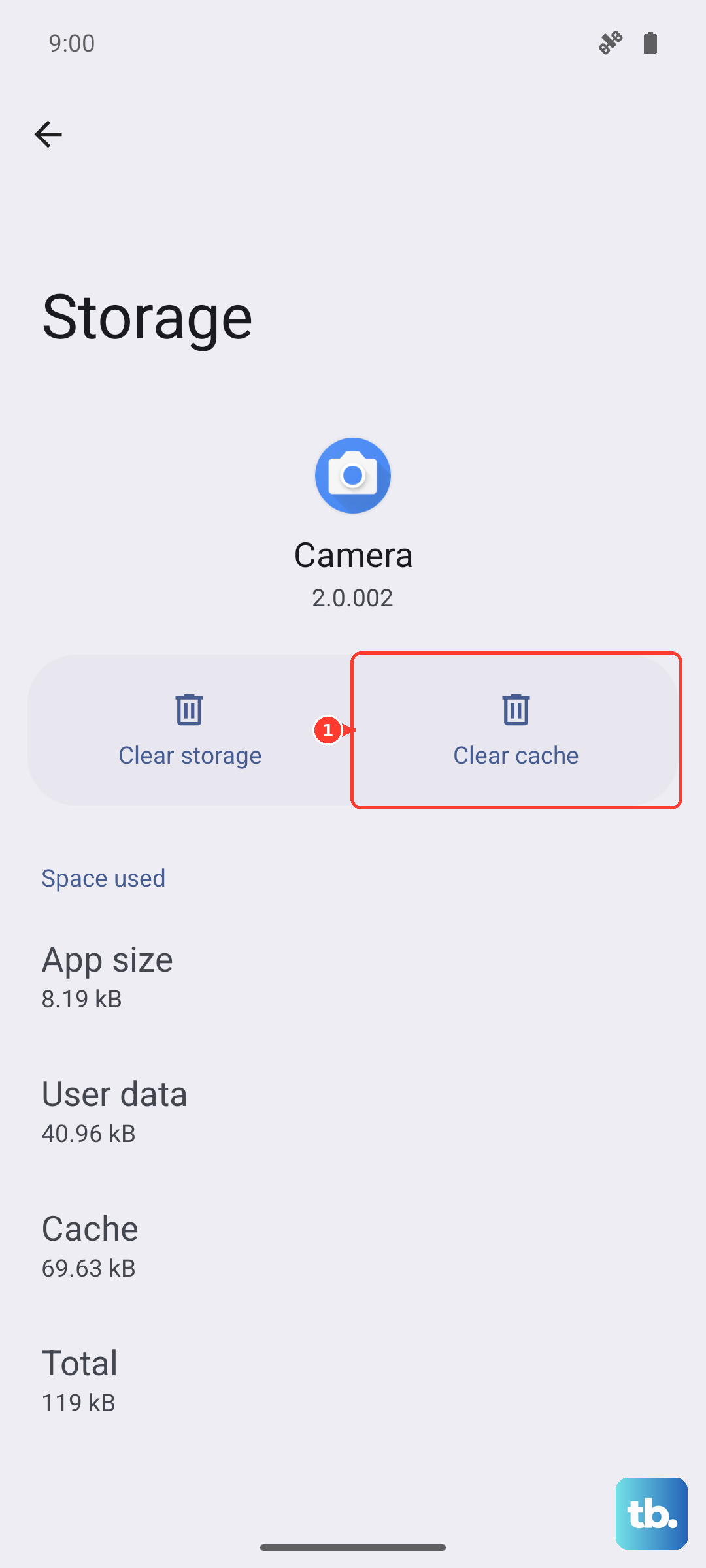
Your phone stores temporary data to help Bluetooth run smoothly, but this cache can become corrupted. Clearing it is safe and won't delete your paired devices. Go to Settings > Apps > See all apps. Tap the three-dot menu in the top right and select Show system apps. Scroll down and find "Bluetooth" in the list, then tap on it.
Select Storage & cache and then tap Clear cache. After doing this, restart your Pixel 9. If the problem persists, you can return to the same menu and choose Clear storage or Clear data. Be aware this will forget all your paired Bluetooth devices, so you'll need to re-pair everything afterward.
Check for Android and App Updates
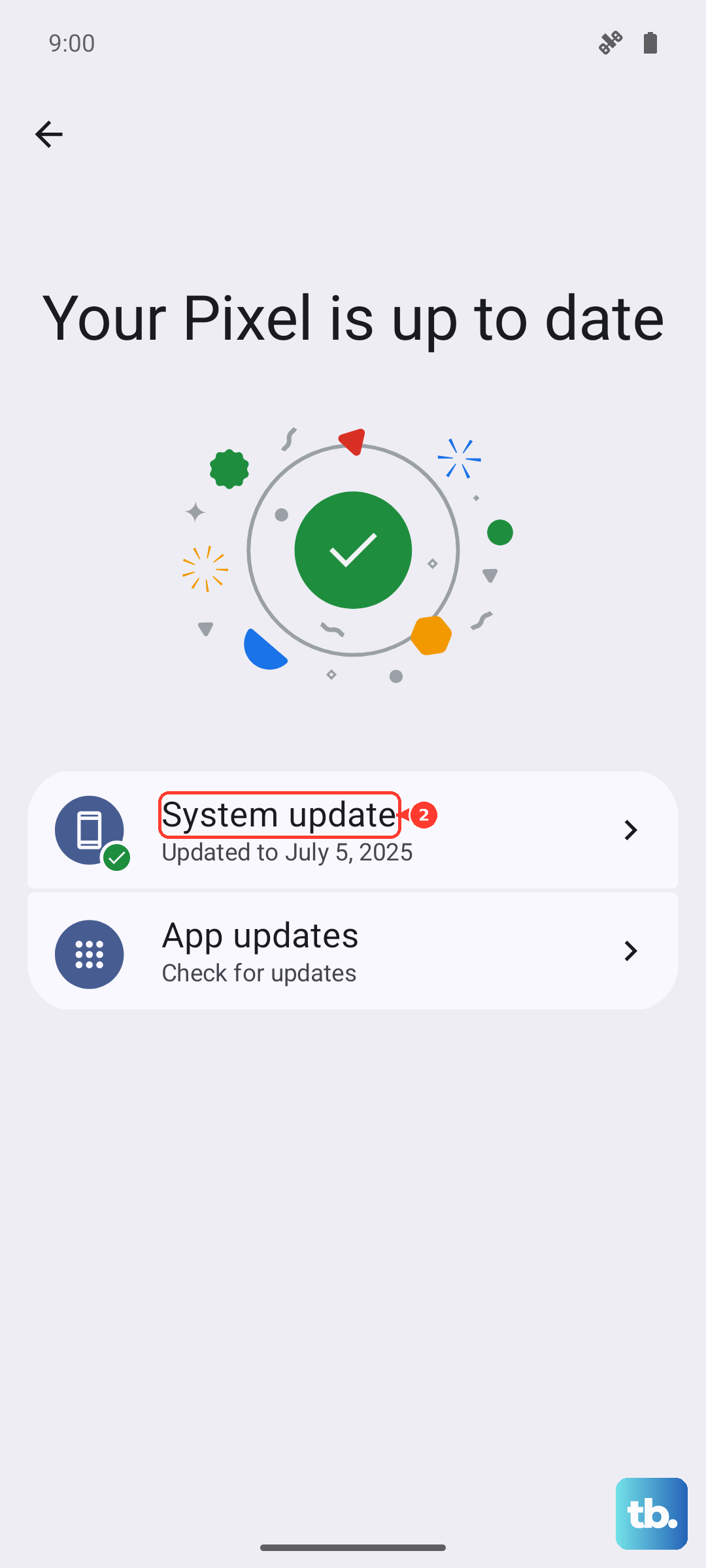
Software updates frequently include fixes for connectivity bugs. Google releases monthly security updates and larger Feature Drops for Pixels that can resolve these issues. Go to Settings > System > System update to check for and install any available Android updates.
Also, open the Google Play Store, tap your profile icon, and go to Manage apps & device > Updates available. Update any apps related to your Bluetooth device, like the Pixel Buds app or your car manufacturer's app. Keeping everything current ensures the best compatibility.
Reset Your Network Settings
This resets all wireless communications on your phone back to their default state, including Wi-Fi, mobile data, and Bluetooth. It's a more thorough step that can resolve deeper configuration conflicts. You'll need to re-enter Wi-Fi passwords and re-pair Bluetooth devices afterward.
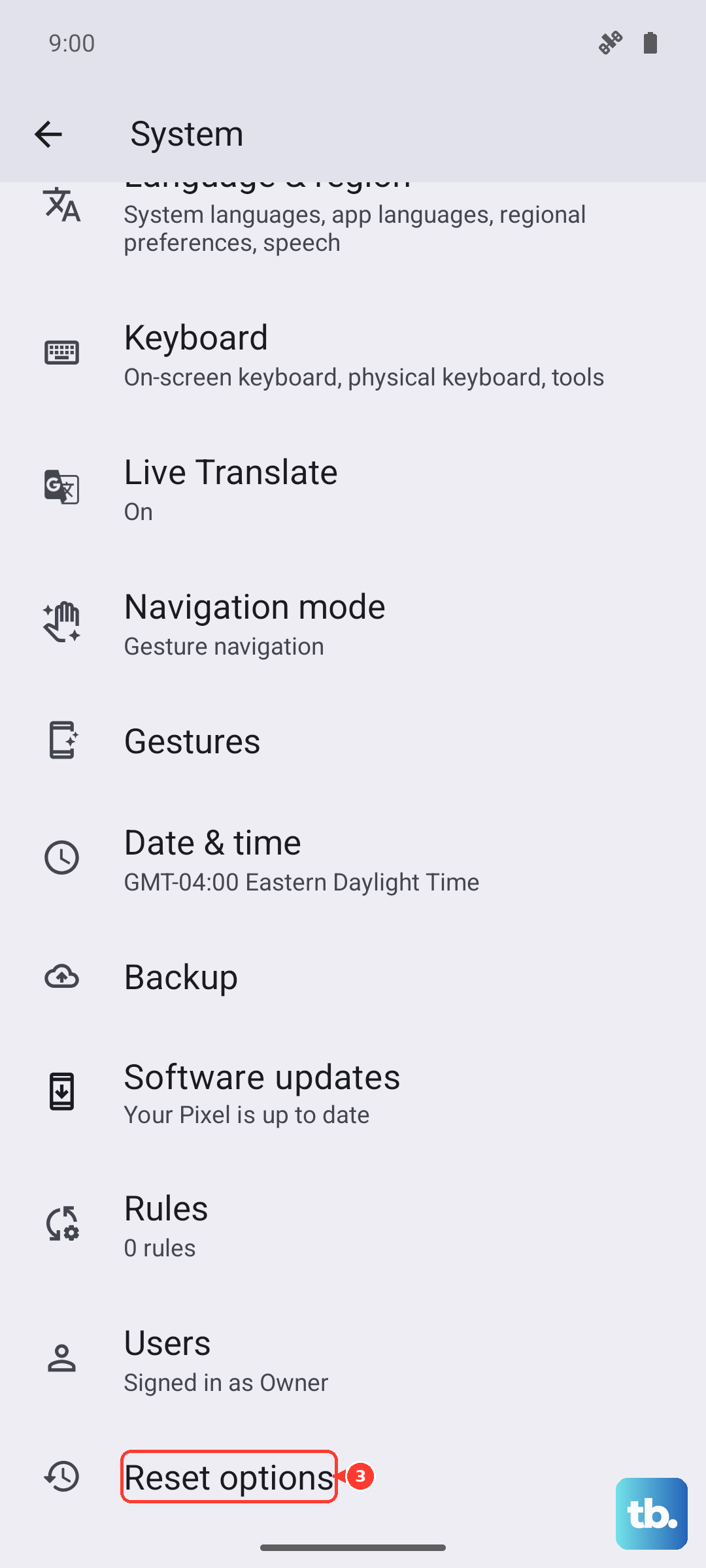
To do this, navigate to Settings > System > Reset options. Tap on Reset Wi-Fi, mobile & Bluetooth and confirm your choice. Your Pixel 9 will restart, and you can then attempt to set up your Bluetooth connections again from scratch.
Boot Into Safe Mode
Safe Mode temporarily disables all apps you've downloaded. If Bluetooth works perfectly in Safe Mode, it means a third-party app is causing the interference. To enter Safe Mode, press and hold the Power button and Volume Up button together until the power menu appears. Then, tap and hold the "Power off" option on your screen until you see a prompt to reboot to Safe Mode. Tap "OK."
Once in Safe Mode, which will be indicated in the bottom corner of your screen, test your Bluetooth connection. If it works, restart your phone normally to exit Safe Mode. You'll then need to identify the problematic app by uninstalling recently downloaded apps one at a time, testing Bluetooth after each one.
Address Specific Connection Problems
For car Bluetooth issues, the most reliable method is to clean the slate on both sides. Forget the car from your Pixel's Bluetooth settings and also delete your phone from your car's infotainment system paired device list. Then, initiate the pairing process from your car's menu first before trying to connect with your phone.
If Bluetooth simply won't turn on at all, try the force restart function. Press and hold the Power button for about 30 seconds until the phone screen goes black and the Google logo reappears. After it boots up, check if you can enable Bluetooth. If the toggle is still completely unresponsive, it points to a deeper software or hardware issue.