
When your Google Pixel 8's GPS starts dropping signal, it can leave you stranded mid-navigation or cause apps to lose your location. This is usually a software hiccup that you can fix yourself. Let's get your location services working reliably again.
Refresh Your Location Connection
The quickest thing to try is simply toggling your phone's location setting off and back on. Swipe down twice from the top of your screen to open the full Quick Settings panel. Tap the Location tile to turn it off, wait about 15 seconds, and then tap it again to turn it back on. This forces the GPS radio to reset and can clear up a temporary glitch instantly.
If that doesn't stick, a full restart of your Pixel 8 is the logical next step. Press and hold the power button (or the Power button together with a Volume button on phones where holding Power alone opens the assistant) until the power menu appears, then tap Restart. This clears out any system processes that might be interfering with the GPS sensor.
Check Your Pixel's Location Settings
Android offers different modes for location accuracy, and sometimes a battery-saving setting can be the culprit. Open Settings and go to Location. At the top, make sure "Use location" is switched on.
Next, tap on Location services. For the best possible GPS performance, especially when driving, make sure Google Location Accuracy is enabled. This uses Wi-Fi, Bluetooth, and cellular networks to assist the GPS chip, giving you a faster and more stable lock.
Review App Permissions and Updates
A specific app, like Google Maps or Waze, might be the issue. First, check that it has permission to access your location. Go to Settings > Apps, select the app, then tap Permissions. Ensure "Location" is set to "Allow only while using the app" or "Allow all the time" for navigation apps.
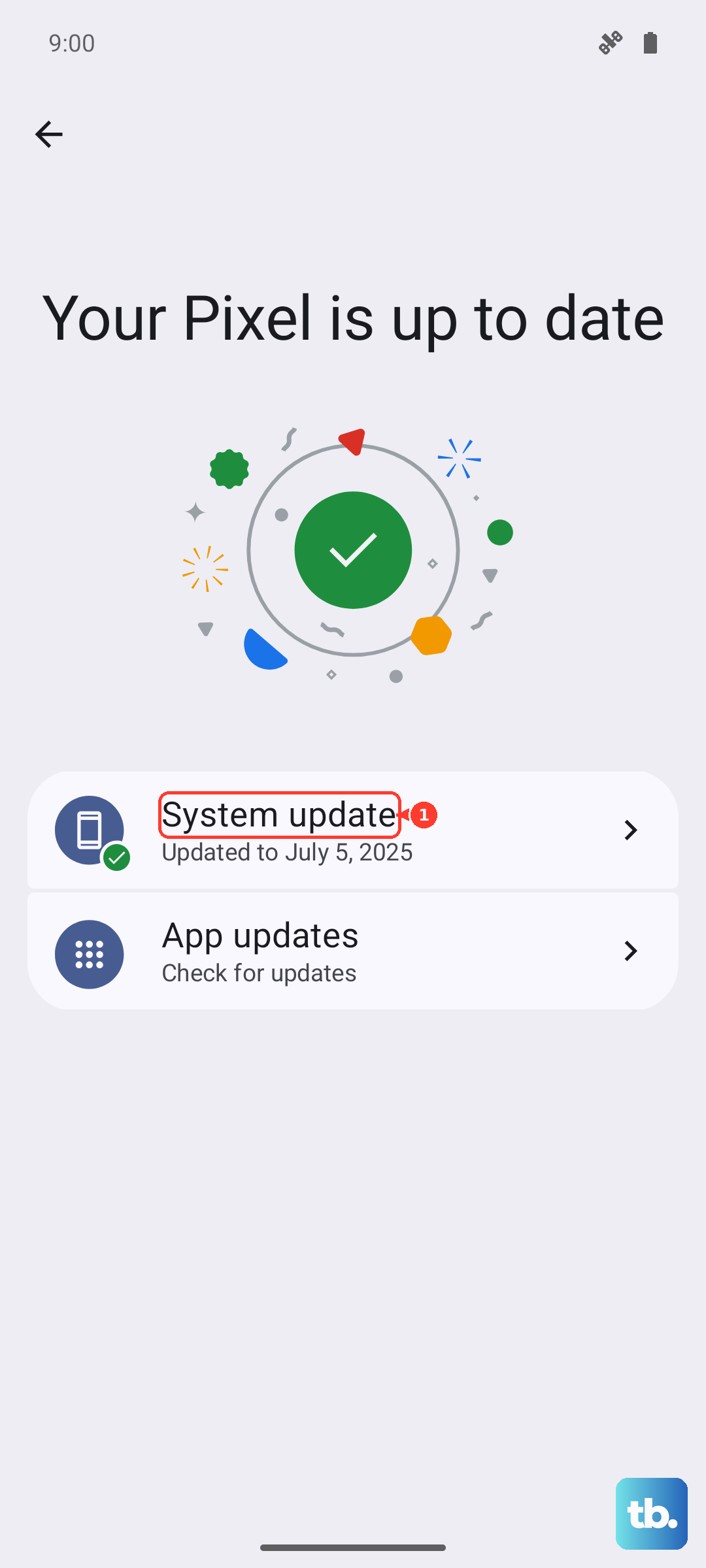
Outdated app software can cause bugs. Open the Google Play Store, tap your profile icon, and go to Manage apps & device. Install any pending updates for your navigation apps. Also, check for a system update by going to Settings > System > System update. Google frequently releases fixes for known issues, including GPS performance.
Clear the App's Cache and Data
If a particular app is misbehaving, its stored data might be corrupted. Go to Settings > Apps and select the problematic app. Tap Storage & cache and then Clear cache. This won't delete your personal data like saved addresses.
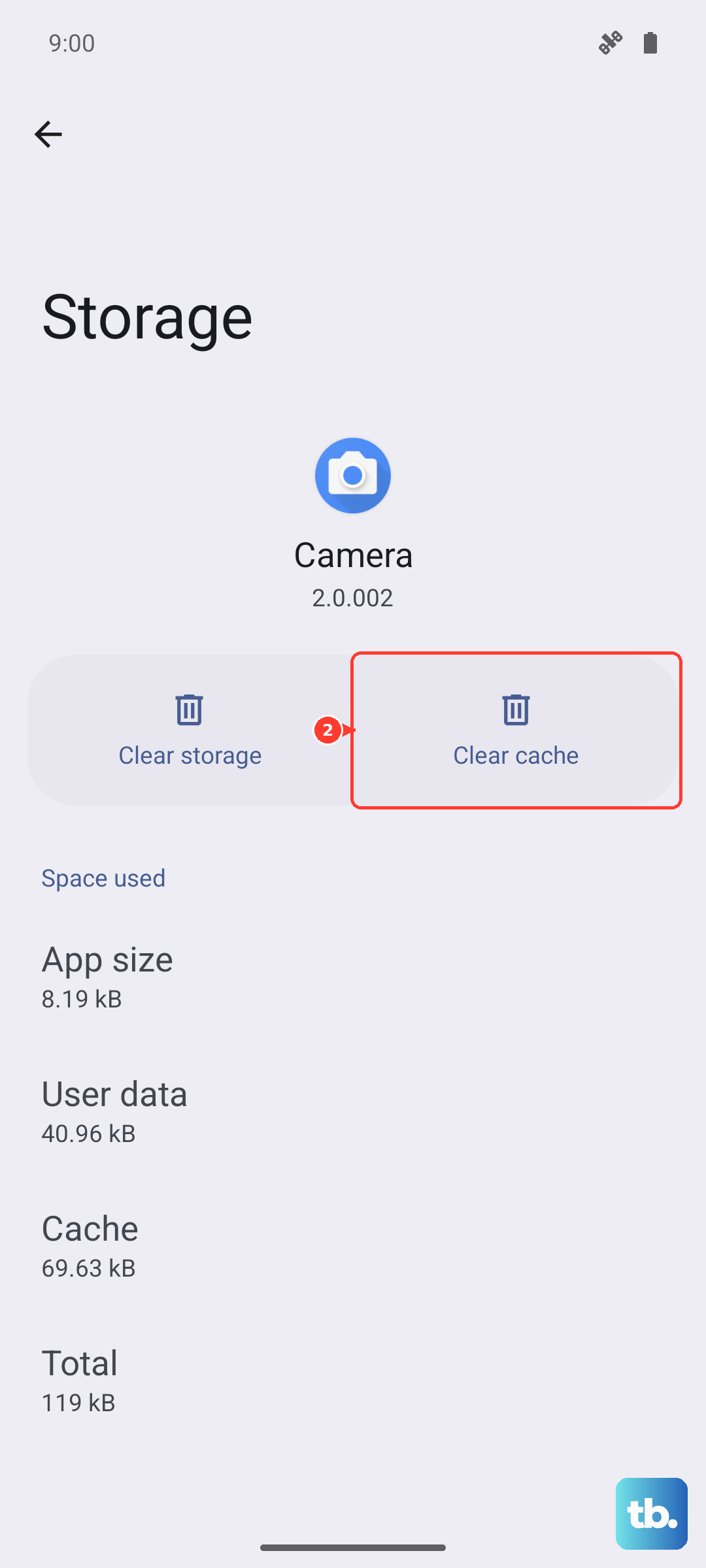
If the GPS issue persists only in that app, you can take the stronger step of clearing its data. From the same storage menu, tap Clear storage or Clear data. Be aware this will reset the app to its default state, so you'll need to sign back in and reset any preferences.
Test in Safe Mode
To rule out a third-party app causing conflict, boot your Pixel 8 into Safe Mode. Press and hold the Power button and Volume Up button together until the power menu appears. Then, tap and hold the Power off option on your screen until you see a prompt to reboot to Safe Mode. Tap it.
In Safe Mode, test your GPS with Google Maps. If it works perfectly here, a recently installed app is likely the problem. Restart your phone normally to exit Safe Mode and try uninstalling apps one by one to find the culprit.
Reset Your Network and Location Settings
This is a more comprehensive reset that won't touch your personal files like photos or messages. It will, however, erase all your Wi-Fi passwords, paired Bluetooth devices, and location preferences. Go to Settings > System > Reset options.
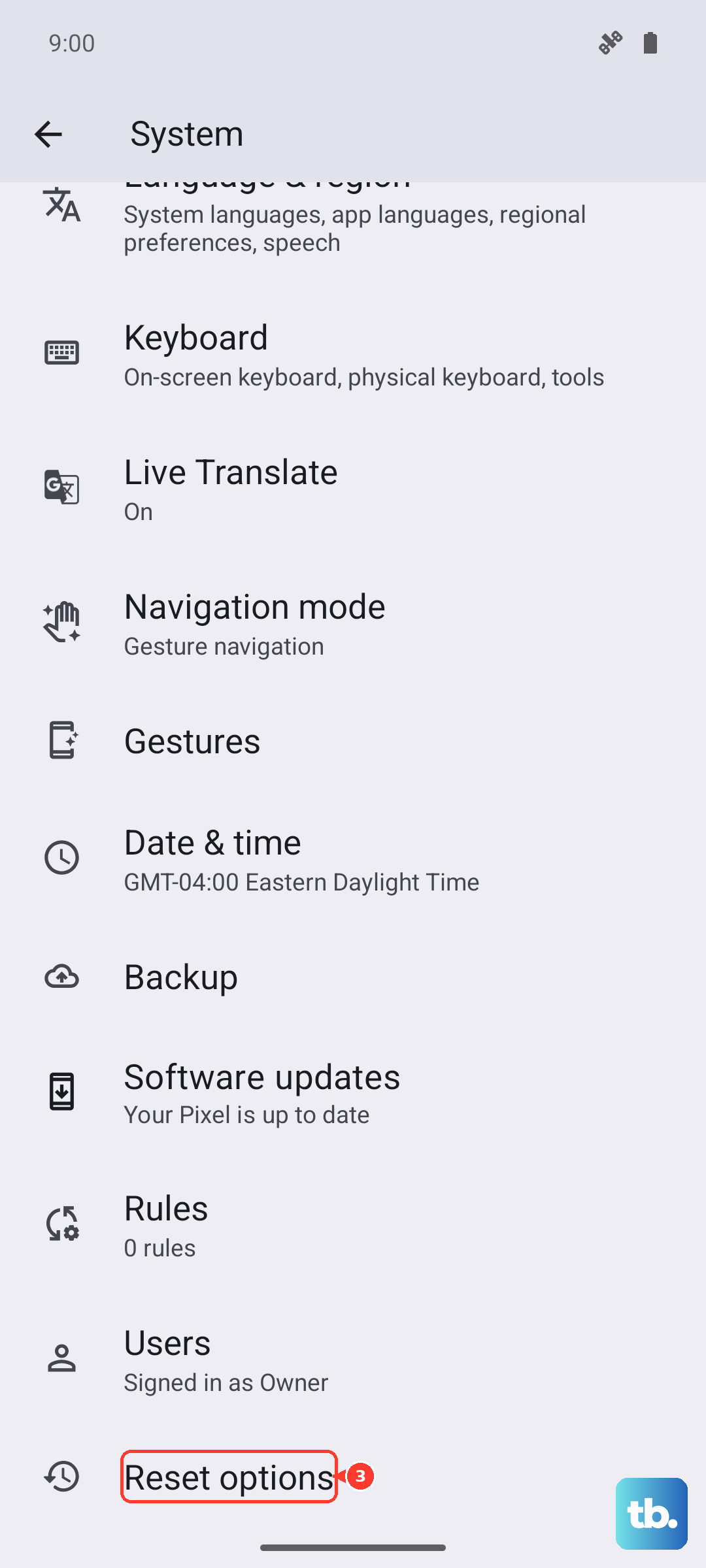
Tap on Reset Wi-Fi, mobile & Bluetooth and confirm. After the phone reboots, also tap Reset location & personal safety from the same Reset options menu. This gives your GPS and network assist services a completely fresh start.
Check for Physical and Environmental Factors
GPS signals are line-of-sight and can be blocked. Thick metal phone cases, especially those with magnetic clasps or plates for car mounts, can interfere. Try removing your case temporarily to see if the signal improves.
Your environment plays a huge role. GPS struggles indoors, in dense urban areas with tall buildings, under heavy tree cover, or in deep valleys. For a proper test, find an open outdoor space with a clear view of the sky.
Use a GPS Diagnostic Tool
To see what's happening in real-time, download a free app like "GPS Test" or "GPS Status & Toolbox" from the Play Store. Open the app and look for a screen showing satellites.
If the app shows your Pixel 8 connecting to multiple satellites (the icons will typically turn green) but your navigation app still fails, it's almost certainly a software or app issue. If the diagnostic app can't find a single satellite even outdoors, it could point toward a less common hardware problem.
Consider a Factory Reset
If you've tried everything else and the GPS is still unreliable, a factory reset is the final software step. This will erase everything on your phone, so ensure you have a complete backup. Go to Settings > System > Reset options > Erase all data (factory reset).
After the reset, set up your phone as new initially, don't restore from a backup right away. Test the GPS immediately with Google Maps. If it works now, the problem was buried deep in your system software. If it still fails after a clean factory reset, the issue may be related to the phone's hardware.