
The flashlight on your Pixel 10a can be a lifesaver, but it's frustrating when tapping the Quick Settings tile does nothing. The button might be grayed out, or it just won't respond. Here's how to get that LED shining again.
Force Close the Camera App
The camera and flashlight share the same physical LED. If the Camera app is still running in the background, Android locks the flashlight button and makes it unavailable. Swipe up from the bottom, hold, and swipe the Camera card away. Check the flashlight again, it usually snaps right back.
Do a Force Restart
A soft restart clears out the software state that controls the flashlight. On the Pixel 10a, press and hold the Power button for about 30 seconds, or press Power + Volume Down together for 10-15 seconds until the phone restarts. This is different from a normal reboot and works even if the screen is frozen.
Check Battery Saver Mode
Battery Saver doesn't explicitly turn off the flashlight, but some Pixel users find the flashlight becomes sluggish or unresponsive when it's active. Pull down the Quick Settings panel and tap the Battery Saver tile to turn it off. Try the flashlight again after toggling it.
Let the Phone Cool Down
If your Pixel 10a feels hot to the touch, it might be limiting the flashlight to protect the hardware. Overheating triggers automatic shutdowns for high-draw features. Set the phone down in a cooler spot for 10-15 minutes. Once the temperature drops, the flashlight option should come back on its own.
Use Google Assistant
Say "Hey Google, turn on the flashlight". If Assistant activates it but the Quick Settings tile doesn't work, you're looking at a UI glitch rather than a hardware issue. You can also say "turn off the flashlight" to reset the state, then try the tile again. A restart usually clears this up fully.
Adjust Brightness With a Long Press
Tap and hold the flashlight tile in Quick Settings instead of just tapping it. A brightness slider pops up. Drag it to the right. If the flashlight was accidentally set to its lowest level, it might look like it's off in a bright room. Crank it up and see if it was working all along.
Check the Flash in Camera Mode
Open the Camera app and tap the flash icon in the top corner. Set it to On and take a photo. If the flash fires normally, the LED hardware is fine and the problem is software-side. If the flash doesn't work in the camera either, the LED itself might be damaged.
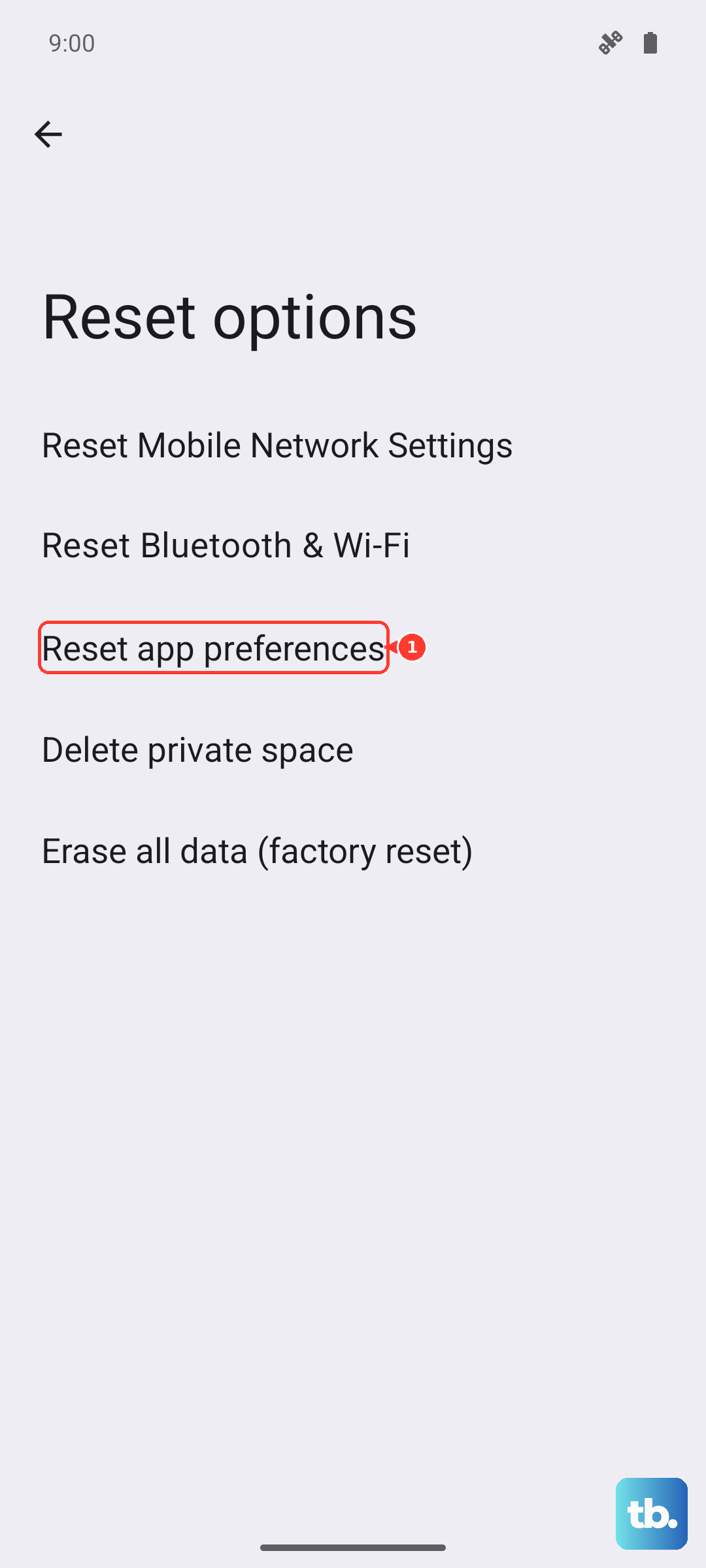
Reset App Preferences
Go to Settings > System > Reset options > Reset app preferences. This won't delete your data, but it resets disabled apps, default apps, and permission overrides. It can fix cases where the System UI that handles the flashlight tile got blocked or restricted.
Update Android
Go to Settings > System > Software update and check for updates. Google has patched flashlight bugs in previous Android releases, including issues where the tile becomes stuck or unresponsive. Install any pending updates and test the flashlight right after the phone restarts.
Check for Physical Damage
If none of the software fixes work, the LED itself could be faulty. Shine another phone's flashlight into the Pixel's rear camera lens, if you see the LED module at the back and it looks cracked or discolored, it may need repair. A service center can test and replace the LED assembly if needed.