
A blurry camera on your Pixel 10a turns every shot into a disappointment. Maybe the whole photo is soft, maybe only one lens is acting up, or maybe everything looks hazy no matter what you try. Before you assume the hardware is toast, run through these fixes.
Clean the Camera Lens
This is the number one culprit. Grab a soft microfiber cloth and gently wipe the camera lens on the back of your phone. Fingerprints, dust, and pocket lint all create a thin haze on the glass that makes photos look foggy. Avoid using your shirt or a paper towel, they can scratch the lens coating over time.
Remove Your Case
Some cases, especially cheap ones, don't line up perfectly with the camera cutout. A raised lip can actually cover the edge of the lens, or the case itself might trap dust right in front of the glass. Pop your case off, snap a test photo, and see if it's clearer. Also check that no screen protector or separate camera lens cover is blocking the view.
Tap to Focus
Open the Camera app and tap on the subject you want sharp. You'll see a yellow square pop up showing where the camera is focusing. If you're shooting something close up, the autofocus might lock onto the background instead. Tap directly on your subject, or press and hold to lock focus (AE/AF Lock) so it doesn't drift.
Switch Between Lenses
If your Pixel 10a has more than one rear camera, try switching lenses in the Camera app. Tap the zoom buttons to go from 0.6x (ultrawide) to 1x (main) and higher. If only one lens produces blurry results, that specific sensor or lens might need cleaning or inspection. A sharp image from another lens rules out a system-wide software issue.
Close and Reopen the Camera App
The camera software can glitch, it happens on Android just like any other platform. Swipe up from the bottom, find the Camera app, and flick it away. Wait a couple of seconds, then reopen the app and test. This clears any stuck processes in the camera pipeline.
Restart Your Pixel 10a
A full restart resets the camera stack and clears temporary gremlins. Press and hold the Power button for a few seconds until the power menu appears, then tap Restart. If the phone is completely unresponsive, force restart by pressing and holding Power + Volume Down for 10 15 seconds until it reboots.
Clear the Camera App Cache
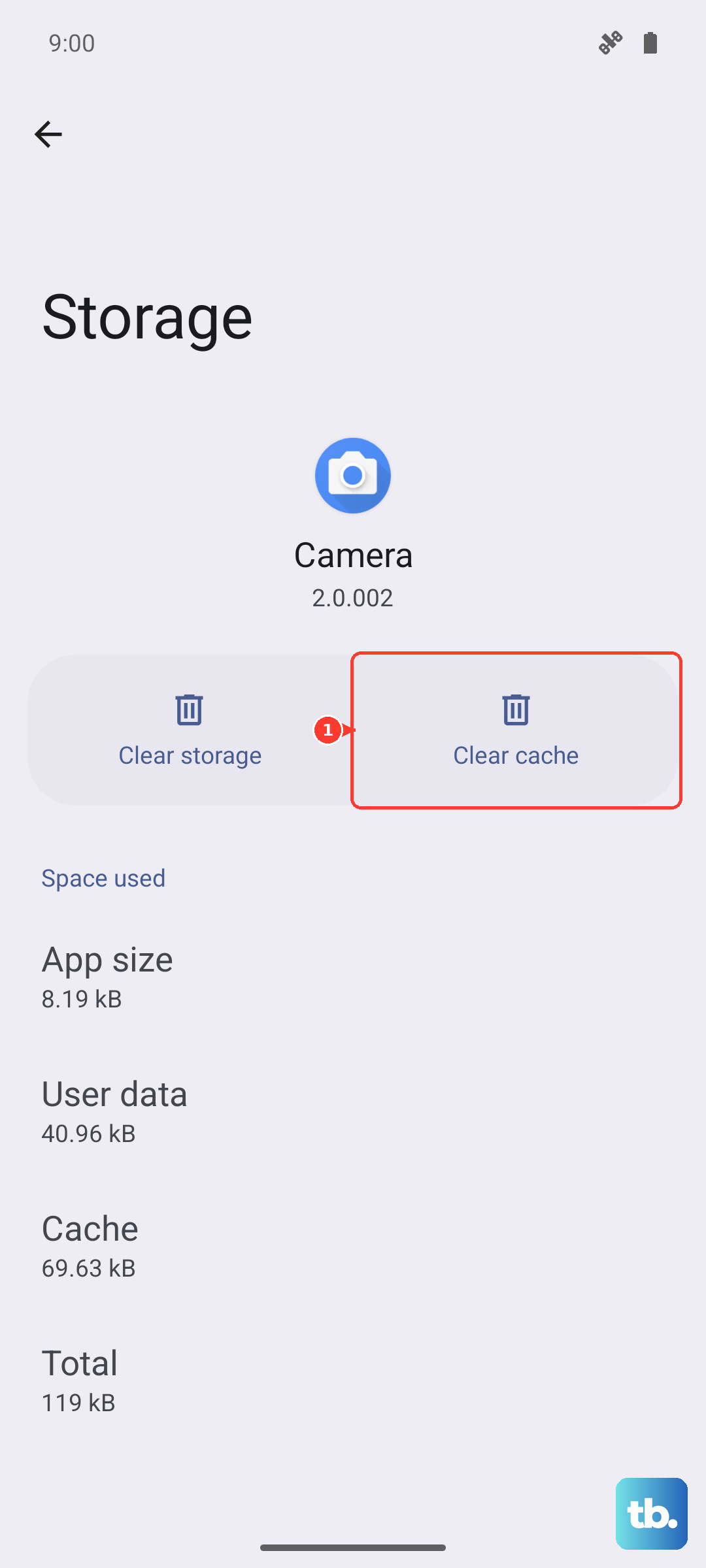
Camera app data can accumulate over time and cause weird behavior including blurry photos. Go to Settings > Apps > Camera > Storage & cache and tap Clear cache. Don't worry, this won't delete your photos. It just wipes temporary files. If the problem persists, also try Clear storage (which resets the camera preferences).
Update Android 16
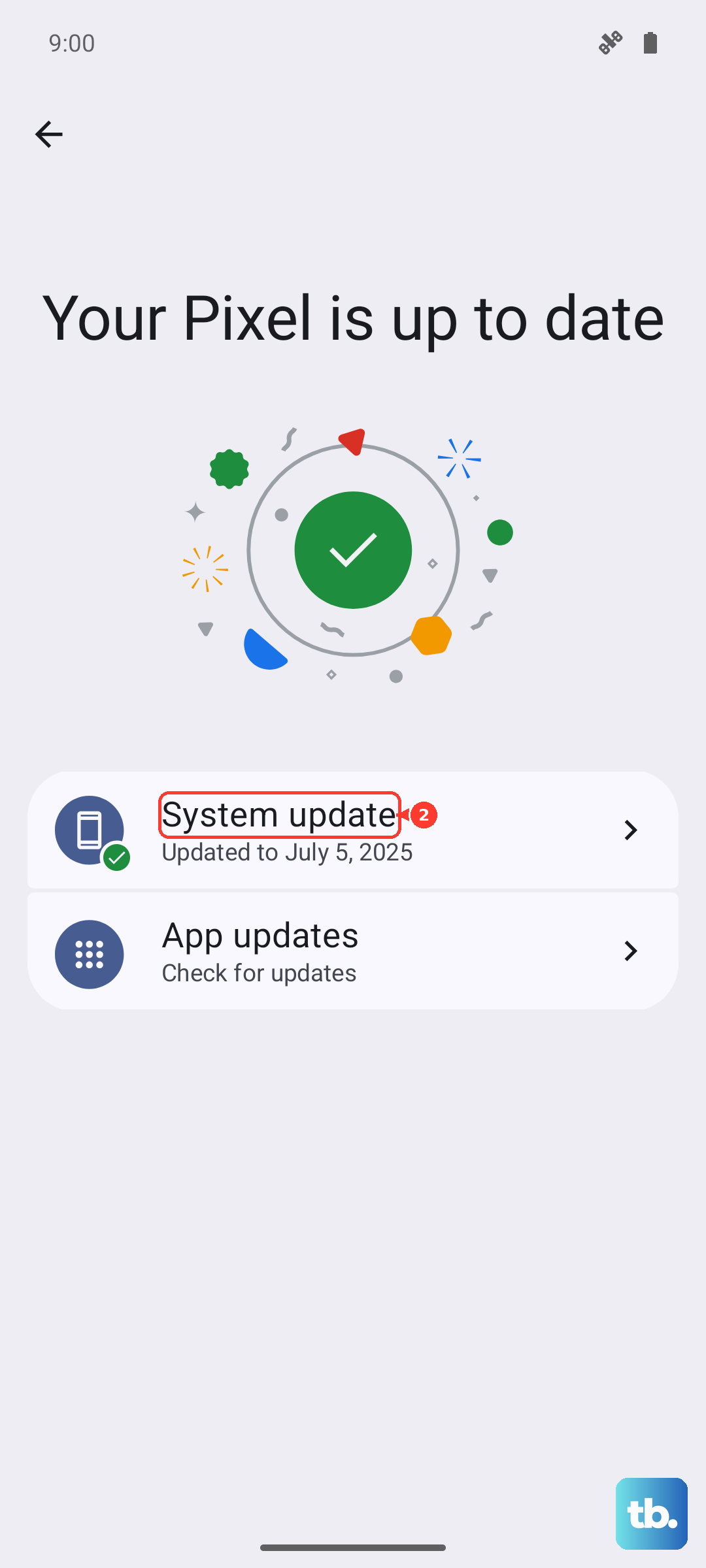
Google regularly pushes camera improvements and autofocus fixes through system updates. Go to Settings > System > System update and check for any pending updates. A known camera bug on earlier Android 16 builds might already have a patch waiting.
Check for Moisture or Condensation
If the lens or sensor has condensation inside, your photos will look foggy and soft. This often happens when you move from a cold environment into a warm, humid room. Let your Pixel 10a sit at room temperature for 15 20 minutes before using the camera again. Don't blow on the lens, that just adds more moisture.
Reset Camera Settings
Custom camera settings like exposure compensation or focus mode can accidentally get stuck. To go back to defaults, open the Camera app, tap the down arrow or gear icon to access settings, then look for Reset to defaults (or a similar option on Android 16). If that's not available, go to Settings > Apps > Camera > Set as default and clear any default preferences. This forces the camera to start fresh next time you open it.