
Your Pixel 10a is stuck in portrait mode and won't switch to landscape no matter how you turn it. This is a common complaint, but the culprit is almost always a simple setting or a temporary software hiccup.
Most cases trace back to an accidental toggle or a rogue app that's overriding the system. Let's walk through the fixes, starting with the quickest and working through the more involved ones.
Check the Quick Settings Toggle
The auto-rotate toggle in the notification panel is surprisingly easy to knock off. Swipe down twice from the top of the screen and look for the auto-rotate icon, it looks like a phone with arrows around it.
If the icon is grayed out or shows a lock symbol, tap it once to turn it blue. That's all it usually takes. When the toggle is off, your screen stays locked in whatever orientation you last set.
Restart or Force Restart the Pixel 10a
A simple restart clears out temporary glitches that can mess with the rotation sensor. Hold the power button for a few seconds, tap Restart, and wait for the phone to boot back up.
If the screen is completely unresponsive, you can force a restart. Press and hold the Power button for 30 seconds, or press and hold Power + Volume Down for 10 15 seconds until the device restarts. This doesn't erase any data.
Turn Off Per-App Rotation Overrides
Some apps have their own orientation lock that overrides the system setting. If rotation works in the launcher but not inside a specific app, that app is likely blocking it.
Open the app and check its settings for a "lock screen orientation" or "auto-rotate" option. Games and video players are the worst offenders. Turning that off inside the app usually fixes it.
Update Android 16 and System Apps
Software bugs in early builds of Android 16 can cause sensors to act up. Google regularly pushes patches that address rotation and other sensor-related issues.
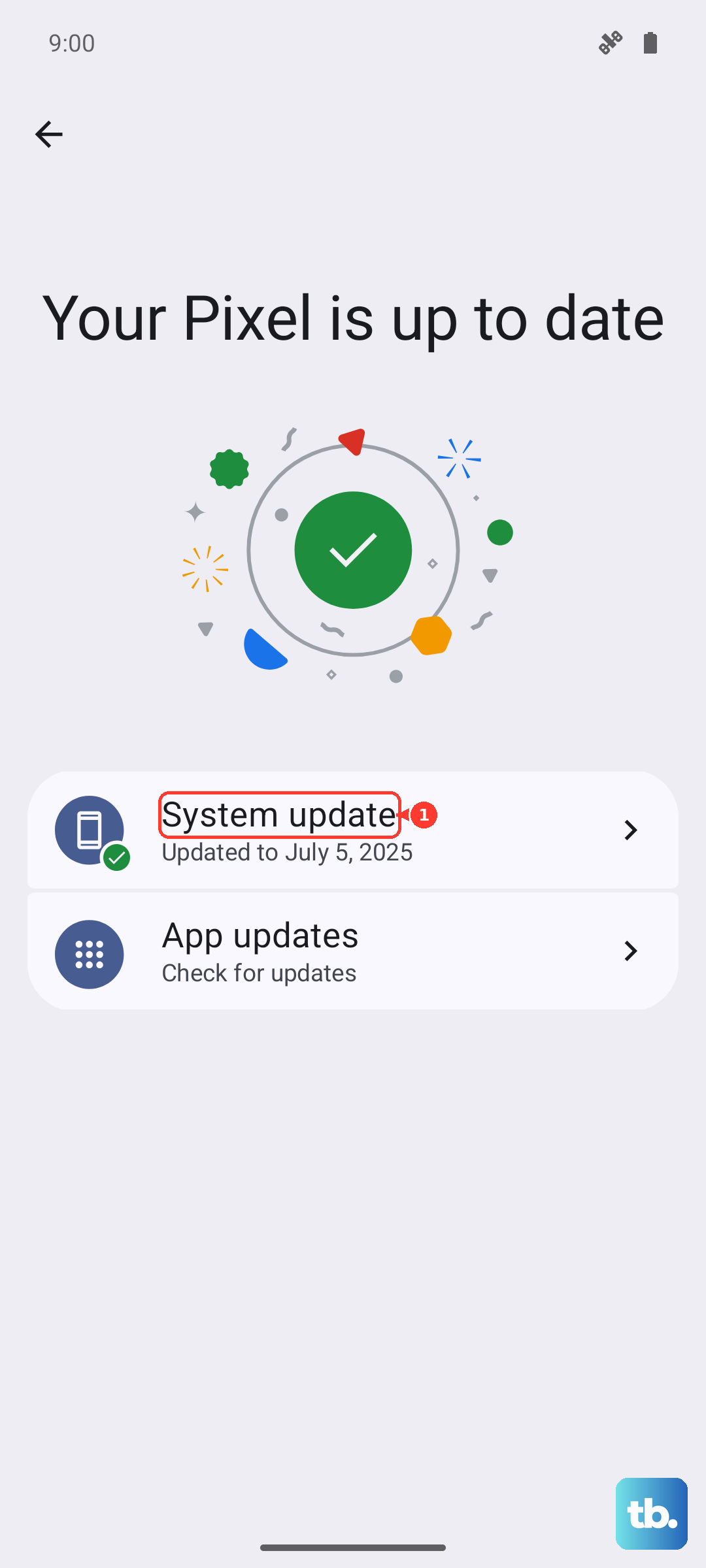
Go to Settings > System > System update and tap Check for update. Install anything that's available. Also update your Google Play system apps by opening Play Store > tapping your profile icon > Manage apps & device > Update all.
Test the Gyroscope and Accelerometer
Auto-rotate relies on your phone's gyroscope and accelerometer. If those sensors stop responding, rotation won't work. You can test them without any special tools.
Open the Google Pixel Diagnostic app (if available on your device) or download a free sensor test app from the Play Store like Sensor Test. Tilt the phone in different directions, the sensor values should change. If they stay flat, the hardware may be damaged.
Boot Into Safe Mode
A third-party app with a wonky permission can block the rotation service. Safe mode temporarily disables all downloaded apps, letting you see if the system rotation works cleanly.
Press and hold the power button, then tap and hold Power off on the screen until the safe mode prompt appears. Tap OK to restart. Try rotating your phone. If it works in safe mode, a downloaded app is the cause. Restart normally and uninstall recent apps one at a time until you find the troublemaker.
Clear the System UI Cache
Corrupted cache files in the System UI can interfere with rotation. You can clear them without a factory reset.
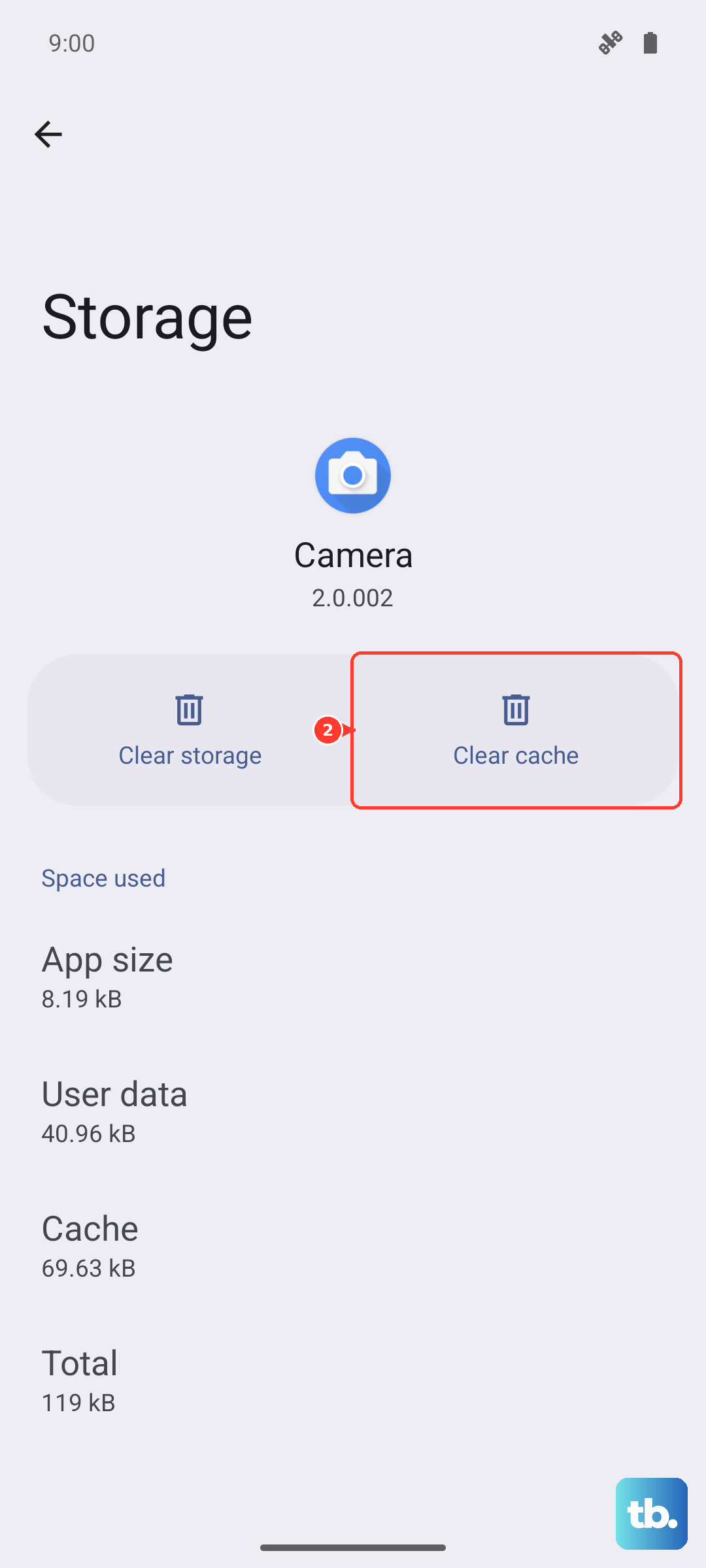
Go to Settings > Apps > See all apps, tap the three-dot menu in the top right, and select Show system. Find System UI, tap Storage & cache, then Clear cache. Restart the phone afterward.
Factory Reset (Last Resort)
If nothing else has worked, a factory reset wipes out any persistent software issue. This will erase all your data, so back everything up first through Settings > System > Backup.
To reset, go to Settings > System > Reset options > Erase all data (factory reset). Confirm and let the phone finish. After it reboots, set it up as new and test rotation before restoring any apps.