
When your Google Pixel 10 Pro XL stops ringing for incoming calls, it's easy to assume the worst. But most of the time it's something simple like a stuck setting or a network hiccup, not a hardware failure. Let's walk through the fixes that actually work for this phone.
Start with a quick restart. On the Pixel 10 Pro XL, press and hold the Volume up and Power buttons together for about 10 seconds until the device restarts. This clears temporary glitches that can block calls.
Also double‑check that Airplane Mode isn't on. Swipe down twice from the top of the screen and look for the airplane icon. If it's highlighted, tap it to turn it off. Toggle it on and then off again to force the phone to re‑register on the network.
Check for Overheating First
The Pixel 10 Pro XL has a known issue where it shuts off while charging if it gets too hot. When the phone overheats, the cellular radio can disable itself to protect the hardware, and you won't receive calls. If your phone feels warm, unplug it and let it cool down for 10 15 minutes. Remove the case during charging to improve heat dissipation the tips specifically recommend this for better thermal performance.
Do Not Disturb and Flip to Shh
Do Not Disturb is the most common reason the Pixel 10 Pro XL doesn't ring. Swipe down twice and look for the Do Not Disturb icon (a circle with a line through it). If it's active, tap to turn it off. You can also go to Settings > Notifications > Do Not Disturb and make sure it's off. The Pixel also has a Flip to Shh gesture that silences incoming calls when you turn the phone face down check that it's not enabled accidentally under Settings > System > Gestures.
Check Call Screen and Spam Protection
Google's Call Screen feature can automatically screen incoming calls from unknown numbers. Sometimes it flags legitimate callers as spam. Open the Phone app, tap the three‑dot menu, then Settings > Call Screen. Make sure it's not set to "Automatically screen. Silence callers." You can change it to "Screen. Don't silence" or turn it off temporarily to test. Also go to Spam and Call Screen and check your blocked numbers list. Remove any numbers you actually want to reach you.
Wi‑Fi Calling and Network Settings
Wi‑Fi Calling can interfere with incoming calls if the Wi‑Fi connection is weak. Try turning it off: go to Settings > Network & internet > SIMs > tap your carrier > Wi‑Fi Calling and disable it. If calls start coming through, the problem was a flaky Wi‑Fi connection.
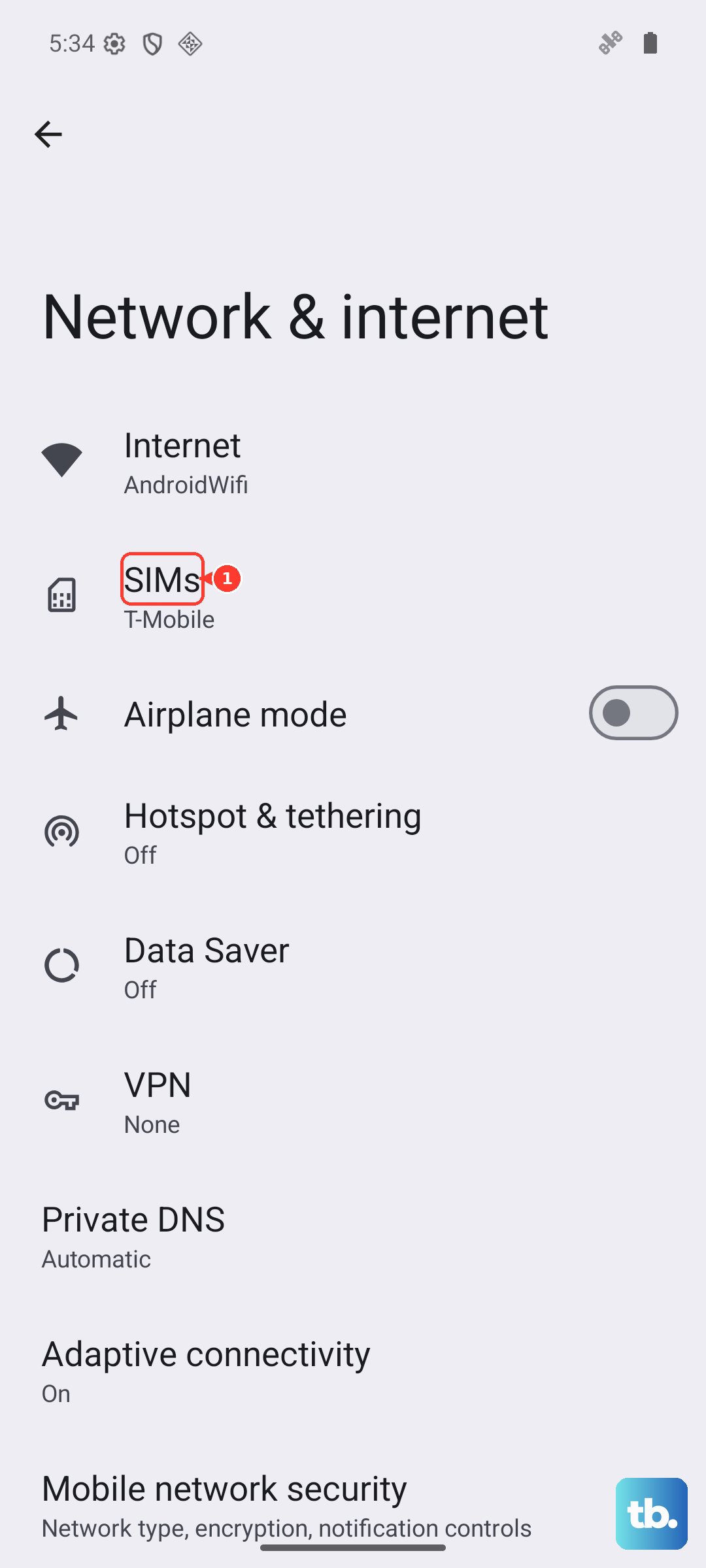
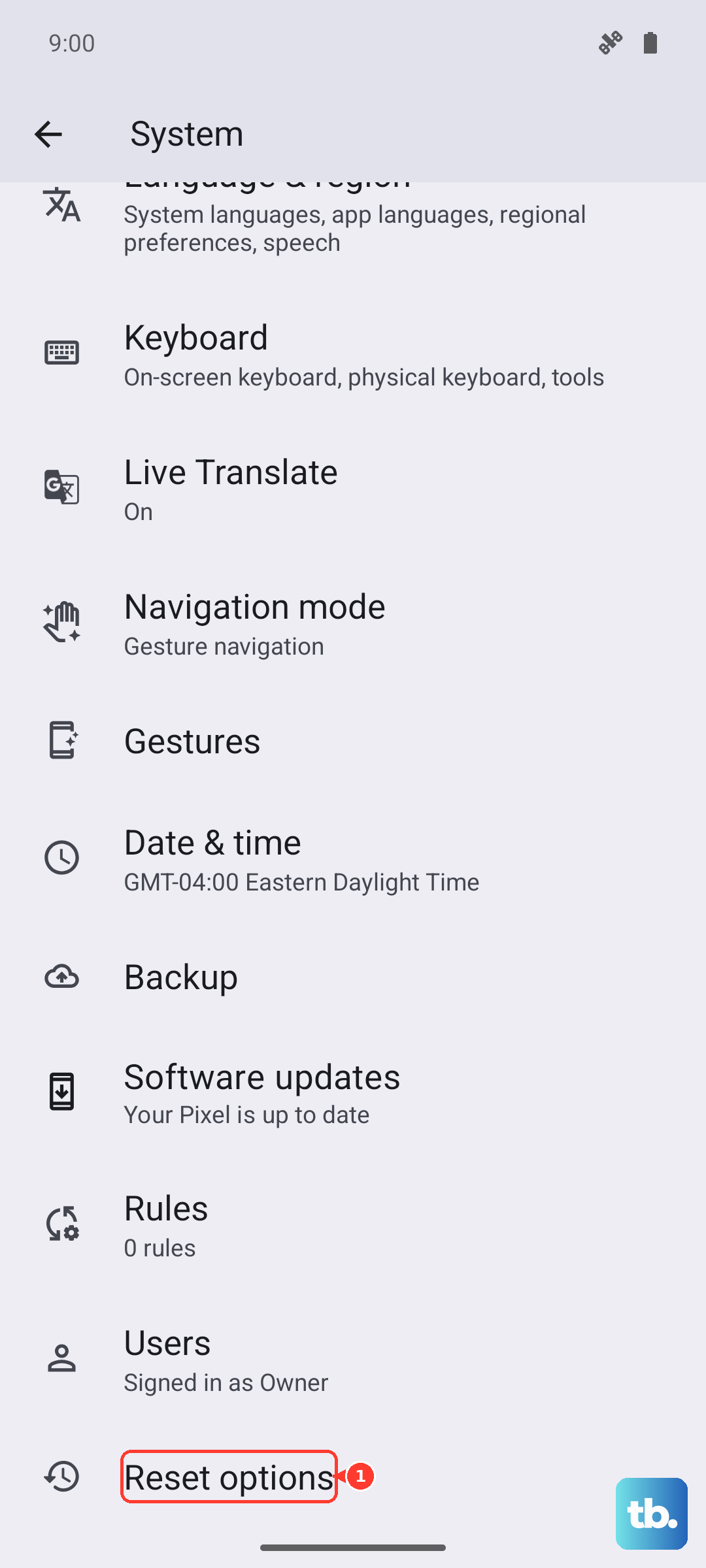
Next, reset your network settings. This wipes saved Wi‑Fi passwords and Bluetooth pairings, but it often fixes call‑routing issues. Go to Settings > System > Reset options > Reset Wi‑Fi, mobile & Bluetooth. Confirm and let the phone reboot.
SIM Card and Call Forwarding
A loose or dirty SIM card can prevent your phone from receiving calls. Pop out the SIM tray (you'll need the ejector tool), clean the gold contacts with a dry cloth, and reseat it firmly. If you have another phone handy, test the SIM in that device if it works there, the issue is on the Pixel side.
Check call forwarding. Open the Phone app, tap the three‑dot menu, Settings > Calling accounts > tap your carrier > Call forwarding. Make sure it's set to "Always forward" off. Also look for any call barring settings that might block incoming calls.
Clear the Phone App Data
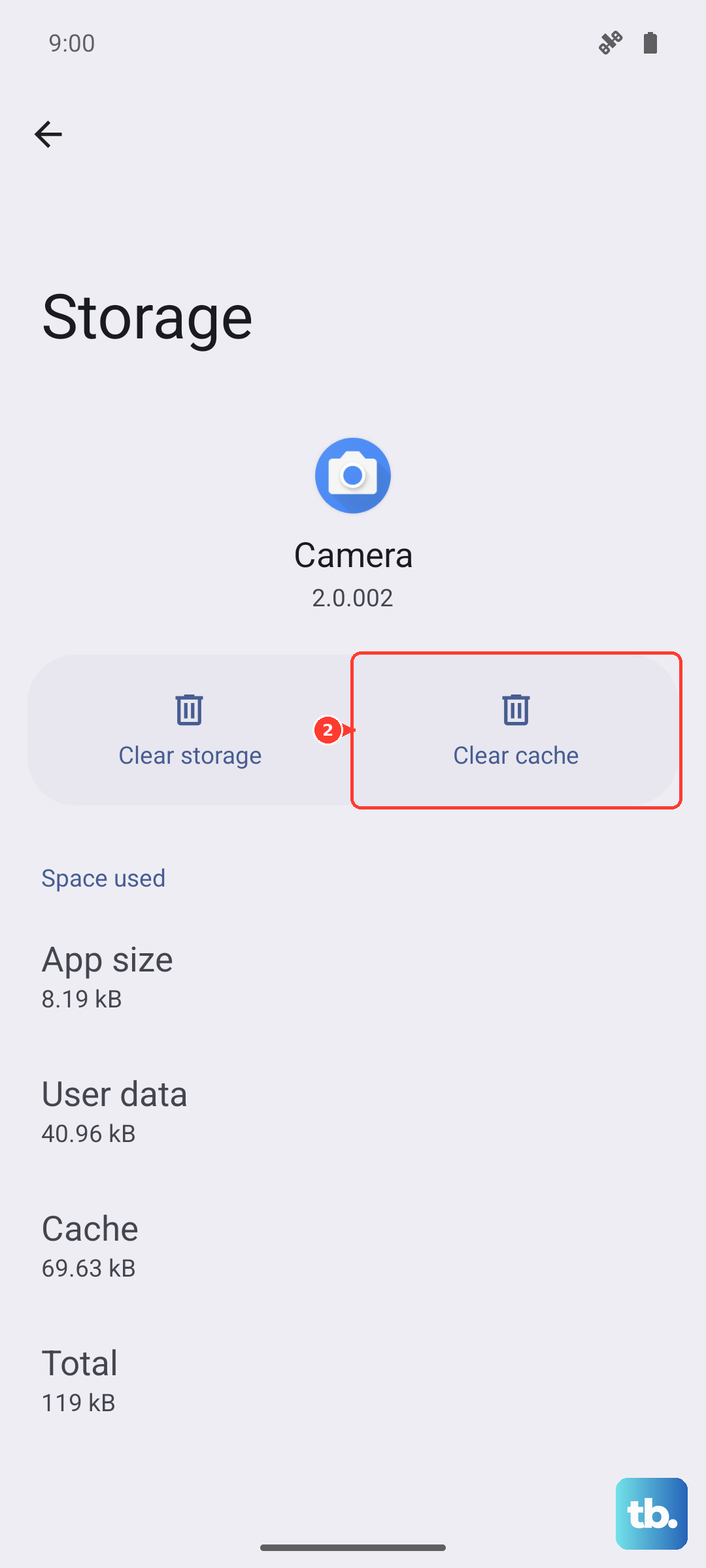
Corrupted cached data in the Phone app can stop incoming calls from ringing through. Go to Settings > Apps > See all apps > scroll to Phone > Storage & cache > tap Clear storage then Clear cache. Restart your phone after. This won't delete your contacts.
Software Updates and Adaptive Connectivity
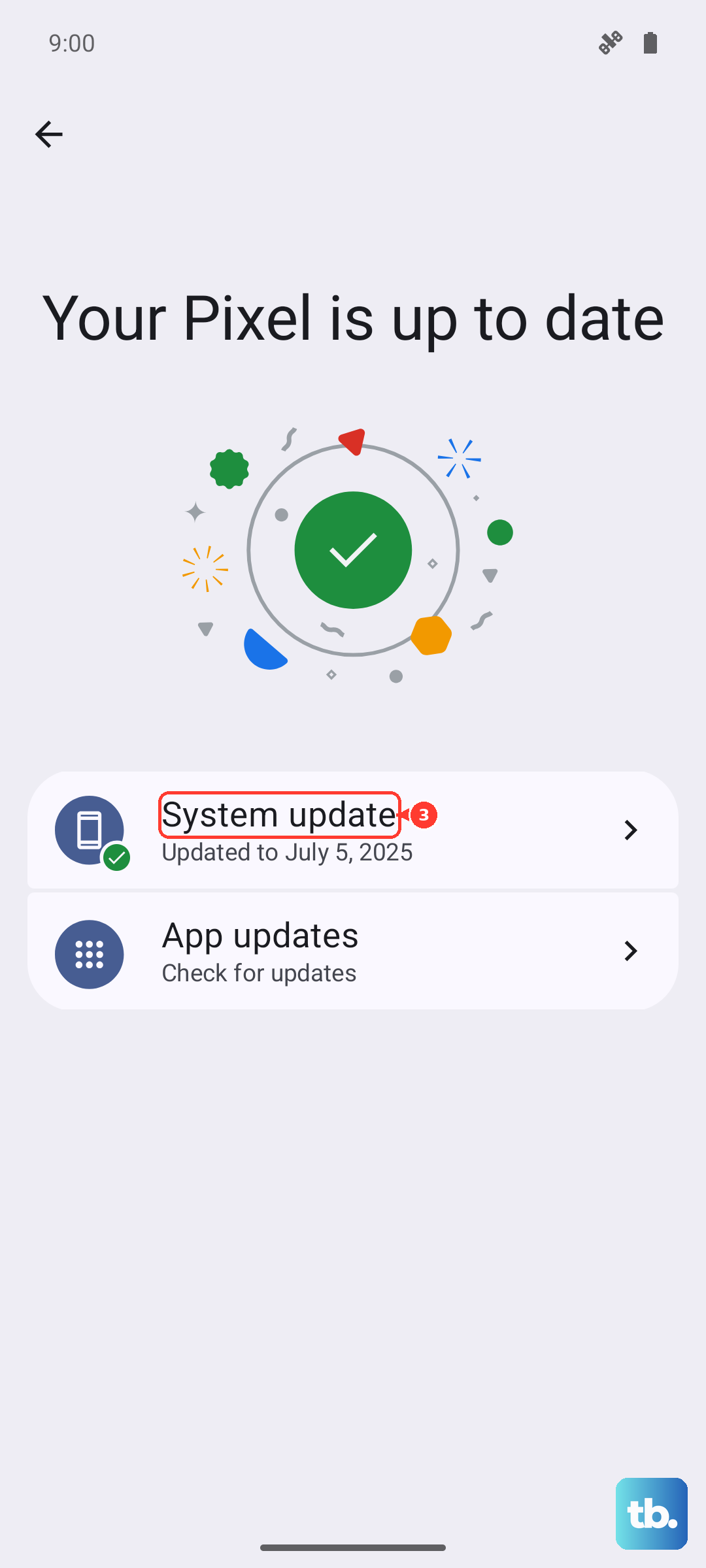
Make sure you're running the latest Android 16 build. Go to Settings > System > Software update > System update and check. The Pixel 10 Pro XL gets regular security patches that include call network fixes.
Also check Settings > Network & internet > Adaptive Connectivity. This feature switches between mobile data and Wi‑Fi to save battery, but it can sometimes delay incoming call notifications. Try turning it off and see if calls ring through immediately.
Test in Safe Mode
Third‑party apps especially call‑blocker apps or messaging apps can interfere. Boot your Pixel 10 Pro XL into Safe Mode: press and hold the Power button, then long‑press the "Restart" option, and tap "OK" when asked to boot into Safe Mode. In Safe Mode, only preinstalled apps run. Try making an incoming call. If it works, a downloaded app is the culprit. Restart normally, then uninstall recently installed apps one by one until the problem stops.
Factory Reset Only If You Must
If you've tried everything and still no incoming calls, a factory reset may be needed. Back up your data first this erases everything. Go to Settings > System > Reset options > Erase all data (factory reset). After the reset, restore only contacts and essential apps. If calls still don't work, it could be a defective SIM tray or internal antenna reach out to Google or your carrier for a hardware check.