
A frozen Pixel 10 Pro XL that won't respond to taps, swipes, or button presses is incredibly frustrating. The screen might be stuck on an app, the lock screen, or even the Google logo. Most of the time, these freezes are software-related and you can fix them without losing anything important.
Force Restart Your Pixel 10 Pro XL
This is the first thing to try and works in the vast majority of cases. Press and hold the Volume up and Power buttons at the same time for about 10 seconds. When the device restarts, release both buttons. You won't lose any data, it's just a forced reboot, like pulling the plug on a desktop.
If the screen was completely black or unresponsive, wait a full 15 seconds before trying again. Sometimes the phone needs a moment to register the button press.
Give It a Few Minutes
The Pixel 10 Pro XL can freeze during heavy processing, like installing a large app update, uploading photos, or downloading Android 16 patches. If the phone feels warm to the touch, it's likely still working. Leave it alone for 5 10 minutes before force restarting. Rushing can sometimes make things worse.
Plug It In and Wait
A nearly dead battery can cause the screen to go black and the phone to become unresponsive. Grab a USB‑C cable and a charger that supports at least 30W with PPS (Power Delivery Programmable Supply) for the fastest results. Don't just plug it in for a few seconds, give it a solid 15 minutes. If the battery was critically low, the phone needs enough juice to power on properly.
While it's charging, remove the phone case. The Pixel 10 Pro XL is known to overheat during charging, and a case traps heat, which can slow charging or cause the phone to shut down as a safety measure.
Close the Frozen App
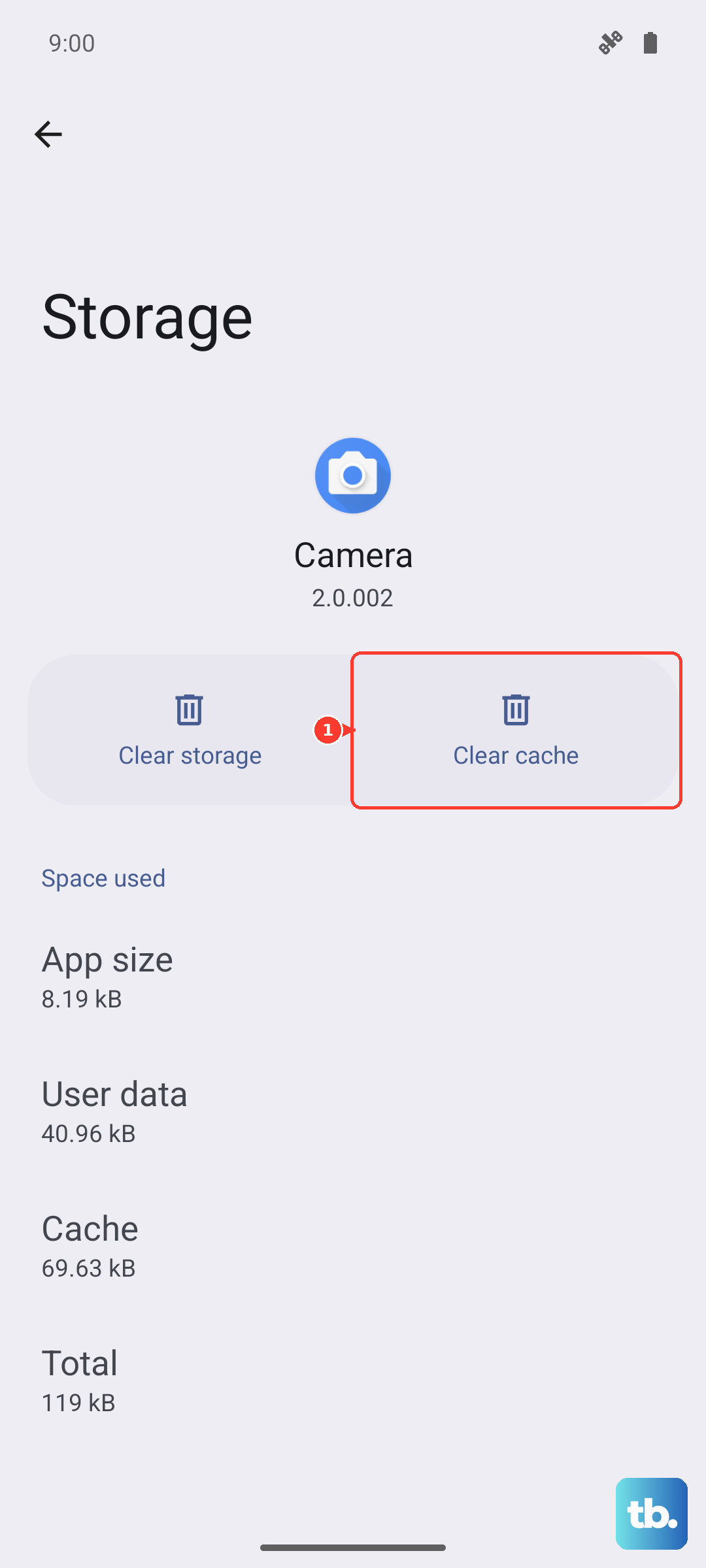
If just one app is stuck but you can still see the home screen or pull down the notification shade, swipe up from the bottom and hold to open the Overview screen. Then swipe left or right to find the frozen app and flick it off the screen. Tap the app again to reopen it fresh. If a particular app keeps freezing, check the Play Store for an update or try clearing its cache under Settings > Apps > See all apps > [app name] > Storage & cache > Clear cache.
Free Up Storage Space
When internal storage gets critically low, say, under 1 GB, the system can't create temporary files and may lock up. Go to Settings > Storage and look for large categories like photos, downloads, or unused apps. Delete what you don't need, or use the "Free up space" suggestion. Aim for at least 2 3 GB of free storage to keep the phone running smoothly.
Update Android 16
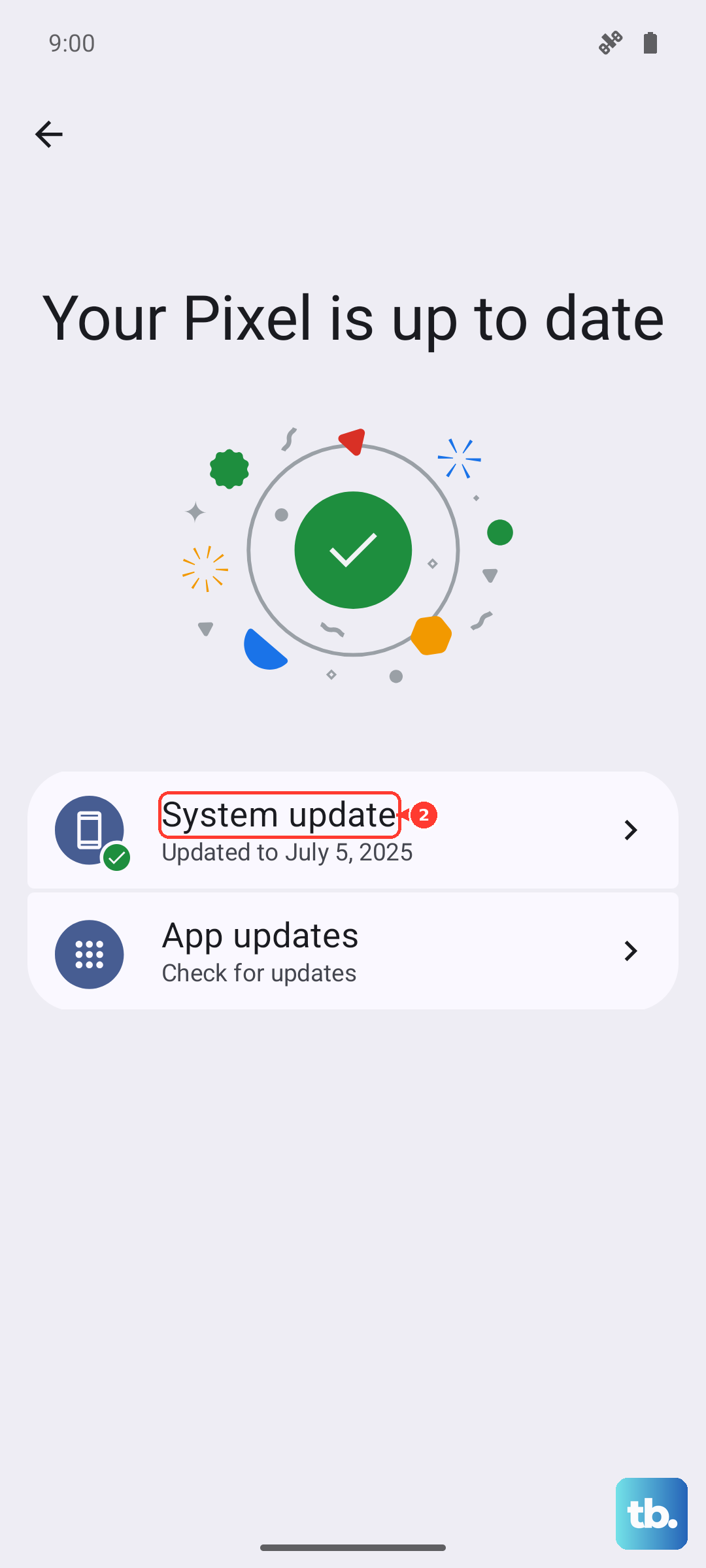
Outdated software can have memory leaks or bugs that cause random freezes. Once the phone is operational again, head to Settings > System > System update and install any available update. If the phone won't even boot, you can use a computer: boot into recovery mode (press and hold Volume down + Power, then use volume keys to select "Recovery mode") and apply an update via ADB sideload.
Boot Into Safe Mode
Safe mode loads only the system apps, so if the phone works fine in safe mode, a third‑party app is causing the freeze. Turn off the phone, then press and hold the Power button until the Google logo appears. Release the Power button, then press and hold the Volume down button until the phone finishes booting. You'll see "Safe mode" at the bottom left. Use the phone normally for a few minutes. If it doesn't freeze, go to Settings > Apps and uninstall recently added apps one by one until the problem stops.
Reset App Preferences
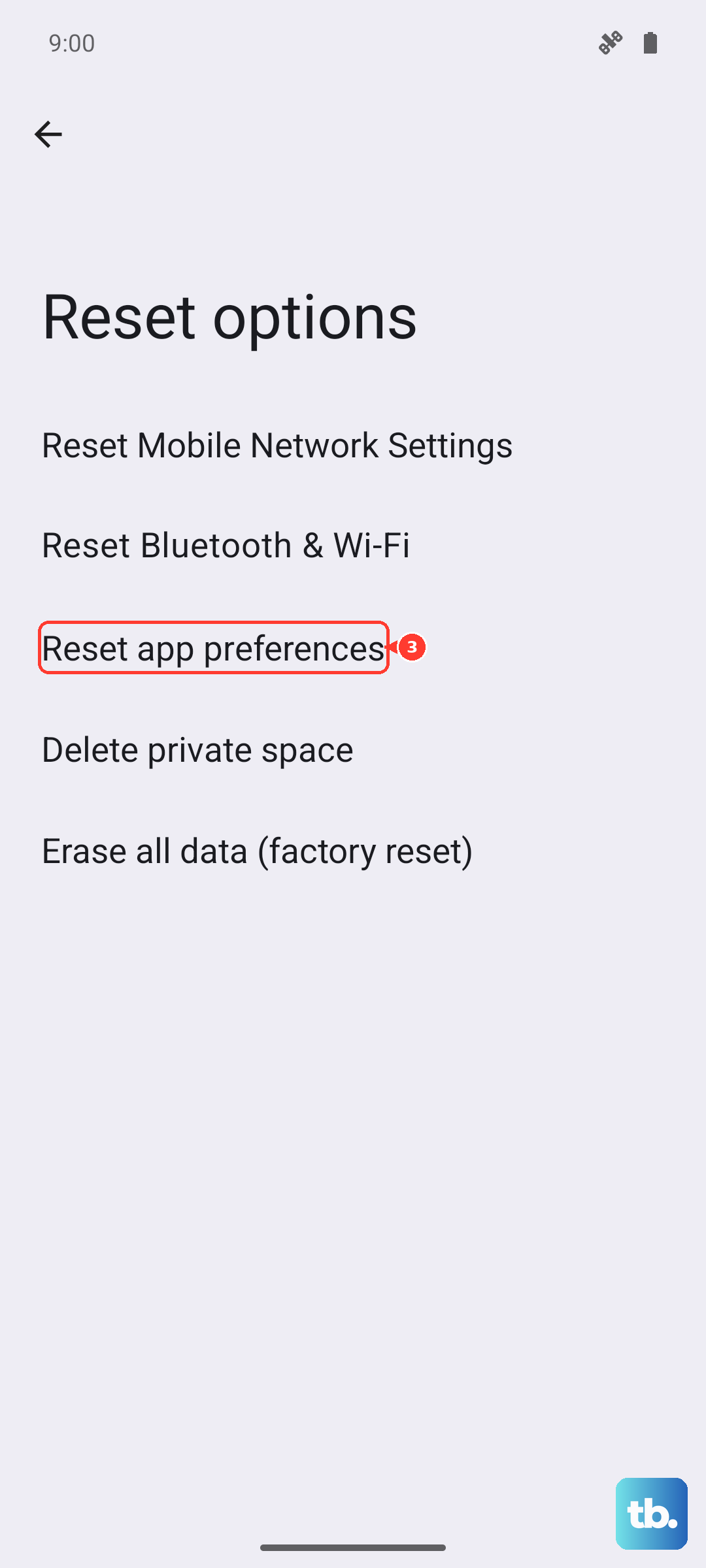
Corrupted app defaults can sometimes cause the system to hang. This doesn't delete your data, but it resets disabled apps, notification settings, and default apps. Go to Settings > System > Reset options > Reset app preferences. Tap Reset apps to confirm. It's a safe step that fixes many weird behavior issues.
Check for Overheating and Charging Issues
The Pixel 10 Pro XL can overheat and freeze, especially when charging or using wireless charging. If the phone feels hot to the touch, set it down in a cool, shaded spot and remove the case. Let it cool for 15 20 minutes before trying to turn it on. Avoid using fast charging or wireless charging while the phone is warm, that can trigger a safety shutdown.
Also, if you're using a Qi2 charger, make sure the phone is perfectly centered on the pad. Misalignment is a common cause for intermittent charging failures and the phone appearing dead. And if you've been using a third‑party cable or charger, try the official Google 30W USB‑C PPS charger, some chargers cause the charging speed to drop so low that the phone barely gets enough power to stay on.