
Seeing the "SIM Not Provisioned" message on your Google Pixel 10 Pro can stop you in your tracks. It means your phone can't connect to your carrier's network, so calls, texts, and mobile data won't work. The good news is, it's usually something you can fix yourself.
I'd start by trying a simple force restart. This can clear out a temporary software glitch that might be blocking the connection. Just press and hold the Power button and Volume Up button together for about ten seconds, until you see the Google logo appear.
Check Your SIM Card Activation
If you just got a new SIM card or recently switched plans, it might not be fully activated yet. This is the most common reason for this error. You'll need to contact your carrier directly, through their app, website, or a quick call, to confirm your SIM is active on their network.
For prepaid users, double-check your account balance. Service can be suspended if your plan has run out of credit or if a bill is overdue on a postpaid account.
Refresh Your Network Connection
Your Pixel 10 Pro might just need a nudge to reconnect. Swipe down twice from the top of your screen to open the full Quick Settings panel, then tap the Airplane Mode icon to turn it on. Wait about 30 seconds, then tap it again to turn it off.
You can also try manually selecting your network. Go to Settings > Network & internet > Mobile network. Tap on Carrier and turn off the "Automatically select network" toggle. Your phone will search and show a list; choose your specific carrier from there.
Reinsert and Inspect the SIM Card
It's worth taking the SIM tray out for a quick look. Turn off your phone first, then use the SIM eject tool (or a small paperclip) to pop out the tray on the bottom edge. Carefully remove the SIM card.
Check the gold contacts on the card for any obvious scratches, dirt, or damage. Give it a gentle wipe with a soft, dry cloth. While the tray is out, use a can of compressed air to blow out any dust in the port. Reinsert the SIM, making sure it's seated firmly in the tray, and power your phone back on.
Update Your Phone's Software
Running an outdated version of Android can sometimes cause conflicts with carrier services. Head to Settings > System > System update to check for and install any available updates for your Pixel 10 Pro.
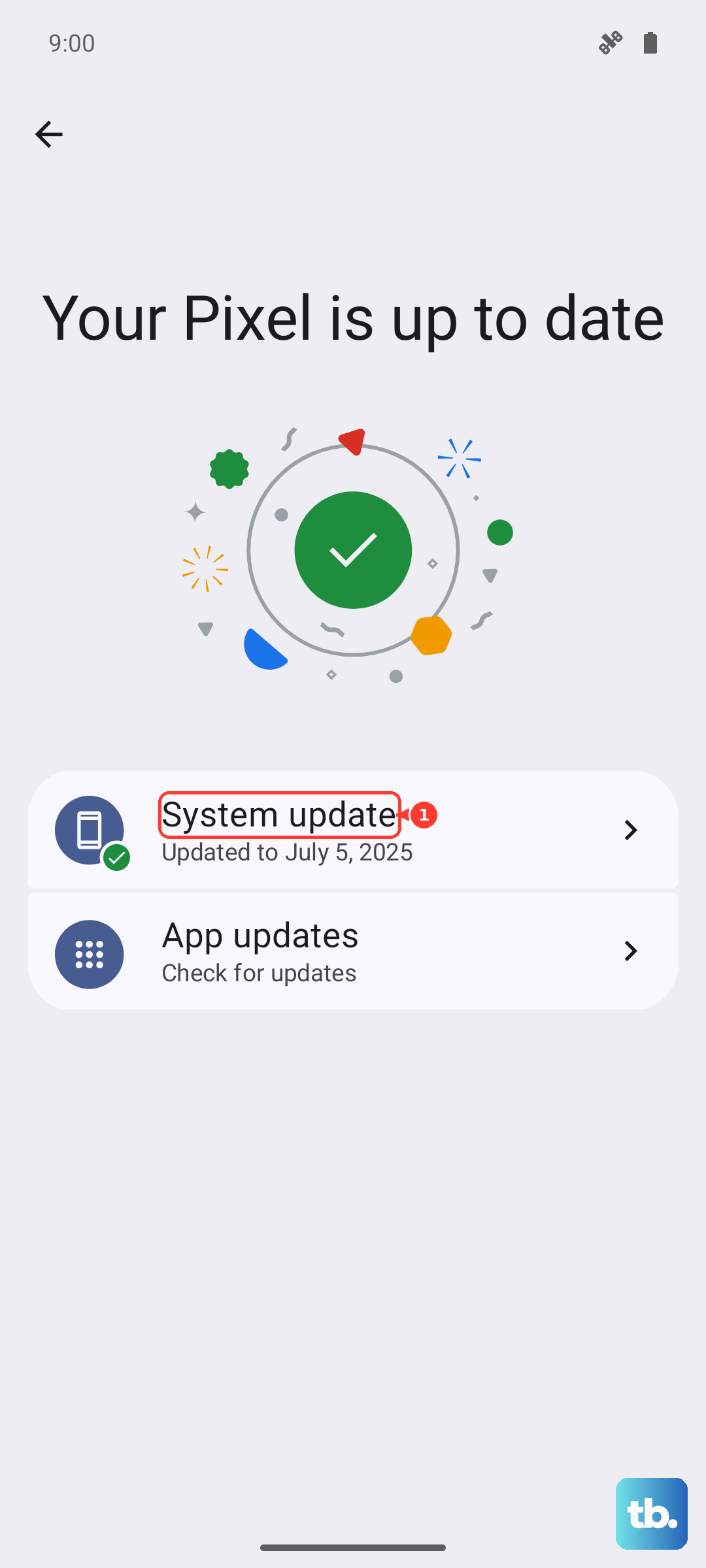
You should also check for updates to the Carrier Services app, which handles communication between your phone and the network. Open the Google Play Store, tap your profile icon, go to Manage apps & device, and see if Carrier Services is listed under updates.
Reset Your Network Settings
If you're still stuck, resetting your network settings can clear out any corrupted configuration data. This will erase all saved Wi-Fi networks, Bluetooth pairings, and mobile network settings, so you'll have to reconnect to Wi-Fi afterward.
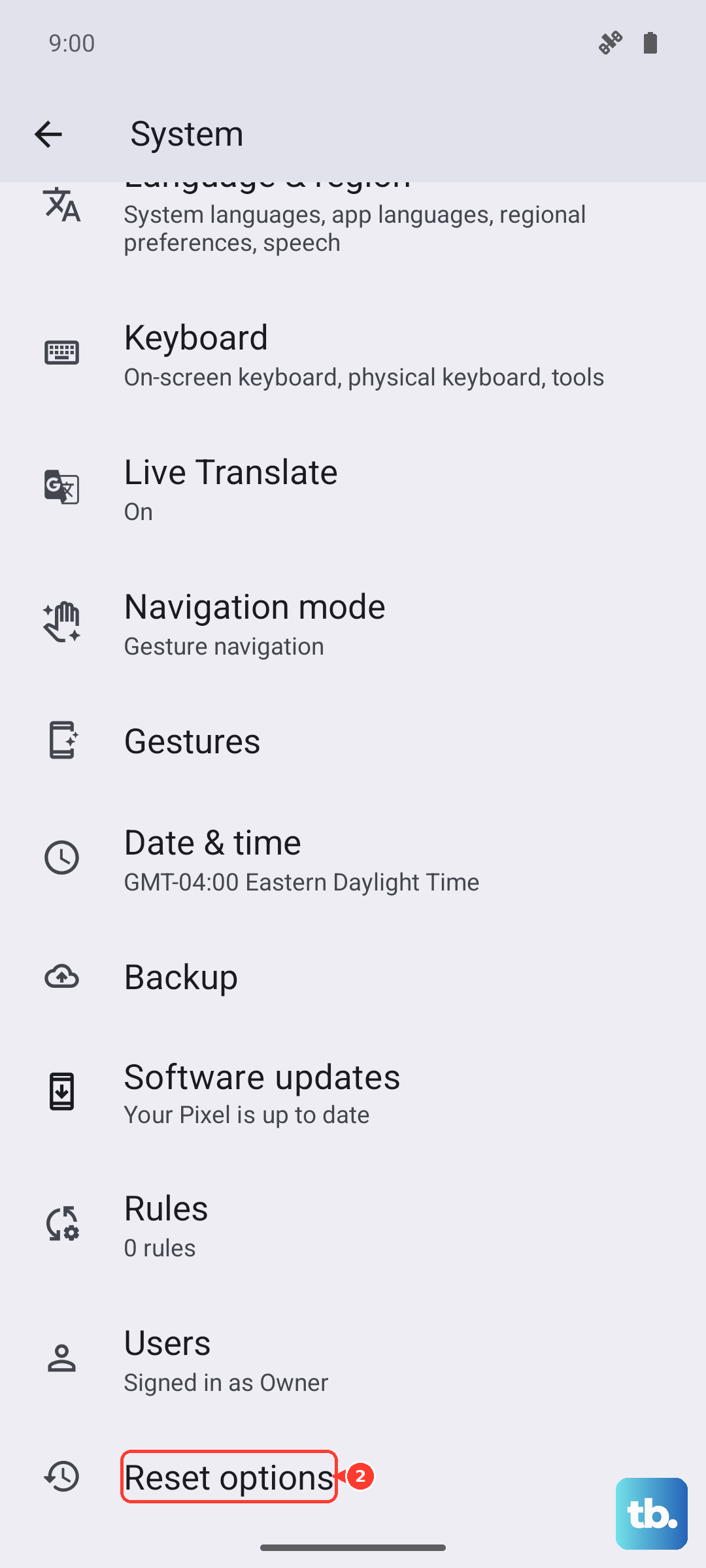
To do this, go to Settings > System > Reset options. Tap on Reset Wi-Fi, mobile & Bluetooth and confirm. Your phone will reboot, and you can then try setting up your mobile connection again.
Contact Your Mobile Carrier
By this point, if the error persists, the issue is likely on your carrier's end. They can check for outages in your area, verify your account status, and reprovision your SIM card on their network. They might also determine that your SIM card is faulty and need to send you a replacement.
Before you call, it helps to test your SIM card in another unlocked phone if you have one available. If the SIM works in another device, the problem is specific to your Pixel. If it also shows as not provisioned in another phone, then you know for sure the issue is with the SIM or your account.