
Is your Google Pixel 10 stuck in one orientation and refusing to flip when you turn it sideways? It's a common hiccup where the auto-rotate feature just stops responding, and it can be pretty annoying when you're trying to watch a video or view a photo.
The good news is it's usually a quick software setting or a minor glitch. I'd start with the simplest fix first, which often does the trick.
Toggle the Quick Settings Tile
The fastest way to check is right from your notification shade. Swipe down from the top of your screen twice to see all your quick settings tiles. Look for the one labeled "Auto-rotate" or one that shows a phone icon with arrows circling it.
If the tile is grayed out or says "Portrait," just tap it once. It should light up and say "Auto-rotate" when it's active. This is the most common reason the feature stops working, as it's easy to tap accidentally.
Check the Full Rotation Settings Menu
Sometimes you need to dig a little deeper. Pull down the quick settings panel and tap the text under the auto-rotate tile, or the small settings gear icon next to it. This opens the full rotation settings.
On your Pixel 10 running Android 15, make sure "Auto-rotate screen" is switched on. There might also be an option for "Face Detection" for auto-rotate, which uses the front camera to help decide orientation. You can try turning that off to see if it improves reliability.
Restart Your Pixel 10
If the settings look correct but rotation is still stuck, a simple restart can clear out any temporary software bugs. Just hold the power button until the power menu pops up on screen, then tap "Restart."
Wait for the phone to fully reboot. This takes about a minute and doesn't affect any of your data or settings. It's a good reset for the system processes, including the one that manages the accelerometer.
Try a Force Restart
For a more thorough refresh, you can perform a force restart. This is different from a standard reboot and can clear deeper system caches. Press and hold the Power button and the Volume Up button together for about 10 seconds.
Keep holding until you see the Google logo appear, then let go. Your phone will boot up normally. I've found this works when a standard restart doesn't quite cut it.
Test for App-Specific Problems
Not every app supports landscape mode. If auto-rotate works perfectly in your camera app or Chrome but not in, say, your messaging app, that's likely by the app's design. Try rotating the phone in several different apps to see if the problem is universal.
If rotation fails only in one app, check that app's own settings for a rotation lock. The issue could also start after installing a new app that interferes with system sensors. Think about any recent downloads and try uninstalling them to test.
Update Your Android Software
Bugs in the operating system itself can sometimes break sensor functions. Google regularly releases updates that fix these kinds of issues. Go to Settings > System > System update.
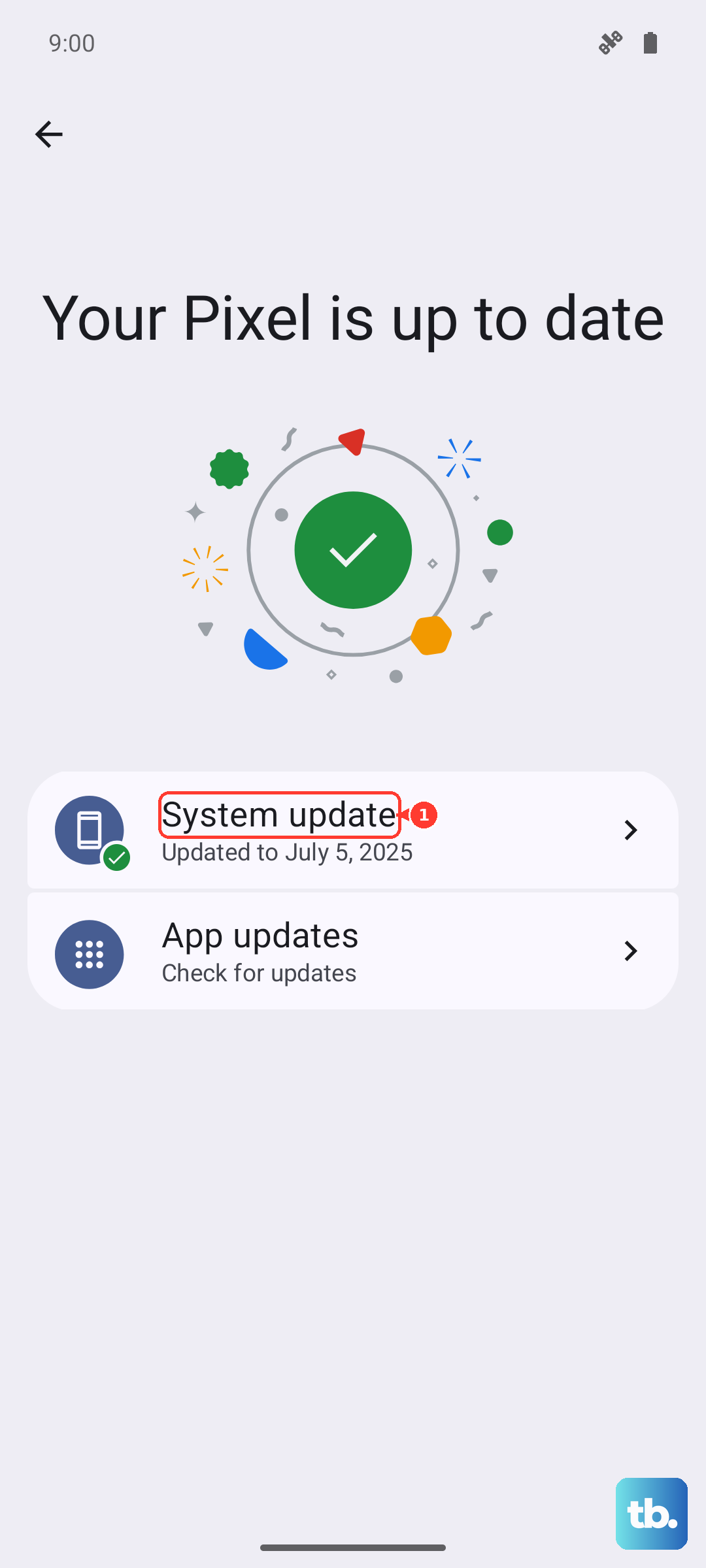
Tap "Check for update." If an update is available, download and install it. Make sure your phone is connected to Wi-Fi and has a good charge, preferably above 50%, before starting the update.
Test the Sensors with a Diagnostic App
Your Pixel 10 uses an accelerometer and gyroscope to detect movement and orientation. You can check if these are functioning using a simple, free app from the Play Store like "Sensor Test" or "Phone Tester."
After installing one, open it and find the accelerometer or gyroscope test. Tilt and rotate your phone. If the values on screen change smoothly as you move, your hardware is likely fine and the problem is software-based.
Consider a Settings Reset
If all else fails and the sensors test okay, a misconfigured system setting might be the culprit. You can reset all your phone's settings back to default without touching your personal data like photos and messages.
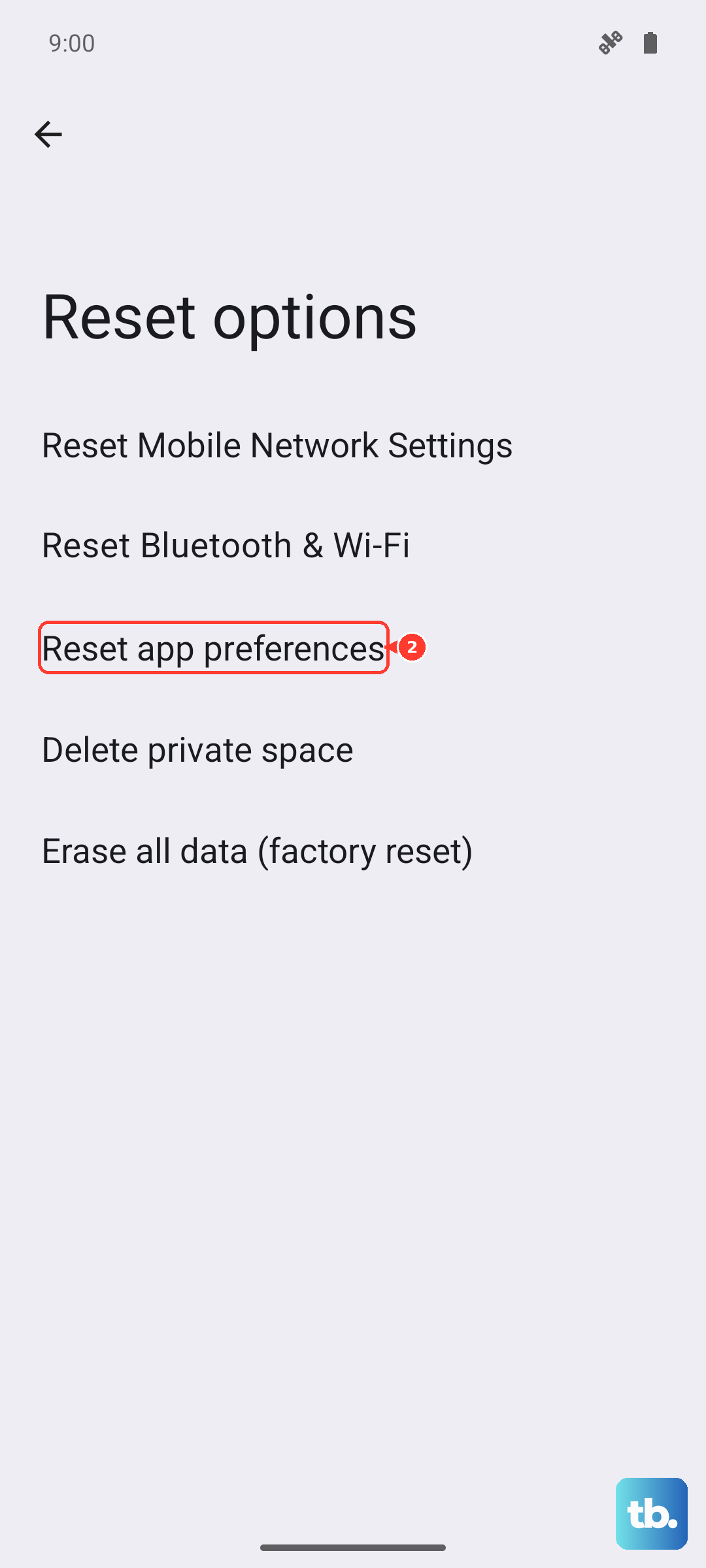
Go to Settings > System > Reset options. Tap "Reset app preferences" first, as this only resets app permissions and notifications. If that doesn't work, you can try "Reset Wi-Fi, mobile & Bluetooth." For the most thorough software reset short of a factory reset, choose "Reset all settings." Just remember, this will erase your Wi-Fi passwords, paired Bluetooth devices, and custom system preferences.
Start with the quick settings toggle and a restart. Those two steps fix the majority of auto-rotate issues on Pixel phones. If the problem persists, work your way down the list, testing after each step to see if rotation has been restored.