An app that crashes, freezes, or closes the moment you open it is one of the most common Android problems, and it almost always has a fixable cause. Most crashes come from outdated software, a corrupted cache, low storage, or a single misbehaving app rather than a broken phone.
The fixes below are ordered from quickest to most involved, and they apply to Pixel, Samsung Galaxy, and most other Android phones. Menu names differ slightly between brands and Android versions, so treat the paths as a guide and look for the closest matching option on your device.
Why Android Apps Crash and Freeze
An app crashes when it hits a problem it cannot recover from, so the system shuts it down instead of letting it hang. A freeze is the same idea at a smaller scale, where the app stops responding while it waits on memory, storage, or a network request.
Knowing the usual culprits helps you pick the right fix instead of guessing. The most common causes are an outdated app or operating system, a corrupted cache, very low storage, an unstable internet connection, and conflicts with other installed apps.
Restart Your Phone
A restart clears the device memory and ends background processes that may be interfering with the app. It is the single fastest fix and resolves a surprising number of temporary glitches, so always try it first.
Press and hold the Power button, or the Power and Volume up buttons together on many recent phones, until the menu appears, then tap Restart. If your phone is completely frozen, hold the Power button for about 30 seconds to force a reboot.
Close and Reopen the App
If only one app is acting up, fully closing it often clears the freeze. Open the recent apps view by swiping up and holding, or by tapping the recent apps button, then swipe the app off the screen to close it before reopening it.
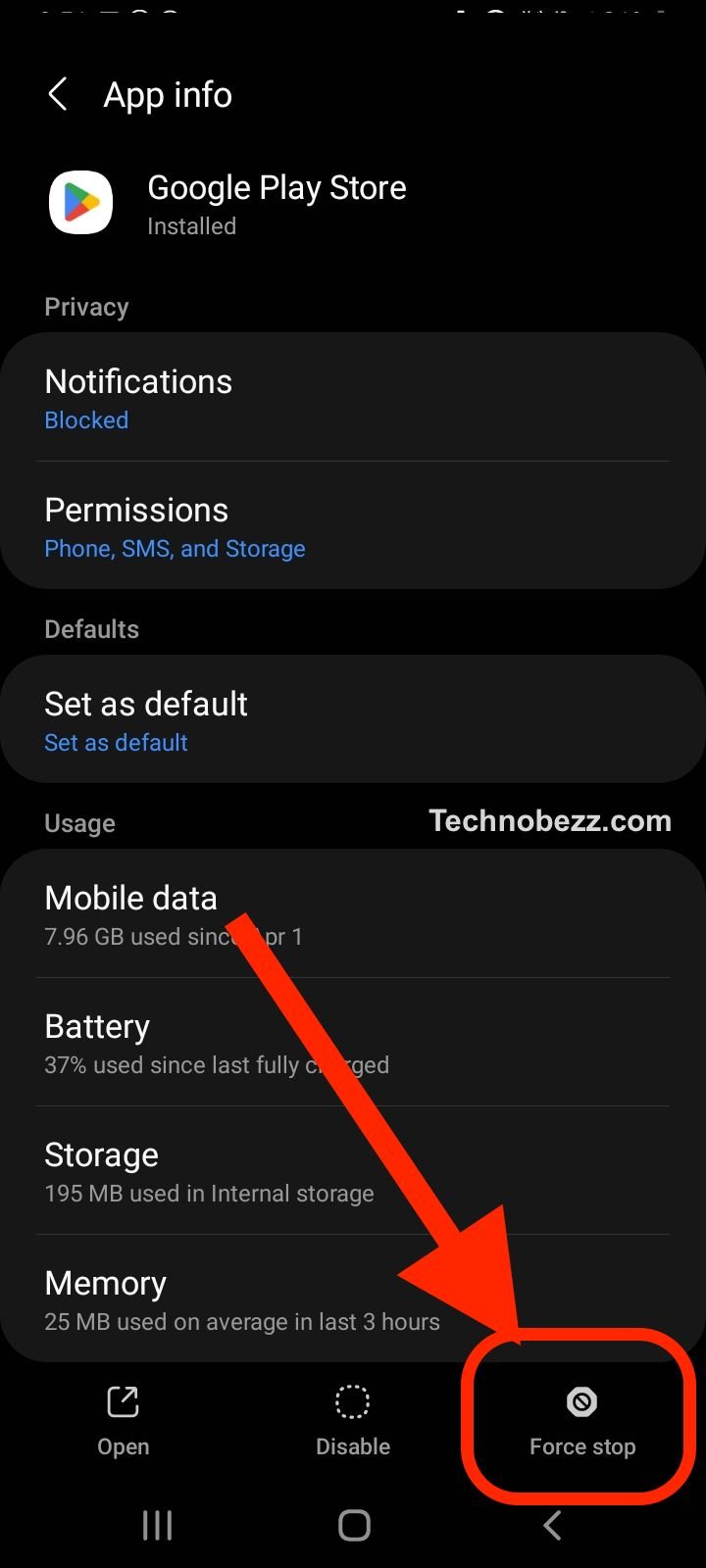
When the app still hangs after a normal close, force stop it instead. This guarantees every part of the app shuts down rather than lingering in the background.
Settings > Apps > [the app] > Force stop
Update the App
Developers push updates that fix the exact bugs causing crashes, so running an old version is a frequent and overlooked cause. Keep your apps current through the Google Play Store, and on Samsung phones check the Galaxy Store too for any preinstalled Samsung apps.
- 1.Open the Google Play Store
- 2.Tap your profile icon in the top right
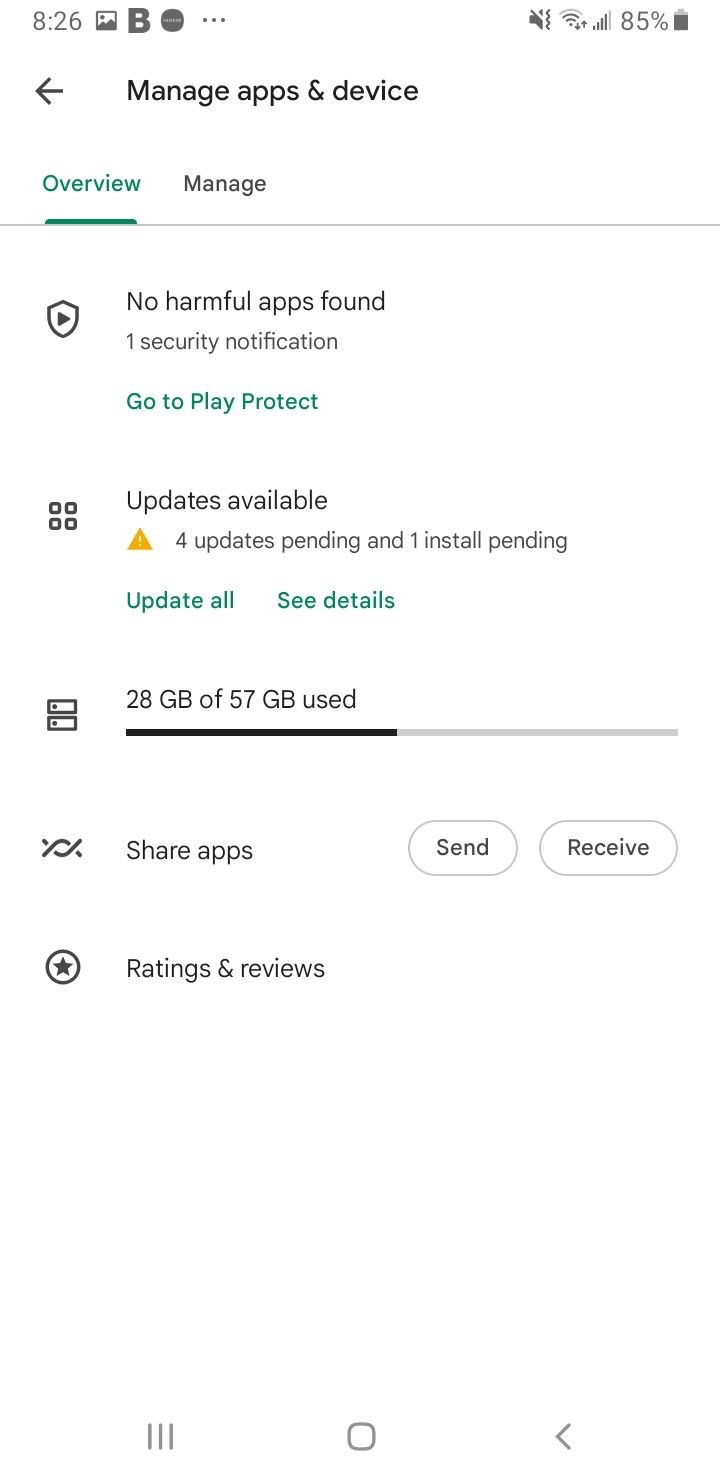
- 3.Tap Manage apps & device
- 4.Under Updates available, tap Update next to the app, or tap Update all
Check Your Internet Connection
Apps that stream, sync, or load content can freeze or crash when the connection drops mid request. Rule this out before digging into the app itself.
Toggle Airplane mode on and off to reset the radios, then test the app again. If you are on Wi-Fi, try switching to mobile data or restarting your router, since the problem may be the network rather than the app.
Clear the App Cache and Data
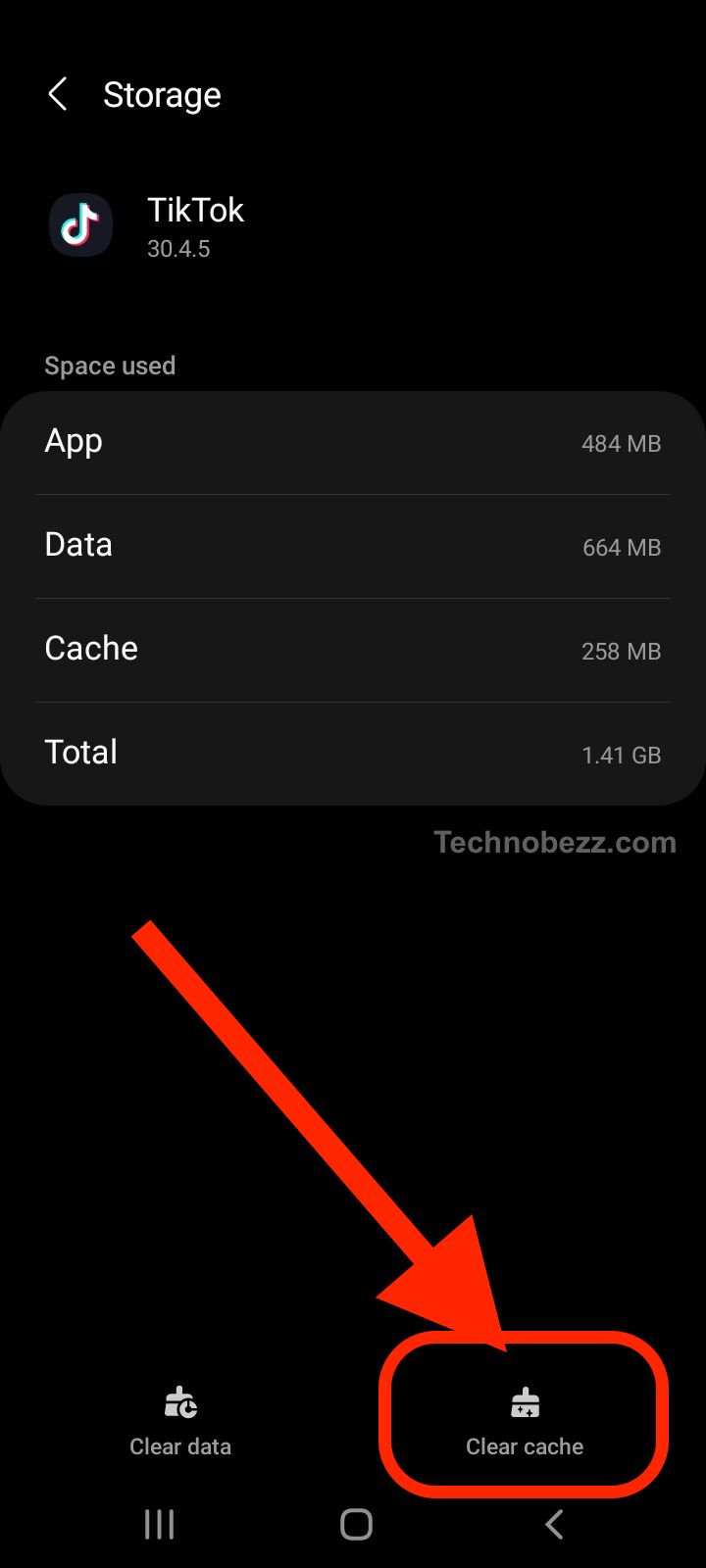
The cache stores temporary files to make an app load faster, but those files can become corrupted and trigger crashes. Clearing the cache is safe and removes nothing personal, so try it before anything more drastic.
Settings > Apps > [the app] > Storage > Clear cache
If clearing the cache does not help, return to the same Storage screen and tap Clear data or Clear storage. This resets the app to its fresh-install state, which means it will sign you out and erase in-app settings, so use it when the cache fix fails.
Free Up Storage Space
When internal storage is nearly full, apps cannot write the temporary files they need and start crashing. Aim to keep at least a couple of gigabytes free.
Open Settings > Storage to see what is using space, then uninstall apps you no longer use, delete large videos, and clear your Downloads folder. Moving photos and videos to a cloud service such as Google Photos frees space without losing the files.
Update Android and Google Play Services
System updates patch the underlying software that every app depends on, and an out-of-date system can break apps that have already moved on. Check for an update and install whatever is available.
Settings > System > System update
On many Samsung phones the path is Settings > Software update > Download and install. It is also worth updating Google Play services and the Play system update, found under Settings > About phone > Software information > Google Play system update on Samsung, since outdated Play components cause widespread crashing.
Check App Permissions
An app denied a permission it needs, such as storage or camera access, can crash the instant it tries to use that feature. This is easy to overlook after a fresh install or a system update.
Settings > Apps > [the app] > Permissions
Review the permissions the app requests and grant any that the feature genuinely requires. Re-launch the app and test the part that was crashing.
Reinstall the App
If one specific app keeps crashing after the steps above, a clean reinstall replaces any damaged files from the original installation. This is more thorough than clearing data because it removes the app completely first.
- 1.Touch and hold the app icon
- 2.Tap Uninstall, or drag it to Uninstall, then confirm
- 3.Reopen the Google Play Store and reinstall the app
Sign back in and check whether the crashes are gone. A reinstall pulls the latest version, which often resolves issues an in-place update could not.
Boot Into Safe Mode
Safe mode starts your phone with only the built-in system apps and disables everything you installed. If crashes stop in safe mode, a downloaded app is the cause, and you can pin down which one.
The button combination to enter safe mode varies by phone, so check your manufacturer's support site, but it usually involves holding the Power button, then touching and holding the Power off option until a Safe mode prompt appears. Note that safe mode removes some home screen widgets, so take a screenshot first if you want to restore them later.
While in safe mode, uninstall recently added apps one at a time and restart normally after each one to find the offender. Restart your phone normally to exit safe mode.
Factory Reset as a Last Resort
If apps across your whole phone keep crashing and nothing else works, a factory reset erases the device and rebuilds it from scratch. This removes deep software corruption but also deletes everything, so it is genuinely a last step.
Back up your photos, contacts, and files first, since this cannot be undone. When you are ready, go to Settings > System > Reset options > Erase all data (factory reset), or on Samsung, Settings > General management > Reset > Factory data reset.
After the reset, sign back in and reinstall apps gradually rather than restoring everything at once. Adding them a few at a time makes any single problem app easy to spot.
Frequently Asked Questions
Why does the same app keep crashing right after I open it?
This usually points to a corrupted cache, an outdated version, or a missing permission. Clear the app's cache, update it from the Play Store, and check its permissions before reinstalling it.
Will clearing app data delete my photos or account?
Clearing the cache deletes nothing personal. Clearing data or storage resets the app to its default state and signs you out, but it does not touch photos and files saved to your phone's gallery or storage.
What does it mean when many apps crash at once?
When several apps misbehave together, the cause is usually system level rather than one app. Update Android and Google Play services, free up storage, and restart, then use safe mode to confirm a downloaded app is not to blame.
How do I stop apps from crashing in the future?
Keep both your apps and Android system updated, leave a few gigabytes of free storage, and restart your phone every so often. Avoid installing apps from unknown sources, which are more likely to be unstable.
Does a weak internet connection cause apps to freeze?
Yes. Apps that stream or sync can freeze or crash when the connection drops. Toggle Airplane mode off and on, or switch between Wi-Fi and mobile data, to rule out the network.
First published October 17, 2025. Last updated June 4, 2026.