You glance at your phone, see a red dot or a number on your Messages icon, open the app, and everything is already read. That phantom unread badge is one of the most common Android annoyances, and it usually points to a stuck badge counter, a hidden conversation, or a notification setting that quietly drifted out of place.
This guide walks you through 15 fixes, ordered from the quickest taps to the deeper resets. Most people clear the problem in the first three or four steps, so start at the top and stop as soon as the badge disappears.
The steps work across Samsung Galaxy, Google Pixel, Xiaomi, and most other Android phones. Where a setting lives in a different place by brand, you will see a short note for it.
Read more - Android Not Receiving Texts From iPhones? Here's How to Fix It
Match Your Symptom to the Fastest Fix
Not every notification problem has the same cause. Use this quick guide to jump to the fix most likely to work for your exact symptom, then fall back to the full list if it persists.
- Ghost badge that will not clear: search for unread messages (Fix 1), then clear the Badge Provider on Samsung (Fix 5).
- No notifications at all: re-enable app notifications and badges (Fix 3) and check Do Not Disturb (Fix 4).
- Delayed or late notifications: turn off battery optimization for your messaging app (Fix 9).
- Badge stuck after you cleared the panel: clear the messaging app cache (Fix 6) and reset app preferences (Fix 11).
Search for Unread Messages
Before changing any settings, find the message the badge is pointing at. A single unread text inside an old or archived thread will keep the counter alive even when your inbox looks empty.
In Google Messages, open the app and tap the search bar at the top, then type Unread. The app surfaces conversations that match, helping you spot threads that are buried far down the list.
Open each result, let it load fully, and the badge should drop. This one step resolves the phantom badge for a large share of people.
Check Archived and Spam Folders
Google Messages can quietly move conversations into Archived or Spam, and an unread message sitting in either place still counts toward your badge. These threads do not appear in your main list, so they are easy to miss.
To check archived chats, open Google Messages, tap More (the three dot menu near the top), then tap Archived. Touch and hold any conversation and tap Unarchive to bring it back, or open it to mark it read.
Next, tap your profile photo in the top corner and choose Spam & blocked. Clearing or reading those hidden messages removes the count they were adding.
Re-enable App Notifications and Badges
If you get no notifications at all, or the badge never shows when it should, confirm notifications and badges are actually turned on for the app.
Go to Settings > Notifications > App notifications, tap your messaging app, and make sure the main notification toggle is on. On Samsung the path is Settings > Notifications > App notifications, and on Pixel it is Settings > Notifications > App settings.
Then enable the badge itself. On Pixel and stock Android go to Settings > Notifications and turn on Notification dot on app icon. On Samsung go to Settings > Notifications > Advanced settings > App icon badges and turn it on.
Check Do Not Disturb and Modes
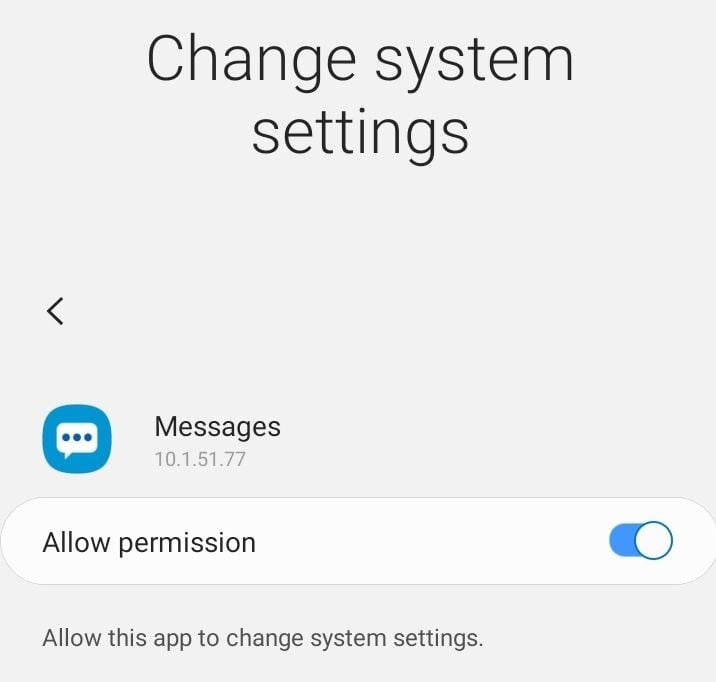
Do Not Disturb silences alerts and can hide badges, and it sometimes switches on through a schedule or a routine without you noticing. On newer Android versions this lives under Modes alongside Bedtime and Driving.
Open Settings > Notifications > Do Not Disturb (or Settings > Modes & routines on recent Samsung phones) and confirm it is off. Also check that no schedule is turning it on automatically at certain hours.
While you are there, turn off any aggressive Power Saving or battery mode, since those can hold back background activity and delay or suppress message alerts.

Clear the Badge Provider on Samsung
Samsung phones use a hidden system component called Badge Provider to track the unread counters on app icons. When it gets confused, it can show a count that no message actually matches, and clearing its storage resets the counter.
Go to Settings > Apps, tap the menu (three dots, top right), and choose Show system apps. Find and tap BadgeProvider, open Storage, then tap Clear cache followed by Clear data.
Restart the phone afterward. This only resets badge tracking, so your messages and personal data stay untouched.
Clear the Messages App Cache
A corrupted cache can make the messaging app report a wrong unread count. Clearing the cache forces it to rebuild that data from your actual conversations.
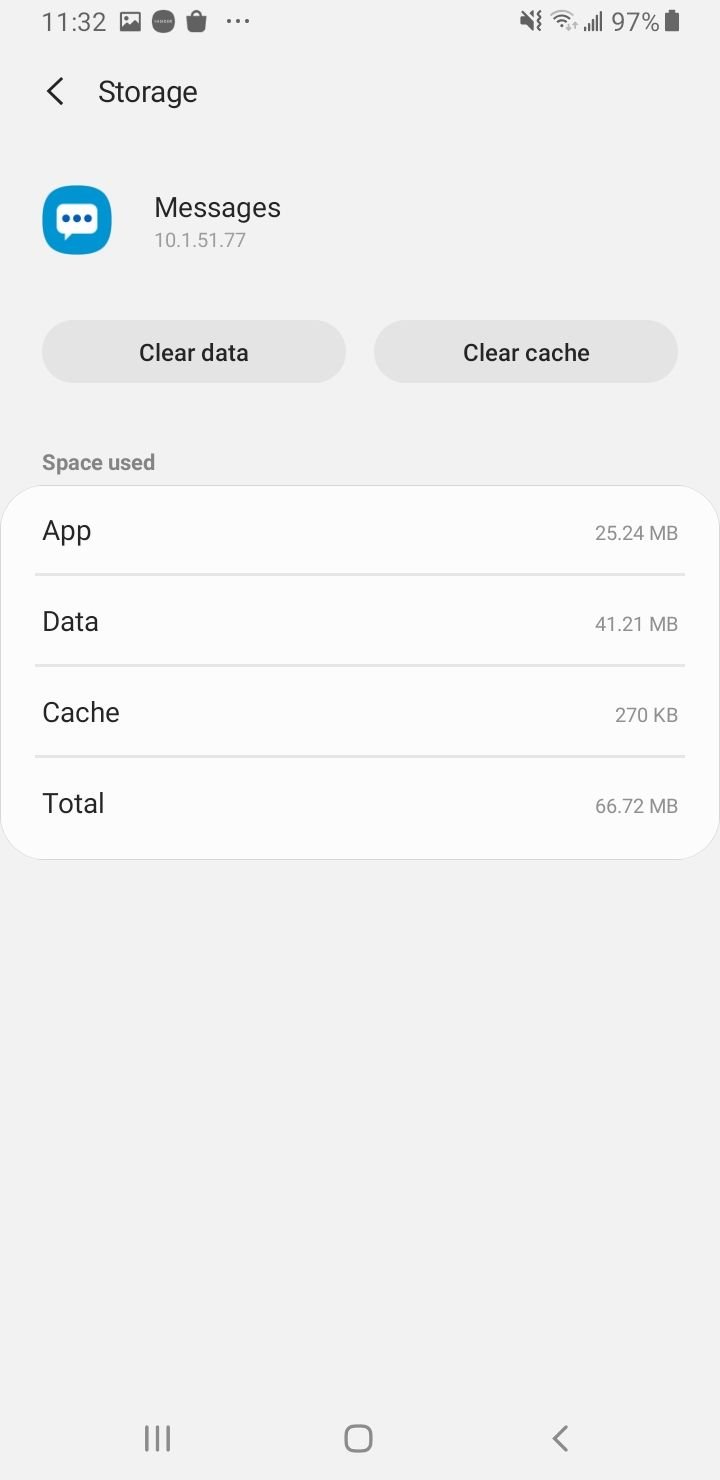
- 1.Go to Settings > Apps
- 2.Find and tap your messaging app (Messages, Google Messages, or Samsung Messages)
- 3.Tap Storage
- 4.Tap Clear cache first and reopen the app to test
Clearing cache only removes temporary files and never touches your texts. Clearing data is more drastic and can remove conversations, especially RCS chats, so use it only as a last step and back up your messages first.
Force Stop and Relaunch the App
Sometimes the app just needs a clean restart to drop a stuck counter. Force stopping fully closes it instead of leaving it half-running in the background.
Go to Settings > Apps, tap your messaging app, and tap Force stop. Confirm, then open the app again from your home screen.
This clears a temporary glitch in the app process and is safe to do anytime. None of your conversations are affected.
Restart Your Phone
A full restart clears temporary system files and resets app states, which fixes a surprising number of false badge and notification problems. It is the cheapest deep fix you can try.
Hold the power button (or Power plus Volume Up on phones without a dedicated power menu) and tap Restart. If your phone lacks a restart option, power it off, wait a few seconds, and turn it back on.
Give it a minute to settle after it boots, then check whether the badge is gone.
Turn Off Battery Optimization for Messaging Apps
Aggressive battery management is a leading cause of late or missing notifications. When the system puts a messaging app to sleep, it can only check for messages occasionally, so alerts arrive late or never appear.
On stock Android, go to Settings > Apps, tap your messaging app, tap Battery (or App battery usage), and set it to Unrestricted. This lets the app run and deliver notifications in real time.
On Samsung, open Settings > Battery > Background usage limits, and make sure your messaging app is not in the Sleeping or Deep sleeping list. Add it to Never sleeping apps so One UI always lets it run in the background.
Confirm Background Activity Is Allowed
Messaging apps need permission to work in the background to push notifications the moment a message arrives. If that permission is off, alerts queue up until you open the app, which can look like a phantom badge.
Go to Settings > Apps, tap your messaging app, and open Mobile data or Battery, then make sure Allow background activity or Background data is enabled. On some phones this sits under App battery usage as Allow background usage.
With background activity on and battery optimization off, the app can sync the moment a message lands and clear its own badge correctly.
Reset App Preferences
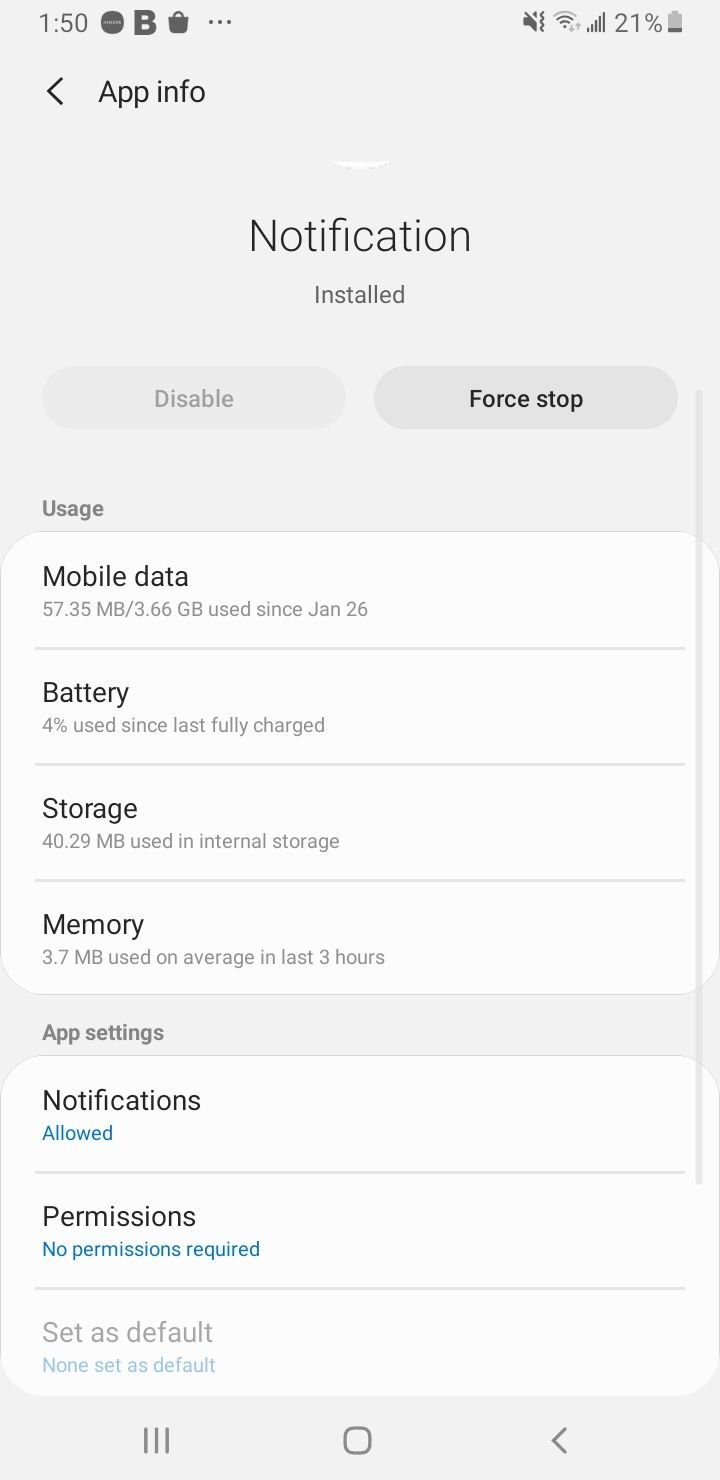
Resetting app preferences restores notification, default-app, and permission settings to their factory state across the whole system, which clears settings that drifted out of place without touching any of your data.
Go to Settings > Apps, tap the menu (three dots, top right), and choose Reset app preferences, then confirm with Reset apps. On Pixel you can also reach it through Settings > System > Reset options > Reset app preferences.
This re-enables any disabled system apps and resets notification toggles, so it is a clean way to fix a badge that survived the steps above. None of your messages, photos, or accounts are removed.
Update Your Apps and Software
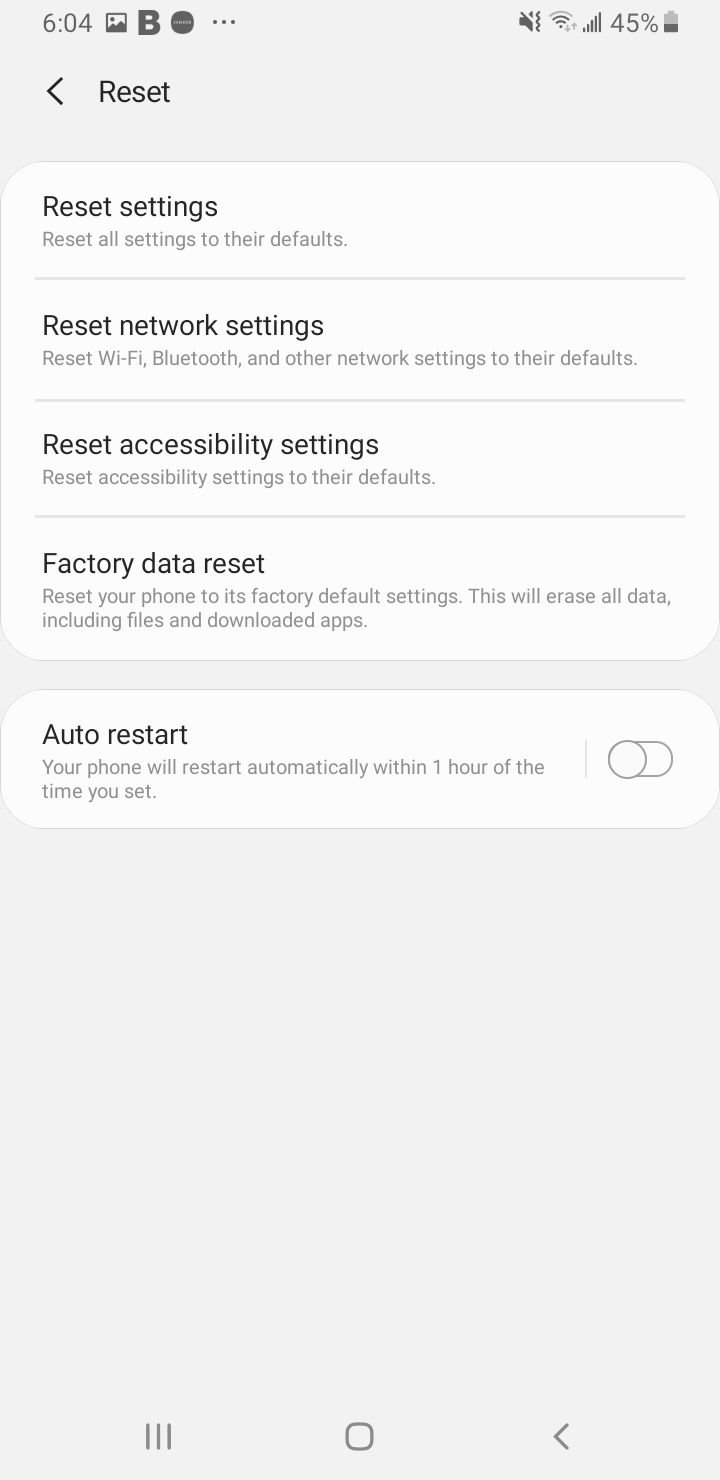
Badge and notification bugs are common enough that vendors patch them in updates. Running the latest app and system versions clears known issues you would otherwise have to work around.
Update your messaging app in the Play Store by searching for it and tapping Update if it appears. Then check Settings > Software update (Samsung) or Settings > System > System update (Pixel) and install anything pending.
Restart once the updates finish so the new code takes effect cleanly.
Wipe the Cache Partition in Recovery
For deeper system glitches, wiping the cache partition clears temporary system files without deleting any personal data. This is more thorough than clearing a single app cache and can fix odd notification behavior.
Power the phone off, then hold the hardware key combination for your model to reach recovery. On many phones you press and hold Power plus Volume Up, releasing when the logo appears.
Use the volume keys to highlight Wipe cache partition, select it with the power key, then choose Reboot system now. Some recent phones, including newer Samsung Galaxy models, have removed this option from recovery, so skip this step if you do not see it and look up the recovery combination for your specific phone.
Test for a Rogue App in Safe Mode
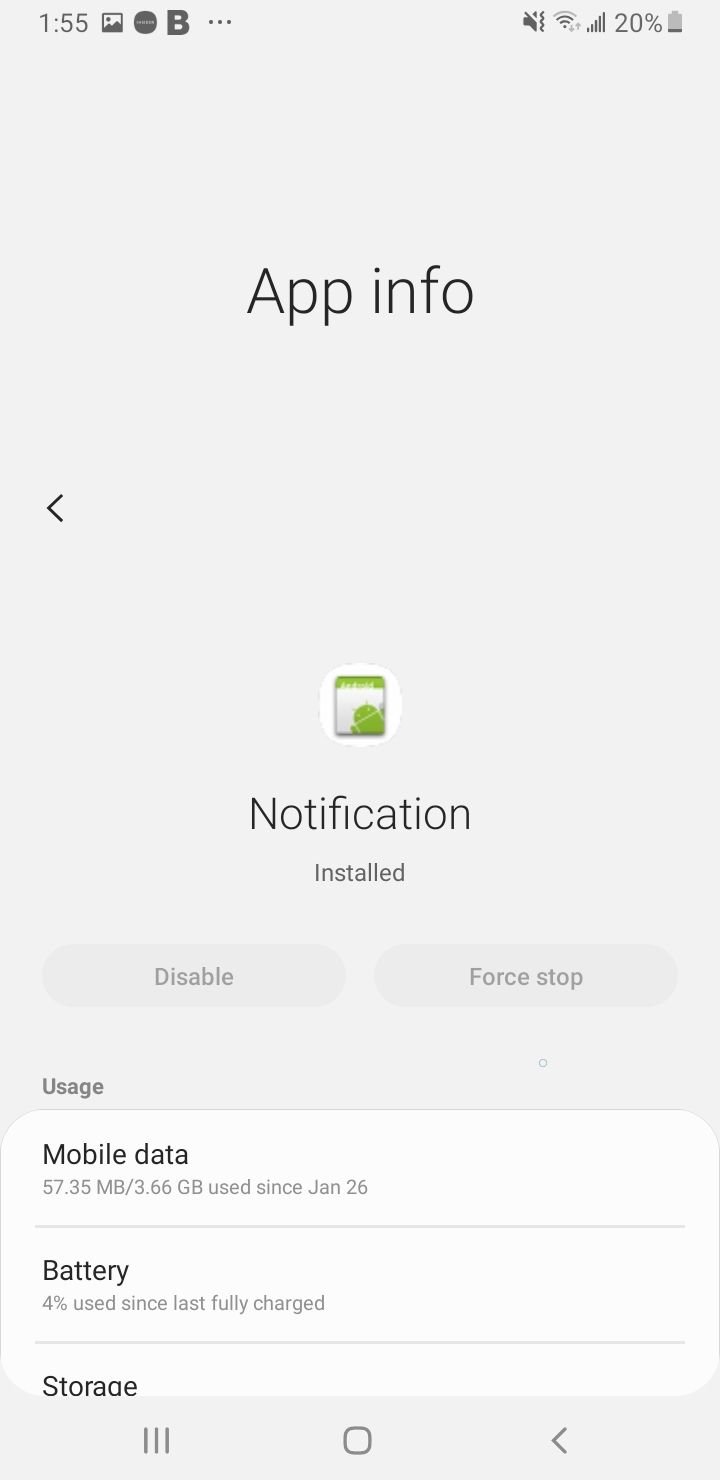
Safe mode boots your phone with only the apps that came pre-installed, so any badge or notification problem caused by a third-party app disappears. If the phantom badge is gone in safe mode, an installed app is the culprit.
On Samsung, power off, then power on and hold Volume Down until the phone finishes booting and you see Safe mode in the bottom corner. On Pixel, press and hold Power plus Volume Up, then touch and hold Power off and confirm to restart in safe mode.
Watch your icon badges in safe mode. If the issue is gone, restart normally and uninstall recently added apps one at a time, especially launchers, cleaner apps, and alternative SMS apps, until the badge stops returning.
Reset All Settings as a Last Resort
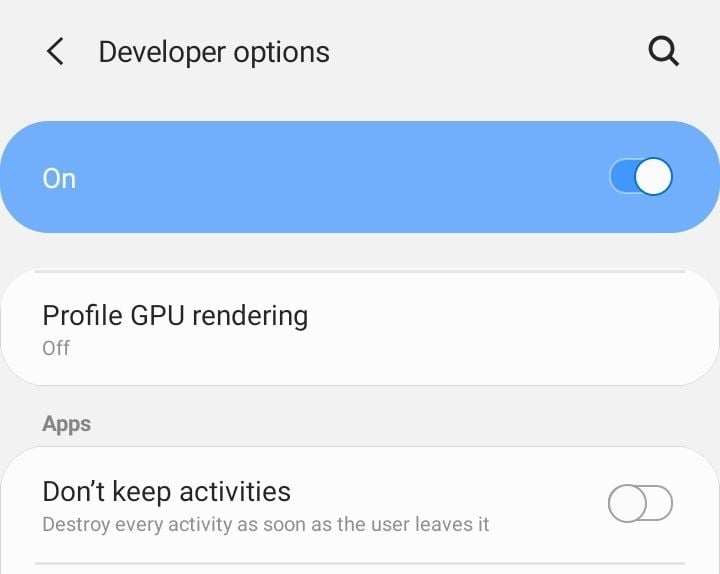
If nothing above works, resetting all settings returns every system setting to default while keeping your apps, messages, and files. It is the strongest fix that does not erase your phone.
On Samsung, go to Settings > General management > Reset > Reset settings. On Pixel and most other phones, go to Settings > System > Reset options > Reset all settings.
If even that fails and the badge clearly comes from one app, a factory reset is the final option, but back up your data first and treat it as the true last resort.
Read more - How to Fix Samsung Sound Issues When Speaker Not Working
Frequently Asked Questions
Why does my Android show an unread message that isn't there?
The most common cause is a stuck badge counter or an unread message hidden in an old, archived, or spam thread. Searching for Unread in Google Messages can help surface it, and clearing the messaging app cache or the Samsung Badge Provider resets a counter that is stuck.
How do I clear a stuck notification badge?
Open the app and read any pending message first. If the badge stays, clear the app cache under Settings > Apps > (your app) > Storage, and on Samsung clear the BadgeProvider system app, then restart the phone.
Why are my Android notifications delayed?
Battery optimization is a frequent cause. Set your messaging app to Unrestricted under its Battery settings, and on Samsung add it to the Never sleeping apps list under Settings > Battery > Background usage limits so the system stops putting it to sleep.
Will clearing app data delete my text messages?
Clearing cache only removes temporary files and is safe. Clearing data is different and can remove conversations, especially RCS chats, so back up your messages first. SMS stored on your SIM or in a Google or Samsung backup can usually be restored afterward.
Why do I see a badge but get no notification sound or banner?
Do Not Disturb or a power-saving mode is likely silencing alerts. Turn off Do Not Disturb under Settings > Notifications, disable any schedule that activates it, and confirm the app's notifications are fully enabled.
How do I find hidden unread messages on Android?
In Google Messages, tap the search bar and type Unread to surface matching conversations. Also check the Archived folder from the More menu and the Spam & blocked folder from your profile photo, since unread messages there still add to your badge count.
First published October 17, 2025. Last updated June 4, 2026.