When your iPhone touch screen stops responding, becomes laggy, or feels too sensitive, it can be hard to do anything at all. The screen might ignore your taps, freeze on one app, or even register touches you never made.
A browser based online touch test paints the screen as you touch it, which makes dead zones and ghost touches easy to see and document.
Most touch problems come from a temporary software glitch, a charging or accessory issue, or moisture on the glass. The good news is that the majority can be cleared with the steps below before you pay for a repair.
Work through these fixes in order, starting with the quickest. Each one is safe to try, and the early steps will not delete any of your data.
Check the Quick Causes First
Before you assume the screen is broken, rule out the simple things. A small amount of moisture, dirt, or a stray accessory is one of the most common reasons a touch screen acts up.
- Dry your hands and the screen. Water is conductive, so even a thin film of moisture can block your taps or trigger phantom ones.
- Remove gloves and warm up cold hands. The screen reads the natural conductivity of your skin, which gloves and very cold fingers interrupt.
- Back up your data now. A few of the later steps can erase the phone, so a current iCloud or computer backup protects you before you go further.
If the screen responds at all, take a backup while you still can. If it is completely frozen, keep reading, because a force restart later will not erase anything.
Clean the Screen the Right Way
A dirty or greasy screen genuinely interferes with touch detection, and cleaning it costs nothing. Do it carefully so you do not scratch the glass or push liquid into the ports.
- Turn off your iPhone and unplug it from any power source first.
- Use a soft, lint-free microfiber cloth, never a paper towel or rough fabric.
- If you need a cleaning solution, apply a little to the cloth, not directly to the screen.
- Wipe gently in small circles without pressing hard, then let it dry fully before testing.
Once the glass is clean and dry, test the spots that were unresponsive. If the whole screen still ignores you, move on.
Remove Cases and Screen Protectors
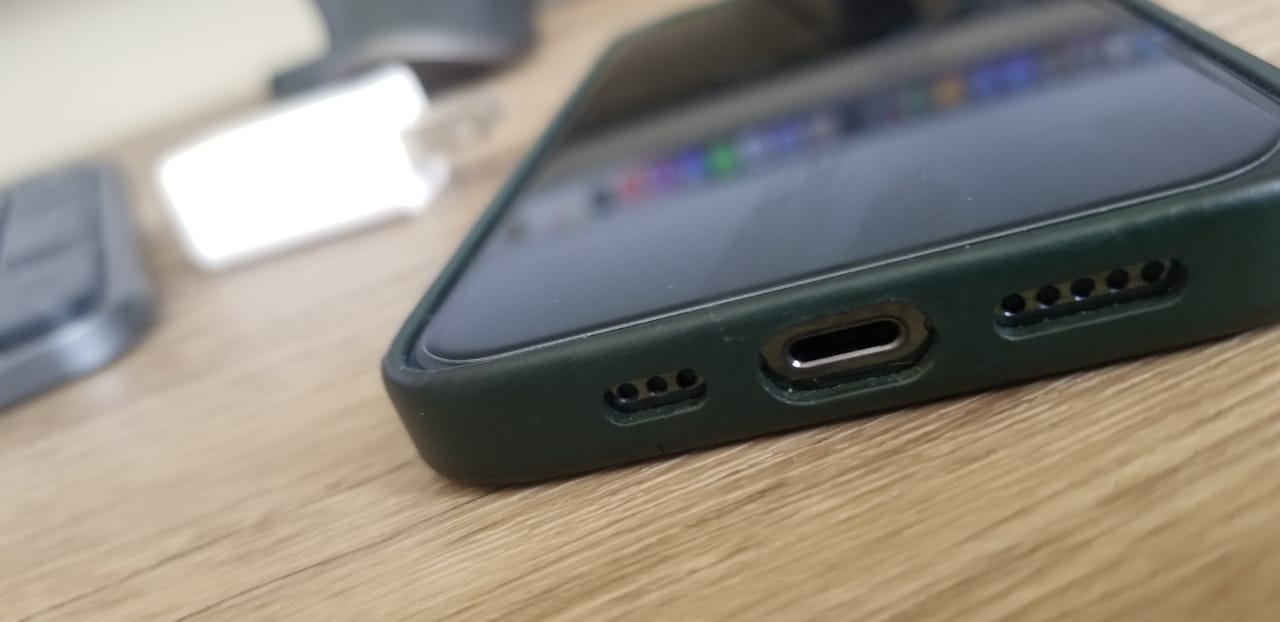
A thick tempered-glass protector, a poorly applied film with trapped bubbles, or a bulky case edge can all sit between your finger and the digitizer. This is an easy thing to overlook because the protector looks fine.
Take off the case and peel back the screen protector, then test the touch response on bare glass. If the problem disappears, replace the protector with a thinner, well-fitted one and check that the case is not pressing on the screen edges.
Use a Certified Charger and Cable
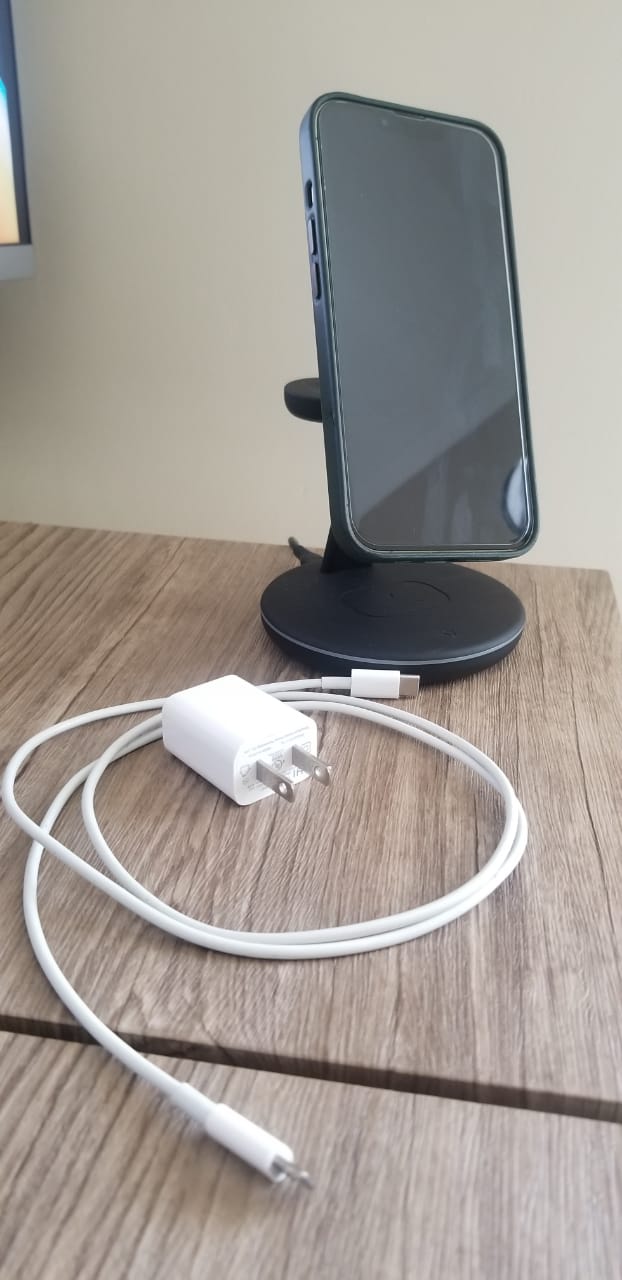
Touch issues that appear only while charging are often caused by the power source, not the screen. A cheap or damaged charger can send inconsistent current that confuses the touch layer and creates erratic or ghost touches.
Unplug your iPhone and see if the screen behaves normally on battery. If it does, switch to an Apple-certified (MFi) cable and adapter, and avoid no-name chargers going forward.
Restart Your iPhone
If the screen still responds at all, a normal restart clears many temporary glitches. The exact buttons depend on your model.
- Press and hold the side button (and a volume button on Face ID models) until the power-off slider appears.
- Drag the slider to turn the iPhone off.
- Wait about 30 seconds, then hold the side button again until the Apple logo appears.
If your screen is too unresponsive to drag the slider, skip ahead to a force restart instead.
Force Restart When the Screen Is Frozen
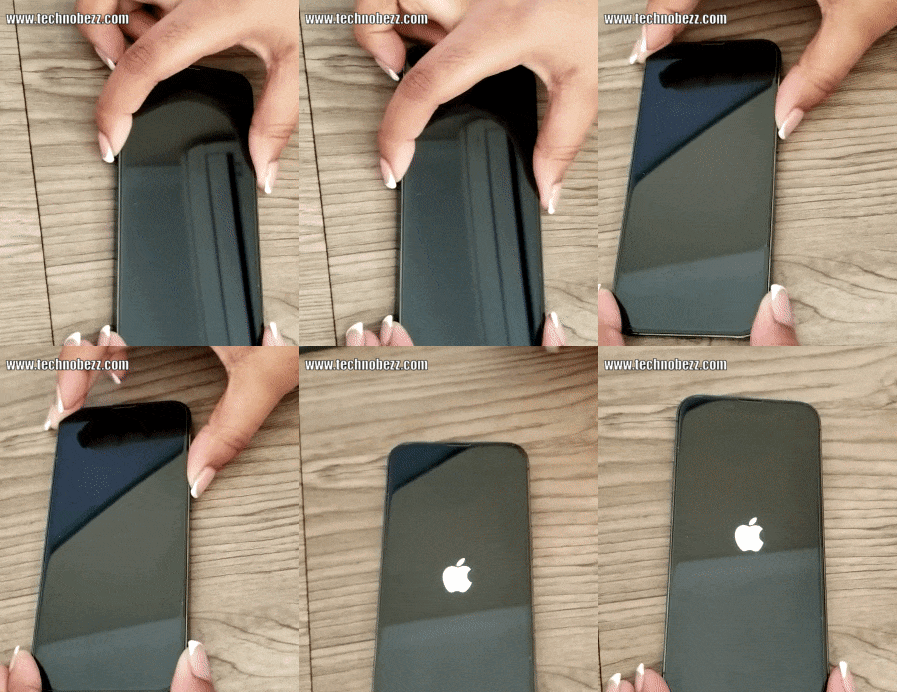
A force restart is the single most effective fix for a frozen or fully unresponsive touch screen, and it works without needing the screen at all. It clears the device's temporary memory and will not delete your data.
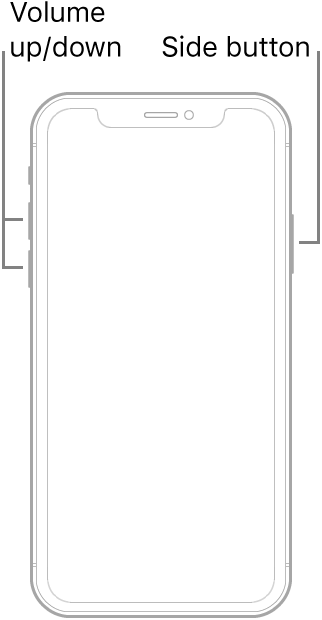
iPhone 8 and later, including iPhone SE second generation and newer:
- Press and quickly release the volume up button.
- Press and quickly release the volume down button.
- Press and hold the side button until the Apple logo appears, which can take more than 10 seconds.
iPhone 7 and 7 Plus:
- Press and hold the volume down button and the side button at the same time.
- Keep holding until the Apple logo appears, then release.
iPhone 6s and earlier, including iPhone SE first generation:
- Press and hold the Home button and the top or side button together.
- Keep holding until the Apple logo appears, then release.
Update iOS to the Latest Version
An outdated version of iOS can carry bugs that cause lag, missed taps, or ghost touches, and Apple regularly ships fixes for exactly these problems. If your screen responds well enough to navigate, install any pending update.
Go to Settings > General > Software Update and tap Download and Install if an update is available. Keep your iPhone charged and connected to Wi-Fi until it finishes.
If the touch screen is too unreliable to reach that menu, you can update through a computer using the recovery-mode steps further down.
Update or Remove a Problem App
If the touch screen only misbehaves inside one app, the app is the likely cause rather than the phone. Outdated or buggy apps can freeze or hijack touch input.
- Open the App Store, tap your profile icon, and tap Update All to install pending updates.
- If a recently installed app started the trouble, touch and hold its icon, tap Remove App, then Delete App.
- Reinstall it later from the App Store once an updated version is available.
Restart the iPhone after updating or removing the app, then test the screen again.
Reset All Settings
If the problem follows you across apps and survives a restart, a settings reset clears misconfigured options without erasing your photos, messages, or apps. It is a good middle step before anything drastic.
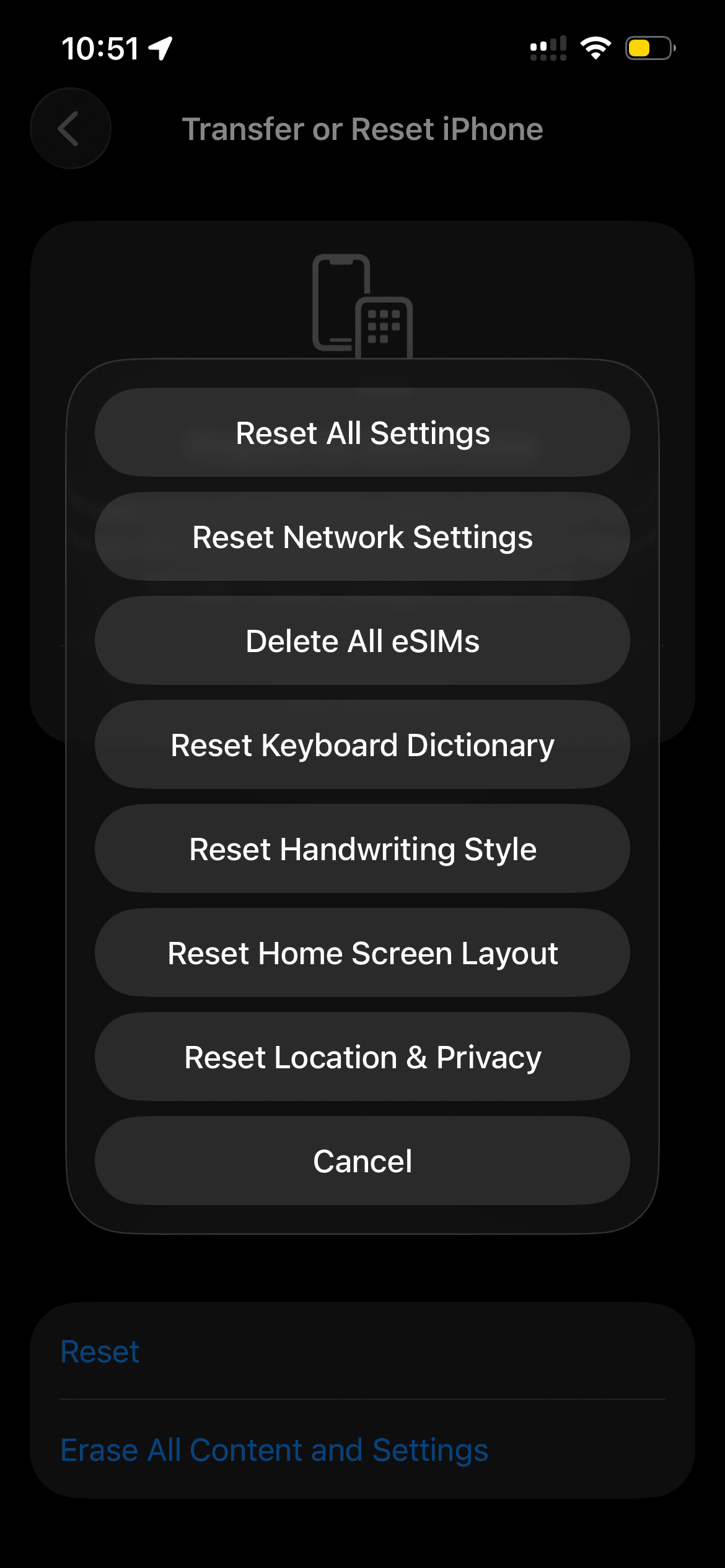
Go to Settings > General > Transfer or Reset iPhone > Reset, then tap Reset All Settings and enter your passcode to confirm. Your iPhone restarts with default settings, so you may need to reconnect Wi-Fi and adjust a few preferences afterward.
Restore Your iPhone With a Computer
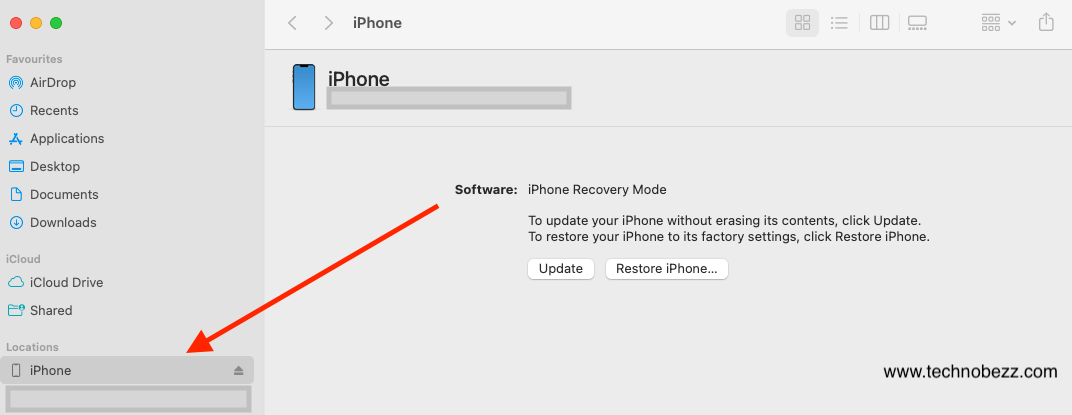
For stubborn touch problems that none of the above fixes, restoring through recovery mode reinstalls iOS cleanly and works even with an unresponsive screen. A restore erases the device, so use your recent backup, then connect to a computer to begin.
On a Mac, open Finder. On a Windows PC, open the Apple Devices app or iTunes. Then put the iPhone into recovery mode using the button sequence for your model.
Enter recovery mode (iPhone 8 and later):
- Connect the iPhone to the computer with a cable.
- Press and quickly release volume up, then volume down.
- Press and hold the side button and keep holding past the Apple logo until the recovery (connect to computer) screen appears.
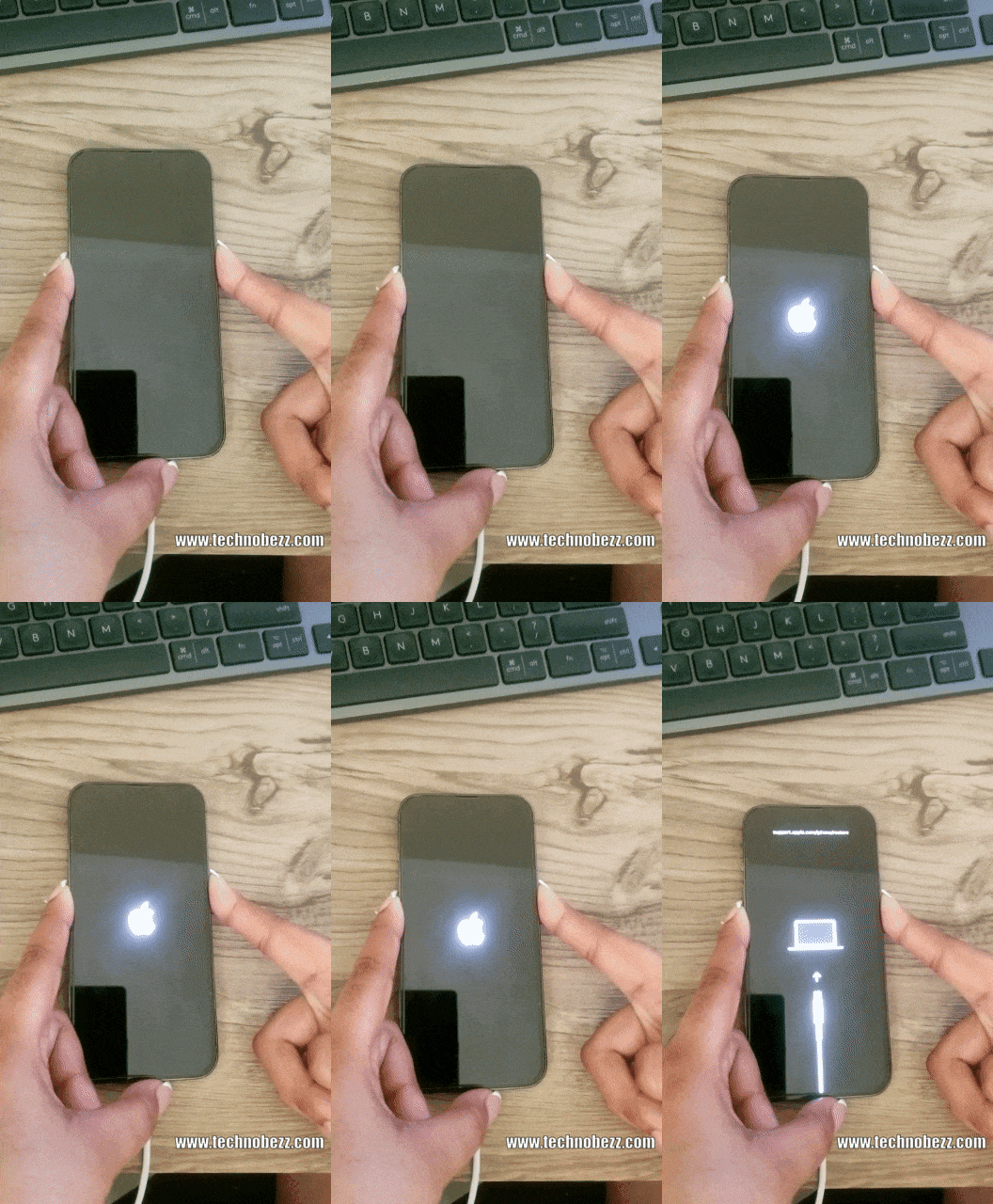
For iPhone 7 and 7 Plus, hold the volume down and side buttons together until the recovery screen appears. For iPhone 6s and earlier, hold the Home and top or side buttons together until it appears.
Update or restore:
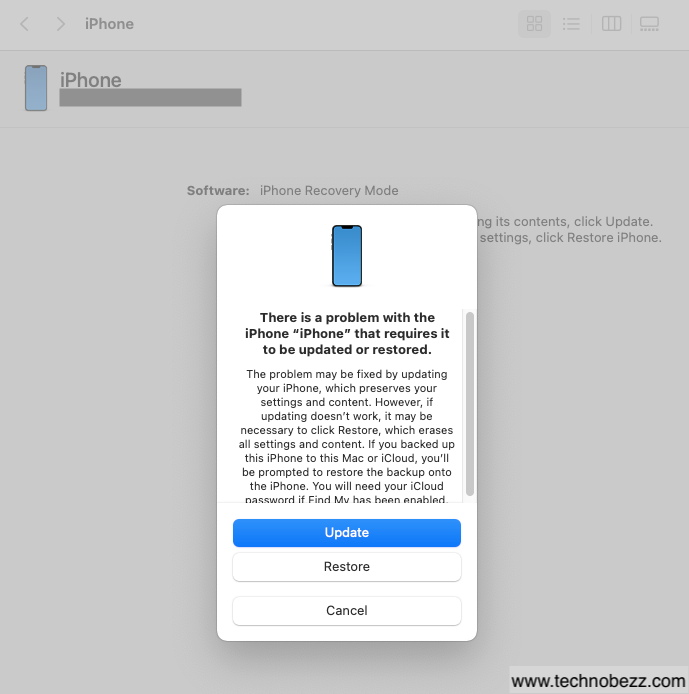
- Select your iPhone in Finder, the Apple Devices app, or iTunes.
 Click to expand
- Choose Update first, which reinstalls iOS without erasing your data.
- If updating fails, choose Restore, which reinstalls iOS and erases everything, then set up from your backup.
When the Screen Is Still Dead
If the touch screen remains unresponsive after a restore, the cause is almost certainly hardware, such as a damaged digitizer, a loose internal connector, a cracked touch layer, or liquid damage. These cannot be fixed with software.
Book a visit with Apple Support or an Apple Authorized Service Provider for a proper diagnosis. If your iPhone is under warranty or covered by AppleCare, the repair may cost far less than you expect.
Frequently Asked Questions
Why is my iPhone touch screen not working at all
A completely unresponsive screen is usually a frozen software state, which a force restart fixes without erasing data. If a force restart and a restore both fail, the problem is likely hardware, such as a damaged digitizer or liquid damage, and needs service.
Does a force restart delete my data
No. A force restart only clears the iPhone's temporary memory and reboots the device. Your photos, apps, messages, and settings stay exactly as they were.
Why does my iPhone screen tap by itself
That is called ghost touch, and it is often caused by moisture on the glass, a faulty or non-certified charger, or a software bug. Dry the screen, switch to an Apple-certified charger, and update iOS to rule out the common causes.
Can a screen protector cause touch problems
Yes. A thick, low-quality, or poorly applied protector can block touch input or trap air bubbles that interfere with the digitizer. Remove it and test on bare glass, then fit a thinner, properly aligned replacement.
Why does my touch screen only fail while charging
Inconsistent current from a cheap or damaged charger can disrupt the touch layer. Unplug the phone to see if the screen recovers, then charge only with an Apple-certified (MFi) cable and adapter.
How do I restore my iPhone if the screen is unresponsive
Connect it to a computer, open Finder, the Apple Devices app, or iTunes, then enter recovery mode using the button sequence for your model. Choose Update first to keep your data, and only choose Restore if updating fails.
First published October 16, 2025. Last updated June 4, 2026.