
If your Xiaomi 15 is completely black and won't respond, the first thing to try is a force restart. Just press and hold the Power button for a solid 15 seconds or more. You should feel it vibrate and see the HyperOS logo appear as it reboots. I'd start with this one, as it clears temporary glitches without affecting your data.
Check Your Charger and Cable
A completely drained battery can make the phone seem dead. Plug it into a wall outlet using a known-good USB-C cable and a powerful charger. The Xiaomi 15 supports 90W HyperCharge, so if you have the official adapter, use it. Let it charge undisturbed for at least 30 minutes before trying the power button again.
If you don't see a charging indicator light or symbol, try a different cable and power brick. Sometimes the issue is just a worn-out cable that can't deliver enough power. Also, if you're using wireless charging, make sure the pad is plugged in and the phone is centered correctly on it.
Boot Into Safe Mode
If the phone turns on but gets stuck on the Xiaomi logo or in a loop, a recently installed app might be the culprit. Booting into Safe Mode temporarily disables all third-party apps. To do this, press and hold the Power button until the power menu appears.
Then, tap and hold the "Power off" option on your screen. A prompt to reboot to Safe Mode should pop up, tap "OK". If your phone starts up normally in Safe Mode, you'll see "Safe Mode" in the bottom corner. You can then go to Settings > Apps and uninstall any apps you installed just before the problem began.
Wipe the Cache Partition
Corrupted system cache files from apps or an update can cause boot problems. Clearing this cache is a safe step that won't delete your personal photos or files. First, power the phone off completely. Then, press and hold the Volume Up button and the Power button together.
Hold them until the Mi Recovery menu appears (you'll see a little robot with "No Command" text). Use the Volume buttons to scroll to "Wipe data" and press the Power button to select it. On the next screen, choose "Wipe cache" and confirm. Once it's done, select "Reboot" to start your phone normally.
Check for a Software Update via Recovery
Sometimes a failed or incomplete system update can leave the phone in a bad state. You can try to sideload an update through the same Recovery menu. You'll need to download the correct update package for your specific Xiaomi 15 model from Xiaomi's official website onto a computer.
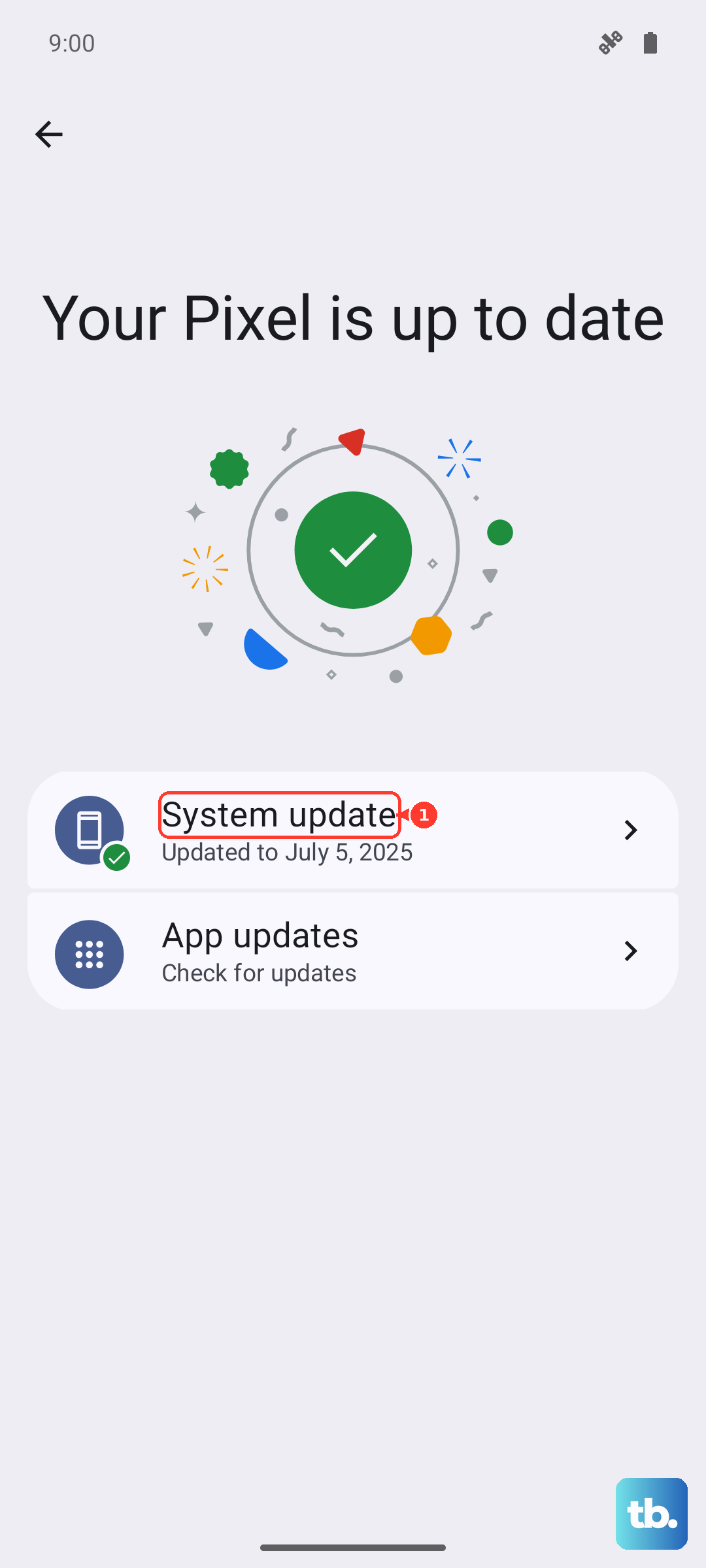
With the phone off, boot back into the Mi Recovery mode (Volume Up + Power). Connect the phone to your computer with a USB cable. In the Recovery menu, select "Install update to System" or a similar option, then navigate to the update file you downloaded. This process can replace corrupted system files and get you booting again.
Inspect for Physical Damage
Take a close look at your phone. If it was recently dropped or got wet, the problem could be physical. Check the USB-C port for any lint, debris, or bent pins that could prevent charging. Use a can of compressed air or a plastic toothpick to gently clean it out.
Also, feel the phone after it's been charging for a bit. If it's completely cold, it might not be receiving any power at all. If it's excessively hot, that could indicate a battery or motherboard issue, which is more serious.
Perform a Factory Reset
This is your last resort before seeking repair, as it will erase everything on your phone. Make sure you've exhausted the other options first. To do this from Recovery, power off the phone and boot into the Mi Recovery menu again with Volume Up and Power.
Navigate to "Wipe data" and select it. This time, choose "Wipe all data" or "Factory reset". Confirm your choice and wait for the process to complete. Afterwards, select "Reboot". Your phone will start up as if it were brand new, and if the problem was software-related, this should resolve it.
Consider the Power Source and Environment
The Snapdragon 8 Elite chip in the Xiaomi 15 is powerful but can run hot during intense tasks. In rare cases, if the phone overheated, it might have shut down to protect itself and could be slow to respond. Let it cool down in a shaded place for an hour before trying to charge or turn it on again.
Also, if you're in a region where the phone didn't come with a charger in the box, ensure any third-party charger you're using supports the necessary power delivery (PD) protocols. A cheap, underpowered charger might trickle-charge so slowly that the phone appears dead for a very long time.