
When your Xiaomi 15 goes silent, it's usually a quick software hiccup rather than a hardware failure. The combination of Android 15 and HyperOS 2 is powerful, but occasional UI glitches can sometimes affect the audio system. I'd start with the simplest checks first, as they resolve the majority of sound issues.
To separate hardware from software, open a online speaker test and play the channel tones. What you hear, or do not hear, tells you which fixes below matter most.
Check Your Volume and Sound Mode
First, press the volume up button on the side of your phone. If you see a volume slider on screen but hear nothing, the issue might be deeper. While you're pressing the button, look at the icon next to the slider. If it shows a bell with a line through it, your phone is in silent mode.
To change this, pull down the notification shade from the top of your screen twice to see the full quick settings panel. Look for a tile labeled Silent or one with a bell icon and tap it to switch back to Sound or Vibrate mode. You can also go into Settings > Sound & vibration to manage this.
Disconnect Bluetooth and Accessories
Your Xiaomi 15 might be trying to send audio to a paired device. Swipe down the notification shade and look for the Bluetooth icon. If it's blue or highlighted, tap it to turn Bluetooth off completely.
Also, unplug any headphones or USB-C accessories. Some cases, especially rugged ones, can also partially block the bottom-firing speaker grill. Try removing your case temporarily to see if sound returns.
Restart Your Phone
A simple reboot clears out temporary system errors that can mute audio. Just hold the power button until the power menu appears, then tap Restart. Wait for the phone to cycle off and back on.
If the screen is unresponsive or the restart option doesn't work, you'll need to force a reboot. Press and hold the power button for 15 seconds or longer. Keep holding it until you feel a vibration and see the Xiaomi logo, then release. This force restart is a reliable first step for many HyperOS glitches.
Check App-Specific Sound Settings
Sometimes the problem is isolated to one app, like your music player or YouTube. Open the app that's having no sound and start playing media. Then, press the volume up button.
A separate volume slider for that specific app should appear. Make sure it's turned up. Also, within apps like YouTube or Netflix, check the video player itself for a mute icon. If other apps produce sound just fine, the issue is likely with that single application's settings or cache.
Clean the Speaker Grill
The main speaker on the Xiaomi 15 is a slim slit along the bottom edge. Lint from your pocket can easily get packed in there. Power off your phone first for safety.
Use a soft, clean, dry toothbrush or a small brush with soft bristles. Gently brush across the speaker grill to dislodge any debris. You can also use a can of compressed air, but hold it upright and use very short bursts from a few inches away to avoid causing moisture damage.
Review Do Not Disturb and Schedules
HyperOS has flexible Do Not Disturb rules that can sometimes stay active. Go to Settings > Sound & vibration > Do Not Disturb.
Make sure the main toggle at the top is switched off. Also, scroll down and check Schedules. A scheduled DND period could be the reason your sound mysteriously turns off and on at certain times.
Boot Into Safe Mode
This starts your phone with all third-party apps disabled. If sound works in Safe Mode, a recently downloaded app is causing a conflict. To enter Safe Mode, press and hold the power button until the power menu appears.
Then, tap and hold the Power off option on your screen. A prompt will appear asking if you want to reboot to Safe Mode. Tap OK. Your phone will restart with "Safe Mode" visible in the bottom corner. Test your sound with a ringtone or video.
To exit Safe Mode, just restart your phone normally. If the sound works here, you'll need to uninstall apps one by one, starting with the most recent, to find the culprit.
Clear the Cache for Sound-Related Services
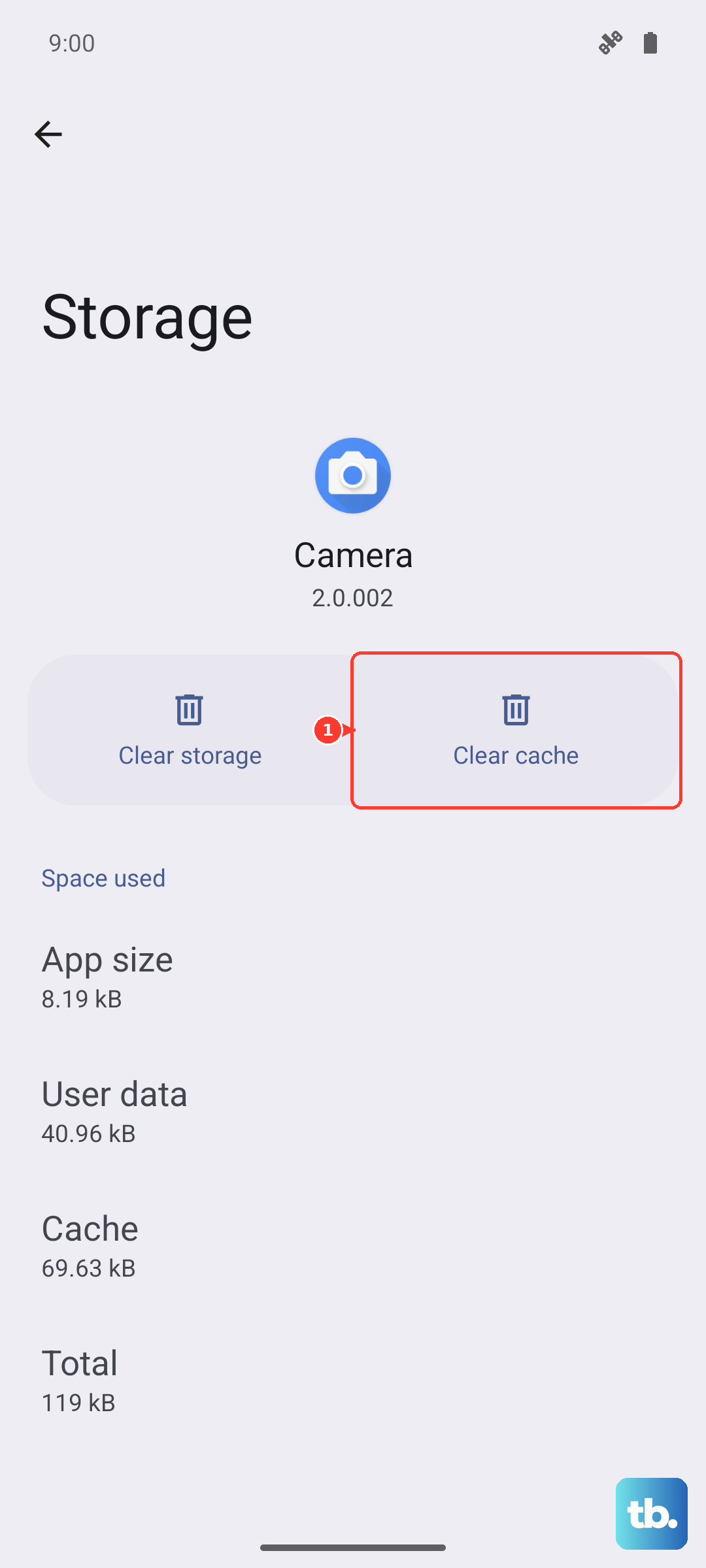
Corrupted cache data in system services can break audio. Go to Settings > Apps > Manage apps. Tap the three-dot menu in the top right and select Show system apps.
Now, find and tap on Android System. On its info page, select Storage usage at the bottom, then tap Clear cache. Do not tap "Clear data". Repeat this process for the app named Media Storage. Restart your phone after clearing these caches.
Check for a Software Update
Xiaomi frequently releases updates to fix bugs in HyperOS. An update might contain a specific patch for your audio issue. Connect to Wi-Fi and go to Settings > About phone > HyperOS version.
Tap the Check for updates button. If an update is available, I'd recommend installing it while your phone is plugged into its 90W HyperCharge adapter to ensure the process isn't interrupted.